
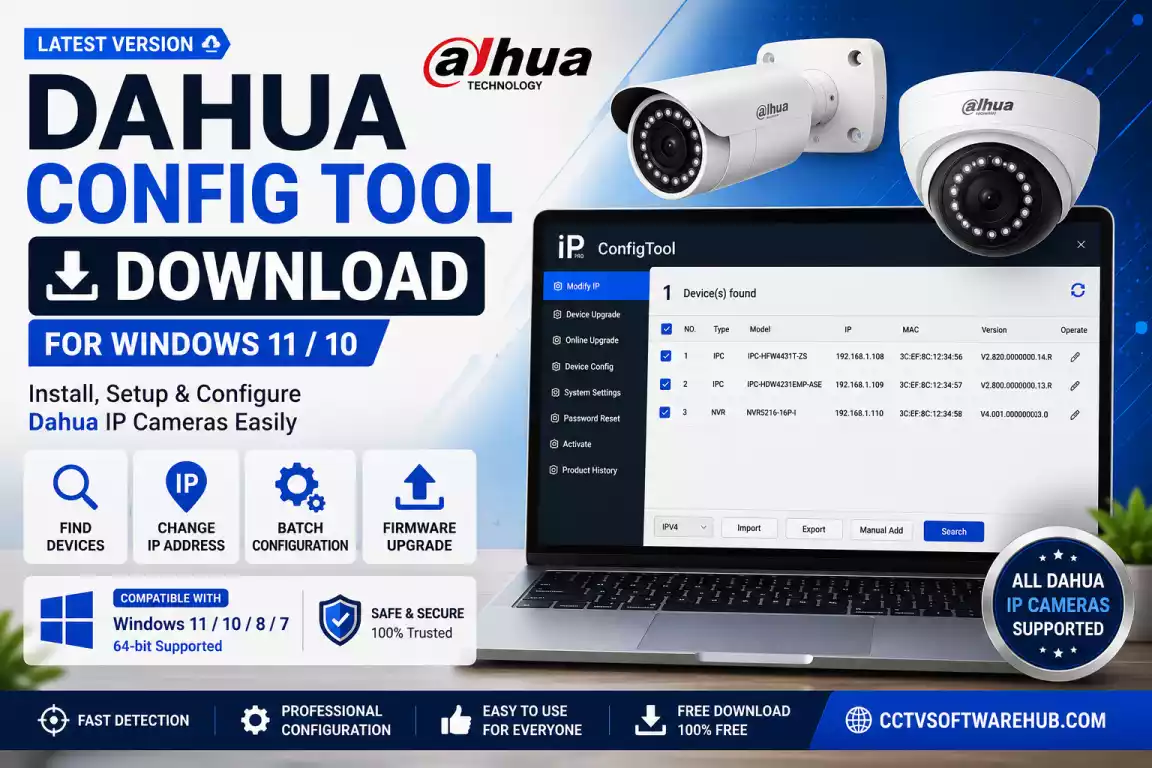
If you want to find, activate, initialize, or change the IP address of your Dahua IP camera, Dahua Config Tool is the easiest software to use. I personally use it whenever I install or troubleshoot Dahua cameras because it lets me discover devices, configure network settings, activate new cameras, and manage multiple devices from one place. In this guide, I’ll show you how to download the latest Dahua Config Tool, install it on Windows 11, and use every important feature with practical examples.
Setting up a new Dahua IP camera isn’t difficult, but it can become frustrating if your camera doesn’t appear on the network or has an unknown IP address. Many users spend hours trying to access a camera through a web browser without realizing that the camera hasn’t even been activated or is using a different subnet.
That’s exactly where Dahua Config Tool becomes useful.
Over the years, I’ve installed CCTV systems for homes, offices, shops, and warehouses, and this is one of the first tools I install on every laptop. Instead of guessing a camera’s IP address or manually scanning the network, I simply open ConfigTool and let it detect every compatible Dahua device connected to the network.
Whether you’re a homeowner setting up a single camera or a CCTV installer deploying dozens of cameras, this guide will walk you through everything you need to know—from downloading the software to activating cameras, changing IP addresses, troubleshooting detection issues, and configuring multiple devices at once.
Dahua Config Tool Download for Windows and Mac
| Software | Platform | Action |
|---|---|---|
| Dahua Config Tool Latest | Windows 11 / 10 (64-bit) | ⬇ Dahua Config Tool Download |
| Dahua Config Tool For MacOS | MacOS | ⬇ Download Dahua ConfigTool |
Disclaimer: I regularly verify the download files and keep this page updated whenever a new version is released. The download provided on this page is intended to help you access the latest available version safely. Before installing any software, I recommend scanning the file with your antivirus program and ensuring it matches your operating system. CCTV Software Hub is not affiliated with or endorsed by Dahua Technology.
If you prefer downloading directly from the manufacturer, you can also visit the Official Dahua Software Download Center.
Official Download:
Dahua Technology Software Download Center
Software Information
| Feature | Information |
|---|---|
| Software Name | Dahua Config Tool |
| Developer | Zhejiang Dahua Technology Co., Ltd. |
| Category | Device Discovery & Configuration Software |
| Supported OS | Windows 11, Windows 10, Windows 8.1, Windows 7 (32-bit & 64-bit) |
| Supported Devices | Dahua IP Cameras, NVRs, DVRs, Video Intercom Devices, Access Control Devices, VTO & VTH Devices |
| License | Free |
| Language Support | Multi-language |
| Latest Version | (Update regularly) |
| Network Requirement | Ethernet or Wi-Fi connection on the same LAN as Dahua devices |
What Is Dahua Config Tool?
Dahua Config Tool is a free utility developed by Dahua Technology that helps users discover, activate, configure, and manage Dahua IP cameras and network video recorders (NVRs) connected to the same local network.
Many people also search for it using names like:
- Dahua Config Tool download
- Dahua device discovery tool
- Dahua IP finder
- Dahua IP Config Tool
- Configuration Tool Dahua
- Dahua camera IP address finder
All of these refer to the same software.
Unlike manually accessing each camera through a browser, ConfigTool automatically scans your local network and displays compatible Dahua devices in one interface. From there, you can initialize new cameras, assign static IP addresses, modify network settings, upgrade firmware, and perform batch operations.
Key Features
| Feature | Description |
|---|---|
| Device Discovery | Automatically finds Dahua devices on your network. |
| Camera Activation | Activate new cameras before first use. |
| IP Address Management | Change IP addresses, subnet mask, and gateway. |
| Batch Configuration | Configure multiple cameras simultaneously. |
| Firmware Upgrade | Upgrade firmware for one or more devices. |
| Password Management | Modify passwords and manage credentials. |
| Device Initialization | Initialize factory-new cameras. |
| Network Information | View MAC address, firmware version, and device status. |
Why Should You Use Dahua Config Tool Instead of Configuring Cameras Manually?
Technically, you can configure many Dahua cameras through their web interface. However, that method assumes you already know the camera’s IP address and that your computer is on the same subnet.
In practice, that’s often not the case.
For example, I’ve seen installers receive brand-new cameras that were already assigned IP addresses outside the customer’s network range. Instead of manually changing my laptop’s IP settings to search for each device, I simply launch ConfigTool. Within seconds, it lists all detectable cameras, making the setup process much faster.
Here are some situations where ConfigTool saves a lot of time:
- You don’t know the camera’s IP address.
- You’re installing multiple cameras at once.
- A new camera needs activation before use.
- Several cameras require the same network settings.
- You want to upgrade firmware on multiple devices.
- You’re troubleshooting cameras that aren’t appearing in the NVR.
- You need to verify firmware versions and device information quickly.
For professional installers, these time savings can be significant, especially on larger installations with many cameras.
Is Dahua Config Tool Compatible with Windows 11?
Yes. Dahua Config Tool works well on Windows 11, and I’ve used it successfully on multiple Windows 11 systems without compatibility issues.
Whether you’re using Windows 11 Home or Windows 11 Pro, the software installs normally and detects Dahua devices as long as your computer and camera are connected to the same local network.
If Windows Firewall asks for permission during the first launch, allow the application to communicate on your private network. Otherwise, the software may not discover devices even though they’re physically connected.
Minimum System Requirements
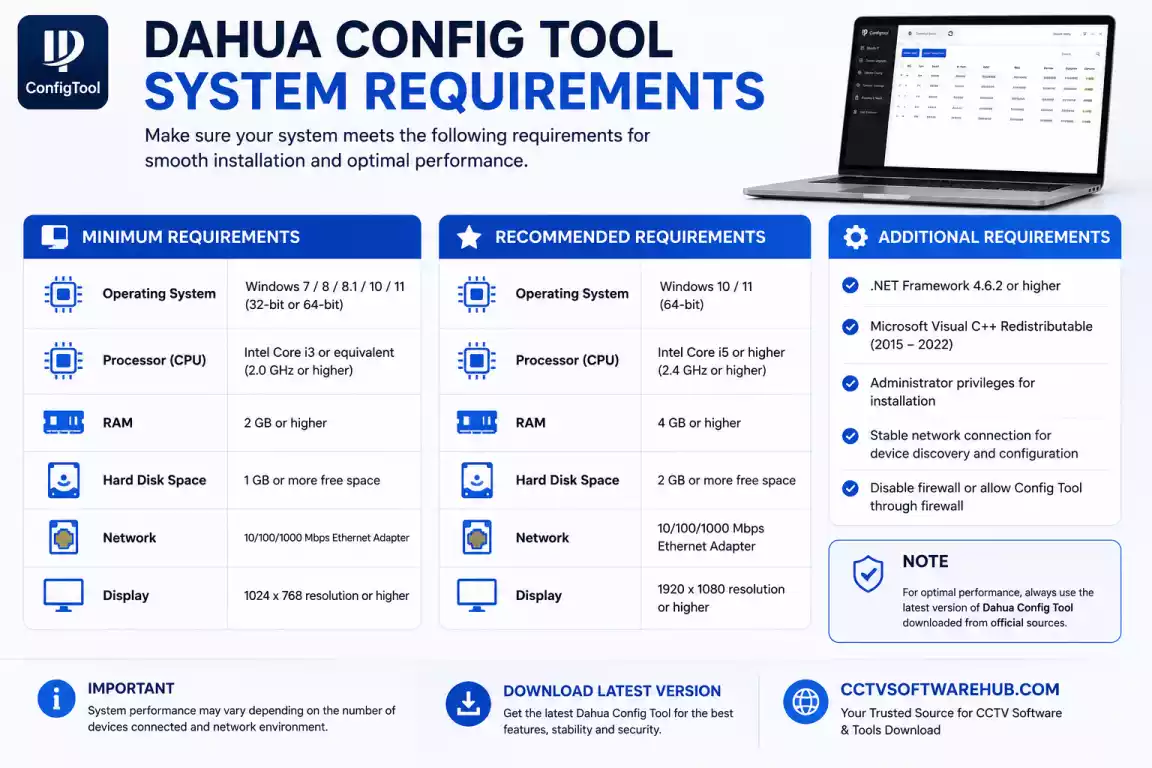
| Component | Requirement |
|---|---|
| Operating System | Windows 11, 10, 8.1, 7 |
| Processor | Intel Core i3 or higher |
| RAM | 4 GB minimum |
| Storage | 200 MB free space |
| Network | Ethernet or Wi-Fi connection to the same LAN |
| Permissions | Administrator recommended |
How Do You Install Dahua Config Tool on Windows 11?
Installing the software only takes a few minutes.
Step 1: Download the Installer
Download the latest version using the button provided above.
Step 2: Run the Installer
Locate the downloaded .exe file and double-click it.
If Windows displays a User Account Control (UAC) prompt, click Yes.
Step 3: Accept the License Agreement
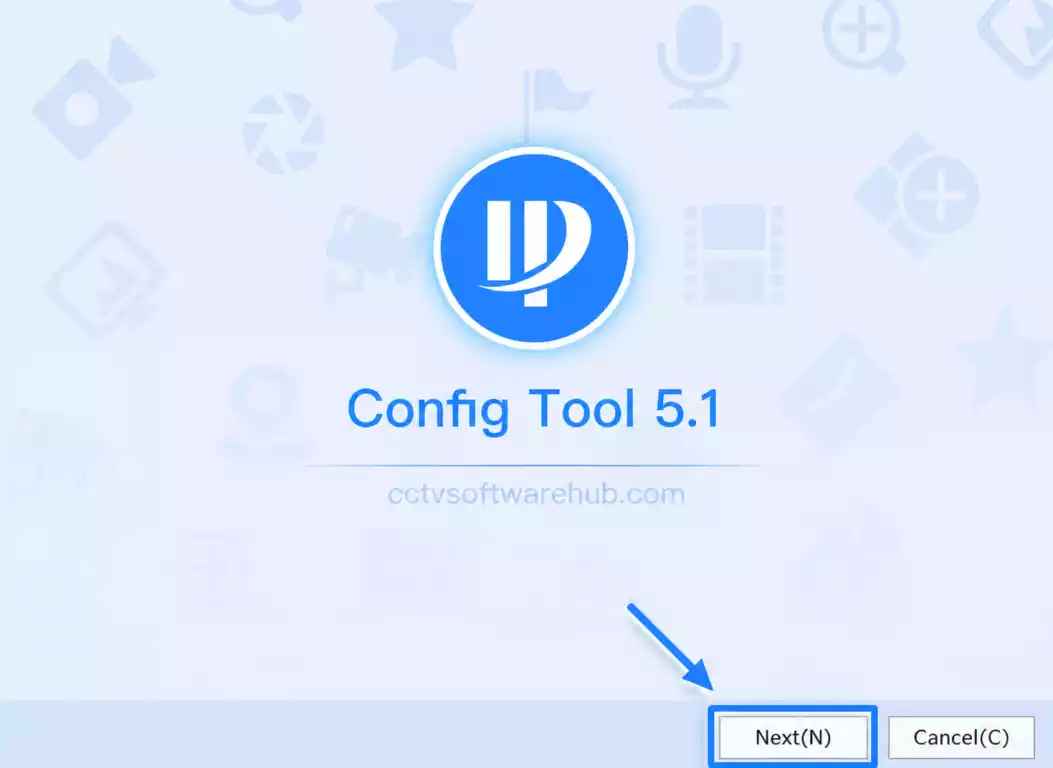
Read the license terms and continue to the next step.
Step 4: Choose the Installation Folder
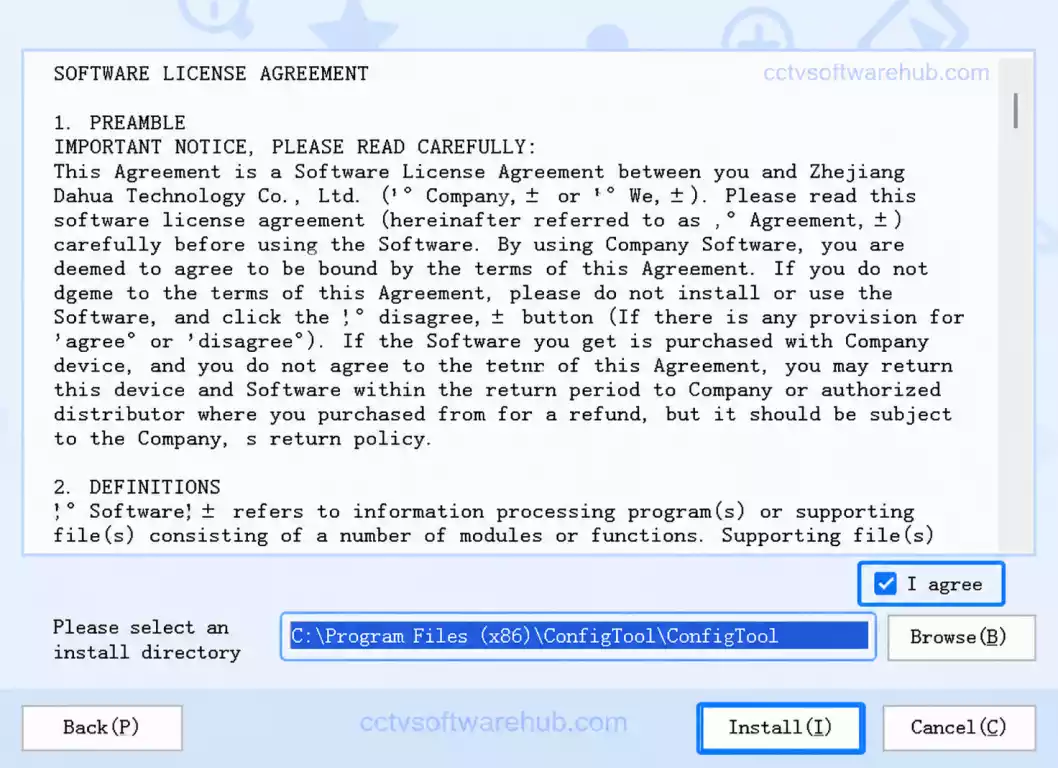
You can keep the default installation path unless you have a specific reason to change it.
Step 5: Start Installation
Click Install and wait while Windows copies the required files.
The installation usually completes within a minute on most modern computers.
Step 6: Launch ConfigTool
Once the installation finishes, open the software from the desktop shortcut or Start menu.
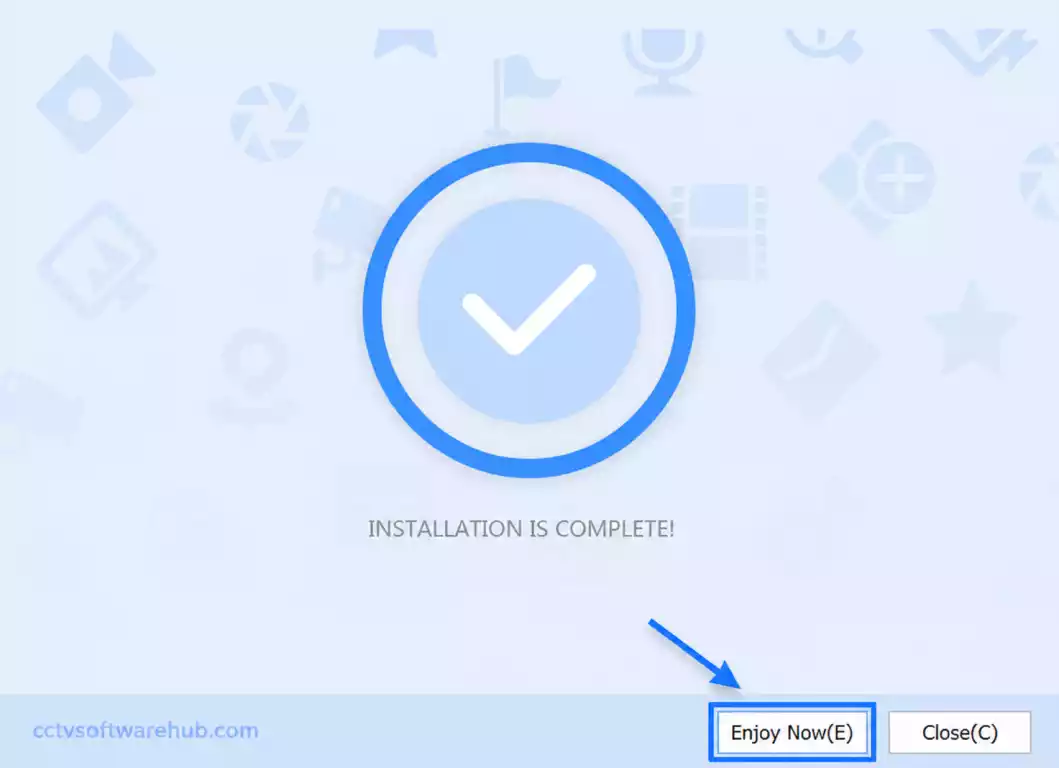
On the first launch, Windows Firewall may ask whether to allow network access. Click Allow so the software can detect cameras on your local network.
Step 7: Connect Your Camera
Connect your Dahua camera to the same router or PoE switch as your computer.
After a few seconds, click Refresh, and the software should display all supported Dahua devices found on your network.
My Tip: Whenever ConfigTool doesn’t find a newly connected camera, I first check whether my laptop and camera are connected to the same switch or router. In my experience, simple network mismatches are responsible for most detection problems.
How Do You Use Dahua Config Tool?
Once you’ve installed the software, the real advantage of Dahua Config Tool becomes clear. Instead of logging into each camera individually or guessing its IP address, you can discover and manage all compatible Dahua devices from a single dashboard.
Whenever I install a new CCTV system, this is the first application I open after connecting the cameras to the network. It helps me confirm that every device is online before I move on to NVR configuration or remote access.
Understanding the Main Interface
When you launch ConfigTool, you’ll see a list of all Dahua devices detected on your local network. Depending on your software version, the interface may include the following columns:
| Column | Description |
|---|---|
| Device Name | Camera or recorder model |
| IP Address | Current network IP |
| MAC Address | Unique hardware identifier |
| Status | Activated or Uninitialized |
| Firmware Version | Installed firmware version |
| Subnet Mask | Current subnet |
| Gateway | Default gateway |
| Port | HTTP service port |
| Device Type | IPC, NVR, DVR, etc. |
Most of your daily tasks can be completed directly from this screen.
Before You Start
Before scanning for devices, make sure:
- Your computer and camera are connected to the same router or PoE switch.
- The camera is powered on.
- The Ethernet cable is working properly.
- Windows Firewall isn’t blocking ConfigTool.
- You’re using an administrator account if required.
Skipping these checks is one of the most common reasons people think the software isn’t working.
How Does Dahua Config Tool Discover Cameras?
One of the best features of ConfigTool is its automatic device discovery.
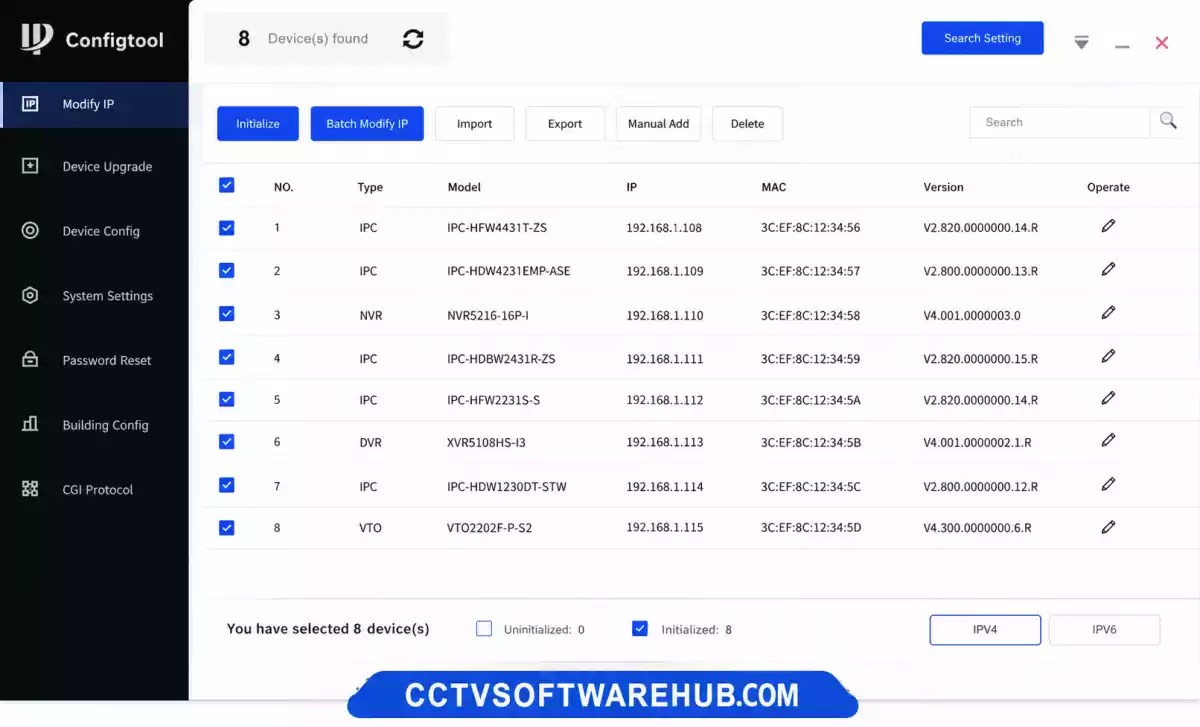
As soon as you click Refresh or Search, the software scans your local network for supported Dahua devices.
Unlike manually searching for IP addresses, it can quickly identify:
- New cameras
- Existing cameras
- NVRs
- DVRs (network models)
- Other supported Dahua devices
If everything is connected correctly, your camera should appear within a few seconds.
What Information Does It Display?
For each detected device, ConfigTool usually shows:
- Device Model
- Device Status
- Current IP Address
- MAC Address
- Firmware Version
- Device Port
- Activation Status
This information makes troubleshooting much easier because you can immediately identify devices with incorrect IP settings or outdated firmware.
My Tip
When installing multiple cameras, I always click Refresh once all devices are connected. This allows me to verify that every camera is visible before mounting them permanently. It saves a lot of time compared to discovering a missing camera after the installation is complete.
How Do You Initialize a New Dahua Camera?
A brand-new Dahua IP camera cannot be used immediately after connecting it to the network. It must first be initialized.
Initialization is a one-time process that prepares the camera for secure operation.
Step 1: Open ConfigTool
Launch the software and wait for it to detect the new device.
New cameras usually display a status such as:
- Uninitialized
- Inactive
Step 2: Select the Camera
Click the checkbox beside the camera you want to initialize.
Step 3: Click Initialize
Choose the Initialize option.
The software will ask you to:
- Create a strong administrator password.
- Confirm the password.
- Add recovery information if supported.
Step 4: Complete Initialization
Once finished, the device status changes from Uninitialized to Initialized or Activated, depending on the software version.
Your camera is now ready for configuration.
Password Tips
I recommend using a strong password that includes:
- Uppercase letters
- Lowercase letters
- Numbers
- Special characters
Avoid simple passwords like:
- admin123
- 12345678
- password
A strong password is especially important if you plan to access your cameras remotely.
How Do You Activate a Dahua Camera?
Many people confuse activation with initialization.
Although closely related, activation generally means enabling the camera for normal operation after creating its administrator credentials.
Steps to Activate
- Open ConfigTool.
- Select the inactive camera.
- Click Activate.
- Enter a secure administrator password.
- Confirm the password.
- Save the settings.
Within a few seconds, the camera becomes active and is ready for use.
Why Activation Matters
Without activation:
- You cannot log into the camera.
- The NVR may not detect it correctly.
- Web browser access won’t work.
- Remote viewing cannot be configured.
I always activate every camera before adding it to an NVR because it avoids authentication issues later.
After activating your camera with Dahua Config Tool, you can use DMSS for PC to view live video, play back recordings, and manage your surveillance system remotely from your computer.
How Can You Change the IP Address of a Dahua Camera?
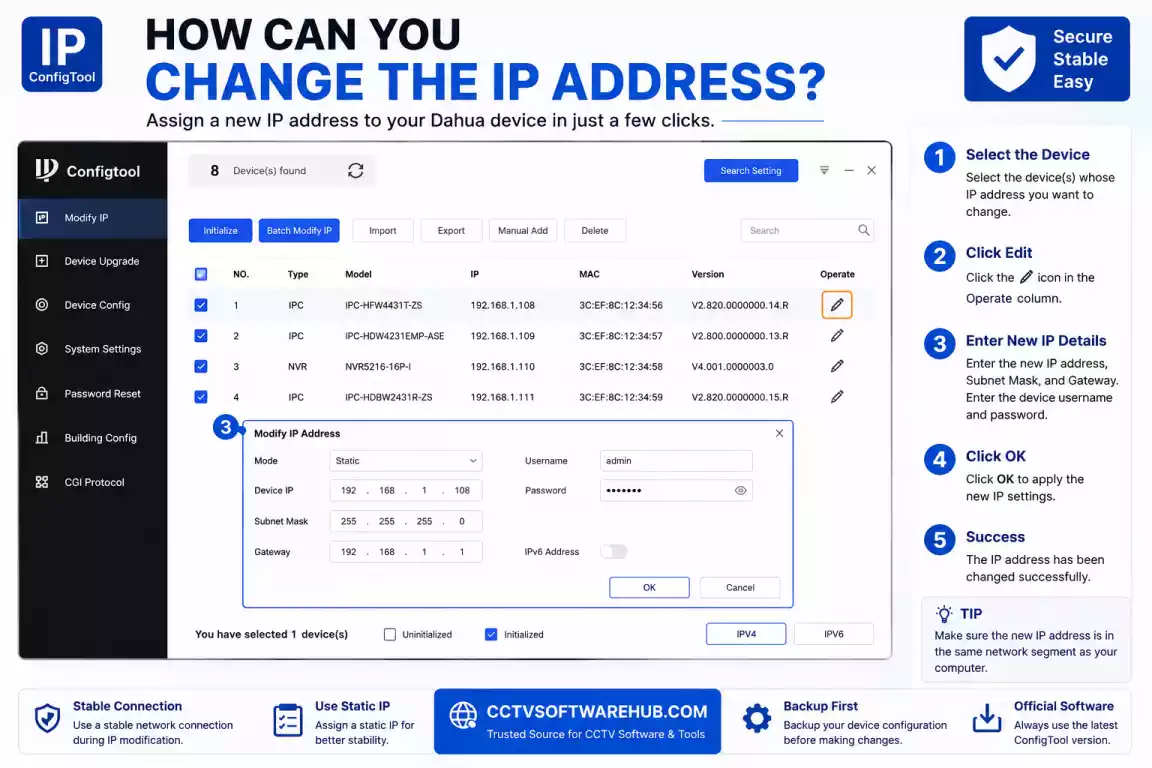
Changing the IP address is one of the most common reasons people download Dahua Config Tool.
For example, if your router uses the 192.168.1.x network but the camera is configured as 192.168.0.108, your computer won’t be able to communicate with it until both devices are on the same subnet.
ConfigTool makes this process quick and straightforward.
Step 1: Locate the Camera
Open ConfigTool and select the camera whose IP address you want to change.
Step 2: Open Network Settings
Click Modify IP or Network Configuration, depending on your ConfigTool version.
Step 3: Enter the New Network Details
Update the following information:
| Setting | Example |
|---|---|
| IP Address | 192.168.1.108 |
| Subnet Mask | 255.255.255.0 |
| Default Gateway | 192.168.1.1 |
| DNS Server | 8.8.8.8 (optional) |
Step 4: Save Changes
Click Apply.
The camera will restart its network service, and the new IP address will take effect.
Example
Suppose your home network uses:
- Router: 192.168.1.1
- Laptop: 192.168.1.25
If the camera is:
192.168.0.108
It won’t be reachable because it’s on a different subnet.
Changing it to:
192.168.1.108
places it on the same network, allowing communication with your computer and NVR.
DHCP vs Static IP
You can either:
Use DHCP
- Router assigns the IP automatically.
- Easier for beginners.
- IP may change over time.
Use Static IP
- Manual IP assignment.
- Recommended for CCTV systems.
- Prevents address changes.
- Makes NVR configuration more reliable.
In almost every installation I perform, I assign static IP addresses to cameras. This keeps the surveillance system stable and avoids connection problems after router restarts.
How Can You Find the IP Address of a Dahua Camera?
If you’ve forgotten your camera’s IP address, don’t worry. ConfigTool acts as a Dahua camera IP address finder.
Simply:
- Connect the camera to the network.
- Open ConfigTool.
- Click Refresh.
- Wait for the scan to complete.
The software lists every compatible Dahua device it can detect, including its current IP address.
This is much faster than using generic network scanners because ConfigTool is specifically designed for Dahua devices and displays additional information such as firmware version, activation status, and MAC address.
How Do You Configure Multiple Cameras at Once?
One of the biggest advantages of Dahua Config Tool is its ability to perform batch configuration. If you’ve ever configured several IP cameras one by one, you’ll appreciate how much time this feature can save.
I regularly use batch configuration when installing CCTV systems for offices, apartment buildings, schools, and retail stores. Instead of opening each camera individually, I can apply common settings to multiple devices in just a few minutes.
This feature is especially useful when you need to:
- Assign IP addresses to several cameras.
- Change the administrator password on multiple devices.
- Update DNS or gateway settings.
- Configure network parameters.
- Upgrade firmware on several cameras.
- Reboot multiple devices simultaneously.
When Should You Use Batch Configuration?
Batch configuration works best when:
- Installing more than three cameras.
- Replacing an existing CCTV system.
- Setting up cameras in a new building.
- Standardizing network settings across all devices.
- Updating passwords after installation.
If you’re only installing one camera, configuring it individually is perfectly fine. However, for larger projects, batch operations can reduce setup time significantly.
How to Perform Batch Configuration
Step 1: Open Dahua Config Tool
Launch the software and wait until all cameras appear in the device list.
Step 2: Select Multiple Cameras
Use the checkboxes to select all the devices you want to configure.
Step 3: Choose the Required Action
Depending on your ConfigTool version, you can perform actions such as:
- Modify IP Address
- Change Gateway
- Change Subnet Mask
- Configure DNS
- Activate Devices
- Reboot Cameras
- Upgrade Firmware
- Export Device Information
Step 4: Apply the Configuration
Review the settings carefully before clicking Apply.
The software will process each selected device one by one. For larger installations, this may take several minutes.
My Tip
If you’re configuring more than ten cameras, assign IP addresses in a logical sequence. For example:
| Camera | IP Address |
|---|---|
| Entrance | 192.168.1.101 |
| Reception | 192.168.1.102 |
| Parking | 192.168.1.103 |
| Warehouse | 192.168.1.104 |
| Office | 192.168.1.105 |
A consistent numbering system makes future maintenance much easier.
How Do You Upgrade Firmware Using Dahua Config Tool?
Firmware updates improve security, fix bugs, and sometimes introduce new features. Before updating, always verify that the firmware matches your exact camera model and hardware revision.
Important: Installing incorrect firmware can make a camera unusable. I always download firmware only from Dahua’s official support resources or a trusted distributor.
Step 1: Download the Correct Firmware
Identify your camera model and hardware version, then download the matching firmware package.
Step 2: Open ConfigTool
Launch the application and locate your camera.
Step 3: Select the Device
Choose one or multiple cameras.
Step 4: Click Firmware Upgrade
Browse to the downloaded firmware file.
Step 5: Start the Upgrade
Click Upgrade and wait patiently.
Do not:
- Disconnect power.
- Remove the network cable.
- Close ConfigTool.
- Restart your PC.
Interrupting a firmware update can corrupt the device.
Step 6: Verify the Upgrade
After the camera restarts, confirm the new firmware version in ConfigTool.
Best Practices Before Updating
- Back up important settings if possible.
- Ensure stable power (preferably through a UPS).
- Upgrade cameras one at a time in critical installations.
- Read the firmware release notes before updating.
If you’re planning to deploy firmware across multiple devices, my HiTools Delivery Download guide explains another useful utility for managing updates efficiently.
Can You Export Device Information?
Yes. ConfigTool allows you to export information about detected devices, which is particularly useful for installers managing multiple sites.
Typical information includes:
- Device Model
- Serial Number
- MAC Address
- IP Address
- Firmware Version
- Activation Status
I usually save this information after completing an installation. It provides a useful record if I need to troubleshoot or expand the system later.
How Do You Troubleshoot When Dahua Config Tool Is Not Detecting Your Camera?
One of the most common search queries is “Dahua Config Tool not detecting camera.”
In my experience, the software itself is rarely the problem. Most detection issues are caused by network configuration, power, or Windows security settings.
Below are the checks I perform before assuming there’s a hardware fault.
1. Is the Camera Powered On?
This may seem obvious, but it’s the first thing to verify.
Check:
- Power LED (if available).
- PoE switch port indicators.
- Power adapter output.
- Ethernet port activity lights.
A camera without power cannot appear in ConfigTool.
2. Is the Camera Connected to the Same Network?
ConfigTool discovers devices on the same local network.
For example:
Computer
192.168.1.20
Camera
192.168.0.108
These devices are on different subnets and may not communicate properly until their network settings match.
I always confirm that both devices are connected to the same router or switch before troubleshooting further.
3. Is Windows Firewall Blocking ConfigTool?
Windows Firewall can prevent network discovery.
To check:
- Open Windows Security.
- Select Firewall & Network Protection.
- Allow ConfigTool through the firewall.
- Restart the application.
- Scan again.
If you temporarily disable the firewall for testing, remember to enable it again afterward.
4. Is the Ethernet Cable Working?
I’ve encountered many “camera detection” issues that turned out to be faulty cables.
Try:
- A different Ethernet cable.
- Another switch port.
- Another PoE port.
- Connecting the camera directly to the router.
If the camera appears after changing the cable, you’ve found the problem.
5. Is the Camera Receiving PoE Power?
If you’re using Power over Ethernet (PoE):
- Confirm the switch supports PoE.
- Verify the camera’s power requirements.
- Check the PoE budget if multiple cameras are connected.
Some cameras require higher power than older switches can provide.
6. Does the Camera Already Have an Unknown IP Address?
Sometimes a previously configured camera uses an IP address from another network.
For example:
Your network:
192.168.1.x
Camera:
10.1.1.108
or
192.168.0.108
This mismatch can make the camera difficult to access. ConfigTool often helps identify the current IP, allowing you to change it to the correct subnet.
7. Could Antivirus Software Be Interfering?
Some security programs monitor or restrict network scanning.
If ConfigTool isn’t finding devices:
- Temporarily disable antivirus network protection.
- Run ConfigTool again.
- Add the application to your antivirus allowlist if detection succeeds.
Always re-enable your antivirus after testing.
8. Are You Running ConfigTool as Administrator?
On some systems, launching the software with administrator privileges improves hardware and network access.
Right-click the shortcut and choose Run as administrator, then refresh the device list.
9. Restart Your Network Equipment
A simple restart can resolve temporary communication issues.
Restart:
- Router
- Managed switch
- PoE switch
- Camera (if possible)
- Computer
Once everything is back online, run another device scan.
Troubleshooting Checklist
| Problem | Possible Cause | Solution |
|---|---|---|
| Camera not detected | Different subnet | Change the camera to the correct IP range |
| No devices found | Firewall blocking | Allow ConfigTool through Windows Firewall |
| Camera offline | No power | Check PoE switch or power adapter |
| Wrong IP address | Previous installation | Modify the IP using ConfigTool |
| Intermittent detection | Faulty Ethernet cable | Replace the cable |
| Camera disappears | Duplicate IP address | Assign a unique static IP |
| Upgrade fails | Incorrect firmware | Download firmware for the exact model |
| Software crashes | Outdated version | Install the latest ConfigTool release |
My Troubleshooting Workflow
When a customer tells me, “ConfigTool can’t find my camera,” I follow the same sequence every time:
- Check that the camera has power.
- Verify the Ethernet cable and link lights.
- Confirm the PC and camera are on the same network.
- Click Refresh in ConfigTool.
- Run ConfigTool as Administrator.
- Check Windows Firewall permissions.
- Test with another cable or PoE port.
- Restart the router or switch.
- Verify there isn’t an IP conflict.
- Consider a hardware issue only after eliminating the above possibilities.
This systematic approach solves the majority of detection problems without needing advanced tools.
Can Dahua Config Tool Reset a Forgotten Password?
Yes, but with limitations. Dahua Config Tool can assist with the password reset process on supported devices, but it cannot simply display or bypass your existing password. This security measure protects your cameras from unauthorized access.
Over the years, I’ve seen many users assume that ConfigTool has a “Show Password” button or a one-click reset option. It doesn’t. The reset process depends on your camera model, firmware version, and Dahua’s security policies.
When Can You Reset a Password?
Generally, you can reset a password if:
- You own the camera.
- The device supports password recovery.
- You have access to the reset method provided by Dahua.
- The camera is connected to your local network.
Some newer models require:
- A recovery email
- Security questions
- A QR code
- A reset file generated through Dahua support or your authorized distributor
How to Reset a Password Using ConfigTool
- Open Dahua Config Tool.
- Locate the camera in the device list.
- Select the device.
- Click Forgot Password or the password recovery option (if available).
- Follow the on-screen instructions.
- Complete the verification process.
- Create a new administrator password.
My Tip: During every new installation, I always configure password recovery options and securely store the administrator credentials. Spending two extra minutes during setup can save hours if the password is forgotten later.
Best Practices for Password Management
- Use a password manager to store credentials.
- Create unique passwords for important installations.
- Avoid sharing administrator credentials unnecessarily.
- Update passwords periodically for business environments.
- Keep recovery information up to date.
What Is the Difference Between Dahua Config Tool and SmartPSS?
This is one of the most common questions beginners ask, and the answer is simple:
ConfigTool is designed for discovering and configuring devices, while SmartPSS is designed for monitoring and managing your CCTV system after installation.
Although both applications are developed for Dahua devices, they serve different purposes.
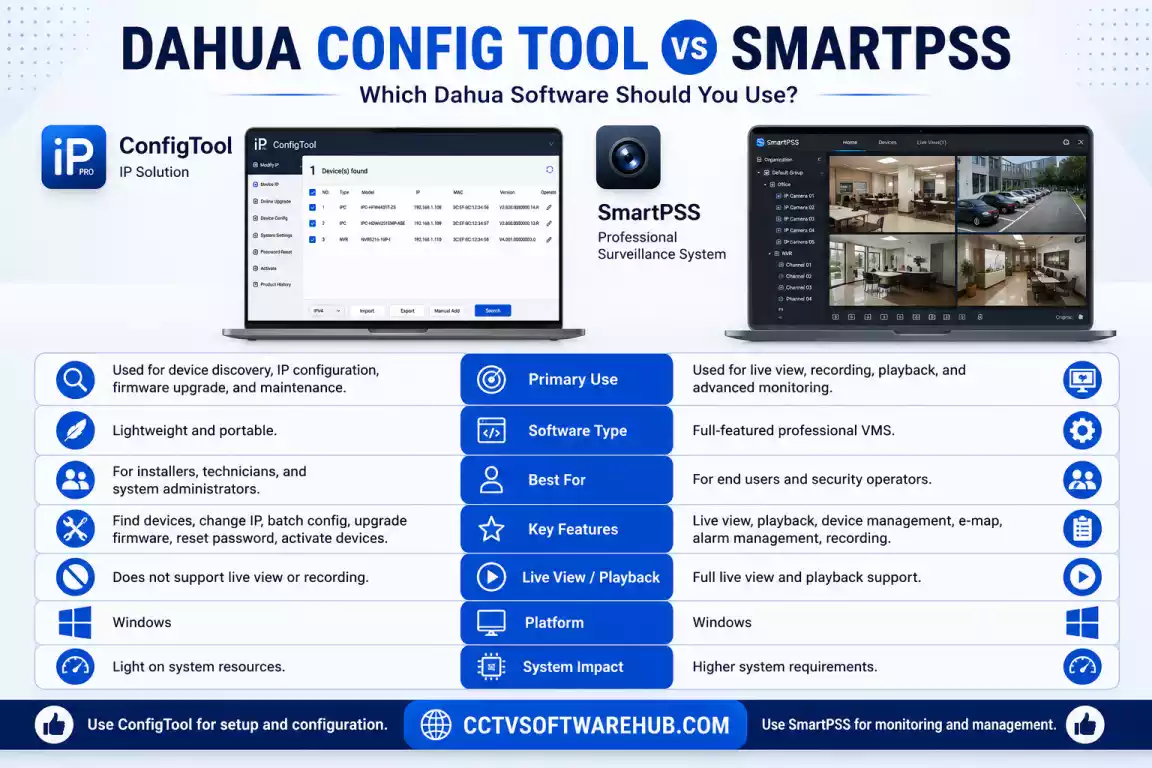
Comparison Table
| Feature | Dahua Config Tool | SmartPSS |
|---|---|---|
| Discover Devices | ✅ Yes | ❌ Limited |
| Activate Cameras | ✅ Yes | ❌ No |
| Initialize Cameras | ✅ Yes | ❌ No |
| Change IP Address | ✅ Yes | ❌ No |
| Batch Configuration | ✅ Yes | ❌ No |
| Firmware Upgrade | ✅ Yes | Limited |
| Live View | ❌ No | ✅ Yes |
| Playback Recordings | ❌ No | ✅ Yes |
| Event Management | ❌ No | ✅ Yes |
| User Management | Limited | ✅ Yes |
| Daily Monitoring | ❌ No | ✅ Yes |
Which One Should You Use?
Here’s the workflow I follow:
- During installation: I use Dahua Config Tool to detect cameras, activate them, assign static IP addresses, and verify network settings.
- After installation: I switch to SmartPSS for live viewing, playback, device management, and everyday monitoring.
If you’re setting up cameras for the first time, ConfigTool should be your starting point. Once everything is configured, SmartPSS becomes the software you’ll use most often.
After configuring your cameras with ConfigTool, you can use my SmartPSS Download guide to monitor live video, manage recordings, and control your Dahua devices from your PC.
Dahua ConfigTool and Hikvision SADP Tool serve similar purposes. If you own Hikvision cameras, check out my complete SADP Tool Download guide.
Is Dahua Config Tool Safe to Download?
Yes, provided you download it from trusted sources.
Since ConfigTool communicates directly with your network devices, it’s important to avoid modified or unofficial installers from unknown websites.
I recommend downloading it from:
- Dahua’s official software portal
- Authorized Dahua distributors
- Trusted websites that verify software integrity and clearly state the version, release date, and file information
Before installing any software, it’s also good practice to:
- Verify the downloaded file size.
- Scan the installer with your antivirus software.
- Keep Windows updated.
- Download the latest available version to benefit from security fixes.
These simple precautions help reduce the risk of installing outdated or tampered software.
My Experience Using Dahua Config Tool
After working with Dahua CCTV systems for several years, I consider ConfigTool one of the most useful utilities for installers and system administrators.
The biggest advantage is its simplicity. Even someone with limited networking knowledge can quickly discover cameras, assign IP addresses, and activate devices without manually scanning the network.
What I appreciate most is the time it saves during larger installations. Configuring ten or twenty cameras individually through a browser can be repetitive. With ConfigTool’s batch configuration features, the same work takes only a fraction of the time.
The software has also proven reliable during troubleshooting. When a camera isn’t appearing in an NVR or becomes inaccessible, ConfigTool is usually the first application I use to verify whether the device is online and correctly configured.
That said, there are areas where I’d like to see improvements. The interface feels dated compared to some modern network management tools, and the application could provide clearer error messages when devices aren’t detected.
Overall, these are relatively minor issues considering how much functionality the software offers at no cost.
My Rating
| Category | Rating |
|---|---|
| Ease of Installation | ⭐⭐⭐⭐⭐ |
| Device Discovery | ⭐⭐⭐⭐⭐ |
| Camera Activation | ⭐⭐⭐⭐⭐ |
| IP Configuration | ⭐⭐⭐⭐⭐ |
| Batch Configuration | ⭐⭐⭐⭐⭐ |
| Firmware Management | ⭐⭐⭐⭐☆ |
| User Interface | ⭐⭐⭐⭐☆ |
| Stability | ⭐⭐⭐⭐⭐ |
| Beginner Friendly | ⭐⭐⭐⭐⭐ |
| Overall Rating | ⭐ 4.8/5 |
What I Like
- Free to use
- Fast device discovery
- Excellent batch configuration tools
- Easy IP address management
- Works well on Windows 11
- Reliable for professional installations
- Simplifies troubleshooting
What Could Be Better
- User interface could be more modern.
- Some advanced options may be confusing for first-time users.
- Error messages could provide more troubleshooting guidance.
Frequently Asked Questions
What is Dahua ConfigTool used for?
Dahua ConfigTool is used to discover, activate, initialize, and configure Dahua IP cameras and other supported devices on a local network.
In my experience, it’s the fastest way to locate new cameras, assign IP addresses, and prepare devices before adding them to an NVR or surveillance software.
Can I use ConfigTool on Windows 11?
Yes, ConfigTool is fully compatible with Windows 11.
I’ve tested it on Windows 11 systems, and it installs and runs normally as long as your PC and camera are connected to the same local network.
Why can’t ConfigTool find my camera?
The most common reasons are network mismatches, firewall restrictions, or power issues.
Start by checking that the camera is powered on, connected to the same network as your computer, and that Windows Firewall isn’t blocking ConfigTool. In many cases, refreshing the device list after correcting the network settings solves the issue.
How do I change the IP address of a Dahua camera?
Select the camera in ConfigTool, open the network settings, enter the new IP address, subnet mask, and gateway, then apply the changes.
I recommend assigning a static IP address for cameras used with an NVR because it prevents connection issues if your router restarts.
Can Dahua Config Tool reset a forgotten password?
Yes, on supported devices, Dahua Config Tool can assist with the password recovery process.
The available recovery options depend on the camera model and firmware version. Newer devices often require identity verification before allowing a password reset.
What is the difference between ConfigTool and SmartPSS?
ConfigTool is used for setup and configuration, while SmartPSS is used for daily monitoring and playback.
I typically use ConfigTool during installation and SmartPSS for viewing live video, reviewing recordings, and managing the surveillance system afterward.
Final Verdict
If you’re looking for the easiest way to discover, activate, and configure Dahua IP cameras, Dahua Config Tool is an essential utility. It simplifies tasks that would otherwise require manual network configuration, making it useful for both beginners and experienced CCTV installers.
From my experience, its strengths lie in reliable device discovery, straightforward IP management, and efficient batch configuration. Whether you’re setting up a single camera at home or deploying dozens of cameras for a business, ConfigTool can significantly reduce installation time and simplify troubleshooting.
If you’re following this guide from start to finish, you’ll not only know how to download and install Dahua Config Tool, but also how to use it effectively, resolve common problems, and choose the right companion software for ongoing surveillance management.
If you need Hikvision Software you can find my Hik-Connect for PC guide helpful for remote access, or use the CCTV Storage Calculator to estimate the hard drive capacity needed for your recording schedule.