
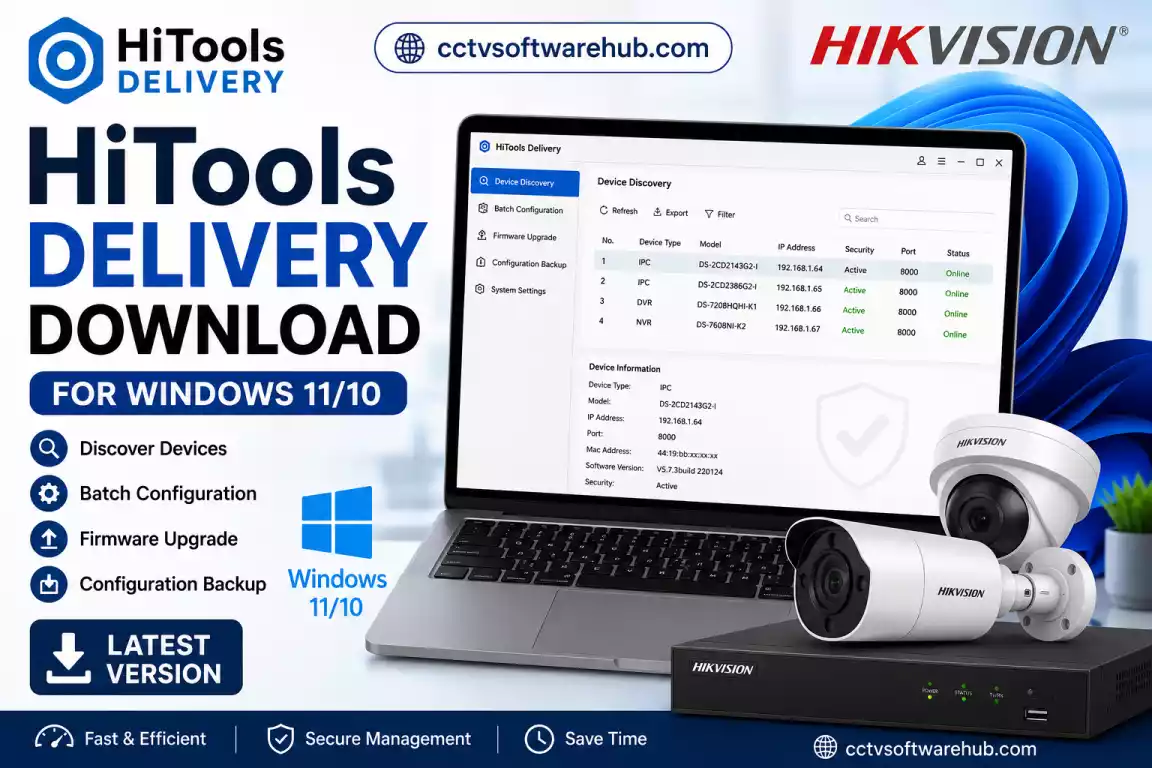
If you’re looking for the latest HiTools Delivery download for Windows, you’ve come to the right place. I use HiTools Delivery whenever I need to configure multiple Hikvision devices, deploy cameras in bulk, or save time during CCTV installations. Instead of configuring every device one by one, this software lets me discover, configure, update, and manage several devices from a single interface.
Whether you’re installing a new surveillance system or maintaining an existing one, HiTools Delivery is one of the most useful Hikvision software download tools available. In this guide, I’ll show you exactly how to download HiTools Delivery latest version, install it on Windows 11, configure devices, upgrade firmware, troubleshoot common issues, and decide whether it’s better than the traditional SADP Tool.
If you’re looking for software to deploy Hikvision devices, you may also need Hikvision iVMS-4200 Download later for live viewing and device management.
Where Can You Download HiTools Delivery Safely?
If you want to download HiTools Delivery, I always recommend getting it from the official Hikvision Download Center whenever possible. Using the official installer ensures that you receive the latest version, security updates, and verified software without modifications.
However, official download pages sometimes change their structure, making the software difficult to locate. To save time, I also provide the latest verified download links on this page so you don’t have to search through multiple pages.
HiTools Delivery Download
| Software | Supported OS | Version | Download |
|---|---|---|---|
| HiTools Delivery Latest Version | Windows 10 / 11 | V2.1.2.1 | ⬇ HiTools Download |
| HiTools Delivery official link | Windows 10 / 11 | V2.1.2.1 | ⬇Official Download |
While HiTools Delivery is Hikvision’s latest deployment tool, many installers still use the SADP Tool for quick device discovery and network configuration.
Software Information
| Feature | Information |
|---|---|
| Software Name | HiTools Delivery |
| Developer | Hikvision Digital Technology Co., Ltd. |
| Category | Device Deployment & Configuration Software |
| Supported OS | Windows 10, Windows 11 |
| Supported Devices | Hikvision IP Cameras, NVRs, DVRs, Access Control Devices |
| License | Free |
| Language Support | Multi-language |
| Latest Version | (Update regularly) |
| Internet Required | Only for download and some online services |
What Is HiTools Delivery Software?
HiTools Delivery is an official deployment and maintenance utility developed by Hikvision for installers, system integrators, IT administrators, and CCTV professionals. Instead of configuring one camera at a time, it allows you to deploy multiple devices in batches, making large surveillance installations significantly faster.
In my experience, this software becomes especially useful when working with projects involving several IP cameras or network video recorders. Rather than logging into each device individually, I can discover devices on the network, assign IP addresses, configure passwords, import settings, and even upgrade firmware from one dashboard.
Unlike older deployment utilities, Hikvision HiTools Delivery combines several maintenance tasks into a single application. This reduces installation time and minimizes configuration errors.
Some of the tasks I regularly perform with HiTools Delivery include:
- Discovering Hikvision devices on the local network
- Activating new cameras
- Batch IP configuration
- Firmware upgrades
- Exporting device information
- Importing configuration files
- Batch password management
- Health checks before deployment
Because these functions are available from one interface, I often recommend HiTools Delivery over using multiple separate utilities.
Unlike Hik-Connect for PC, which focuses on remote access, HiTools Delivery is designed for deployment and maintenance.
Who Should Use HiTools Delivery?
One question I receive frequently is whether this software is only meant for professional CCTV installers.
The answer is no.
Although Hikvision designed it for professional deployments, anyone managing multiple Hikvision devices can benefit from it.
CCTV Installers
If you install surveillance systems regularly, HiTools Delivery can reduce hours of repetitive work by allowing batch deployment.
Small Business Owners
Businesses with several cameras can simplify maintenance without logging into every device separately.
IT Administrators
Organizations that manage multiple Hikvision devices across offices can use the software to standardize configurations.
Home Users
Even if you have only a few Hikvision cameras, the software makes activation, firmware upgrades, and device discovery much easier than using browser-based tools.
What Are the Main Features of HiTools Delivery?
One reason I recommend HiTools Delivery software is that it combines multiple Hikvision maintenance utilities into a single application.
Batch Device Discovery
Instead of manually searching for every camera, the software scans your network and lists compatible Hikvision devices automatically.
Benefits
- Saves installation time
- Detects inactive devices
- Displays IP addresses
- Shows firmware versions
- Identifies device status
Batch Configuration
This is probably my favorite feature.
Rather than configuring every device individually, I can modify settings across multiple cameras simultaneously.
Examples include:
- IP address assignment
- Gateway settings
- DNS configuration
- Password updates
- Time synchronization
- Network settings
For larger deployments, this feature alone can save several hours.
Firmware Upgrade
Keeping firmware updated improves both security and performance.
HiTools Delivery allows batch firmware upgrades, reducing the need to access every camera individually.
Advantages include:
- Faster updates
- Consistent firmware versions
- Improved security
- Better compatibility
Device Activation
New Hikvision devices usually require activation before use.
HiTools Delivery lets me activate multiple devices at once instead of repeating the same process individually.
Configuration Backup
Before making major changes, I always create configuration backups.
The software allows exporting settings so they can be restored later if needed.
This is especially useful during upgrades or device replacements.
Device Health Monitoring
HiTools Delivery displays important device information such as:
- Online status
- Firmware version
- IP address
- Device model
- Serial number
Having everything in one place makes troubleshooting much faster.
Why Do I Prefer HiTools Delivery Over Older Hikvision Tools?
Over the years, I’ve used several Hikvision utilities, including SADP Tool and Batch Configuration Tool. While those applications still have their place, HiTools Delivery brings many of their core functions into one modern interface.
Instead of opening different utilities for different tasks, I can manage device discovery, activation, configuration, and maintenance from a single dashboard.
That simplifies my workflow, especially when working on installations with dozens of cameras.
How Do You Download HiTools Delivery for PC?
Downloading HiTools Delivery for PC is straightforward if you use a trusted source. I always recommend downloading the latest version because Hikvision regularly improves compatibility, fixes bugs, and adds support for newer devices.
If you’re downloading the software from my website, simply click the HiTools Delivery Download button in the download section above. I verify the files before publishing them so you can avoid searching through multiple pages.
If you prefer the original source, you can also download it from Hikvision’s official Download Center.
Step-by-Step: Download HiTools Delivery
Step 1: Open the Download Section
Scroll to the download table near the top of this page.
Step 2: Click the Download Button
Click the Download HiTools Delivery Latest Version button.
Step 3: Save the Installer
Choose a folder such as Downloads or Desktop so you can easily find the installer.
Step 4: Wait for the Download to Finish
The download time depends on your internet speed. Once complete, you’re ready to install the software.
Quick Tips Before Downloading
- Download only from trusted sources.
- Avoid modified or unofficial installers.
- Verify that you’re downloading the latest version.
- Ensure your Windows account has administrator privileges.
- Temporarily disable aggressive antivirus protection only if it incorrectly flags the official installer (remember to re-enable it afterward).
What Are the System Requirements for HiTools Delivery?
Before installing the software, I always check whether the computer meets the minimum requirements. Although HiTools Delivery isn’t resource-intensive, having compatible hardware helps it run smoothly, especially when managing multiple devices.
Minimum System Requirements
| Component | Requirement |
|---|---|
| Operating System | Windows 10 (64-bit), Windows 11 (64-bit) |
| Processor | Intel Core i3 or equivalent |
| RAM | 4 GB |
| Storage | 500 MB free space |
| Display | 1366 × 768 or higher |
| Network | Ethernet or Wi-Fi connection |
| Internet | Required for downloading updates |
Recommended Specifications
| Component | Recommended |
|---|---|
| Processor | Intel Core i5 or higher |
| RAM | 8 GB or more |
| Storage | SSD with at least 2 GB free space |
| Display | Full HD (1920 × 1080) |
| Network | Gigabit Ethernet |
Running the software on an SSD noticeably improves launch time and responsiveness, especially when scanning networks with many cameras.
Does HiTools Delivery Work on Windows 11?
Yes. HiTools Delivery works well on Windows 11, including most recent 64-bit versions.
I’ve installed it on Windows 11 systems without compatibility issues. The interface behaves similarly to Windows 10, and all major functions—including device discovery, activation, batch configuration, and firmware upgrades—work as expected.
If Windows displays a security prompt during installation, choose Run as administrator to allow the setup to complete successfully.
Windows 11 Tips
- Install the latest Windows updates.
- Use a wired Ethernet connection during initial device setup whenever possible.
- Allow the application through Windows Firewall if prompted.
- Keep your network adapter drivers updated.
- Restart your PC after installation if required.
How Do You Install HiTools Delivery?
Installing HiTools Delivery software takes only a few minutes. I generally follow the same process on every installation because it avoids common permission issues.
Step 1: Locate the Installer
Open the folder where you downloaded the setup file.
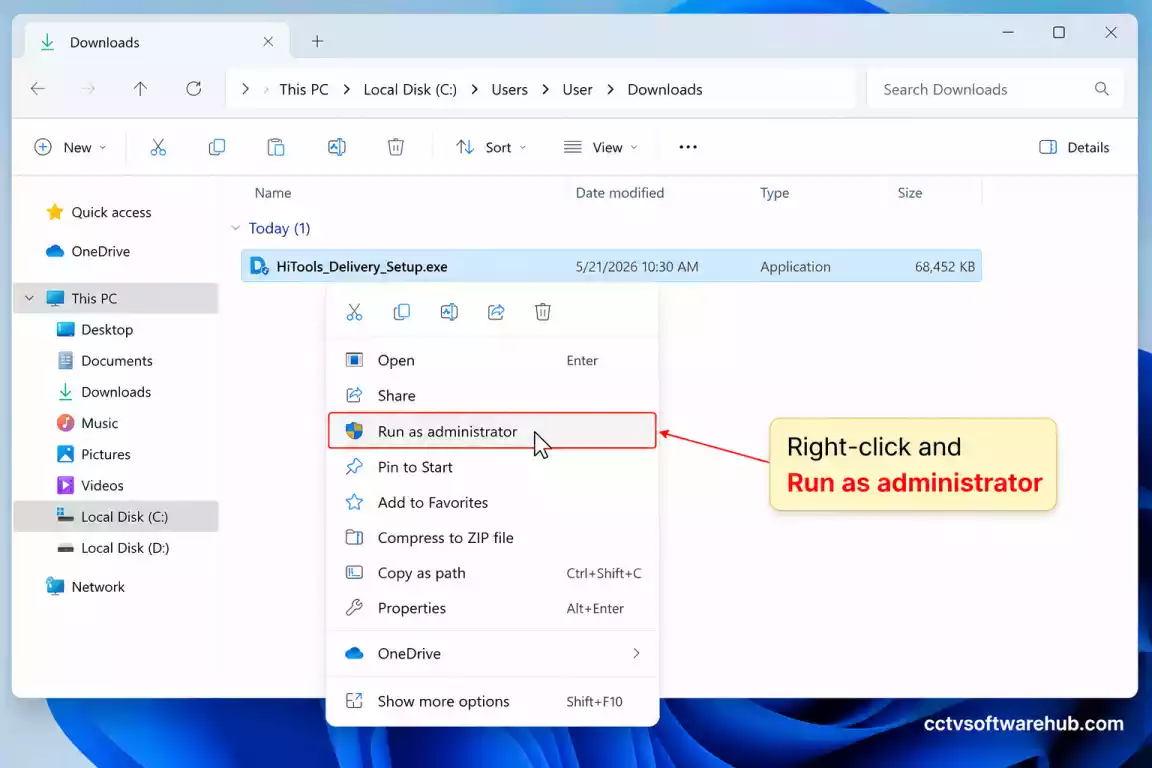
Step 2: Run as Administrator
Right-click the installer and select Run as administrator.
This ensures the installer has permission to copy files and register required components.
Step 3: Accept the License Agreement
Read the license agreement and click I Agree or Accept.
Although many users skip this step quickly, it’s still worth confirming that you’re installing the official software.
Step 4: Choose the Installation Folder
The default installation directory is suitable for most users.
If you’re installing on a workstation with limited system storage, you can select another drive.
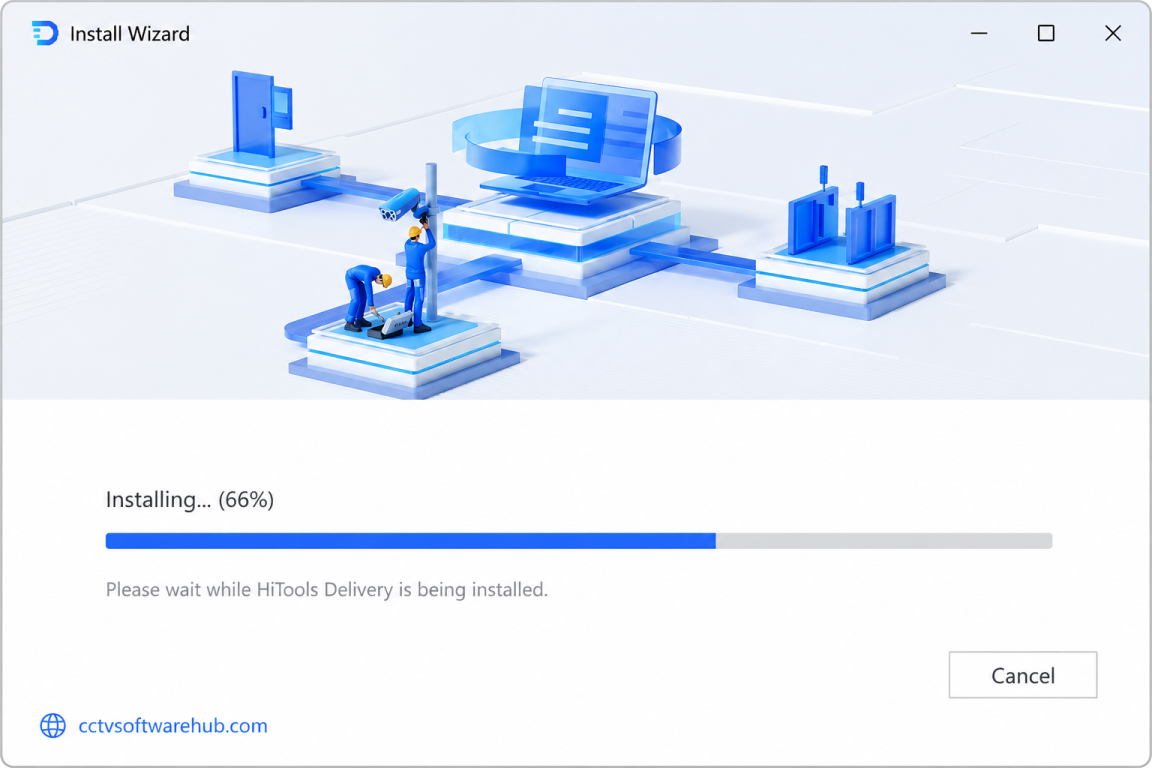
Step 5: Click Install
Click Install and wait while Windows copies the required files.
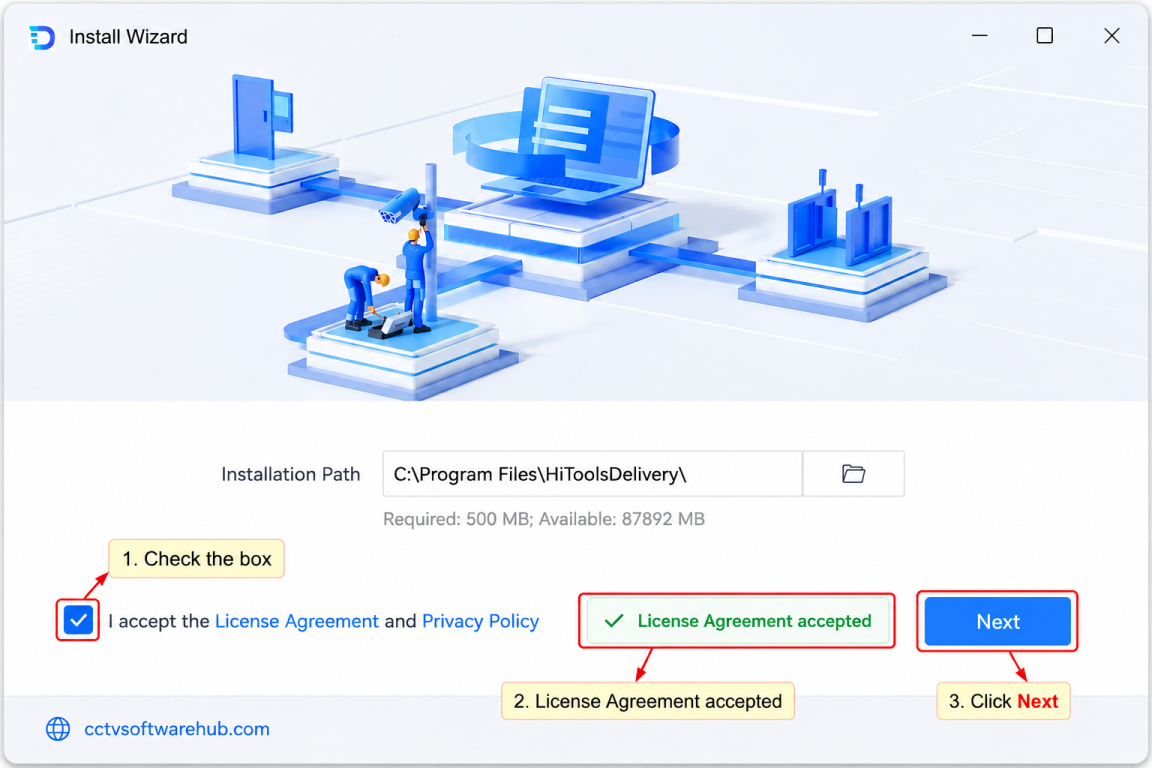
Installation usually finishes within a minute or two.
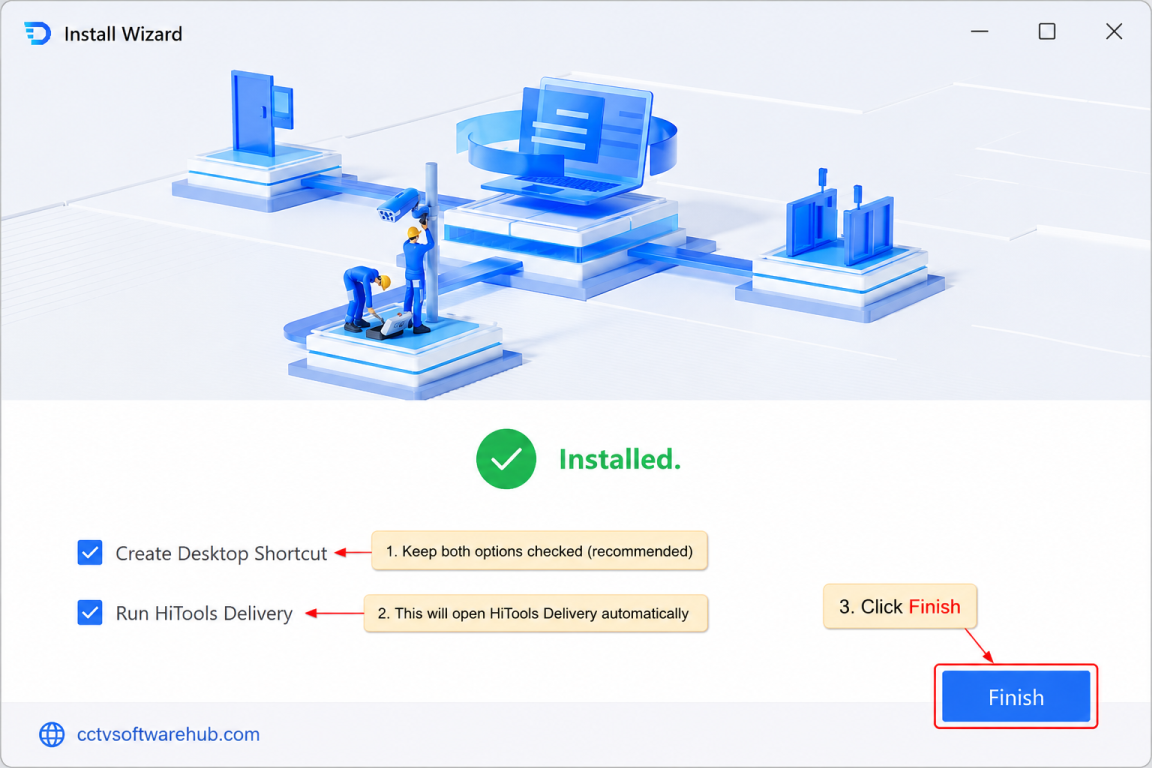
Step 6: Launch the Software
Once installation completes, click Finish and open HiTools Delivery.
The application may ask for firewall permissions the first time it runs. Allow access on your private network so it can discover Hikvision devices.
What Should You Do After Installing HiTools Delivery?
Many users install the software but aren’t sure what to do next. I recommend completing a few basic checks before connecting devices.
Verify the Software Version
Open the About section and confirm you’re running the latest version.
Connect to the Same Network
Ensure your PC and Hikvision devices are connected to the same local network. If they’re on different networks or VLANs, discovery may not work until routing is configured.
Disable VPN Software
Some VPN clients change network routes and prevent local device discovery. If your cameras aren’t appearing, temporarily disconnect the VPN and scan again.
Update Windows Firewall Rules
If Windows asks whether to allow HiTools Delivery through the firewall, choose Allow for private networks.
Check Your Network Adapter
If your PC has multiple network adapters (Ethernet, Wi-Fi, VirtualBox, VMware, etc.), make sure you’re using the adapter connected to your CCTV network.
How Do You Launch HiTools Delivery for the First Time?
The first launch is usually simple, but there are a few things to look for.
Initial Loading
The software scans available network interfaces and prepares the dashboard.
Main Dashboard
You’ll typically see sections for:
- Device Discovery
- Device Activation
- Batch Configuration
- Firmware Upgrade
- Device Information
- Export & Import
- Maintenance Tools
Take a moment to familiarize yourself with these sections before connecting cameras.
Why Can’t HiTools Delivery Install Successfully?
Installation problems are uncommon, but they can happen due to system permissions or missing prerequisites.
Installation Stops Unexpectedly
Possible causes:
- Corrupted installer
- Antivirus interference
- Insufficient storage
- Windows permission issues
Solution
Download the installer again, run it as administrator, and temporarily pause antivirus software if it’s incorrectly blocking the official installer.
Windows SmartScreen Warning
Windows may display a SmartScreen prompt when running newly downloaded software.
Solution
Confirm the software came from a trusted source, then choose More info followed by Run anyway if appropriate.
Installer Doesn’t Open
If double-clicking the installer does nothing:
- Restart Windows.
- Download the installer again.
- Check whether another installation is already running in the background.
- Right-click and select Run as administrator.
Firewall Blocks the Application
Without firewall permission, device discovery may fail.
Solution
Open Windows Defender Firewall, allow HiTools Delivery through the firewall for private networks, and restart the application.
Missing Administrator Rights
Installing from a standard Windows account can cause permission errors.
Solution
Log in with an administrator account or ask your system administrator to install the software.
What Are My Best Practices Before Managing Hikvision Devices?
Over the years, I’ve developed a simple checklist that helps avoid configuration mistakes.
My Pre-Deployment Checklist
- Download the latest HiTools Delivery version.
- Install the software as administrator.
- Update Windows.
- Connect the PC and cameras to the same switch or subnet.
- Label each device before configuration.
- Record default IP addresses.
- Change default passwords immediately after activation.
- Create a configuration backup before making major changes.
- Keep the latest firmware files ready if updates are required.
Following these steps has saved me countless hours during installations and makes troubleshooting much easier later.
How Do You Discover Hikvision Devices Using HiTools Delivery?
After installing HiTools Delivery, the first thing I usually do is scan the network to detect all connected Hikvision devices. This feature saves a lot of time because I don’t need to log in to each camera individually or remember every IP address.
For the scan to work correctly, make sure your PC and all Hikvision devices are connected to the same network or VLAN.
Step 1: Open HiTools Delivery
Launch the software from the desktop or Start menu.
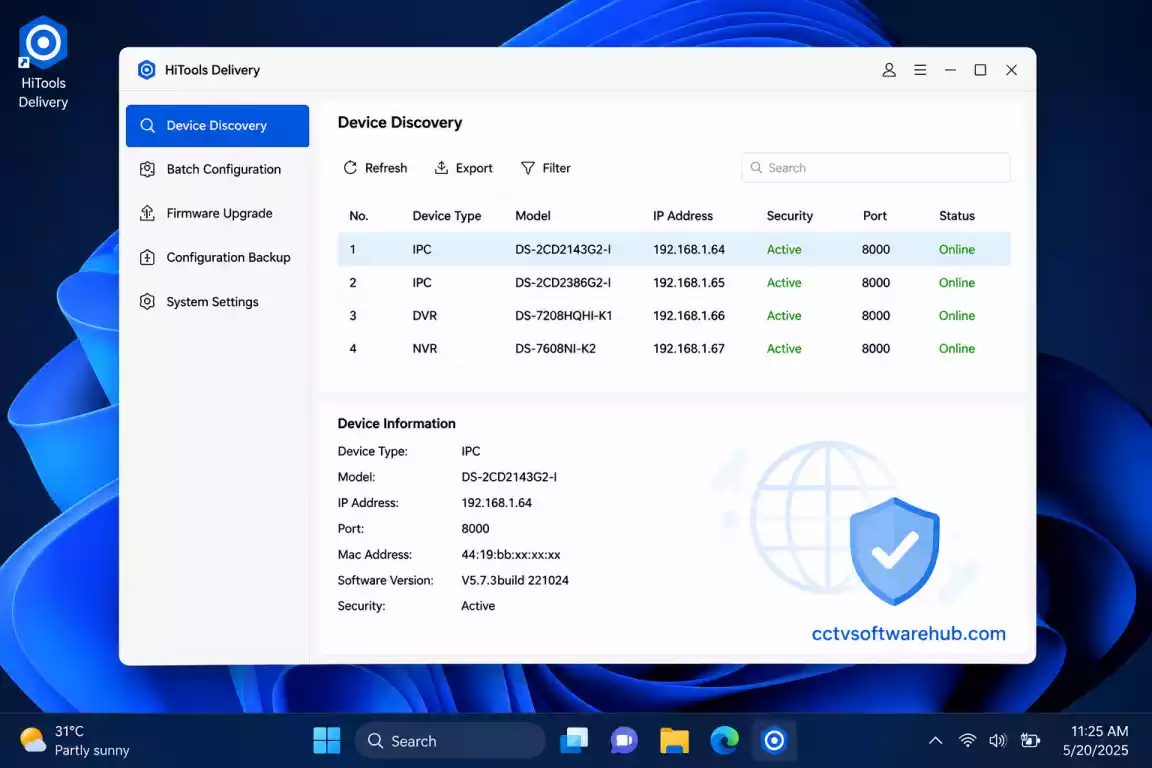
Step 2: Select Device Discovery
From the main dashboard, click Device Discovery.
The software will automatically begin scanning your local network for compatible Hikvision devices.
Step 3: Wait for the Scan to Complete
Within a few seconds, HiTools Delivery displays a list of available devices.
Typical information shown includes:
- Device Name
- Model Number
- Serial Number
- Current IP Address
- MAC Address
- Firmware Version
- Activation Status
- Online Status
This overview allows me to verify every device before I start configuring them.
Step 4: Identify New Devices
New Hikvision cameras are usually marked as Inactive.
These devices must be activated before they can be configured or added to an NVR.
How Do You Activate New Hikvision Devices?
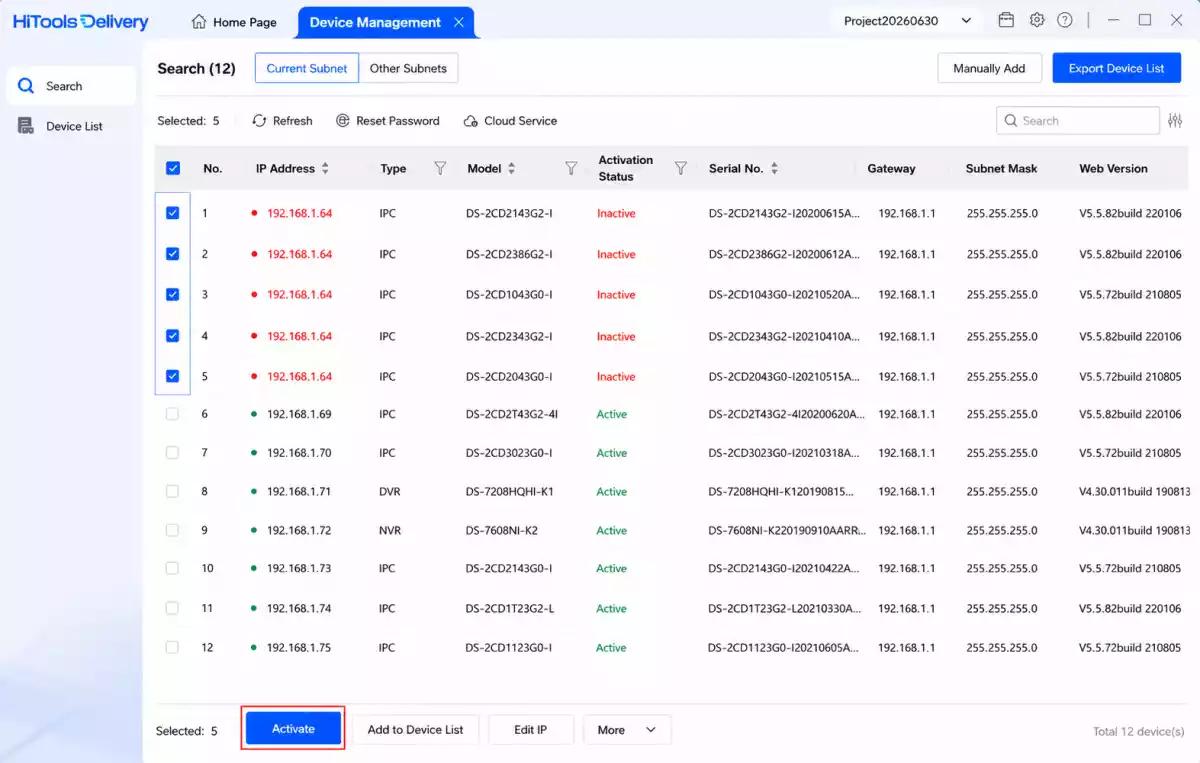
Every new Hikvision camera or recorder requires activation before it becomes operational.
Instead of activating devices individually through a web browser, HiTools Delivery allows me to activate several devices at once.
Step 1: Select Inactive Devices
Tick the checkbox beside every inactive device.
Step 2: Create a Strong Password
Enter a secure administrator password.
I recommend using:
- Uppercase letters
- Lowercase letters
- Numbers
- Special characters
- At least 12 characters
Avoid simple passwords such as:
- admin123
- hikvision123
- password
Strong passwords improve the security of your surveillance system.
Step 3: Confirm Activation
Click Activate.
Within a few seconds, the selected devices become active and are ready for configuration.
How Do You Configure IP Addresses in Batch?
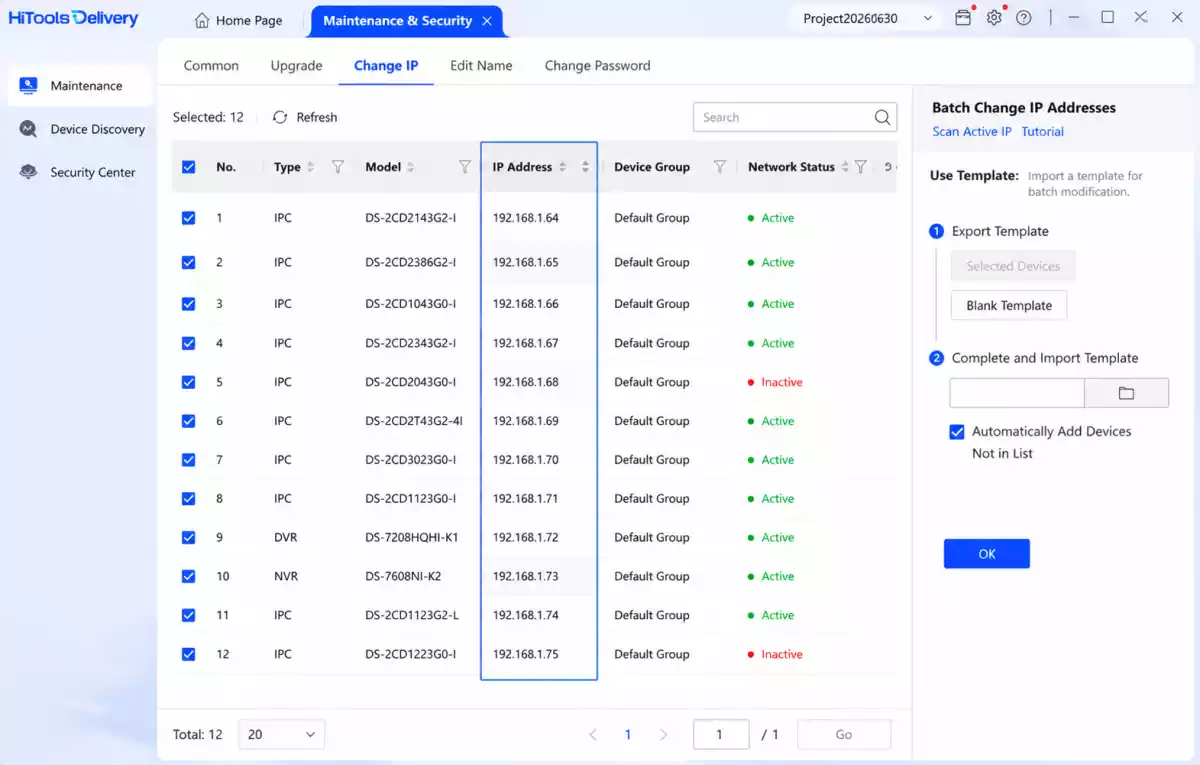
One of the biggest advantages of HiTools Delivery software is batch IP configuration.
Instead of assigning IP addresses one by one, I can configure an entire group of cameras simultaneously.
This is especially useful for offices, schools, warehouses, factories, and commercial CCTV installations.
Step 1: Select Multiple Devices
Highlight all devices you want to configure.
Step 2: Open Network Settings
Choose Batch Configuration.
Step 3: Enter Network Information
Typical settings include:
| Setting | Example |
|---|---|
| IP Address | 192.168.1.100 |
| Subnet Mask | 255.255.255.0 |
| Gateway | 192.168.1.1 |
| DNS Server | 8.8.8.8 |
Make sure every device receives a unique IP address to avoid network conflicts.
Step 4: Apply Settings
Click Apply.
The software sends the updated configuration to every selected device.
This process usually takes less than a minute.
How Can You Upgrade Firmware Using HiTools Delivery?
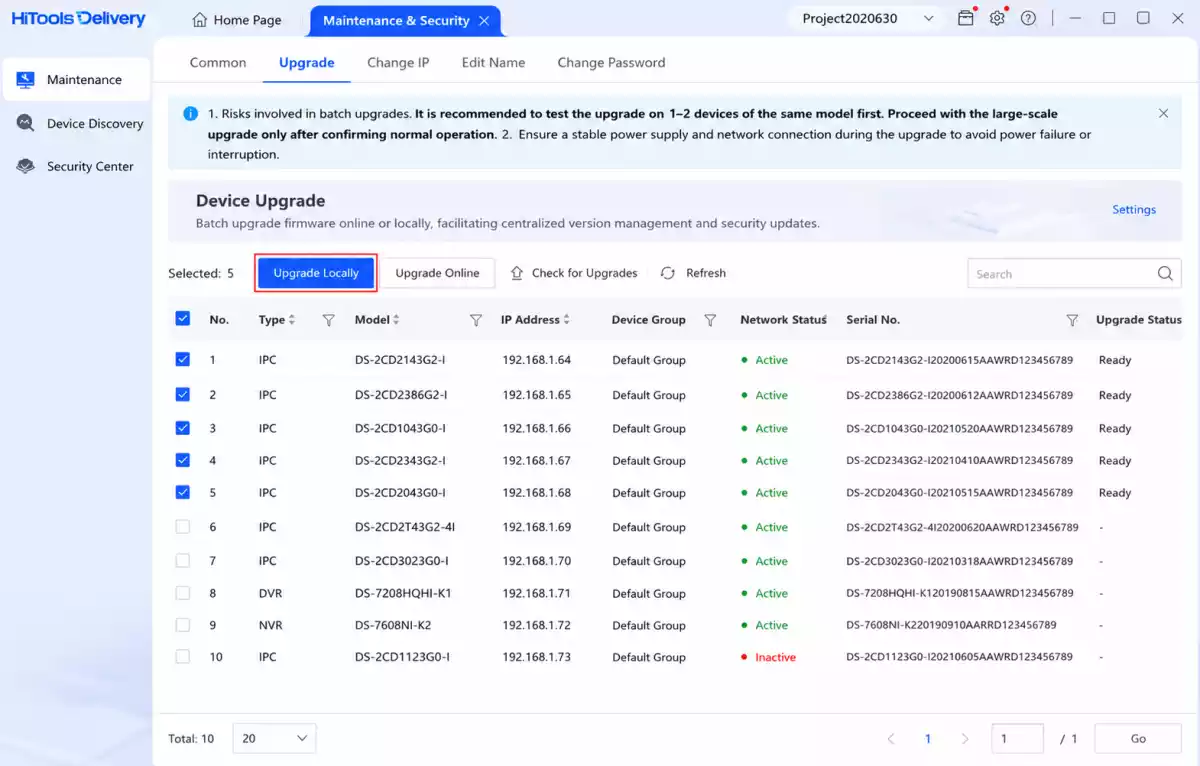
Firmware updates improve security, fix bugs, and sometimes introduce new features.
I always recommend upgrading firmware during scheduled maintenance rather than waiting until problems occur.
Before You Upgrade
Verify:
- Device model
- Current firmware version
- Correct firmware package
- Stable power supply
- Reliable network connection
Installing the wrong firmware may cause the device to malfunction.
Step 1: Download the Correct Firmware
Download firmware specifically designed for your camera or recorder model.
Never use firmware intended for another device.
Step 2: Open Firmware Upgrade
Inside HiTools Delivery, choose Firmware Upgrade.
Step 3: Select Devices
Choose one or multiple devices.
Batch firmware upgrades are one of my favorite time-saving features.
Step 4: Browse for Firmware
Locate the downloaded firmware file.
The software validates compatibility before beginning the upgrade.
Step 5: Start the Upgrade
Click Upgrade.
Do not:
- Disconnect power
- Remove the network cable
- Restart Windows
- Close HiTools Delivery
Interrupting the upgrade could damage the firmware installation.
Step 6: Verify Completion
After the devices restart, refresh the device list and confirm the firmware version has been updated successfully.
How Do You Export and Import Device Configurations?
When working on multiple installations, I often reuse similar settings.
Instead of manually entering the same configuration every time, I export the settings from one device and import them to others.
This reduces mistakes and ensures consistency.
Export Configuration
- Select the configured device.
- Click Export Configuration.
- Save the configuration file.
Import Configuration
- Select target devices.
- Choose Import Configuration.
- Select the exported file.
- Apply the settings.
This method is particularly useful when deploying dozens of cameras with identical network or image settings.
How Can You Manage Multiple CCTV Devices Efficiently?
HiTools Delivery is designed for batch operations.
Instead of repeating the same task on every device, I group similar actions together.
For example:
- Activate all new cameras
- Assign IP addresses
- Rename devices
- Upgrade firmware
- Configure recording parameters
- Export backups
Completing tasks in batches reduces installation time and minimizes human error.
How Do You Rename Multiple Devices?
Meaningful device names make future maintenance much easier.
Instead of leaving default names like DS-2CD2043G0-I, I rename cameras based on their location.
Examples:
- Main Gate Camera
- Warehouse Entrance
- Parking Area Camera
- Reception Camera
- Office Corridor Camera
Clear naming helps when troubleshooting or reviewing footage later.
How Do You Check Device Health?
One feature I frequently use is the device status page.
It quickly shows:
- Online status
- Firmware version
- IP address
- Serial number
- Device model
- Activation status
If one camera goes offline, it’s much easier to identify the issue without logging into every device separately.
What Should You Do Before Making Major Changes?
Before changing firmware or network settings, I always create a backup.
My checklist includes:
- Export device configuration
- Record IP addresses
- Verify firmware compatibility
- Confirm stable power
- Test one device before upgrading all devices
- Schedule maintenance during low-usage hours
These precautions have helped me avoid unnecessary downtime on several installations.
Why Can’t HiTools Delivery Detect My Device?
This is one of the most common questions users ask.
Fortunately, the cause is usually easy to identify.
PC and Camera Are on Different Networks
If your computer is connected to a different subnet, device discovery won’t work.
Solution
Connect both devices to the same network or configure routing correctly.
Windows Firewall Is Blocking the Software
Firewall restrictions may prevent network discovery.
Solution
Allow HiTools Delivery through Windows Defender Firewall and restart the application.
Network Cable Problem
Faulty Ethernet cables or loose connections often cause devices to appear offline.
Solution
Replace the cable and check switch port activity.
Camera Is Not Activated
Inactive cameras may not behave as expected until activation.
Solution
Activate the device through HiTools Delivery.
Duplicate IP Addresses
Two devices using the same IP address create network conflicts.
Solution
Assign unique IP addresses to every device.
Unsupported Firmware
Very old firmware versions may have limited compatibility.
Solution
Update the device using the correct firmware package whenever possible.
Incorrect Network Adapter
Many computers have:
- Ethernet
- Wi-Fi
- VMware adapters
- Hyper-V adapters
- VirtualBox adapters
HiTools Delivery may scan the wrong adapter.
Solution
Disable unused adapters temporarily or select the correct network interface.
My Tips for Faster CCTV Deployment
After working with Hikvision systems for years, these habits consistently save me time:
- Label every camera before installation.
- Use sequential IP addresses.
- Activate devices in batches.
- Rename devices immediately after activation.
- Export configuration backups after completing setup.
- Upgrade firmware only after verifying compatibility.
- Test one device before rolling out changes to all devices.
- Keep a spreadsheet of IP addresses, passwords, and installation locations for future maintenance.
Following this workflow makes both installation and long-term management much more organized.
How Does HiTools Delivery Compare to SADP Tool?
One of the most common questions I receive is whether users should install HiTools Delivery or SADP Tool. Since both are official Hikvision utilities, it’s easy to assume they do the same job. However, after using both on multiple CCTV installations, I can confidently say they serve different purposes.
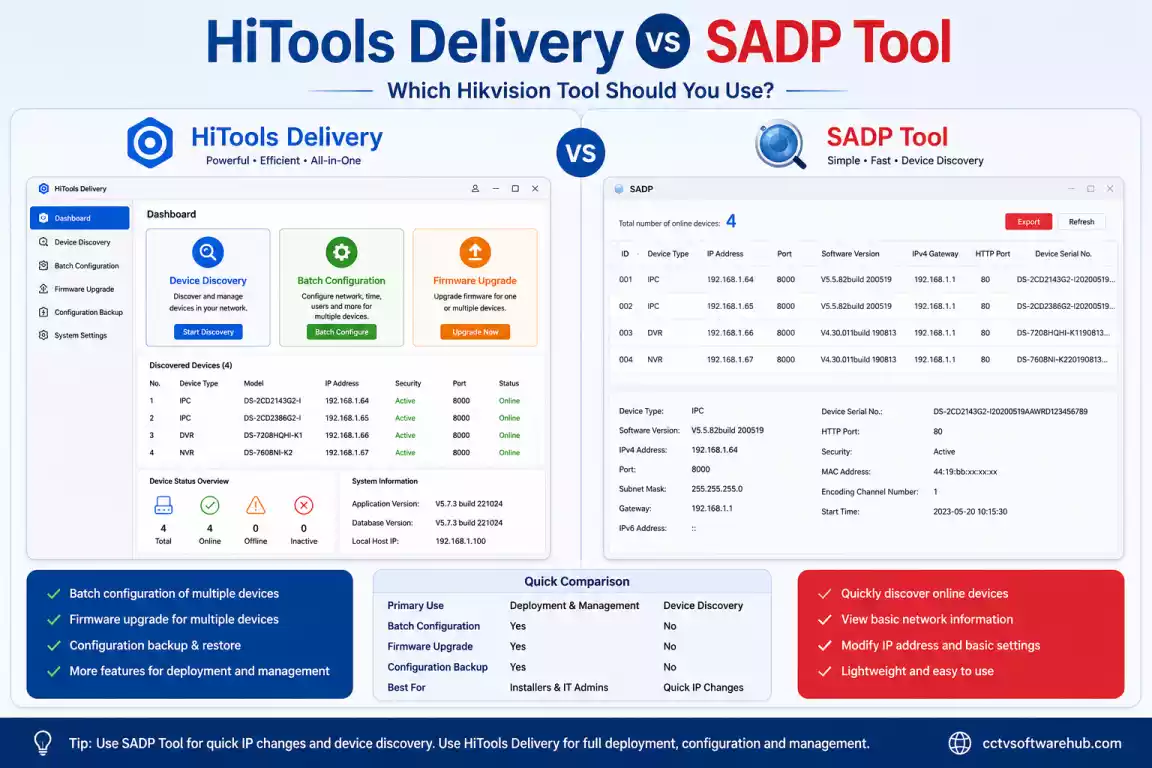
If you only need to discover a camera or change its IP address occasionally, SADP Tool is usually sufficient. But if you’re deploying multiple devices, activating new cameras, upgrading firmware, or managing large projects, HiTools Delivery offers a much more complete solution.
HiTools Delivery vs SADP Tool Comparison
| Feature | HiTools Delivery | SADP Tool |
|---|---|---|
| Device Discovery | ✅ Yes | ✅ Yes |
| Device Activation | ✅ Yes | ✅ Yes |
| Batch Configuration | ✅ Advanced | ⚠️ Basic |
| Batch Firmware Upgrade | ✅ Yes | ❌ No |
| Configuration Backup | ✅ Yes | ❌ No |
| Import & Export Settings | ✅ Yes | ❌ Limited |
| Multiple Device Management | ✅ Excellent | ⚠️ Limited |
| Suitable for Large Installations | ✅ Yes | ❌ Not Ideal |
| Beginner Friendly | ✅ Yes | ✅ Yes |
| Free to Use | ✅ Yes | ✅ Yes |
When Should You Choose HiTools Delivery?
I recommend HiTools Delivery if you:
- Install CCTV systems regularly.
- Manage multiple Hikvision cameras.
- Upgrade firmware frequently.
- Configure devices in batches.
- Maintain surveillance systems for businesses.
- Want one tool for deployment and maintenance.
When Is SADP Tool Enough?
SADP Tool is still useful if you only need to:
- Find a device on the network.
- Change a forgotten IP address.
- Activate one or two cameras.
- Perform quick troubleshooting.
For small home installations with only one or two devices, SADP Tool may be all you need. For anything larger, HiTools Delivery quickly becomes the better option.
Is HiTools Delivery Better Than the Older Batch Configuration Tool?
Yes, in most cases.
Hikvision has gradually introduced HiTools Delivery as a more comprehensive deployment platform. Instead of relying on separate utilities for different tasks, it combines many administrative functions into a single application.
Here’s why I prefer it:
- Modern interface that’s easier to navigate.
- Supports multiple deployment tasks.
- Simplifies firmware upgrades.
- Reduces the need to switch between tools.
- Better suited for enterprise deployments.
If you’re starting fresh, I recommend learning HiTools Delivery rather than investing time in older utilities unless you have a specific compatibility requirement.
What Are the Advantages of HiTools Delivery?
After using this software in real deployments, these are the benefits I appreciate the most.
Saves Time During Installation
Configuring ten or twenty cameras manually can take a long time. Batch operations reduce repetitive work and make installations more efficient.
Centralized Device Management
Instead of opening multiple browser tabs, I can view and manage all compatible devices from a single dashboard.
Simplifies Firmware Updates
Updating firmware one device at a time is tedious. HiTools Delivery allows me to upgrade multiple supported devices together, provided they use the correct firmware package.
Reduces Human Error
Applying consistent settings across several devices helps avoid accidental configuration differences.
Easy Device Discovery
Finding cameras on the local network is quick, even when there are many devices connected.
Helpful for Maintenance
Routine maintenance becomes easier because I can review firmware versions, device status, and network information in one place.
Are There Any Limitations of HiTools Delivery?
No software is perfect, and HiTools Delivery also has a few limitations.
Designed Primarily for Hikvision Devices
The software is intended for Hikvision products. It isn’t a universal management tool for cameras from different manufacturers.
Windows Only
At the time of writing, HiTools Delivery is designed for Windows. If you primarily use macOS or Linux, you’ll need an alternative workflow or a Windows environment.
Learning Curve for New Users
Although the interface is user-friendly, users who are new to CCTV systems may need a little time to understand deployment concepts such as batch activation, IP planning, and firmware management.
Network Knowledge Helps
Basic networking knowledge—such as understanding IP addresses, subnets, and gateways—makes the software much easier to use effectively.
What Is My Experience Using HiTools Delivery?
I’ve worked with several Hikvision utilities over the years, including SADP Tool, iVMS-4200, and browser-based configuration pages. HiTools Delivery has become one of the tools I use most often because it combines several essential tasks into one interface.
During larger installations, the biggest advantage for me is the ability to perform repetitive tasks in batches. Whether I’m activating new devices, assigning IP addresses, or checking firmware versions, I can complete the work much faster than switching between individual web interfaces.
I also like that it provides a clear overview of connected devices. Being able to see device status, IP addresses, firmware versions, and activation state in one place makes troubleshooting much easier.
For smaller home installations, HiTools Delivery may include more features than you need. However, once you’re working with multiple cameras or maintaining business surveillance systems, the extra functionality becomes valuable.
Which Hikvision Software Should You Use Alongside HiTools Delivery?
HiTools Delivery handles deployment and configuration well, but you’ll often use it together with other Hikvision applications depending on your workflow.
| Software | Best For |
|---|---|
| HiTools Delivery | Device deployment, activation, batch configuration, firmware upgrades |
| SADP Tool | Device discovery and IP address management |
| iVMS-4200 | Live view, playback, recording management, and device administration |
| Hik-Connect | Remote viewing on mobile devices |
| VSPlayer | Playing Hikvision video files locally |
Using the right tool for the right task creates a smoother CCTV management workflow.
What Are the Most Common Mistakes Users Make?
After helping users troubleshoot installations, I’ve noticed a few recurring mistakes.
Downloading the Wrong Firmware
Always verify that the firmware matches your exact device model before upgrading.
Skipping Configuration Backups
Export your device settings before making major changes. Restoring a backup is much easier than rebuilding configurations from scratch.
Leaving Default Passwords
Change the default credentials immediately after activating a device to improve security.
Using Duplicate IP Addresses
Assign a unique IP address to every camera and recorder to prevent network conflicts.
Ignoring Firmware Updates
Keeping devices updated helps improve security, stability, and compatibility.
Mixing Different Network Segments
Ensure your PC and devices can communicate on the same network or through properly configured routing before attempting discovery.
Who Should Download HiTools Delivery?
Based on my experience, I recommend HiTools Delivery for:
- CCTV installers managing multiple projects.
- Security system integrators.
- IT administrators responsible for Hikvision deployments.
- Businesses with several Hikvision devices.
- Schools, offices, warehouses, and retail stores using Hikvision surveillance.
- Advanced home users who want more control over their devices.
If you only have a single camera and occasionally need to change its IP address, a lighter utility such as SADP Tool may be enough. However, if you expect your system to grow or want a more capable management platform, learning HiTools Delivery is a worthwhile investment.
What Are My Best Practices for Using HiTools Delivery?
After deploying Hikvision devices in different environments, I’ve developed a workflow that helps me complete installations faster while reducing configuration mistakes. Whether you’re setting up three cameras or managing hundreds, these practices can save time and make future maintenance much easier.
Plan Your IP Addressing Before Installation
One mistake I often see is assigning IP addresses randomly. As the number of cameras grows, this becomes difficult to manage.
I recommend creating an IP plan before activating any devices.
For example:
| Device | Suggested IP Address |
|---|---|
| NVR | 192.168.1.100 |
| Camera 1 | 192.168.1.101 |
| Camera 2 | 192.168.1.102 |
| Camera 3 | 192.168.1.103 |
| Camera 4 | 192.168.1.104 |
Keeping addresses sequential makes troubleshooting much easier later.
Rename Every Device Immediately
Leaving default device names creates confusion, especially in larger installations.
Instead of generic model names, I rename devices based on their installation location.
Examples include:
- Main Gate
- Parking Entrance
- Warehouse
- Reception
- Office Hallway
- Loading Dock
When a camera goes offline, I can immediately identify its location without checking documentation.
Keep Firmware Consistent
Running different firmware versions across similar devices can sometimes introduce inconsistent behavior.
Whenever possible, I update compatible devices to the same stable firmware version after verifying compatibility.
Before upgrading:
- Confirm the exact device model.
- Read the firmware release notes.
- Back up the existing configuration.
- Upgrade a single test device first.
- Roll out the update to remaining devices if everything works correctly.
Back Up Configurations Regularly
One of the simplest ways to avoid unnecessary downtime is by exporting device configurations after completing setup.
If a device needs to be reset or replaced, restoring the saved configuration is much faster than configuring everything from scratch.
I usually create backups:
- After initial installation
- Before firmware upgrades
- Before changing network settings
- Before major maintenance
Document Your Installation
Good documentation saves time months or even years later.
For every installation, I keep a record of:
| Information | Example |
|---|---|
| Device Model | DS-2CD2043G2-I |
| Device Name | Main Gate Camera |
| IP Address | 192.168.1.101 |
| Installation Date | 12 June 2026 |
| Firmware Version | Current Version |
| Installation Location | Main Entrance |
This simple documentation makes future servicing much easier.
How Can You Improve the Security of Your Hikvision Devices?
Installing cameras is only part of the job. Protecting them is equally important.
These are the security practices I personally follow.
Use Strong Passwords
Avoid predictable passwords such as:
- admin
- admin123
- hikvision123
Instead, create unique passwords that include uppercase letters, lowercase letters, numbers, and symbols.
Change Default Credentials Immediately
Never leave the factory default credentials unchanged after activating a device.
Changing them immediately helps reduce the risk of unauthorized access.
Update Firmware Regularly
Firmware updates often include:
- Security improvements
- Bug fixes
- Performance enhancements
- Compatibility updates
Keeping devices updated is one of the easiest ways to improve long-term reliability.
Restrict Network Access
Whenever possible:
- Place CCTV devices on a dedicated VLAN or subnet.
- Limit unnecessary access from other networks.
- Allow only trusted administrators to manage devices.
This approach helps reduce exposure to unauthorized users.
Review User Accounts
If multiple people manage the surveillance system, periodically review user accounts and remove access that is no longer required.
Applying the principle of least privilege helps improve overall security.
How Can You Troubleshoot Common HiTools Delivery Problems?
Even though HiTools Delivery is generally reliable, you may occasionally run into issues. Here are the problems I encounter most often and the steps I take to resolve them.
Software Doesn’t Detect Devices
Possible Causes
- PC and devices are on different subnets.
- Firewall restrictions.
- Incorrect network adapter selected.
- Faulty Ethernet cable.
- Duplicate IP addresses.
What I Do
- Confirm all devices are on the same network.
- Allow HiTools Delivery through Windows Firewall.
- Disable unused network adapters temporarily.
- Restart the switch and affected devices.
- Rescan the network.
Firmware Upgrade Fails
Possible Causes
- Incorrect firmware package.
- Interrupted network connection.
- Power interruption during the update.
- Incompatible firmware version.
What I Do
- Verify the exact device model.
- Download the correct firmware.
- Upgrade one device first.
- Maintain a stable power source throughout the process.
Batch Configuration Doesn’t Apply
Possible Causes
- Devices already have conflicting settings.
- Insufficient permissions.
- Unsupported configuration options.
What I Do
- Confirm administrator credentials.
- Check that all selected devices support the chosen settings.
- Apply changes to a small group first before updating every device.
Slow Device Discovery
If scanning takes longer than expected:
- Use a wired Ethernet connection.
- Disconnect from VPN software.
- Disable unnecessary virtual network adapters.
- Ensure the switch is functioning correctly.
- Restart the application and scan again.
What Mistakes Should You Avoid During CCTV Deployment?
Avoiding a few common mistakes can prevent hours of troubleshooting later.
Don’t Ignore Firmware Compatibility
Installing firmware intended for another device model can cause serious problems.
Always verify compatibility before upgrading.
Don’t Skip Configuration Backups
Backups require only a few minutes but can save hours of reconfiguration.
Don’t Use Duplicate IP Addresses
Each device on the network must have a unique IP address.
Duplicate addresses often lead to intermittent connectivity problems that are difficult to diagnose.
Don’t Leave Devices Unlabeled
Clear naming conventions make future maintenance much simpler.
Don’t Upgrade Every Device at Once
I always test firmware on one device before updating the remaining cameras.
If an unexpected issue appears, it affects only one device rather than the entire system.
Why Do I Recommend Downloading the Latest Version?
Using the HiTools Delivery latest version provides several benefits compared to older releases.
These typically include:
- Improved compatibility with newer Hikvision devices.
- Bug fixes and stability improvements.
- Better performance.
- Updated security features.
- Support for recently released firmware.
Unless you specifically need an older version for compatibility reasons, I recommend using the latest release.
Final Verdict: Should You Download HiTools Delivery?
If you’re managing Hikvision cameras, NVRs, or other supported devices, I believe HiTools Delivery is one of the most useful free utilities available.
Its ability to discover devices, activate cameras, configure settings in batches, upgrade firmware, and export configurations makes it a valuable tool for both professional installers and advanced users.
For small home setups with only one or two devices, simpler tools such as SADP Tool may be sufficient. However, as soon as your installation grows, HiTools Delivery becomes a significant time-saver.
If you’re looking for a reliable HiTools Delivery download, use the download section near the top of this guide to get the latest version. I recommend bookmarking this page because I keep the download links updated whenever Hikvision releases a newer version.
Why Trust My Recommendations?
I don’t simply rewrite product documentation. I evaluate software from the perspective of someone who regularly works with computer networking and CCTV systems.
When I recommend a tool, I consider:
- Ease of installation
- Reliability during deployment
- Practical features
- Security considerations
- Time-saving capabilities
- Long-term maintenance experience
My goal is to provide practical guidance that helps you install, configure, and manage your CCTV system with confidence, rather than just giving you a download link.
References
For additional technical information and official resources, you can also refer to:
- Hikvision Official Download Center
- Hikvision Technical Support
- Hikvision Product Documentation
- Hikvision Firmware Release Notes
These resources are useful for verifying compatibility, accessing official documentation, and downloading firmware for supported devices.
Frequently Asked Questions (FAQs)
What is HiTools Delivery used for?
HiTools Delivery is an official Hikvision utility used to discover, activate, configure, and manage multiple Hikvision devices from a single interface.
I mainly use it when deploying several IP cameras or NVRs because it lets me perform tasks like batch IP configuration, firmware upgrades, and device activation much faster than configuring each device individually through a web browser.
Where can I download the latest version of HiTools Delivery?
You can download the latest version from the official Hikvision Download Center or from the download section at the beginning of this guide.
I keep the download links updated whenever Hikvision releases a newer version, making it easier to find the correct installer without searching through multiple pages.
Does HiTools Delivery work on Windows 11?
Yes, HiTools Delivery works on Windows 11 and Windows 10 (64-bit).
I’ve tested it on Windows 11 during multiple CCTV installations, and it runs smoothly for device discovery, activation, batch configuration, and firmware management. If Windows displays a security prompt, simply run the installer as an administrator.
Can I use HiTools Delivery for multiple CCTV devices?
This is one of the biggest reasons I recommend it. Instead of configuring each camera separately, I can activate, rename, assign IP addresses, and update firmware for several devices in one session.
What is the difference between HiTools Delivery and SADP Tool?
HiTools Delivery is a complete deployment and maintenance platform, while SADP Tool mainly focuses on device discovery and IP address management.
I generally use SADP Tool for quick troubleshooting or locating a single device. For larger installations involving firmware upgrades, batch configuration, and ongoing maintenance, HiTools Delivery offers a much more capable workflow.
Can HiTools Delivery upgrade firmware?
I recommend verifying the exact device model before selecting a firmware package. Installing incompatible firmware can cause problems, so I always test updates on one device before applying them to multiple cameras.
Why can’t HiTools Delivery detect my device?
The most common reasons are network configuration issues, firewall restrictions, or devices being on different subnets.
When this happens, I first check that my computer and the camera are connected to the same network. I also verify Windows Firewall permissions, confirm there are no duplicate IP addresses, and make sure I’m using the correct network adapter.
Can HiTools Delivery detect inactive Hikvision cameras?
Yes, HiTools Delivery can detect inactive Hikvision devices connected to the same network.
I use this feature whenever I install new cameras because it allows me to activate several devices at once instead of opening each one individually.
Does HiTools Delivery support NVRs and DVRs?
Yes, HiTools Delivery supports many Hikvision NVRs, DVRs, and IP cameras, depending on the software version and device compatibility.
Before deployment, I always confirm that the device model is supported by the latest version of the software.
Can HiTools Delivery recover forgotten passwords?
No, HiTools Delivery cannot bypass or recover administrator passwords.
If you’ve forgotten a device password, you’ll need to follow Hikvision’s official password reset process for your specific device model.
Does HiTools Delivery support third-party cameras?
No, HiTools Delivery is primarily intended for Hikvision devices.
If you’re using cameras from multiple manufacturers, you’ll typically need separate management software for those devices or rely on ONVIF-compatible tools where appropriate.
Conclusion
If your goal is to quickly deploy, configure, and maintain Hikvision surveillance devices, HiTools Delivery is one of the most practical free utilities available. Throughout this guide, I’ve explained how to download the latest version, install it on Windows 11, activate devices, configure cameras in batches, upgrade firmware, troubleshoot common issues, and compare it with other Hikvision tools.
I hope this guide has helped answer your questions and made the installation process easier. If Hikvision releases a newer version of HiTools Delivery, I’ll update this page so you can always access the latest information and download links from one place.
After setting up your cameras with HiTools Delivery, you may also find these guides useful: