
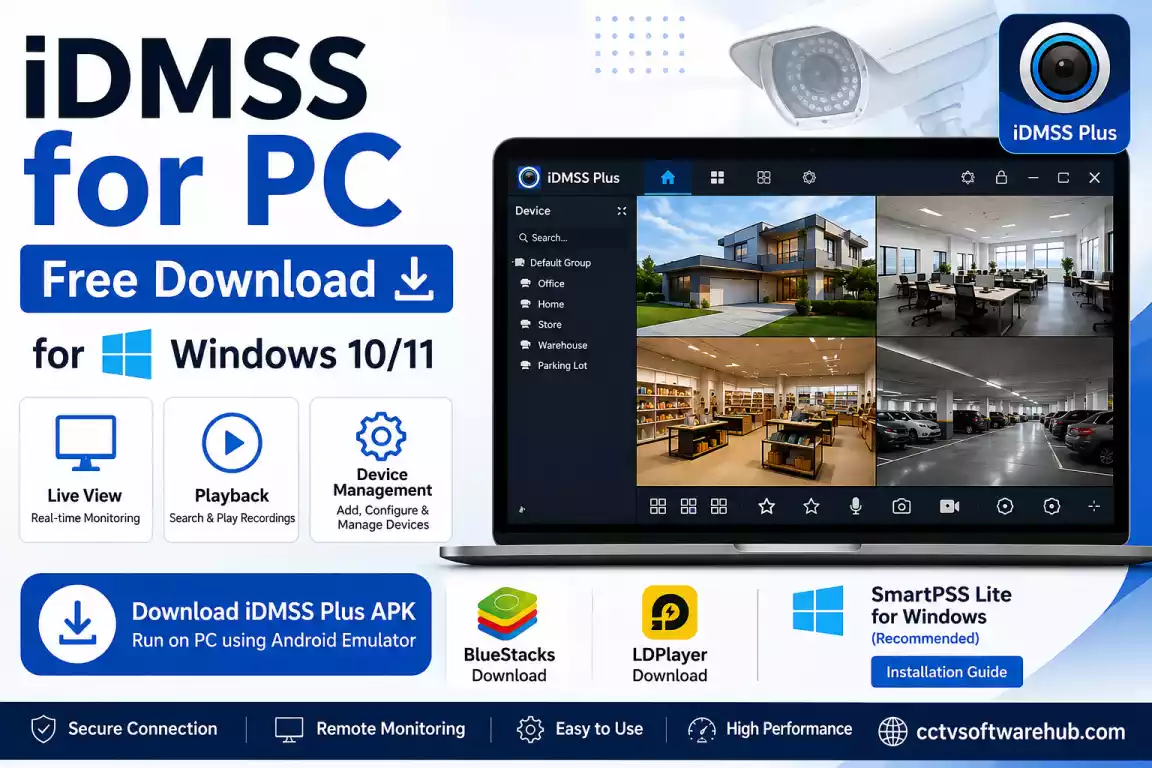
iDMSS for PC usually means running the Dahua iDMSS/iDMSS Plus mobile app on a Windows computer through an Android emulator, because iDMSS was not a native Windows application. More importantly, Dahua discontinued maintenance and support for iDMSS in August 2024, and its P2P remote connection service for all iDMSS versions ended on October 30, 2024. For a current Windows CCTV setup, I recommend SmartPSS Lite instead.
If you are searching for iDMSS for PC, you are probably trying to view your Dahua CCTV cameras on a larger Windows screen instead of using a phone. You may also have found older pages promising an “iDMSS Plus download for PC” or an “official iDMSS Windows version.”
That is where the confusion starts.
iDMSS was designed as a mobile surveillance application. It was not released as a normal Windows program like an .exe application. The older workaround was to run the Android version inside an emulator such as BlueStacks or another Android virtualization platform.
I created this guide to explain the difference between iDMSS for PC, iDMSS Plus for PC, and current Dahua software for Windows. I will also show you how the legacy APK method works, why an old installation may fail today, and which Dahua software I would choose for a new Windows CCTV workstation.
Where Can You Download iDMSS for PC?
I recommend downloading iDMSS Plus APK only from a source you trust because iDMSS Plus is discontinued and there is no current native Windows installer. For users who want to run the legacy app on a PC, I have provided the required download options below.
If your goal is simply to view and manage Dahua CCTV on a Windows PC, I recommend SmartPSS Lite instead. It is designed for Windows and does not require an Android emulator.
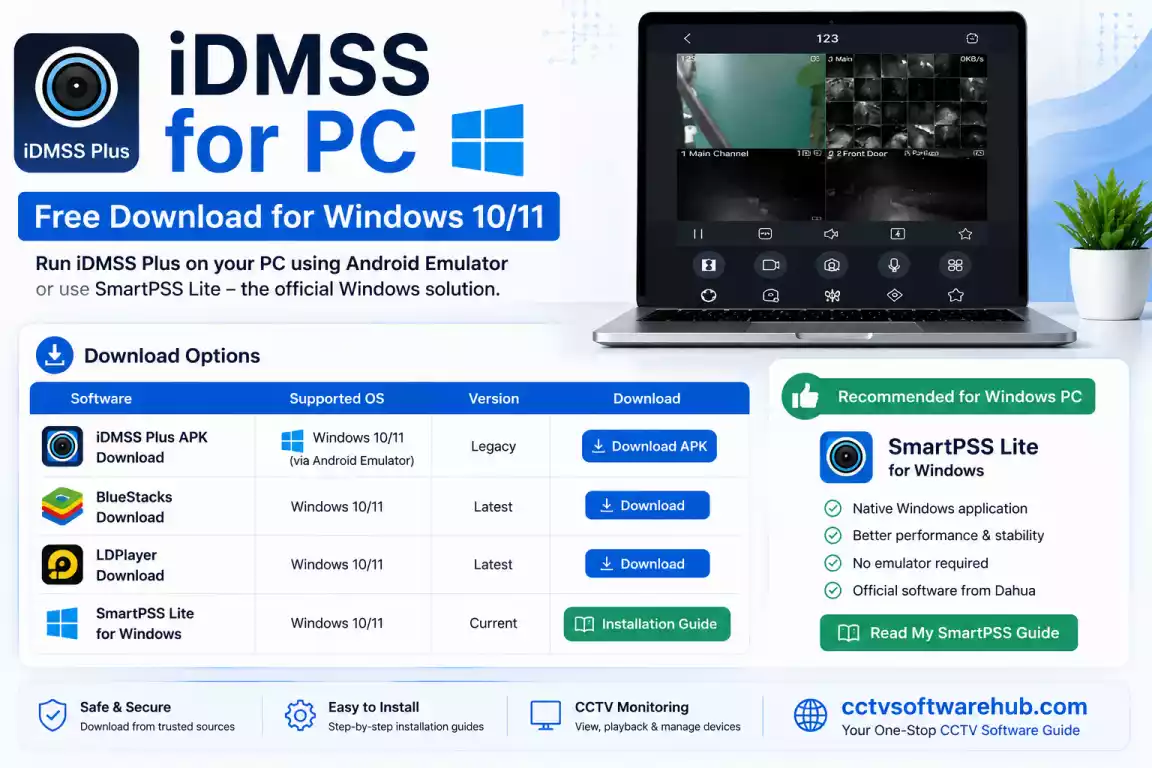
| Software | Supported OS | Version | Download |
|---|---|---|---|
| iDMSS Plus APK Download | Windows 10 / 11 + Android Emulator | Legacy | ⬇ Download |
| BlueStacks Download | Windows 10 / 11 | Latest | ⬇ Download Offical |
| LDPlayer Download | Windows 10 / 11 | Latest | ⬇ Download Offical |
SmartPSS Lite for Windows
★ RECOMMENDED | Windows 10 / 11 | Current | ⬇ Download |
Which Download Should You Choose?
For the old iDMSS Plus application: download the APK and install it through BlueStacks or LDPlayer.
For current Dahua CCTV monitoring on Windows: I recommend SmartPSS Lite for Windows. I have explained the complete download and installation process in my SmartPSS guide.
Important: iDMSS Plus is legacy software. Dahua ended maintenance and support for iDMSS in August 2024, and its P2P remote connection service for iDMSS ended in October 2024. Therefore, an old APK may install successfully but may not provide the remote connectivity that users previously had.
What About an iDMSS Plus Windows EXE?
There is no current official native iDMSS Plus .exe application for Windows. The legacy PC method requires an Android emulator.
I recommend avoiding websites that advertise a modified, cracked, or “official” iDMSS Plus Windows installer. For a new Windows CCTV setup, SmartPSS Lite is the option I recommend.
What Is iDMSS for PC?
iDMSS for PC is not a separate native Windows application. In most searches, the term refers to using the legacy Dahua iDMSS mobile application on a PC, normally through an Android emulator.
iDMSS was part of Dahua’s earlier mobile surveillance software ecosystem. Depending on the version and connected device, users could monitor Dahua DVRs, NVRs, and cameras remotely.
What could iDMSS do?
The app was mainly used for surveillance tasks such as:
- Live camera viewing
- Remote playback
- Device management
- PTZ control
- Snapshot functions
- Remote monitoring
- Multi-camera viewing
For a typical Dahua system, the idea was simple: instead of sitting next to the recorder, you could use the mobile app to check your cameras remotely.
That made iDMSS useful for homeowners, shop owners, offices, warehouses, and CCTV installers.
Why do people search for iDMSS PC?
The main reason is the display.
A phone is excellent for quickly checking a camera, but a Windows PC gives you a much larger screen, a mouse and keyboard, and better visibility when several cameras need to be watched at the same time.
This is why users commonly search for:
- iDMSS for PC
- iDMSS PC
- iDMSS Plus for PC
- iDMSS Plus for Windows
- iDMSS Plus download for PC
- iDMSS Plus for Windows 11
- iDMSS Plus for Windows 10
The important thing is that these searches do not mean there is a current official Windows version of iDMSS.
Is iDMSS Plus the Same as iDMSS?
iDMSS Plus was a legacy version of Dahua’s mobile surveillance software, while “iDMSS” is often used as the broader name for the old iOS application.
You may also encounter the name gDMSS in older articles. That referred to the Android side of the older Dahua mobile software ecosystem.
Today, you may also see DMSS, which is the newer Dahua mobile application direction.
This naming difference is one reason old download articles can be confusing. A page written several years ago may use iDMSS Plus, iDMSS, gDMSS, and DMSS almost interchangeably even though they belong to different stages of Dahua’s software ecosystem.
For Windows PC use, the more important question is not which old app name you find. It is whether you need legacy software or a current desktop client.
Is iDMSS Plus Still Available in 2026?
iDMSS Plus is no longer a current supported Dahua application.
Dahua published a notice stating that maintenance and support for the iDMSS and gDMSS apps, along with certain older SmartPSS 2.0 versions, would be discontinued from August 15, 2024.
Dahua Japan later published a more specific notice explaining that the remote connection service for all versions of iDMSS and gDMSS would end on October 30, 2024. The notice specifically says that P2P communication would stop working and recommends SmartPSS Lite for PC users and DMSS for mobile users.
This distinction is important.
An APK file can still exist even after the original service is discontinued.
That means you might find an old iDMSS Plus APK online, install it successfully, and still have a completely different problem when you try to connect to your recorder remotely.
What does the discontinuation actually mean?
It does not necessarily mean that every old APK will refuse to open.
Instead, several parts of the old ecosystem can become unreliable or unavailable.
For example:
- The application may install.
- The application may open.
- Menus may still work.
- A local connection may behave differently from a remote connection.
- P2P remote connectivity may no longer function.
That is why downloading another APK version is not always the solution.
Can I still find old iDMSS Plus APK files?
Yes, archived APK files may still appear on third-party sites.
However, I would treat them as legacy software, not as current official Dahua downloads.
I would also avoid modified, cracked, unlocked, or repackaged APK files. CCTV software has access to sensitive camera and recorder credentials, so installing a suspicious package is not worth the risk.
For current Dahua software, I recommend starting with the official Dahua Download Center.
Is There an Official iDMSS Version for Windows PC?
No, iDMSS was not a native Windows PC application.
This is probably the biggest source of confusion around the keyword.
When someone says “download iDMSS for Windows,” they may actually mean:
Install an Android emulator on Windows and then run the old iDMSS APK inside it.
That is completely different from downloading a genuine iDMSS.exe Windows installer.
How does iDMSS work on Windows?
The old setup can be represented like this:
Windows 10/11 → Android Emulator → iDMSS APK → Dahua DVR/NVR
The emulator creates an Android environment inside Windows. The application believes it is running on Android even though the hardware underneath is a Windows PC.
This is the same general method used for many Android-only CCTV apps.
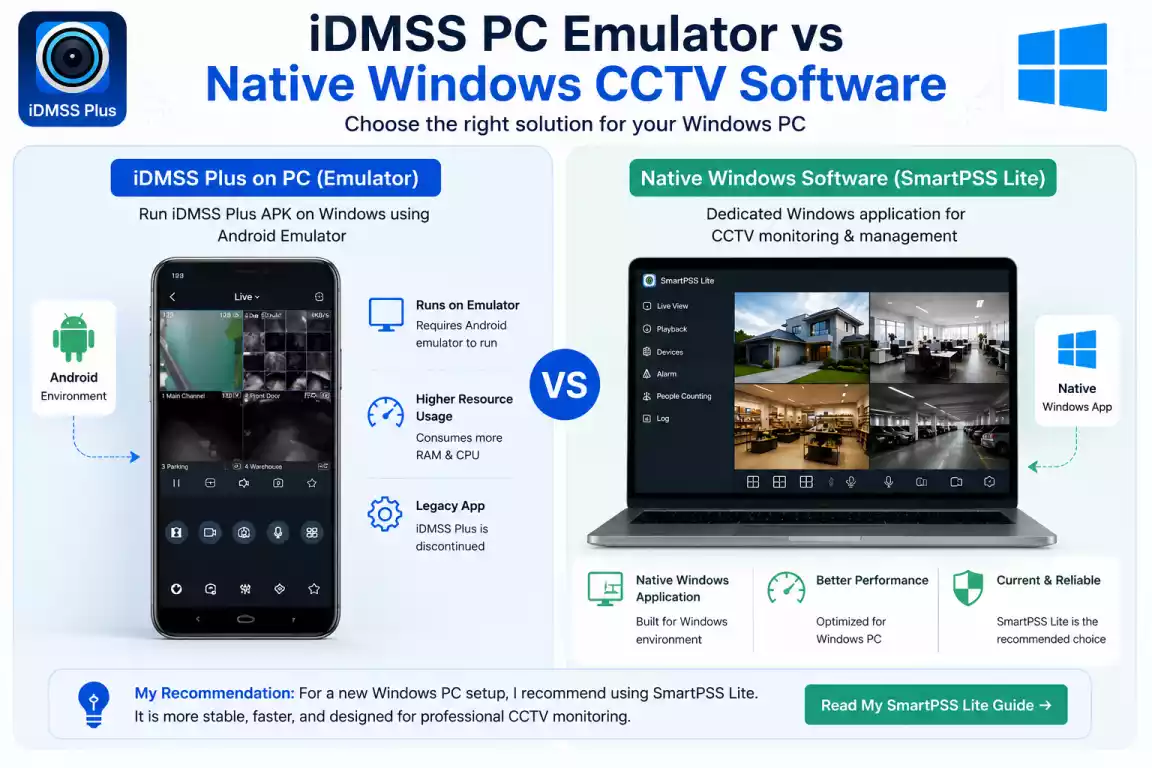
What is the difference between iDMSS PC and Dahua Windows software?
| Software | Native Windows | Current direction | Typical use |
|---|---|---|---|
| iDMSS | No | Legacy | Older mobile monitoring |
| iDMSS Plus | No | Legacy | Older mobile monitoring |
| iDMSS through emulator | No | Legacy workaround | Running an old APK |
| DMSS | No | Current mobile direction | Mobile monitoring |
| SmartPSS Lite | Yes | Recommended for PC | Windows CCTV monitoring |
| Dahua ConfigTool | Yes | Current utility | Device discovery/configuration |
Dahua’s own documentation provides installation instructions for SmartPSS Lite on Windows, including launching SmartPSSLite.exe.
Can I Use iDMSS for PC on Windows 10 and Windows 11?
You can attempt to run the legacy iDMSS APK through an Android emulator on both Windows 10 and Windows 11, but I would not use this as the foundation of a new CCTV monitoring setup.
The main issue is no longer simply operating-system compatibility.
Can I use iDMSS Plus on Windows 10?
Yes, the old emulator method can work at the software-environment level on Windows 10.
You install an Android emulator, install the APK, and launch the application inside Android.
But if your main goal is remote Dahua monitoring, the discontinued iDMSS P2P service is a much bigger concern.
Dahua Japan states that P2P communication for all iDMSS versions ended on October 30, 2024.
Can I use iDMSS Plus on Windows 11?
The same basic method applies to Windows 11.
However, Windows 11 support for the emulator does not change the fact that iDMSS is legacy software.
If I were setting up a new Windows 11 CCTV PC today, I would skip the legacy emulator approach and install SmartPSS Lite.
Dahua documentation lists Windows 10 and Windows 11 among the supported environments for SmartPSS Lite documentation.
What should I download for Windows?
There are three very different possibilities:
| What you need | What I recommend |
| Current Dahua CCTV monitoring on Windows | SmartPSS Lite |
| Current Dahua mobile monitoring | DMSS |
| Specific legacy iDMSS requirement | Android emulator + old APK |
This distinction will save you a lot of time.
How Do You Install iDMSS Plus on a PC?
To run legacy iDMSS Plus on Windows, you need an Android emulator because the original application was not a native Windows program.
The process is relatively straightforward.
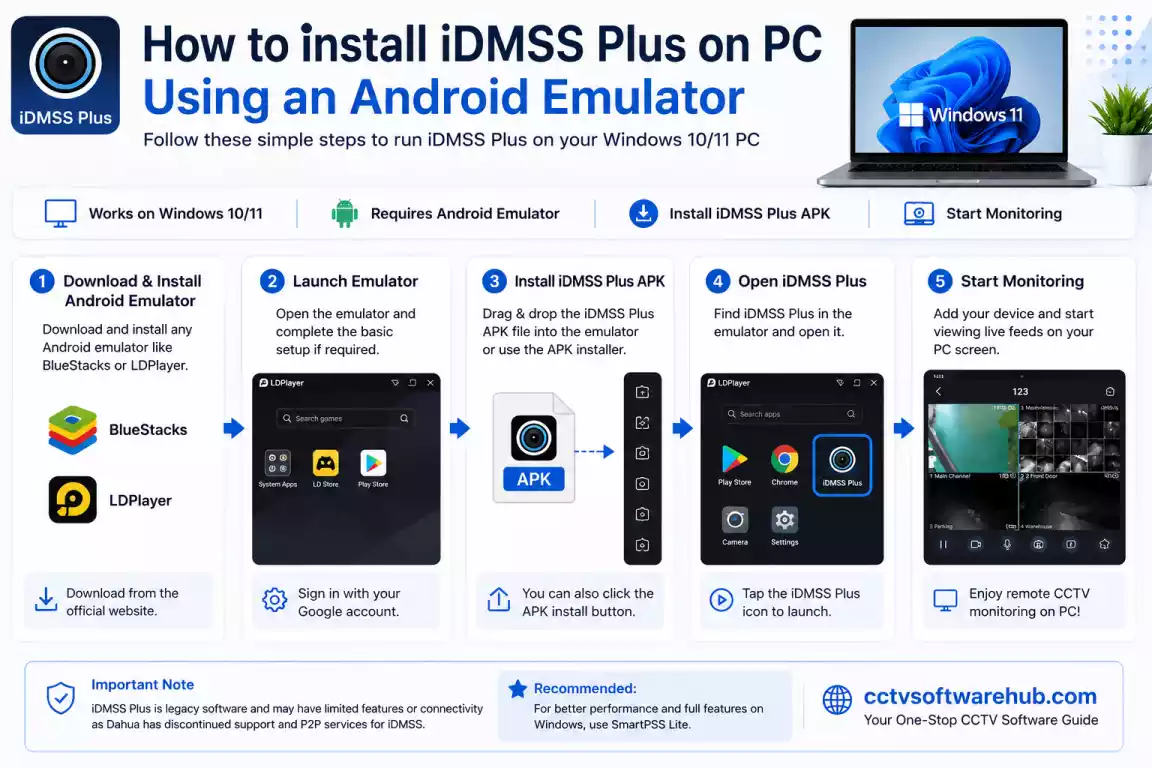
Step 1: Install a reputable Android emulator
You can use an Android emulator such as BlueStacks or another reputable platform that supports your Windows installation.
Download the emulator directly from its official website.
Avoid installation packages bundled with unrelated programs.
After downloading:
- Run the installer.
- Follow the setup wizard.
- Allow the required permissions.
- Complete the installation.
- Start the emulator.
The first startup can take longer than a normal application because the emulator has to initialize its Android environment.
Step 2: Complete the Android setup
Depending on the emulator, you may be asked to:
- Sign in to Google
- Set language preferences
- Configure storage
- Complete Android initialization
If Google Play is available, you can use it for supported applications.
However, because iDMSS Plus is discontinued, you should not assume that the old application will still be available through the current Play Store.
Step 3: Install the iDMSS Plus APK
If you have a legitimate archived APK, use the emulator’s APK installation function.
The general workflow is:
- Open the emulator.
- Choose the APK installation option.
- Select the iDMSS Plus APK.
- Wait for Android to install it.
- Open the application.
Do not assume that a website calling a file “latest iDMSS Plus APK” is providing an official current version.
For discontinued software, the wording can be misleading.
Step 4: Open iDMSS Plus
Launch the installed application.
Depending on the version, you may see:
- Device management
- Live view
- Playback
- PTZ
- Settings
- User/account options
Older versions can have significantly different interfaces.
Step 5: Add your Dahua DVR or NVR
Depending on the legacy version, you may need information such as:
| Field | Example |
| Device Name | Office DVR |
| Serial Number | Recorder serial |
| IP Address | Local IP |
| Domain | Remote hostname if used |
| Username | DVR/NVR user |
| Password | DVR/NVR password |
Use the actual details from your recorder.
If you do not know your device credentials, do not guess repeatedly. Check the recorder’s configuration or reset procedure instead.
Step 6: Test local connectivity first
If your DVR or NVR is in the same office or home network, test local access before troubleshooting remote access.
This is one of the easiest ways to separate a local device problem from a remote connectivity problem.
Step 7: Test live view
After adding the device, confirm:
- The device is online.
- Cameras appear.
- Video loads.
- The correct channels are shown.
- Playback is accessible.
If the application opens but the device stays offline remotely, reinstalling the emulator may not help.
How Do You Use iDMSS Plus on a PC?
Once the legacy application is running, it works much like the mobile version because the emulator is providing an Android environment.
How do you view Dahua cameras?
Open the device list and select the recorder.
Then open the live-view screen and choose the required camera channels.
The main advantage is the larger PC monitor.
If you have eight or sixteen cameras, a desktop display is far more practical than continuously viewing all feeds on a smartphone.
How do you play recorded video?
Open playback and select:
- Recorder
- Camera/channel
- Date
- Time range
Then move through the recording timeline.
When investigating an incident, I recommend checking neighboring camera views as well. A subject may enter one camera’s field of view and continue into another camera’s area.
How do you control a PTZ camera?
For a compatible PTZ camera, open the PTZ function and use the available movement and zoom controls.
The exact controls depend on the camera and iDMSS version.
Can you use iDMSS Plus as a permanent CCTV monitoring station?
Technically, you can create an emulator-based workstation.
But I would not choose that approach for a new installation.
You are adding another software layer and depending on discontinued mobile software.
For long-term Windows monitoring, a native PC client is the better choice.
Why Is iDMSS Plus Not Working on PC?
The most important point is that an iDMSS failure today may be caused by the discontinued Dahua service rather than the Windows PC itself.
This is why old troubleshooting guides can be misleading.
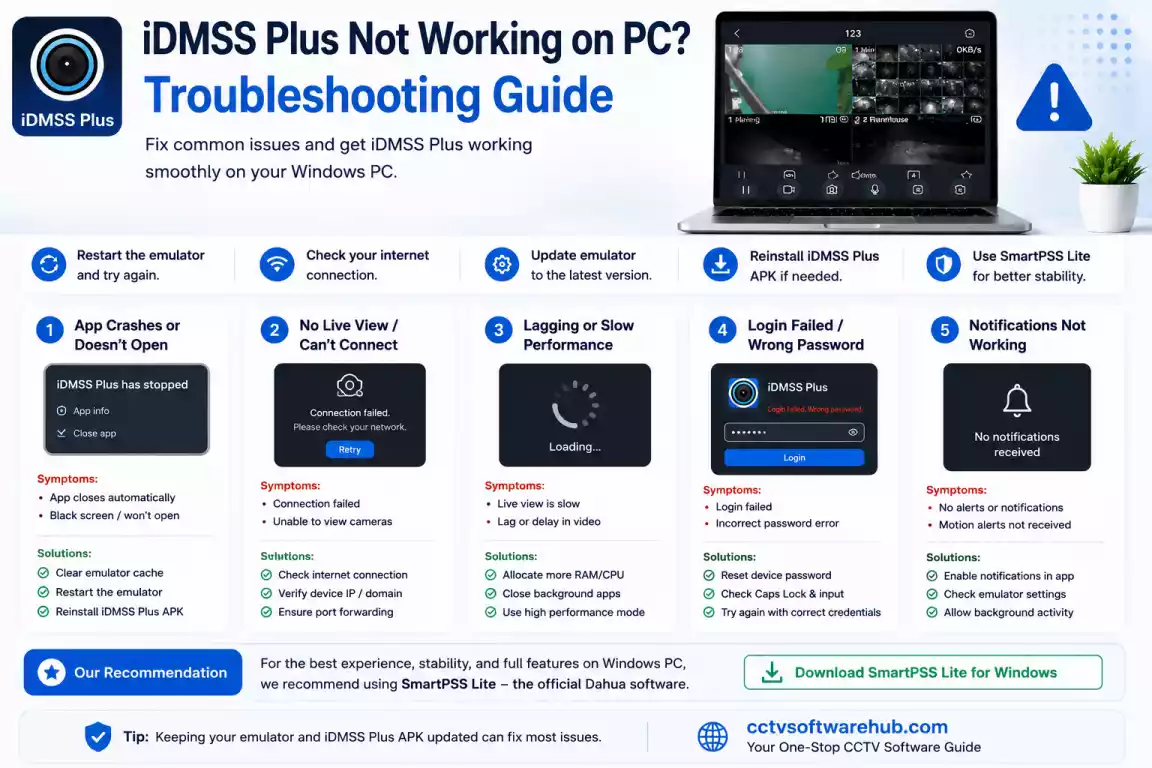
Why does iDMSS open but fail to connect?
The application can still open even if the old remote connection service is unavailable.
Dahua Japan explicitly states that P2P communication for all iDMSS and gDMSS versions ended on October 30, 2024.
So if you see the application, enter the correct details, and the device still stays offline remotely, the problem may be the old service path.
Why does the DVR show offline?
Check these items first:
- Is the DVR/NVR powered on?
- Is its network connection working?
- Are the username and password correct?
- Can the device be reached locally?
- Are you depending on the discontinued iDMSS P2P service?
A useful test is to connect locally.
If local access works but remote access fails, you have a strong indication that the recorder itself may be fine.
Why is live video not loading?
Possible causes include:
- Unreachable recorder
- Incorrect credentials
- Network issues
- Emulator compatibility
- Stream compatibility
- Legacy service dependency
Start with the simplest tests first instead of changing several settings at once.
Why does the APK install but crash?
Possible causes include:
- Old Android compatibility requirements
- Emulator problems
- Corrupt APK
- Insufficient resources
- Application dependency issues
You can try a reputable emulator with a compatible Android environment.
However, I would set a practical limit on troubleshooting time.
If the real objective is simply “I need Dahua CCTV on my Windows PC,” moving to SmartPSS Lite is usually more productive.
Why does local access work but remote access fail?
This is one of the most useful troubleshooting clues.
Imagine a shop with a Dahua DVR.
You sit next to the recorder and the local connection works. The cameras display correctly and playback works.
Then you leave the shop and the old iDMSS application can no longer connect remotely.
That tells me to investigate the remote connection method rather than immediately replacing the DVR or reinstalling Windows.
With iDMSS specifically, Dahua’s published P2P service termination is a major factor.
What Is the Best Dahua Software for Windows PC?
For current Dahua CCTV monitoring on Windows, I recommend SmartPSS Lite.
This is the key recommendation I want readers to take away from this article.
Dahua’s own service transition notice directs PC users toward SmartPSS Lite, and Dahua documentation continues to provide SmartPSS Lite installation instructions.
Why do I recommend SmartPSS Lite?
The biggest advantage is that it is designed for the desktop environment.
You do not have to create an Android environment first.
Instead, you install the Windows software and work directly from the PC.
Depending on the supported Dahua devices and installed version, the software can be used for tasks such as:
- Live monitoring
- Playback
- Device management
- Surveillance system administration
- Multi-device monitoring
Dahua’s documentation shows a Windows installation flow using SmartPSSLite.exe.
Is SmartPSS Lite better than iDMSS Plus for PC?
For a current Windows installation, yes.
| Feature | iDMSS Plus | SmartPSS Lite |
| Native Windows application | No | Yes |
| Android emulator required | Yes | No |
| Current PC direction | No | Yes |
| Designed for desktop monitoring | No | Yes |
| Suitable for new Windows setup | No | Yes |
| Legacy iDMSS P2P dependency | Yes | Different current PC path |
| Best choice for 2026 Windows monitoring | No | Yes |
I would not ask someone setting up a new Windows CCTV workstation to build it around an old mobile application.
What about older SmartPSS?
There is another mistake I often see.
People hear “SmartPSS” and then download the oldest SmartPSS package they can find.
That is not the approach I recommend.
Dahua has also discontinued certain older SmartPSS 2.0 versions. Its official notices direct users toward newer replacement software such as SmartPSS Lite.
So always check the exact version and source.
For current Dahua software, start with the manufacturer’s software resources.
Can I View My Dahua DVR on Windows Without iDMSS?
Yes. You can view a Dahua DVR or NVR on a PC without iDMSS.
In fact, this is the route I recommend.
Option 1: SmartPSS Lite
This is my first choice for a Windows-based monitoring setup.
Use the official Dahua software download resources, install SmartPSS Lite, and add your recorder.
Dahua’s transition notice specifically points PC users to SmartPSS Lite.
Option 2: Local web access
Some Dahua devices provide web-based access for supported functions.
The available features depend on your recorder, firmware, browser compatibility, and configuration.
For occasional administration, a web interface can be useful.
Option 3: Local network access
If your PC and recorder are on the same network, you may be able to connect using the recorder’s local IP address through supported software or interfaces.
This is also a useful troubleshooting method.
Which option would I choose?
| Requirement | My recommendation |
| Daily Windows CCTV monitoring | SmartPSS Lite |
| Legacy iDMSS-specific requirement | Emulator + archived APK |
| Current mobile monitoring | DMSS |
| Device discovery/configuration | Dahua ConfigTool |
| Occasional device administration | Supported web interface |
I also recommend reading my Dahua Config Tool Download guide if you need to discover or configure a Dahua device on the local network.
What Is the Best iDMSS Alternative for PC?
SmartPSS Lite is the iDMSS alternative I would choose for a Windows PC.
There are other possibilities, but the correct choice depends on your purpose.
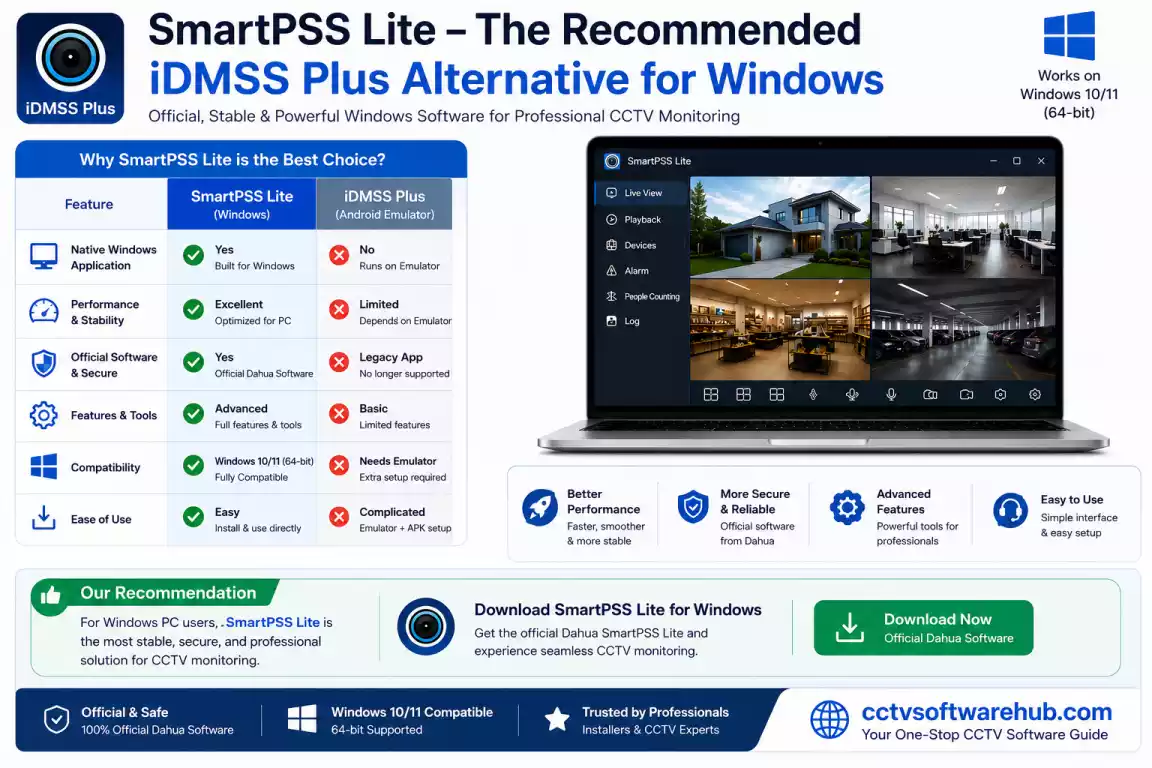
SmartPSS Lite
This is the best fit when you want a dedicated Windows CCTV monitoring application.
The biggest advantages are:
- Native Windows workflow
- No Android emulator
- Better fit for desktop monitoring
- Current Dahua PC direction
- More practical for long-term use
DMSS through an emulator
This can make sense when you specifically want to reproduce a mobile-app experience on a PC.
However, it is still an emulator-based solution.
For normal desktop CCTV monitoring, I would rather use a native PC application.
Dahua web interface
Useful for certain recorder models and administrative tasks.
I would think of it as a device-management method rather than my first choice for a dedicated monitoring station.
Should I download an unofficial iDMSS Windows program?
No.
Do not assume a Windows installer is legitimate simply because it contains “iDMSS” in the file name.
Be especially careful with downloads promoted as:
- Unlocked
- Cracked
- Premium
- Activated
- Modified
- Full version
For CCTV software, I recommend official manufacturer resources whenever available.
Can I Use BlueStacks to Run iDMSS Plus on PC?
Yes, BlueStacks can provide the Android environment needed to attempt running a legacy iDMSS Plus APK on Windows.
The process is:
Windows → BlueStacks → iDMSS Plus APK → Dahua device
However, BlueStacks only solves the application-environment problem.
It does not restore the Dahua P2P service that was discontinued for iDMSS.
That is why I would describe BlueStacks as a legacy workaround, not as an official replacement for Dahua’s Windows software.
If you are installing everything from scratch today, SmartPSS Lite is the more appropriate choice.
What Should You Download: iDMSS, DMSS, or SmartPSS Lite?
Choose based on the device you are using and what you want to accomplish.
| Your situation | Best choice |
| Windows desktop CCTV monitoring | SmartPSS Lite |
| Android/iPhone mobile monitoring | DMSS |
| Testing an old iDMSS environment | iDMSS APK + emulator |
| Finding Dahua devices on the LAN | Dahua ConfigTool |
| Viewing a recorder through supported browser functions | Web interface |
Dahua’s own transition notice makes the distinction clear: PC users should move to SmartPSS Lite, while mobile users should move to DMSS.
What Is My Honest Rating of iDMSS for PC?
I would rate iDMSS for PC 2/5 for current Windows use.
| Category | My Rating |
| Historical usefulness | 4/5 |
| PC installation simplicity | 3/5 |
| Native Windows support | 1/5 |
| Current support | 1/5 |
| Long-term reliability | 1/5 |
| Legacy usefulness | 3/5 |
| Overall for current PC use | 2/5 |
The low score is not a statement that iDMSS was a poor product when it was supported.
It is a reflection of its current status.
Dahua ended maintenance and support for iDMSS in August 2024, and P2P remote connectivity for iDMSS ended in October 2024.
From my experience with CCTV systems, I would not create a new Windows monitoring station around iDMSS Plus today.
I would use SmartPSS Lite.