
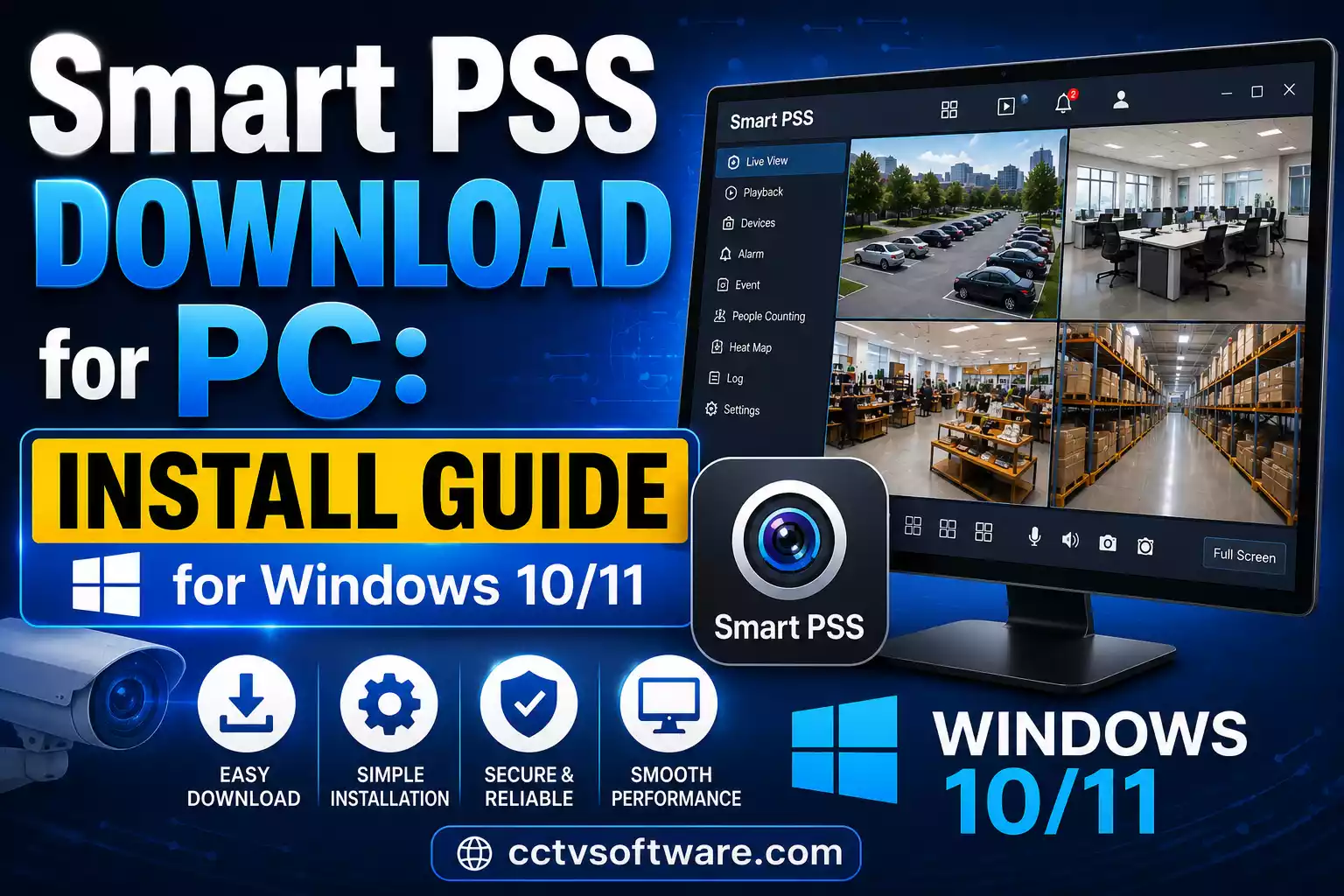
If you are searching for Smart PSS download, the biggest confusion today is whether you should install the older Smart PSS software or switch to SmartPSS Lite. After working with CCTV systems, NVRs, DVRs, and IP cameras for years, I have seen many users download the wrong version, struggle with installation errors, or waste hours trying to connect their devices. In this guide, I will show you exactly how to download Smart PSS safely, install it on Windows 11, connect your cameras, troubleshoot common issues, and decide whether SmartPSS Lite is the better option for your setup.
Whether you are a homeowner, business owner, CCTV installer, or someone managing multiple surveillance devices, this guide will help you get Smart PSS running quickly.
Planning a new surveillance system? Calculate storage requirements with our CCTV Storage Calculator.
Smart PSS Software Information
| Feature | Details |
|---|---|
| Software Name | Smart PSS (Smart Professional Surveillance System) |
| Developer | Dahua Technology |
| Category | CCTV Video Management Software |
| Supported OS | Windows 8, 10, 11 & MacOS |
| Supported Devices | DVRs, NVRs, IP Cameras |
| License | Free |
| Language Support | Multi-language |
| Latest Version | V1.006 (Latest) |
| Last Updated | Regularly Verified |
| Key Features | Live View, Playback, Alerts, Remote Monitoring |
Smart PSS Download Links
| Software | Platform | Action |
|---|---|---|
| SmartPSS Download for PC | Windows 10 / 11 | ⬇ Download Smart PSS |
| Smart PSS Lite Download | Windows 10 / 11 | ⬇ Download SmartPSS Lite |
| Smart PSS for Mac | MacOS (Intel Chips) | ⬇ Smart PSS For Mac |
| Smart PSS Lite for Mac | MacOS (M Chips) | ⬇ Download SmartPSS Lite |
What Is Smart PSS Software?
Smart PSS (Smart Professional Surveillance System) is a video management software developed by Dahua Technology. It allows users to manage multiple CCTV devices from a single computer.
Instead of checking cameras individually, Smart PSS gives you a centralized dashboard where you can:
- View live camera feeds
- Access recorded footage
- Download CCTV recordings
- Receive event notifications
- Manage multiple DVRs and NVRs
- Control PTZ cameras
- Monitor device health
I often use Smart PSS when clients want a dedicated monitoring station on a PC instead of relying only on mobile applications.
What Can Smart PSS Do?
Smart PSS combines several surveillance functions into one application.
Key features include:
- Live View Monitoring
- Video Playback
- Remote Device Access
- Alarm Management
- User Permissions
- Device Configuration
- PTZ Camera Control
- Video Export
For businesses managing multiple locations, Smart PSS significantly simplifies surveillance management.
Supported Devices
Smart PSS works with:
- Dahua DVRs
- Dahua NVRs
- Dahua XVRs
- Dahua IP Cameras
- Selected ONVIF-compatible devices
However, compatibility is always better with Dahua hardware.
Why Do Users Search for Smart PSS Download?
Most users search for download smart pss because they need a way to monitor CCTV cameras from a larger screen.
Common situations include:
- Viewing cameras on a desktop computer
- Managing multiple camera systems
- Downloading recorded footage
- Configuring remote surveillance
- Replacing older monitoring software
Many users also search for smart pss for pc because mobile apps become difficult to manage when dozens of cameras are involved.
Is Smart PSS Still Available in 2026?
This is one of the most important questions users ask today.
The original Smart PSS software is still available through some Dahua download resources, but Dahua has shifted its focus toward SmartPSS Lite.
Why Dahua Introduced Smart PSS Lite
The original Smart PSS became increasingly complex over time.
To simplify deployment and improve Windows compatibility, Dahua introduced SmartPSS Lite.
Benefits include:
- Better Windows 11 support
- Improved stability
- Cleaner user interface
- Faster performance
- Ongoing updates
Should You Use Smart PSS or Smart PSS Lite?
For most new installations, I recommend SmartPSS Lite.
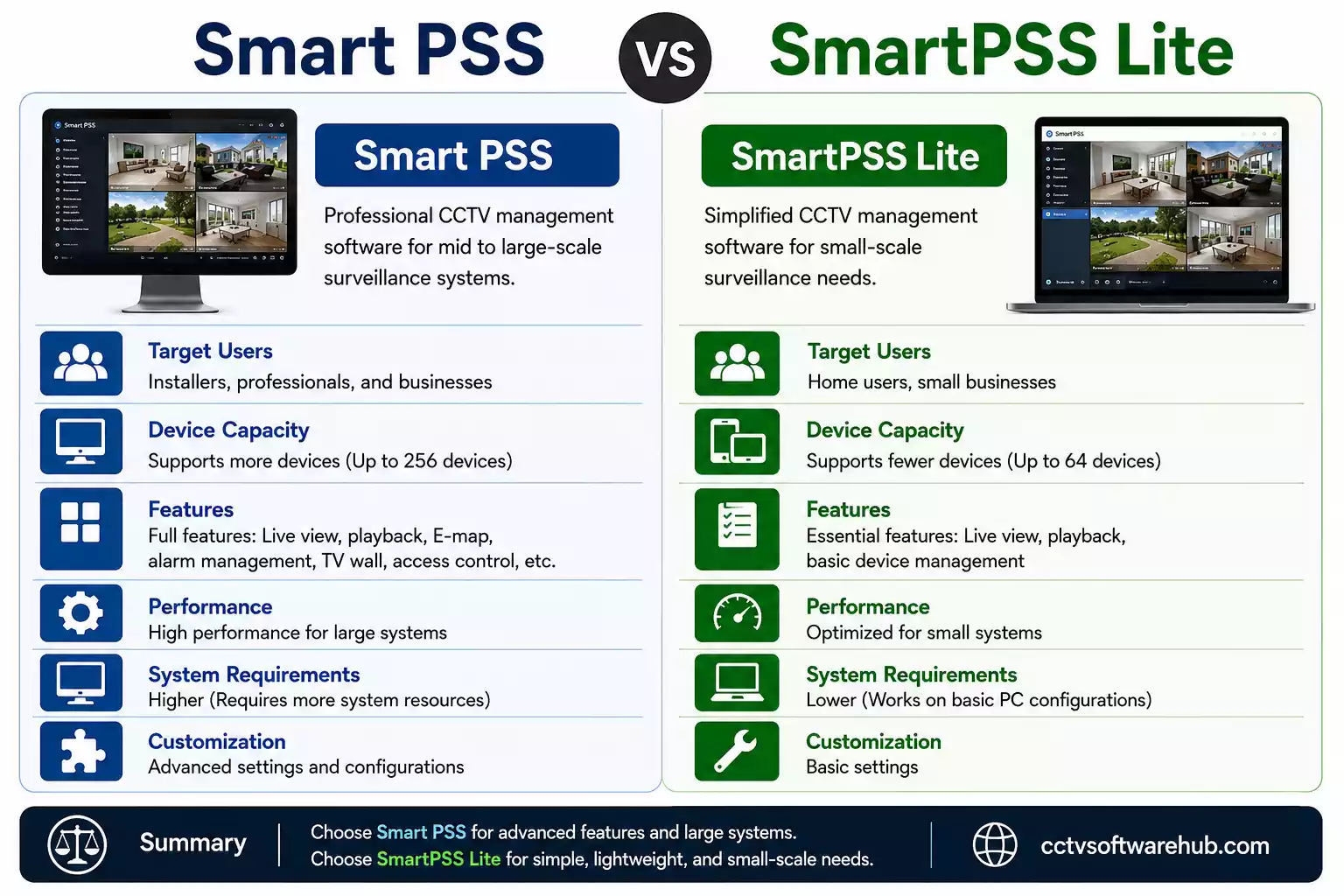
The only reason to stay with the original Smart PSS is if your existing surveillance workflow depends on legacy features.
Smart PSS vs SmartPSS Lite
| Feature | Smart PSS | SmartPSS Lite |
|---|---|---|
| Development Status | Legacy | Active |
| Windows 11 Support | Moderate | Excellent |
| User Interface | Older | Modern |
| Performance | Good | Better |
| Updates | Limited | Frequent |
| Future Support | Uncertain | Strong |
For new users, SmartPSS Lite is usually the safer choice.
Hikvision users should download iVMS 4200 Download for full device management.
Where Can You Download Smart PSS Safely?
Downloading CCTV software from random websites can expose your computer to malware or modified installers.
I always recommend downloading from official sources whenever possible.
Trusted sources include:
- Dahua Download Center
- Dahua Technical Support Portal
- Authorized Dahua Partner Websites
Avoid websites that:
- Bundle extra software
- Force third-party download managers
- Display excessive advertisements
- Offer suspicious cracked versions
Downloading CCTV software from random websites can expose your computer to malware or modified installers.
Whenever possible, download from official sources. If you need installation guides, troubleshooting help, or software resources, you can also visit CCTV Software Hub.
How Do You Download Smart PSS for PC?
The installation process is straightforward.
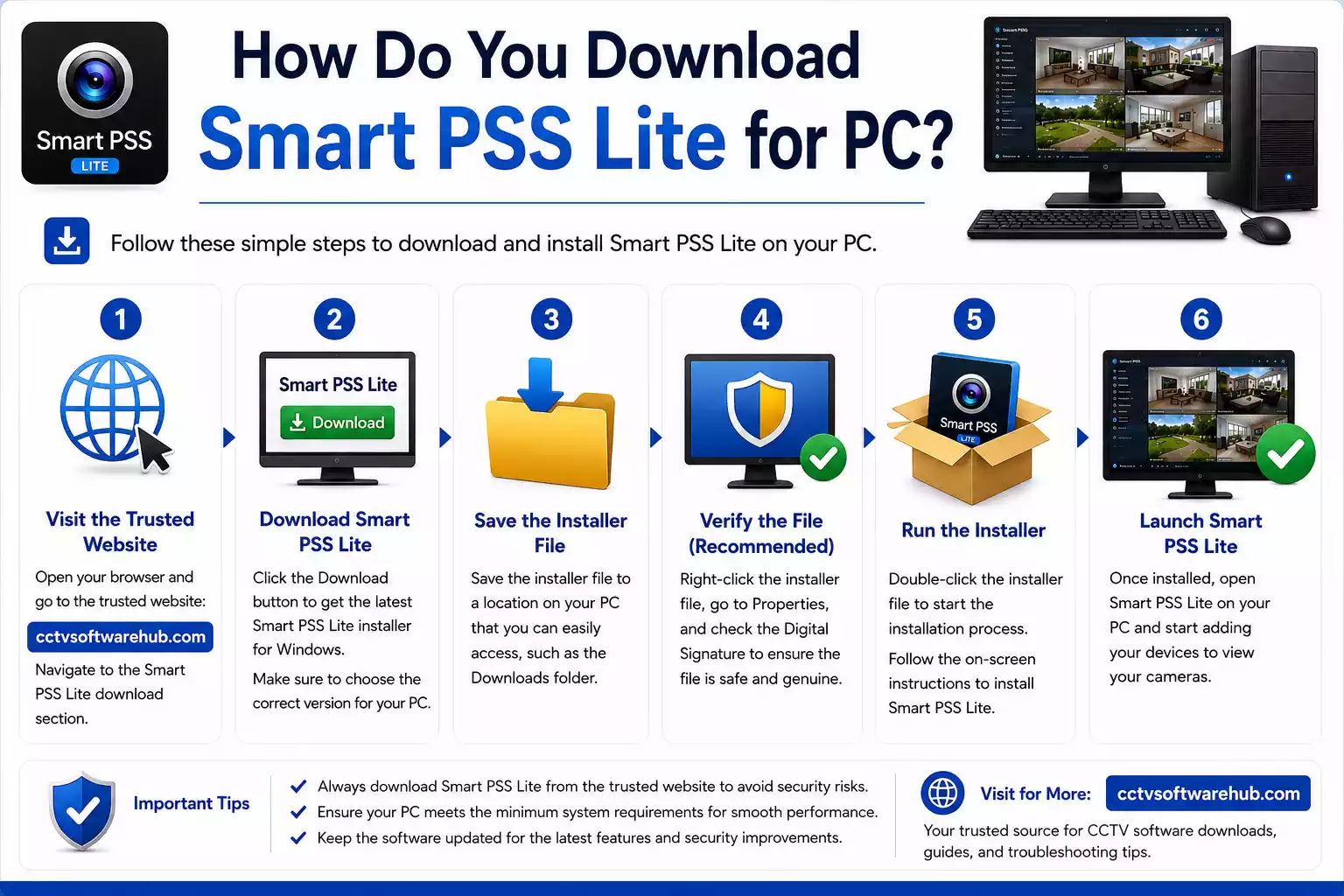
Step 1: Visit the Official Download Page
Navigate to the Dahua software download section.
Step 2: Locate Smart PSS
Search for:
- Smart PSS
- Smart PSS Lite download
Step 3: Choose Your Version
Select the version compatible with:
- Windows 10
- Windows 11
Step 4: Download the Installer
Save the installer file to your PC.
Step 5: Verify the Download
Check:
- File size
- Version number
- Publisher information
This ensures the file was downloaded correctly.
How Do You Download Smart PSS for Windows 11?
Many users specifically search for smart pss download for windows 11.
The good news is that SmartPSS Lite is optimized for Windows 11.
Recommended requirements:
| Component | Requirement |
|---|---|
| Operating System | Windows 11 64-bit |
| Processor | Intel Core i3 or higher |
| RAM | 4GB Minimum |
| Recommended RAM | 8GB+ |
| Storage | 1GB Free Space |
| Graphics | DirectX Compatible |
If your PC meets these requirements, installation should be smooth.
What Are the System Requirements for Smart PSS?
Before installation, verify your system specifications.
| Requirement | Minimum |
|---|---|
| OS | Windows 10/11 |
| CPU | Intel i3 |
| RAM | 4 GB |
| Hard Disk | 500 MB+ |
| Display | 1366×768 |
| Network | Broadband Internet |
For larger camera deployments, I recommend:
- 8–16GB RAM
- SSD Storage
- Dedicated Graphics Card
This improves playback performance significantly.
How Do You Install Smart PSS on Windows 11?
Follow these steps carefully.
Download the Installer
Download Smart PSS software from the official source.
Run the Installation File
Right-click the installer and select:
Run as Administrator
This prevents permission-related errors.
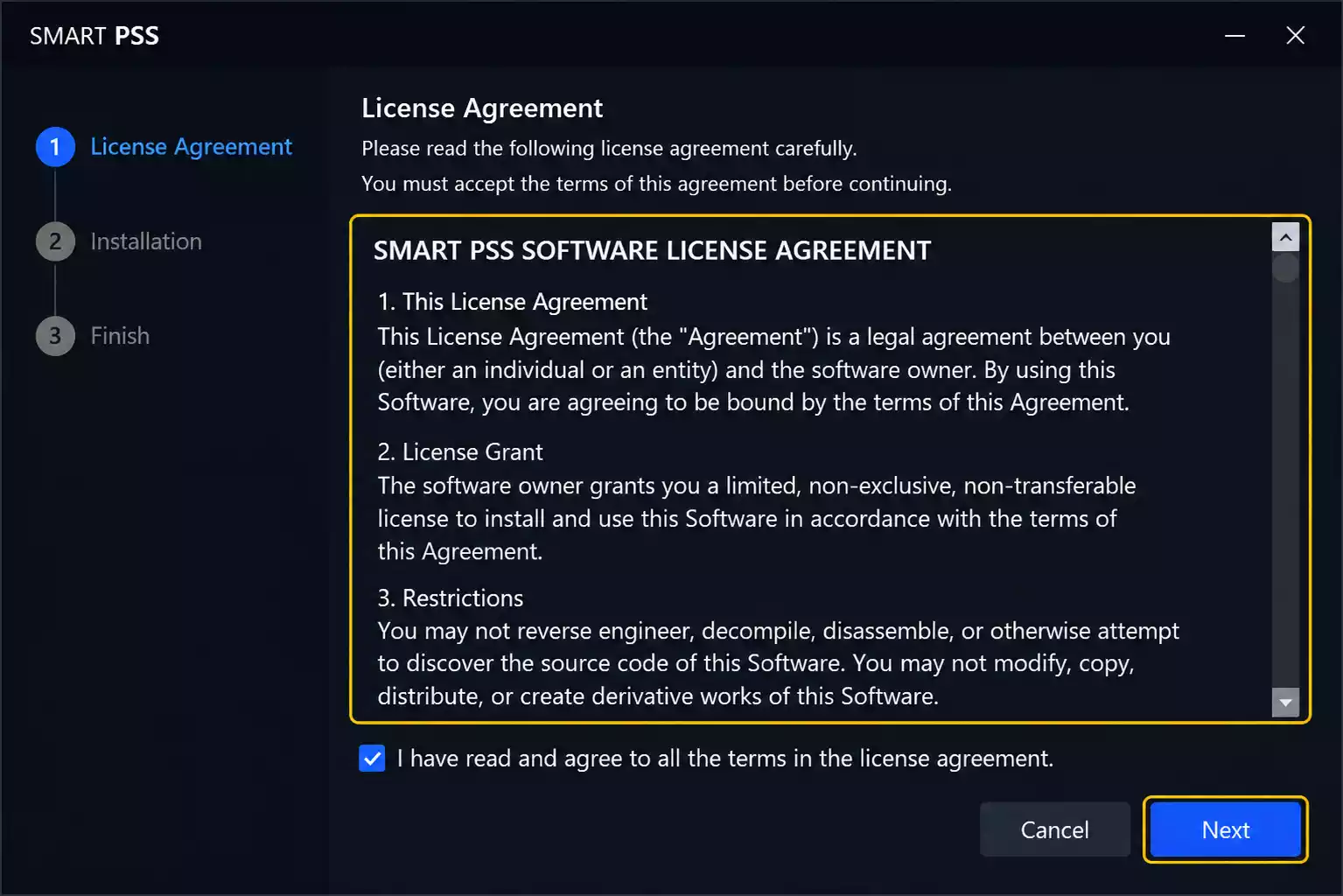
Accept the License Agreement
Read and accept the software terms.
Select Installation Directory
The default installation location is usually sufficient.
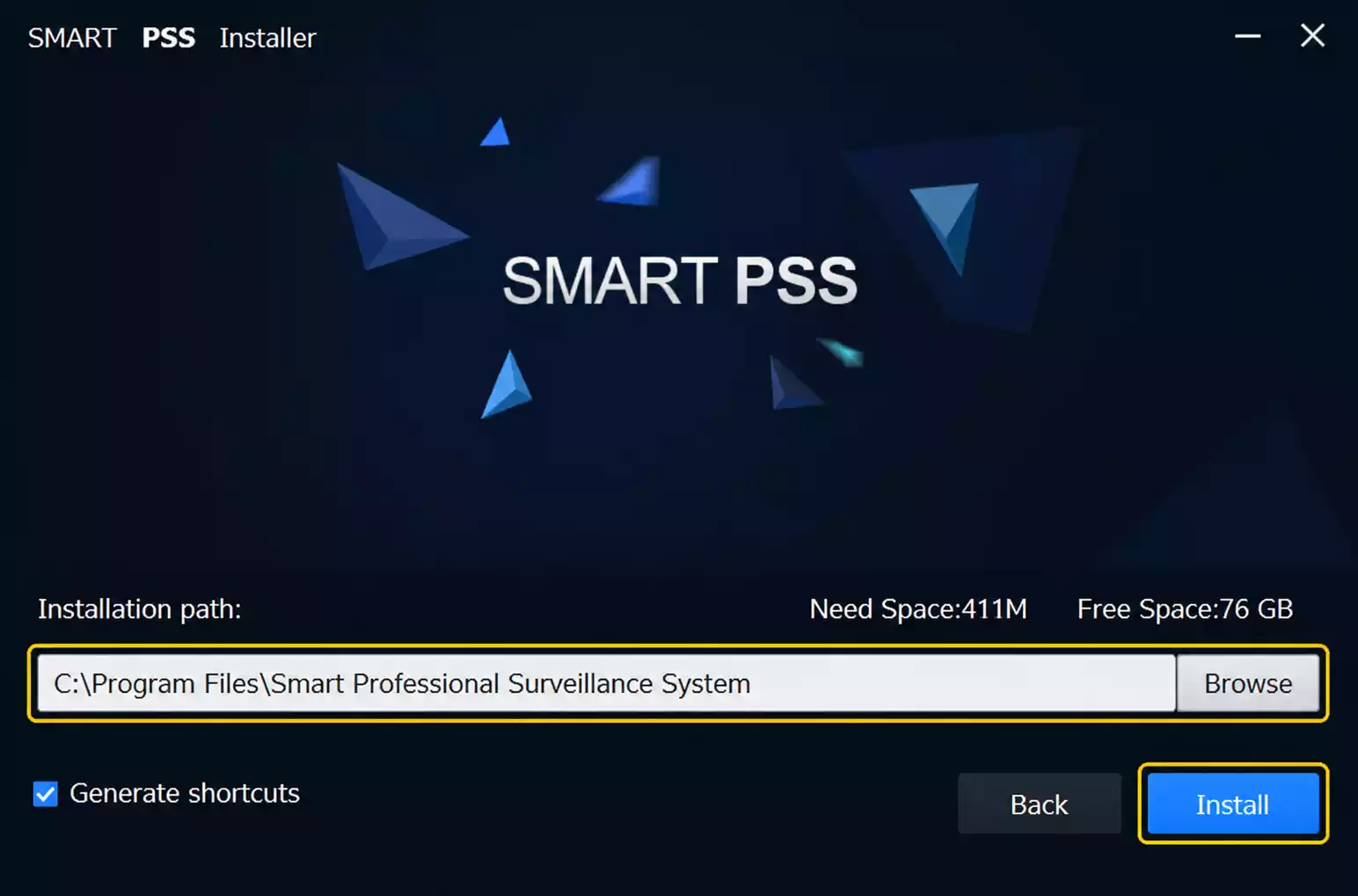
Complete Installation
Click Install and wait for the process to finish.
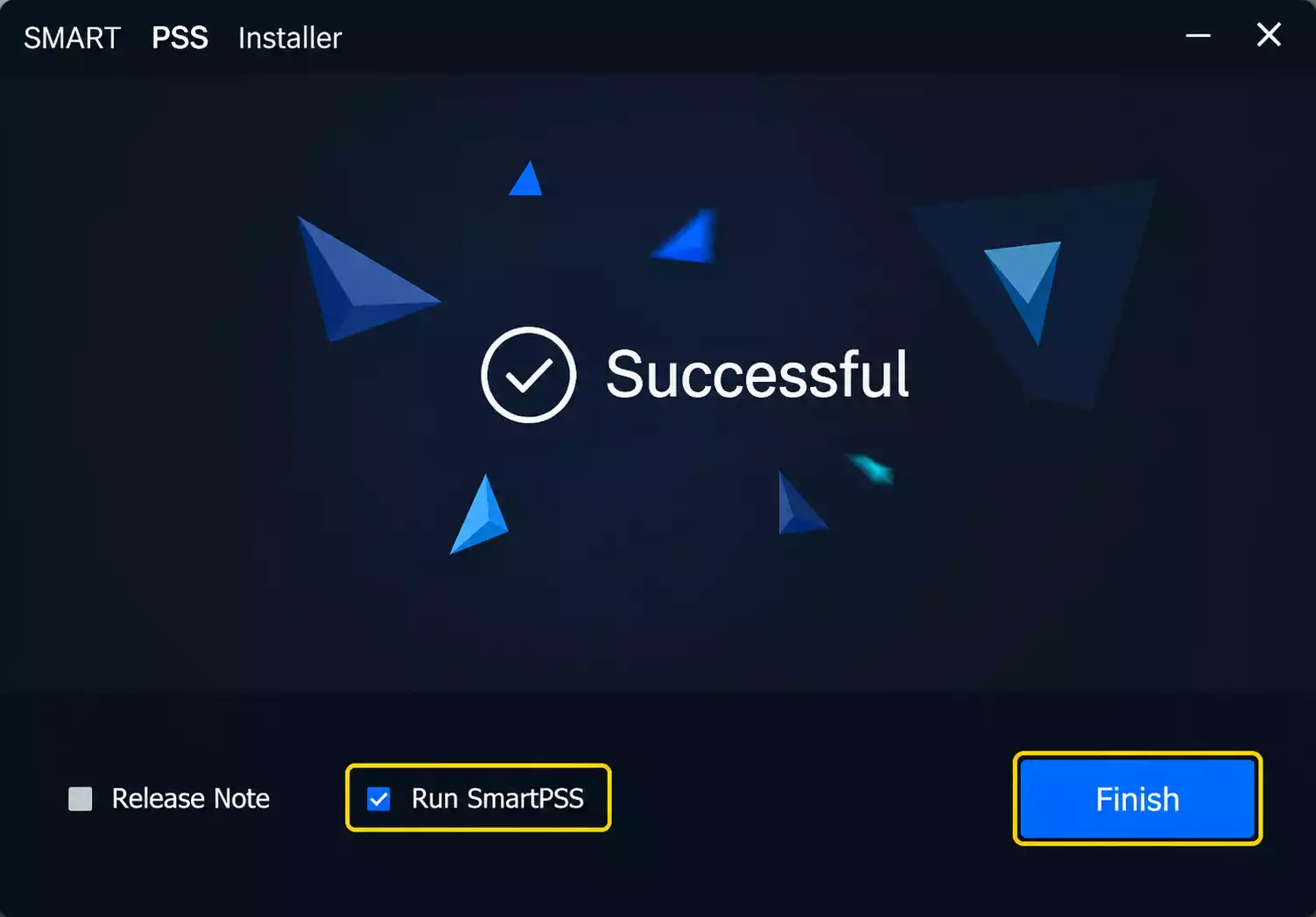
Launch Smart PSS
Open the application from the desktop shortcut.
Create an Administrator Account
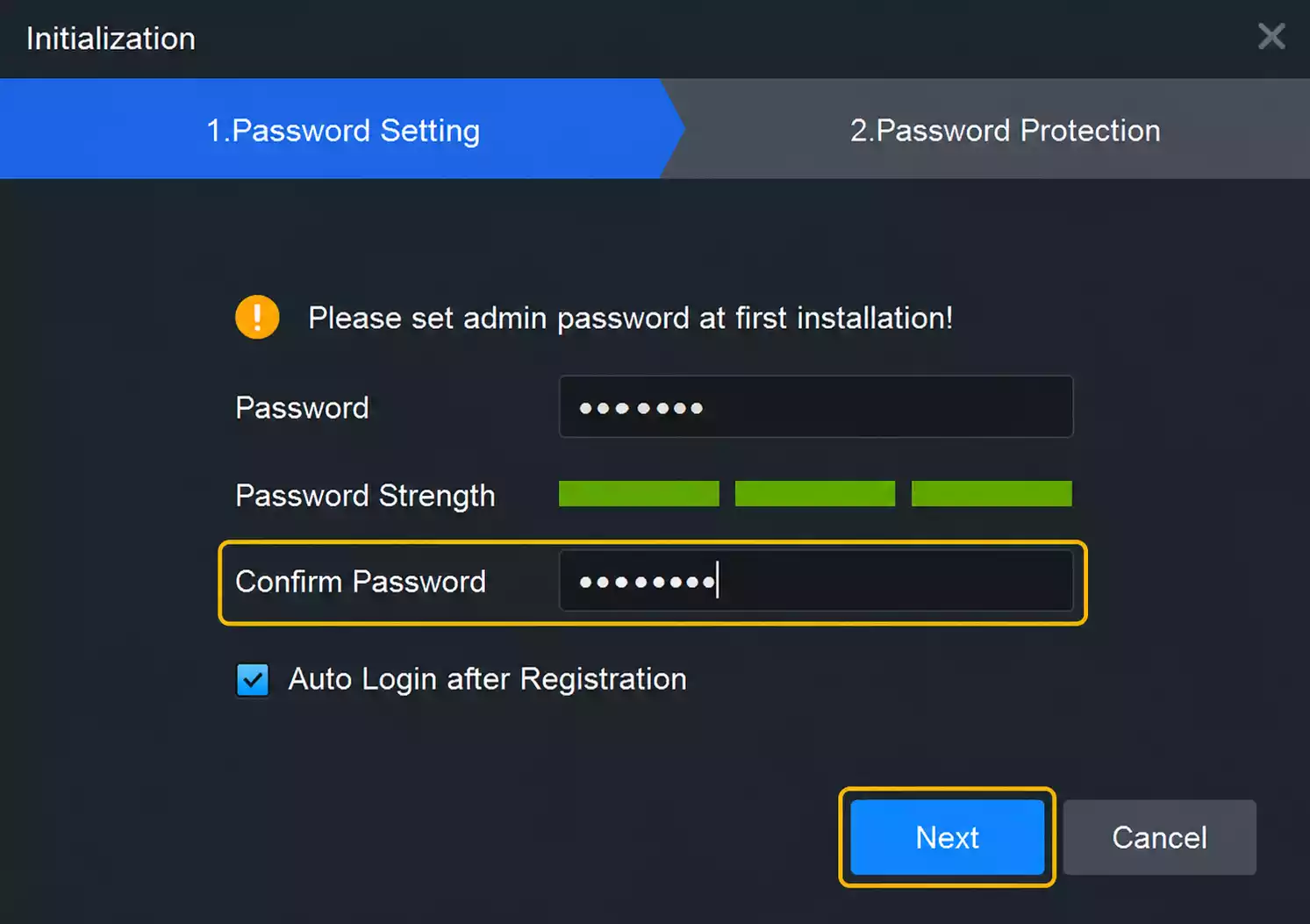
During first launch:
- Create password
- Configure recovery options
- Set Security questions
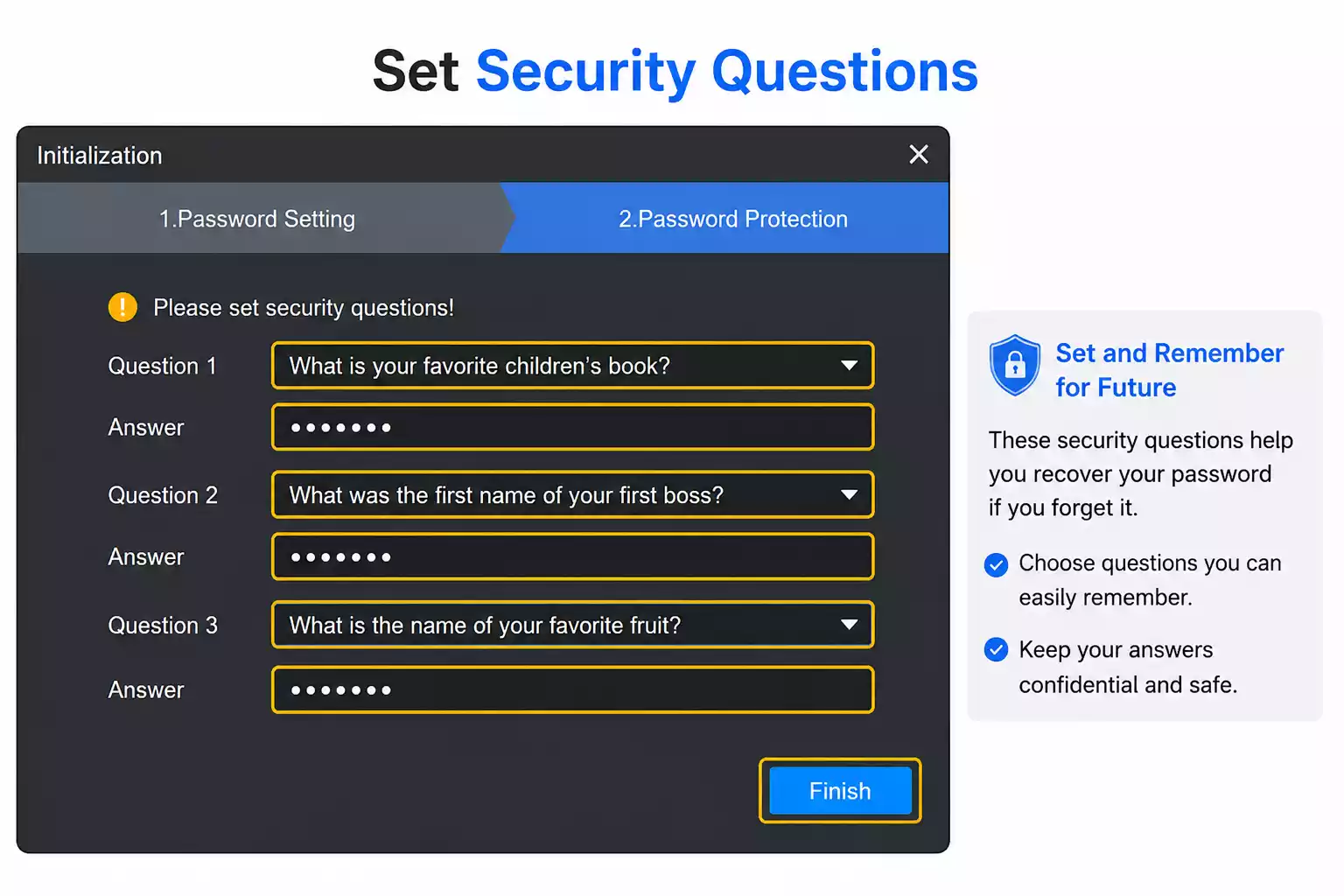
Store credentials securely.
You can also use DMSS for PC if you prefer a lightweight remote monitoring application.
How Do You Add Cameras and NVRs to Smart PSS?
Once installed, the next step is device setup.
Method 1: Add Device by IP Address
Steps:
- Open Device Manager
- Click Add Device
- Enter Device Name
- Enter IP Address
- Enter Username
- Enter Password
- Save Settings
Method 2: Add Device Using P2P
Many modern Dahua devices support P2P.
Steps:
- Open Device Manager
- Select SN/Scan Option
- Enter Serial Number
- Verify Device Status
- Save Configuration
This method is easier for remote monitoring.
Method 3: Add Multiple Devices
For businesses managing several locations:
- Group devices logically
- Assign descriptive names
- Create user permissions
This improves long-term management.
How Do You View Live CCTV Footage in Smart PSS?
After device configuration:
- Open Live View
- Expand Device List
- Select Cameras
- Drag Cameras to Viewing Grid
Available layouts include:
- 1 Screen
- 4 Screen
- 9 Screen
- 16 Screen
- 32 Screen
This flexibility is useful for monitoring multiple areas simultaneously.
How Can You Playback and Download CCTV Recordings?
Playback is one of the most used features.
Steps:
- Open Playback Section
- Select Device
- Choose Camera
- Select Date
- Click Search
Recorded footage will appear on the timeline.
Downloading Footage
To export video:
- Select Start Time
- Select End Time
- Click Download
- Choose Save Location
- Export File
This is useful when sharing footage with law enforcement or investigating incidents.
How Do You Access Cameras Remotely Using Smart PSS?
One of the biggest reasons users install Smart PSS for PC is remote monitoring. Whether you are at home, in the office, or traveling, Smart PSS allows you to access your CCTV system from anywhere.
What Is Remote Viewing?
Remote viewing lets you connect to your DVR, NVR, or IP camera over the internet instead of being physically connected to the same network.
This means you can:
- Check your home cameras while traveling
- Monitor office security after business hours
- Verify deliveries remotely
- Respond quickly to security alerts
Method 1: Remote Access Using P2P
I recommend P2P for most users because it requires minimal networking knowledge.
Step 1: Enable P2P on Your Recorder
On your DVR or NVR:
- Open Main Menu
- Navigate to Network Settings
- Open P2P Settings
- Enable P2P
- Verify that the status shows Online
Step 2: Obtain the Device Serial Number
You will usually find the serial number:
- On the device label
- Inside the network settings
- Within the P2P section
Step 3: Add Device to Smart PSS
- Open Device Manager
- Click Add
- Choose SN (Serial Number)
- Enter Device Information
- Save Settings
Once connected, Smart PSS will establish communication through Dahua’s cloud services.
Method 2: Remote Access Using IP Address
Advanced users may prefer direct IP connectivity.
Requirements:
- Static Public IP
- Port Forwarding
- Proper Firewall Configuration
While this method offers more control, it can be challenging for beginners.
Best Practices for Remote Viewing
To improve reliability:
- Use strong passwords
- Update device firmware regularly
- Enable HTTPS when available
- Avoid default usernames
- Monitor internet connection stability
These simple steps prevent many common security issues.
What Are the Most Useful Features of Smart PSS?
Smart PSS includes far more than basic live viewing.
Let’s look at the features I use most frequently during CCTV installations.
Live Monitoring
The Live View module provides real-time surveillance.
Benefits include:
- Multiple camera layouts
- Digital zoom
- Snapshot capture
- Full-screen monitoring
- Multi-monitor support
For businesses with several cameras, this becomes the central monitoring dashboard.
Video Playback
Playback allows you to review recorded events quickly.
Features include:
- Timeline Search
- Motion Event Search
- Date-Based Search
- Multi-Camera Playback
- Speed Controls
This is particularly useful during investigations.
Alarm and Event Notifications
Smart PSS can alert users when specific events occur.
Supported events include:
- Motion Detection
- Line Crossing
- Intrusion Detection
- Video Loss
- Storage Failure
Instead of constantly watching cameras, you receive notifications when activity occurs.
Device Health Monitoring
The software continuously checks device status.
You can monitor:
- Online Status
- Storage Capacity
- Network Connectivity
- Recording Health
- Camera Availability
This helps identify problems before they become serious.
User Management
Businesses often need multiple users.
Smart PSS supports:
- User Accounts
- Permission Levels
- Role-Based Access
- Restricted Camera Access
This improves security and accountability.
PTZ Camera Control
If you use PTZ cameras, Smart PSS provides complete control.
Functions include:
- Pan
- Tilt
- Zoom
- Preset Positions
- Patrol Routes
This is especially useful for large properties.
Feature Summary
| Feature | Available in Smart PSS |
|---|---|
| Live View | Yes |
| Playback | Yes |
| Remote Access | Yes |
| PTZ Control | Yes |
| Alarm Management | Yes |
| User Management | Yes |
| Device Monitoring | Yes |
| Video Export | Yes |
What Problems Can Occur During Smart PSS Installation?
Even though installation is usually straightforward, some issues appear frequently.
Installation Failed
Common causes:
- Antivirus interference
- Insufficient permissions
- Corrupted installer
- Incomplete downloads
Solutions:
- Run installer as administrator
- Temporarily disable antivirus
- Re-download installation package
- Verify Windows updates
Smart PSS Will Not Open
Possible causes:
- Missing Windows components
- Graphics driver issues
- Corrupted installation
Solutions:
- Reinstall software
- Update graphics drivers
- Restart Windows
- Install latest Visual C++ packages
Camera Not Displaying Video
Common reasons:
- Incorrect stream settings
- Network interruption
- Unsupported resolution
Solutions:
- Verify camera connectivity
- Reduce stream bitrate
- Restart device
Playback Not Working
Possible causes:
- Recording disabled
- Storage issues
- Incorrect date selection
Always verify recording schedules before troubleshooting further.
Why Is My Device Showing Offline in Smart PSS?
This is one of the most searched Smart PSS problems.
In my experience, offline devices are usually caused by networking issues rather than software problems.
Check Internet Connectivity
Verify:
- Router is functioning
- Internet connection is active
- Device has network access
A simple reboot often resolves temporary issues.
Verify Device Credentials
Incorrect credentials are extremely common.
Double-check:
- Username
- Password
- Port Number
- Device Type
Even a small typo can prevent connectivity.
Confirm P2P Status
For P2P connections:
- Status should show Online
- QR code should be visible
- Cloud service should be enabled
If P2P shows Offline, the recorder may not be reaching Dahua’s servers.
Check Firewall Settings
Windows Firewall can block communication.
Try:
- Allowing Smart PSS through Firewall
- Creating exceptions
- Testing on a different network
Update Firmware
Older firmware versions sometimes create compatibility issues.
Updating firmware often resolves persistent offline problems.
Smart PSS vs SmartPSS Lite – Which One Should You Use?
This is probably the most important decision users face today.
My Evaluation Criteria
I compared both applications based on:
- Ease of Installation
- User Interface
- Performance
- Windows 11 Compatibility
- Future Updates
- Long-Term Support
Detailed Comparison
| Category | Smart PSS | SmartPSS Lite |
|---|---|---|
| Installation | 4/5 | 5/5 |
| User Interface | 3.5/5 | 5/5 |
| Windows 11 Compatibility | 3/5 | 5/5 |
| Performance | 4/5 | 5/5 |
| Future Support | 2/5 | 5/5 |
| Updates | 2/5 | 5/5 |
| Overall Score | 3.5/5 | 4.8/5 |
My Honest Review
If you are starting a new CCTV deployment today, I strongly recommend SmartPSS Lite.
Reasons:
- Better optimization
- More modern interface
- Improved stability
- Ongoing development
- Better Windows 11 support
The original Smart PSS still works well for many installations, but its future is uncertain compared to SmartPSS Lite.
What Are the Best Alternatives to Smart PSS?
Some users may need different software depending on their environment.
SmartPSS Lite
Best for:
- Most Dahua users
- Windows 11 systems
- New installations
DMSS
DMSS is Dahua’s mobile application.
Best for:
- Android users
- iPhone users
- Remote monitoring
DSS Express
DSS Express is designed for larger surveillance deployments.
Best for:
- Enterprise environments
- Multi-site management
- Large camera counts
Third-Party VMS Platforms
Depending on your hardware, alternatives may include:
- Blue Iris
- Milestone XProtect
- iSpy
- ONVIF-compatible VMS platforms
However, Dahua devices generally work most smoothly with Dahua software.
Final Verdict: Should You Download Smart PSS Today?
Yes, but your choice depends on your situation.
If you already use Smart PSS and everything works properly, there may be no urgent reason to switch immediately.
However, if you are building a new surveillance system or installing software on a Windows 11 PC, SmartPSS Lite is usually the better option.
Download Smart PSS If:
- You already use the software
- Your workflow depends on legacy features
- Your system is stable
Download SmartPSS Lite If:
- You are starting fresh
- You use Windows 11
- You want future updates
- You prefer a modern interface
My Recommendation
After working with CCTV systems for years, my recommendation is simple:
For most users searching for Smart PSS download today, SmartPSS Lite provides the best balance of performance, stability, ease of use, and future support.
It offers everything most users need while avoiding many of the compatibility issues associated with older software versions.
If you previously used iDMSS and now need a Windows-based solution, read my guide to iDMSS for PC to understand the legacy installation method and available alternatives.
CP Plus users can install gCMOB for PC for live viewing and playback.
Frequently Asked Questions
Is Smart PSS free to download?
Yes. Smart PSS is free to download and use.
I frequently install it for clients who need desktop monitoring without paying licensing fees. However, some advanced enterprise solutions may require separate licensing.
Can I install Smart PSS on Windows 11?
Yes. Smart PSS can run on Windows 11, but SmartPSS Lite offers better compatibility and performance.
If you are setting up a new PC today, I suggest choosing SmartPSS Lite whenever possible.
Does Smart PSS work with IP cameras?
Yes. Smart PSS supports Dahua IP cameras and many ONVIF-compatible cameras.
For the best experience, I recommend using Dahua devices because compatibility is usually more reliable.
How many cameras can Smart PSS manage?
The exact number depends on your computer’s hardware and software version.
In real-world installations, I have seen Smart PSS manage dozens of cameras without issues on properly configured systems.
What is the difference between SmartPSS and the newer SmartPSS Lite?
SmartPSS Lite is the newer platform.
It offers:
Better Windows 11 support
Improved performance
Simpler interface
Ongoing updates
For most new installations, SmartPSS Lite is the better choice.
Can I view CCTV cameras remotely with Smart PSS?
Yes. Smart PSS supports remote monitoring through P2P, serial number connections, and direct IP access.
This allows you to monitor your property from virtually anywhere with internet access.
What is the difference between SmartPSS and the newer
Why is my device showing offline in Smart PSS?
Most offline issues are caused by:
Internet problems
Incorrect passwords
Firewall restrictions
P2P connectivity issues
I always start by checking internet access and P2P status first.
Can I download CCTV footage using Smart PSS?
Yes. Smart PSS allows you to search recordings and export footage directly to your computer.
This feature is extremely useful when reviewing incidents or providing evidence.
Is Smart PSS available for Mac?
Yes. Certain versions of Smart PSS have been released for macOS.
Availability varies by version, so always check Dahua’s official download resources for the latest supported releases.
How do I reset my Smart PSS password?
Use the password recovery options configured during initial setup.
If recovery options were not configured, you may need to reinstall the software or follow Dahua’s recovery procedure.