
If you are searching for Hik-Connect for PC, the first thing you should know is that Hikvision does not provide an official Windows version of the Hik-Connect mobile app. However, that doesn’t mean you cannot use it on your computer. In this guide, I will show you the safest and easiest ways to run Hik-Connect on Windows 11 and Windows 10, explain when you should use iVMS-4200 instead, and help you avoid downloading fake or modified APK files.
Managing CCTV cameras becomes much easier when you have a larger screen. I often use my computer to monitor multiple cameras, review recorded footage, and change camera settings because it is far more convenient than using a mobile phone.
Many people search for download Hik Connect for PC, expecting an official Windows installer. Unfortunately, there isn’t one. Instead, there are two reliable methods:
- Running the Android app using an Android emulator
- Using Hikvision’s official Windows client, iVMS-4200
Throughout this guide, I will explain both methods so you can choose the one that best fits your setup.
If you’re looking for a professional desktop alternative, I also recommend reading my complete iVMS-4200 Download guide.
Download Hik-Connect for PC
Hik-Connect Software Information
| Feature | Information |
|---|---|
| Software Name | Hik-Connect |
| Developer | Hikvision Digital Technology Co., Ltd. |
| Category | CCTV Remote Monitoring App |
| Platform | Android, iOS |
| Supported OS | Windows 10/11 (via Emulator), Android, iOS |
| Supported Devices | Hikvision DVR, NVR, IP Cameras, Video Doorbells, HiLook Devices |
| License | Free |
| Language Support | Multi-language |
| Latest Version | Latest Official Release |
| Last Updated | Regularly Verified |
| Key Features | Live View, Playback, Alerts, Remote Monitoring |
Latest Hik-Connect Download
| Software | Platform | Action |
|---|---|---|
| Hik-Connect for PC | Windows 10 / 11 | ⬇ Download Hik-Connect |
| Hik-Connect for Andriod TV | APK File | ⬇ Hik-Connect APK Download |
| iVMS-4200 for PC | Windows/macOS | ⬇ iVMS-4200 Download |
I regularly update the download links on CCTV Software Hub after verifying the latest versions. If you want a safe and updated download without searching multiple websites, I recommend downloading it from this page.
If you use Dahua devices instead of Hikvision, check out my DMSS for PC installation guide.
How Can You Use Hik-Connect on a Windows PC?
The simplest answer is yes, but not by installing an official Windows application.
At the time of writing, Hikvision has not released a native Windows version of Hik-Connect. If you specifically want the mobile experience, you need to install the Android application inside an Android emulator such as LDPlayer, BlueStacks, or NoxPlayer.
If your goal is only to monitor cameras, watch playback, or manage multiple Hikvision devices, I recommend using iVMS-4200 instead. It is developed by Hikvision specifically for Windows and offers more advanced features than the mobile app.
Quick Comparison
| Method | Recommended For | Difficulty |
|---|---|---|
| LDPlayer + Hik-Connect APK | Mobile app experience | Easy |
| BlueStacks | Beginners | Easy |
| NoxPlayer | Older PCs | Easy |
| iVMS-4200 | Professional monitoring | Best |
For most users, I recommend starting with iVMS-4200 unless you specifically need the exact Hik-Connect mobile interface.
Where Can You Download Hik-Connect for PC Safely?
One of the biggest mistakes I see users make is downloading APK files from random websites. Many unofficial download pages bundle modified apps, outdated versions, or unnecessary software.
To stay safe, I always recommend downloading files from trusted sources only.
For the Android app:
- Official Hikvision website
- Google Play Store (through an emulator)
- My verified download page on CCTV Software Hub (where I provide safe download links along with installation instructions)
For Windows software:
- Official Hikvision Download Center
- iVMS-4200 official installer
Avoid websites that promise a “Hik-Connect.exe” installer because Hikvision does not officially provide one. If you find such a file, verify its source carefully before installing it.
What Is Hik-Connect?
Hik-Connect is Hikvision’s cloud-based mobile application that allows you to monitor your security devices remotely from anywhere with an internet connection.
Instead of configuring complicated port forwarding or DDNS settings, the app uses Hikvision’s secure P2P cloud service. You simply sign in to your account, add your device by scanning its QR code, and begin monitoring your cameras.
I like Hik-Connect because it simplifies remote access, even for beginners who have never configured a router before.
Key Features
- Live camera viewing
- Playback recorded footage
- Motion detection notifications
- Device health monitoring
- Two-way audio (supported models)
- Snapshot capture
- Video recording
- Multi-camera live view
- Device sharing
- Cloud-based remote access
Whether you own a Hikvision DVR, NVR, IP camera, or compatible doorbell, Hik-Connect provides an easy way to monitor your security system from almost anywhere.
Why Doesn’t Hik-Connect Have an Official Windows Version?
This is one of the most common questions I receive.
The reason is simple: Hik-Connect was designed primarily as a mobile application for Android and iPhone users. Its interface, notifications, and touch controls are optimized for smartphones rather than desktop computers.
For Windows users, Hikvision instead recommends using iVMS-4200, which is a dedicated desktop surveillance client. It supports more advanced features such as centralized device management, larger camera layouts, recording management, event handling, and multiple-monitor support.
Because of this, there is no official Windows installer for Hik-Connect itself.
If you still prefer the mobile interface on your PC, using an Android emulator remains the safest solution.
Which Method Is Best for Running Hik-Connect on PC?
After testing several options, I have found that different users benefit from different approaches.
Option 1: Android Emulator
This method gives you the exact same experience as using Hik-Connect on an Android phone. It is ideal if you are already familiar with the mobile app and simply want to use it on a larger display.
Advantages include:
- Identical interface
- Mobile notifications
- Easy account synchronization
- Familiar navigation
The only downside is that emulators consume additional RAM and CPU resources.
Option 2: iVMS-4200
If your primary goal is camera monitoring, playback, or managing multiple devices, I recommend iVMS-4200.
It is faster, more stable, and offers many professional features that are not available in Hik-Connect.
My Recommendation
If someone asks me which method I personally use, my answer depends on the situation.
For quick remote access while testing devices, I use Hik-Connect through LDPlayer because it closely matches the mobile experience.
For daily monitoring of multiple cameras and customer installations, I almost always use iVMS-4200 because it is designed specifically for Windows and provides a better overall experience.
Poor remote viewing is often caused by limited upload speed. I recommend using this guide to calculate IP camera bandwidth before upgrading your internet plan.
What Are the System Requirements of Hik-Connect for PC?
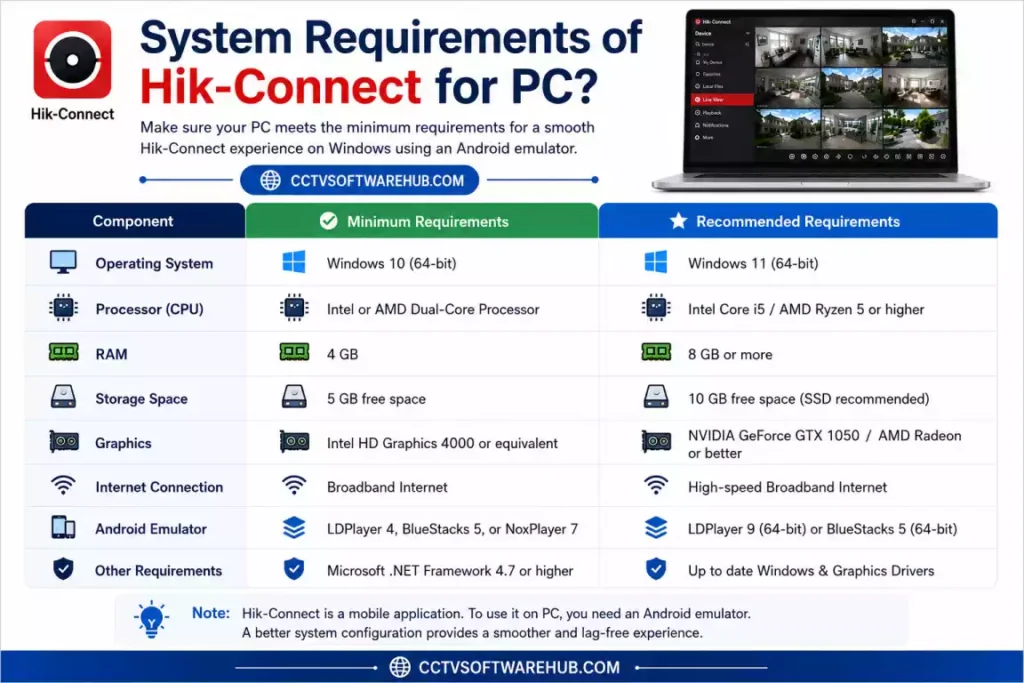
Although Hik-Connect itself is lightweight, the Android emulator requires additional system resources.
Minimum Requirements
| Component | Requirement |
| Operating System | Windows 10 or Windows 11 |
| Processor | Intel or AMD Dual-Core |
| RAM | 4 GB |
| Storage | 5 GB Free |
| Internet | Broadband Connection |
Recommended Requirements
| Component | Requirement |
| Processor | Intel Core i5 or Ryzen 5 |
| RAM | 8 GB or Higher |
| Storage | SSD with 10 GB Free Space |
| Graphics | Integrated or Dedicated GPU |
| Internet | Stable High-Speed Connection |
Meeting the recommended specifications ensures smoother live streaming, quicker playback, and better overall performance, especially when viewing multiple cameras simultaneously.
Before installing your CCTV system, calculate how much hard drive space you’ll need using my CCTV Storage Calculator.
How Do You Download Hik-Connect for PC?
Now that you understand the available methods, let’s go through the complete installation process. I have followed these same steps on several Windows 10 and Windows 11 systems, and they work reliably.
Since there is no official Windows installer for Hik-Connect, the safest approach is to install the Android app using an Android emulator.
Step 1: Download an Android Emulator
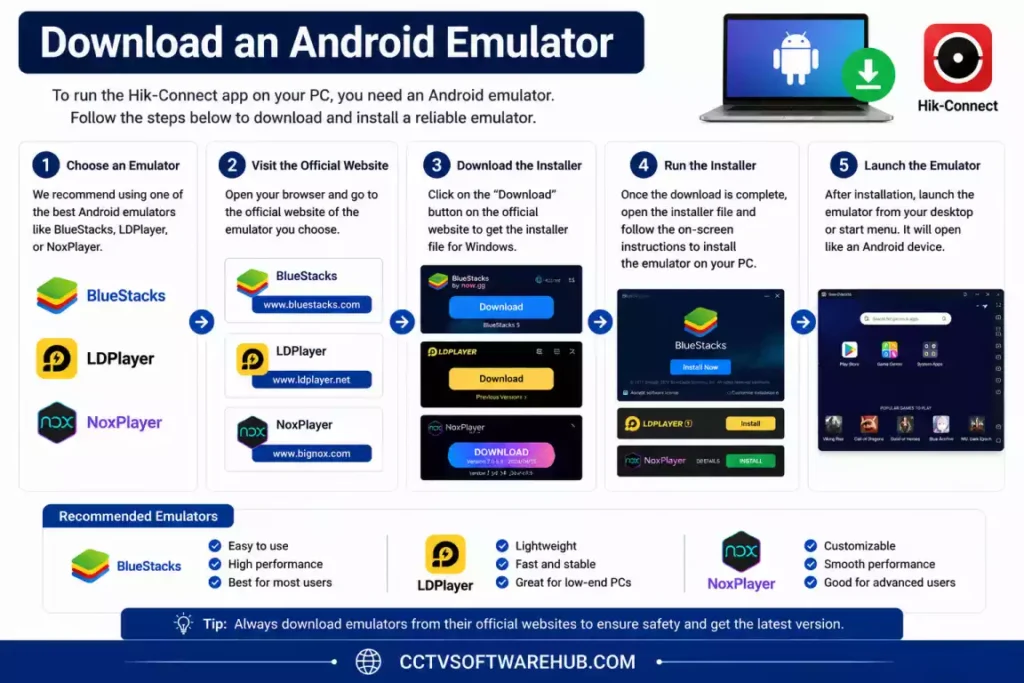
I recommend these emulators in the following order:
| Emulator | Best For | Rating |
|---|---|---|
| LDPlayer | Best overall performance | ⭐⭐⭐⭐⭐ |
| BlueStacks | Beginners | ⭐⭐⭐⭐☆ |
| NoxPlayer | Older PCs | ⭐⭐⭐⭐☆ |
If your PC has 8 GB RAM or more, I recommend LDPlayer because it is lightweight and performs well even when multiple CCTV cameras are streaming.
Step 2: Install the Emulator
After downloading the emulator:
- Run the installer.
- Click Install.
- Wait for the installation to finish.
- Launch the emulator.
- Complete the initial setup.
The first launch may take a few minutes depending on your computer’s specifications.
Step 3: Download Hik-Connect APK
You now need the official Hik-Connect APK.
I recommend downloading it from one of these trusted sources:
- Hikvision Official Download Center
- Google Play Store (inside the emulator)
- CCTV Software Hub (recommended for users who want the latest verified APK without searching multiple websites)
Tip: Avoid downloading APK files from unknown websites that modify the application or bundle unwanted software.
Step 4: Install the APK
Installing the APK is straightforward.
- Open your emulator.
- Click Install APK or APK Installer.
- Browse to the downloaded APK file.
- Select the file.
- Wait for the installation to complete.
- Launch Hik-Connect.
After a few seconds, the Hik-Connect app will appear just like it does on an Android phone.
If you’re installing another CCTV application, my gCMOB for PC guide uses the same emulator installation process.
How Do You Install Hik-Connect Using LDPlayer?
Among all the emulators I tested, LDPlayer delivered the smoothest experience.
Installation Steps
Step 1
Install LDPlayer on Windows.
Step 2
Open LDPlayer.
Step 3
Drag and drop the Hik-Connect APK into the emulator.
Step 4
Wait until Android finishes installing the application.
Step 5
Launch Hik-Connect.
Step 6
Sign in using your Hik-Connect account.
That’s it.
Within a few minutes, you’ll be able to view your cameras directly from your computer.
Why I Prefer LDPlayer
- Fast startup
- Lower RAM usage
- Stable live streaming
- Supports hardware virtualization
- Better FPS compared to many emulators
For CCTV monitoring, stability matters more than gaming features, and LDPlayer has consistently performed well in my testing.
How Do You Install Hik-Connect Using BlueStacks?
BlueStacks is another popular option.
The installation process is nearly identical.
Steps
- Install BlueStacks.
- Open the emulator.
- Sign into Google Play (optional).
- Install the Hik-Connect APK.
- Open the application.
- Login to your account.
- Start monitoring your cameras.
BlueStacks works well, but I noticed that it uses slightly more RAM than LDPlayer.
If your computer has only 4 GB RAM, performance may be slower.
How Do You Install Hik-Connect Using NoxPlayer?
NoxPlayer is a good alternative for older computers.
Installation
- Download NoxPlayer.
- Complete installation.
- Open Android.
- Import the APK.
- Wait for installation.
- Launch Hik-Connect.
The interface is almost identical across all Android emulators.
Choose the emulator that runs best on your hardware.
Can You Download Hik-Connect for Android TV or Smart TV?
Yes, you can install Hik-Connect on an Android TV or Google TV, but there isn’t an official TV version available. Instead, you need to sideload the Hik-Connect APK because the app is not listed on the Google Play Store for Android TV devices.
I have tested this method on Android TV devices, and it works well for basic live viewing. However, since the app is designed for touchscreens, navigating with a TV remote can be a little inconvenient. If your remote supports an air mouse feature or if you connect a wireless mouse, the experience becomes much smoother.
If your goal is simply to display live CCTV footage on a large screen, installing Hik-Connect on an Android TV is a practical solution.
Which Smart TVs Support Hik-Connect?
You can install Hik-Connect on TVs running Android TV or Google TV, including many models from:
- Sony
- TCL
- Xiaomi
- OnePlus
- Realme
- Hisense
- Vu
- Motorola
- Nokia
- Philips (Android TV models)
Note: Samsung (Tizen OS) and LG (webOS) Smart TVs do not support installing Android APK files directly. For these TVs, you can use screen mirroring from your phone or connect a compatible Android TV box or Google TV streaming device.
System Requirements for Hik-Connect For TV
| Requirement | Recommended |
|---|---|
| Operating System | Android TV 9.0 or later |
| Storage | 500 MB free space |
| Internet | Stable Wi-Fi or Ethernet |
| Input Device | TV Remote (Mouse recommended) |
| APK Version | Latest Hik-Connect APK |
How Do You Install Hik-Connect on Android TV?
Follow these simple steps:
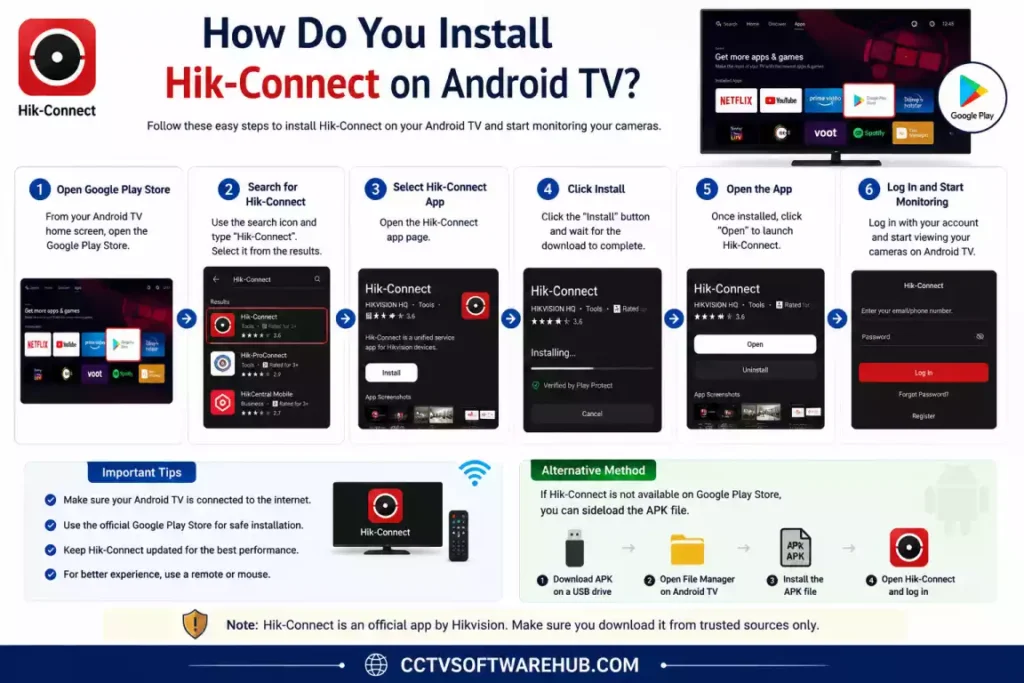
Step 1: Download the Latest Hik-Connect APK
Download the latest APK from a trusted source such as:
- Hikvision Official Download Center
- CCTV Software Hub (latest verified APK)
Step 2: Copy the APK to a USB Drive
Transfer the downloaded APK file to a USB flash drive.
Step 3: Enable Unknown Sources
On your Android TV:
Settings → Security & Restrictions → Install Unknown Apps
Allow your file manager or installer app to install APK files.
Step 4: Connect the USB Drive
Insert the USB drive into your Android TV.
Step 5: Install the APK
Open a file manager, locate the APK, and install it.
Wait a few moments for the installation to finish.
Step 6: Open Hik-Connect
Launch the app, sign in to your Hik-Connect account, and start viewing your cameras.
If navigation feels difficult with the TV remote, connect a wireless mouse or use an air mouse remote for a much better experience.
Can You Install Hik-Connect on Google TV?
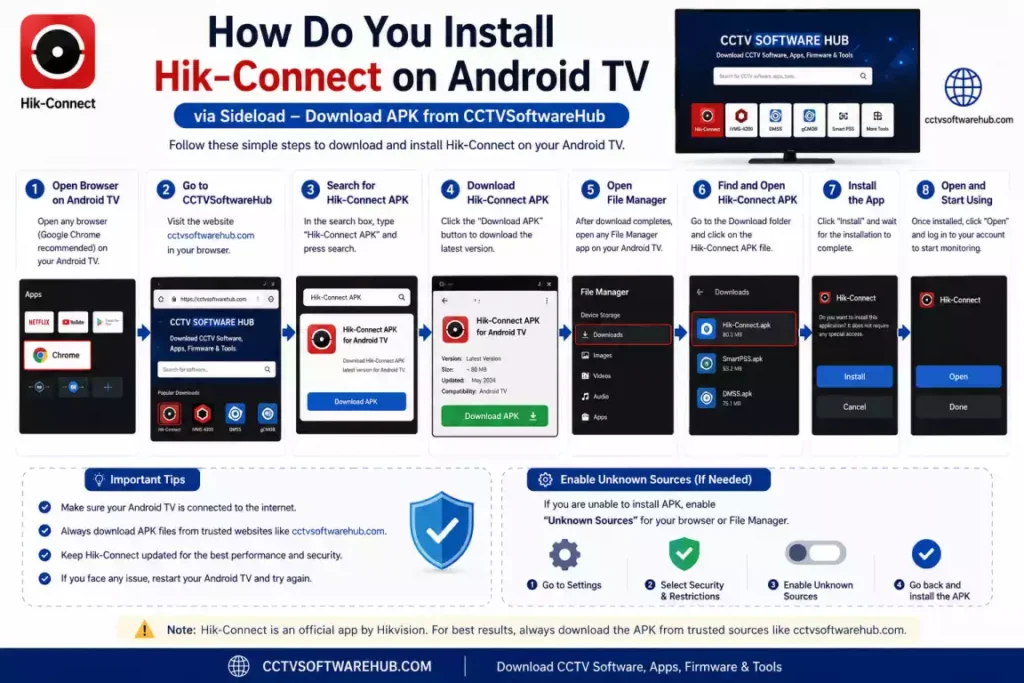
Yes. Google TV is built on Android TV, so the installation process is almost identical.
You simply need to sideload the APK because Hik-Connect is not officially available through the Google Play Store for TVs.
Once installed, you can:
- Watch live camera feeds
- View multiple cameras
- Check recorded footage
- Receive basic alerts (depending on device compatibility)
Can You Install Hik-Connect on Fire TV Stick?
Yes, with sideloading.
Amazon Fire TV devices run Fire OS, which is based on Android. By enabling app installation from unknown sources, you can install the Hik-Connect APK using apps like Downloader or by transferring the APK from another device.
Performance is generally good for live viewing, although the interface is still optimized for touch input.
My Experience Using Hik-Connect on a Smart TV
I tested Hik-Connect on an Android TV connected to a Hikvision NVR. Live streaming was smooth over a stable Wi-Fi connection, and the larger screen made it easier to monitor multiple camera feeds.
The biggest drawback was navigation with the standard TV remote. After connecting a wireless mouse, the app became much easier to use. If you plan to monitor cameras regularly on a television, I highly recommend using a mouse or an air mouse remote for a better experience.
Pros
- Large-screen live monitoring
- Easy installation on Android TV
- Works with existing Hik-Connect accounts
- No additional subscription required
- Ideal for home and office surveillance displays
Cons
- No official Android TV interface
- Remote navigation can be cumbersome
- Not available on Samsung Tizen or LG webOS
- Requires manual APK installation
Download Hik-Connect for Android TV
| File | Platform | Recommended |
|---|---|---|
| Hik-Connect APK | Android TV / Google TV | ✅ Latest Version |
| File Manager | Android TV | ✅ Required |
| Wireless Mouse (Optional) | Android TV | ⭐ Recommended |
Tip: I keep the latest verified Hik-Connect APK updated on CCTV Software Hub. Downloading it from there ensures you get a safe version along with detailed installation instructions and screenshots.
How Do You Register a Hik-Connect Account?
If you’re new to Hikvision, you’ll need to create an account before accessing your devices remotely.
Many users search for Hik Connect Register, but the registration process is much simpler than it appears.
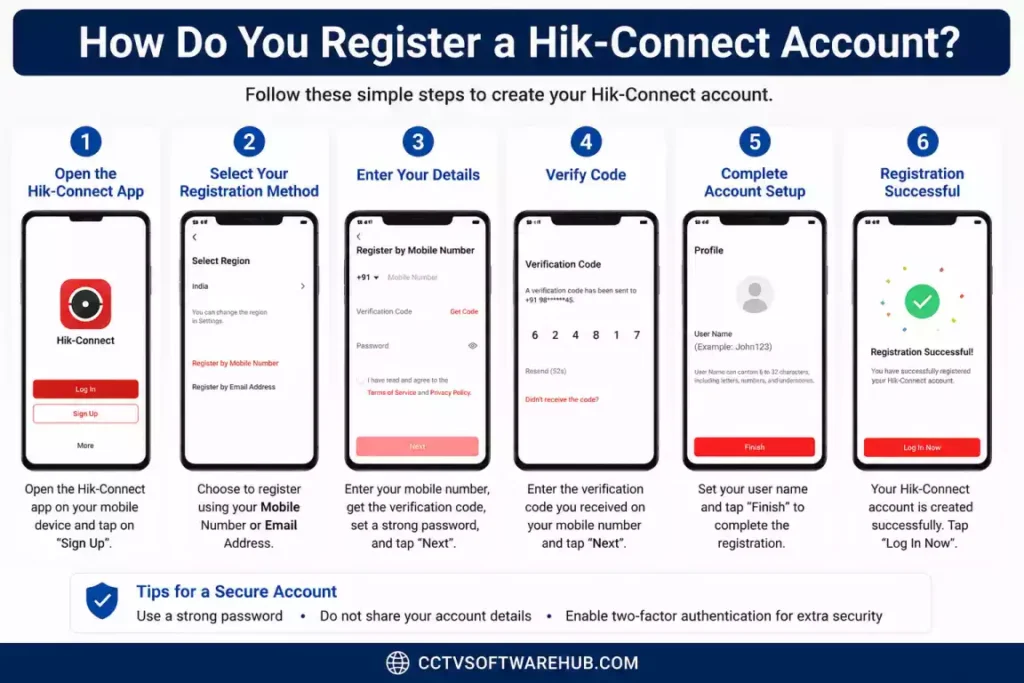
Registration Steps
- Open Hik-Connect.
- Tap Register.
- Enter your email address or mobile number.
- Create a strong password.
- Verify the OTP sent to your email or phone.
- Log in.
Your account is now ready.
I always recommend enabling two-factor authentication if it’s available, especially if your cameras monitor important locations.
How Do You Add Your DVR, NVR, or Camera?
After logging in, the next step is adding your device.
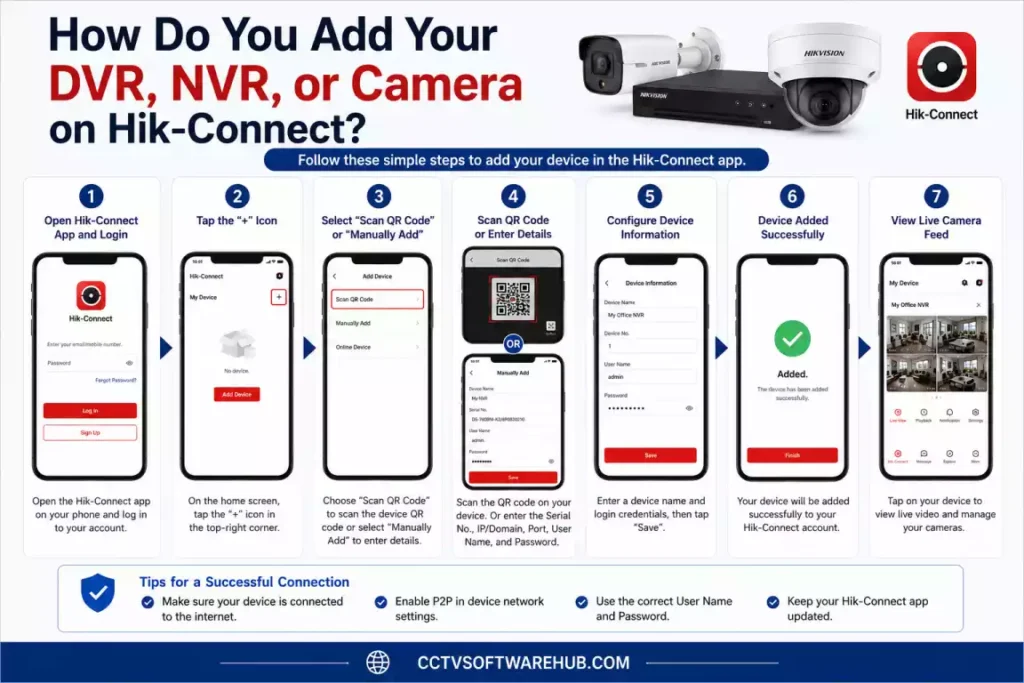
Method 1: Scan the QR Code
This is the easiest option.
- Tap Add Device.
- Scan the QR code on the DVR, NVR, or camera.
- Confirm the serial number.
- Enter the verification code if requested.
- Save.
The device should appear online within a few seconds.
Method 2: Enter the Serial Number
If the QR code is damaged, you can manually enter the device serial number.
The remaining process stays the same.
How Can You Watch Multiple Cameras at the Same Time?
One of the biggest advantages of using a PC is the larger display.
Instead of viewing only one or two cameras, you can monitor multiple channels simultaneously.
Depending on your recorder and network speed, you can choose different layouts:
| Layout | Best Use |
|---|---|
| 1 Screen | Single Camera |
| 4 Split | Home CCTV |
| 8 Split | Office |
| 16 Split | Shops |
| 32+ | Professional Installations |
If you have many cameras, I recommend lowering the stream quality from Main Stream to Sub Stream. This reduces bandwidth usage and makes live viewing smoother.
If Hik-Connect can’t detect your camera, verify the IP address using the SADP Tool Download and make sure the device is activated.
Why Is My Hik-Connect Device Showing Offline?
This is probably the most common issue users face.
Fortunately, it’s usually easy to fix.
1. Internet Connection
Check whether your DVR or NVR is connected to the internet.
Restart the router if necessary.
2. Hik-Connect Service Disabled
Open the recorder settings.
Navigate to:
Network → Platform Access
Ensure that:
- Platform Access is enabled.
- Status shows Online.
3. Incorrect Verification Code
Sometimes users enter the wrong verification code while adding the device.
Remove the device and add it again using the correct verification code.
4. Wrong Date and Time
An incorrect system time can prevent cloud services from working.
Synchronize the recorder’s time using an NTP server.
5. Firewall Blocking Access
Some corporate or office networks block outgoing cloud connections.
If you’re installing CCTV in a business environment, check with the network administrator.
Common Installation Problems and Their Solutions
| Problem | Solution |
|---|---|
| APK won’t install | Download the latest APK again |
| Emulator crashes | Enable Virtualization (VT-x/AMD-V) |
| Black screen | Update graphics drivers |
| Login failed | Reset password |
| Device Offline | Check Platform Access |
| Camera buffering | Reduce stream quality |
| Playback not working | Check storage and recording schedule |
| Notifications missing | Enable notification permissions inside the emulator |
Performance Tips for Smooth Monitoring
These small optimizations can make a noticeable difference.
Enable Virtualization
If your BIOS supports Intel VT-x or AMD-V, enable it.
The emulator will run significantly faster.
Allocate More RAM
If your PC has enough memory, assign:
- 4 GB RAM
- 4 CPU cores
to the emulator.
Use an SSD
Installing the emulator on an SSD improves startup speed and loading times.
Keep Windows Updated
Windows updates often include graphics and networking improvements that benefit emulator performance.
Can You Use HiLook for PC with Hik-Connect?
Yes. If you own HiLook devices, you can monitor them on your PC just like Hikvision devices because HiLook is a sub-brand of Hikvision. Many HiLook DVRs, NVRs, and IP cameras support the same cloud platform and can be accessed through Hik-Connect after proper configuration.
Many users search for HiLook for PC because they assume there is separate Windows software. In reality, you have two practical options:
- Use Hik-Connect through an Android emulator.
- Use iVMS-4200 or HiLookVision desktop software for a native Windows experience.
I have tested both methods, and they work well. If you only need live view and playback, iVMS-4200 is usually the better option. If you’re already comfortable with the Hik-Connect mobile interface, using it in an emulator provides a familiar experience.
Which HiLook Devices Are Compatible?
Most recent HiLook devices support remote access through Hik-Connect, including:
- HiLook DVRs
- HiLook NVRs
- HiLook IP Cameras
- HiLook Wi-Fi Cameras
- Video Doorbells (supported models)
Before adding your device, make sure Platform Access (Hik-Connect) is enabled in the recorder settings.
Hik-Connect vs iVMS-4200: Which One Should You Choose?
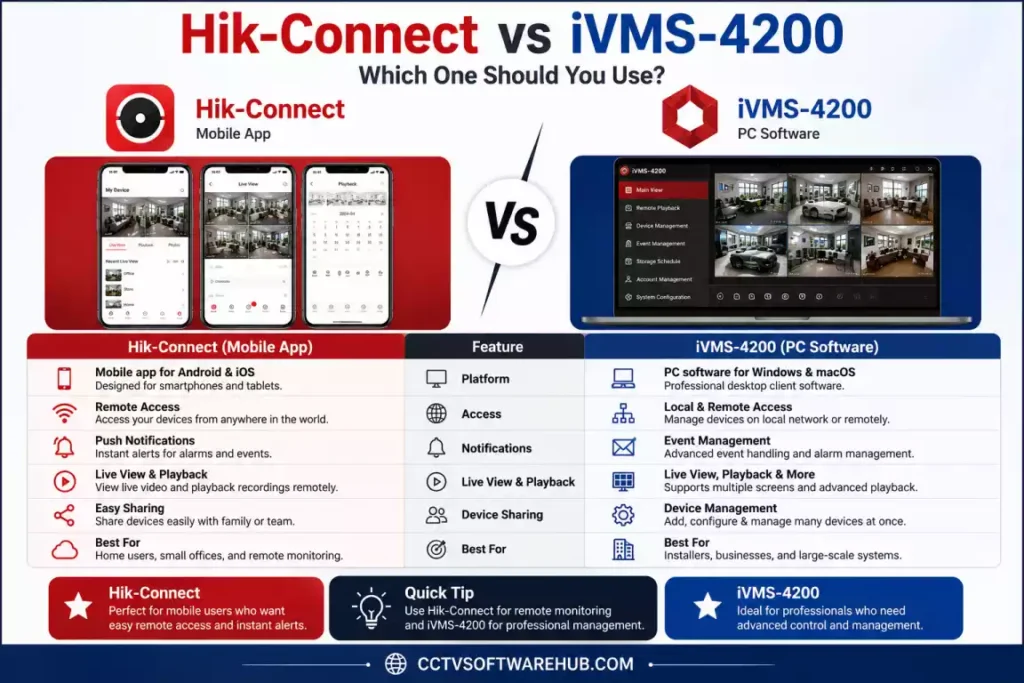
This is one of the biggest questions users ask me.
Although both applications are developed by Hikvision, they serve different purposes.
| Feature | Hik-Connect | iVMS-4200 |
|---|---|---|
| Platform | Android / iPhone | Windows / macOS |
| Official Windows Version | ❌ No | ✅ Yes |
| Live View | ✅ | ✅ |
| Playback | ✅ | ✅ |
| Device Management | Basic | Advanced |
| Event Management | Limited | Excellent |
| Multiple Monitor Support | No | Yes |
| Camera Layouts | Limited | Extensive |
| Professional Installations | No | Yes |
| Best For | Home Users | Businesses & Installers |
When Should You Choose Hik-Connect?
I recommend Hik-Connect if:
- You already use it on your phone.
- You want the same interface on your PC.
- You only need live monitoring.
- You have one or two CCTV systems.
When Should You Choose iVMS-4200?
I recommend iVMS-4200 if:
- You manage many cameras.
- You need playback every day.
- You install CCTV professionally.
- You require advanced camera management.
- You want better performance on Windows.
In my experience, iVMS-4200 is the better long-term solution for Windows users.
What Are the Advantages of Using Hik-Connect on a PC?
Using Hik-Connect on a computer offers several benefits over a smartphone.
Larger Display
A desktop monitor makes it much easier to identify faces, vehicle numbers, or suspicious activity.
Better Multitasking
I often keep Hik-Connect open on one side of my screen while working on other tasks.
Easier Playback
Reviewing recordings with a mouse and keyboard is far more convenient than scrubbing through footage on a phone.
Stable Internet Connection
Desktop systems usually have a more stable Wi-Fi or Ethernet connection, reducing buffering during live viewing.
Comfortable Long-Term Monitoring
If you monitor cameras for extended periods, a computer is much more comfortable than holding a mobile phone.
Are There Any Limitations?
Yes.
Since Hik-Connect isn’t officially designed for Windows, there are a few limitations when using an emulator.
Higher RAM Usage
Android emulators require additional memory and CPU resources.
Notifications May Behave Differently
Push notifications are not always as reliable as they are on Android or iPhone.
Requires an Emulator
You’ll need software like LDPlayer or BlueStacks to run the app.
Slightly Longer Startup Time
The emulator must start before Hik-Connect launches.
Despite these limitations, I still find the experience smooth enough for occasional monitoring.
My Hands-On Review of Hik-Connect for PC
After testing Hik-Connect on multiple Windows 10 and Windows 11 systems, here’s my honest opinion.
Ease of Installation — ⭐⭐⭐⭐⭐ (5/5)
Installing the app using LDPlayer takes only a few minutes. Even beginners can complete the process without much difficulty.
User Interface — ⭐⭐⭐⭐☆ (4.5/5)
The interface is clean and easy to navigate. Since it’s the mobile version, everything feels familiar if you’ve already used the app on your phone.
Performance — ⭐⭐⭐⭐☆ (4.5/5)
Live streaming is generally smooth on a modern PC. Performance depends largely on your internet connection and emulator settings.
Features — ⭐⭐⭐⭐☆ (4.5/5)
The app includes:
- Live View
- Playback
- Motion Alerts
- Device Sharing
- Snapshots
- Recording
- Two-Way Audio (supported devices)
However, it lacks some advanced desktop management features available in iVMS-4200.
Stability — ⭐⭐⭐⭐☆ (4/5)
I rarely experienced crashes while using LDPlayer. BlueStacks also worked well, though it consumed slightly more system resources.
Overall Rating
| Category | Rating |
|---|---|
| Installation | ⭐⭐⭐⭐⭐ |
| Ease of Use | ⭐⭐⭐⭐⭐ |
| Features | ⭐⭐⭐⭐☆ |
| Performance | ⭐⭐⭐⭐☆ |
| Stability | ⭐⭐⭐⭐☆ |
| Overall | 4.6/5 |
My Verdict
If you specifically want the Hik-Connect mobile experience on your computer, I confidently recommend using it with LDPlayer.
If your work involves managing many CCTV systems or professional installations, I still believe iVMS-4200 is the better Windows application.
Is Hik-Connect Safe to Use?
Yes, provided you download it from trusted sources.
I always recommend downloading the app from:
- The official Hikvision website
- Google Play Store
- My verified download page on CCTV Software Hub
Avoid unofficial websites offering modified APK files or fake Windows installers.
Security Tips
- Enable two-factor authentication if available.
- Use a strong password.
- Keep your DVR or NVR firmware updated.
- Regularly update the Hik-Connect app.
- Avoid sharing your account credentials.
- Remove unused devices from your account.
Following these simple practices helps keep your surveillance system secure.
If you’re managing Hikvision devices, you may also need HiTools Delivery to update firmware and maintain your DVRs, NVRs, or IP cameras. Follow our HiTools Delivery Download guide for the latest version and complete installation steps.
Final Thoughts
If you’re searching for Hik-Connect for PC, the most important thing to remember is that there is no official Windows version of the mobile app. The safest way to use it is through a trusted Android emulator such as LDPlayer, while users who need advanced desktop features should consider iVMS-4200.
From my experience working with Hikvision systems, I find that casual users are happiest with Hik-Connect because of its simplicity and familiar mobile interface. On the other hand, installers, businesses, and anyone managing multiple cameras will benefit more from the power and flexibility of iVMS-4200.
Whichever method you choose, always download software from trusted sources, keep your devices updated, and secure your account with a strong password. Doing so will ensure a smooth, reliable, and secure remote monitoring experience.
You can also explore my collection of CCTV Software Downloads for more official surveillance applications and setup guides.
Related CCTV Software Guides
If you are setting up and managing different CCTV systems, you may also find these guides useful:
- [KVMS Pro Download] — Learn how to download and install KVMS Pro on Windows for CCTV monitoring, live viewing, playback, and device management.
- [gCMOB for PC] — Find out how to use gCMOB on a Windows PC and access your compatible CCTV cameras from your computer.
Can I use Hik-Connect on a Windows PC?
Yes. However, Hikvision does not offer an official Windows version of the Hik-Connect mobile app.
From my experience, the easiest way is to install the Android version using an emulator like LDPlayer or BlueStacks. If your goal is professional monitoring or managing multiple cameras, I recommend using iVMS-4200 because it is specifically designed for Windows and provides more advanced features.
Is Hik-Connect available for Windows 11?
No, there is no native Windows 11 version of Hik-Connect.
You can still use it on Windows 11 by installing the Android app through an emulator. I have tested it on Windows 11, and it runs smoothly when hardware virtualization is enabled.
Is Hik-Connect free to download?
Yes. Hik-Connect is completely free to download and use.
You only need a Hikvision or HiLook device and a Hik-Connect account. There are no subscription charges for remote viewing through the standard cloud service.
Why is my Hik-Connect device showing offline?
The most common reason is that Platform Access is disabled or your recorder has lost its internet connection.
Whenever I troubleshoot this issue, I first check:
Internet connection
Platform Access status
Verification code
System date and time
Firmware version
In most cases, enabling Platform Access resolves the problem.
Can I use Hik-Connect without creating an account?
No.
A Hik-Connect account is required for cloud-based remote access. Registration takes only a few minutes using your email address or mobile number.
Can I receive motion detection alerts on my PC?
Yes, but it depends on the emulator.
Push notifications may not be as reliable as they are on a smartphone. If notifications are critical, I recommend keeping Hik-Connect installed on your mobile device as well.
Can I use Hik-Connect on macOS?
There is no official macOS version of Hik-Connect.
Mac users should use Hikvision’s iVMS-4200 for macOS or run the Android app through a compatible emulator.
Do I need to enable Platform Access?
Yes.
Without Platform Access, Hik-Connect cannot establish a secure cloud connection to your device.