
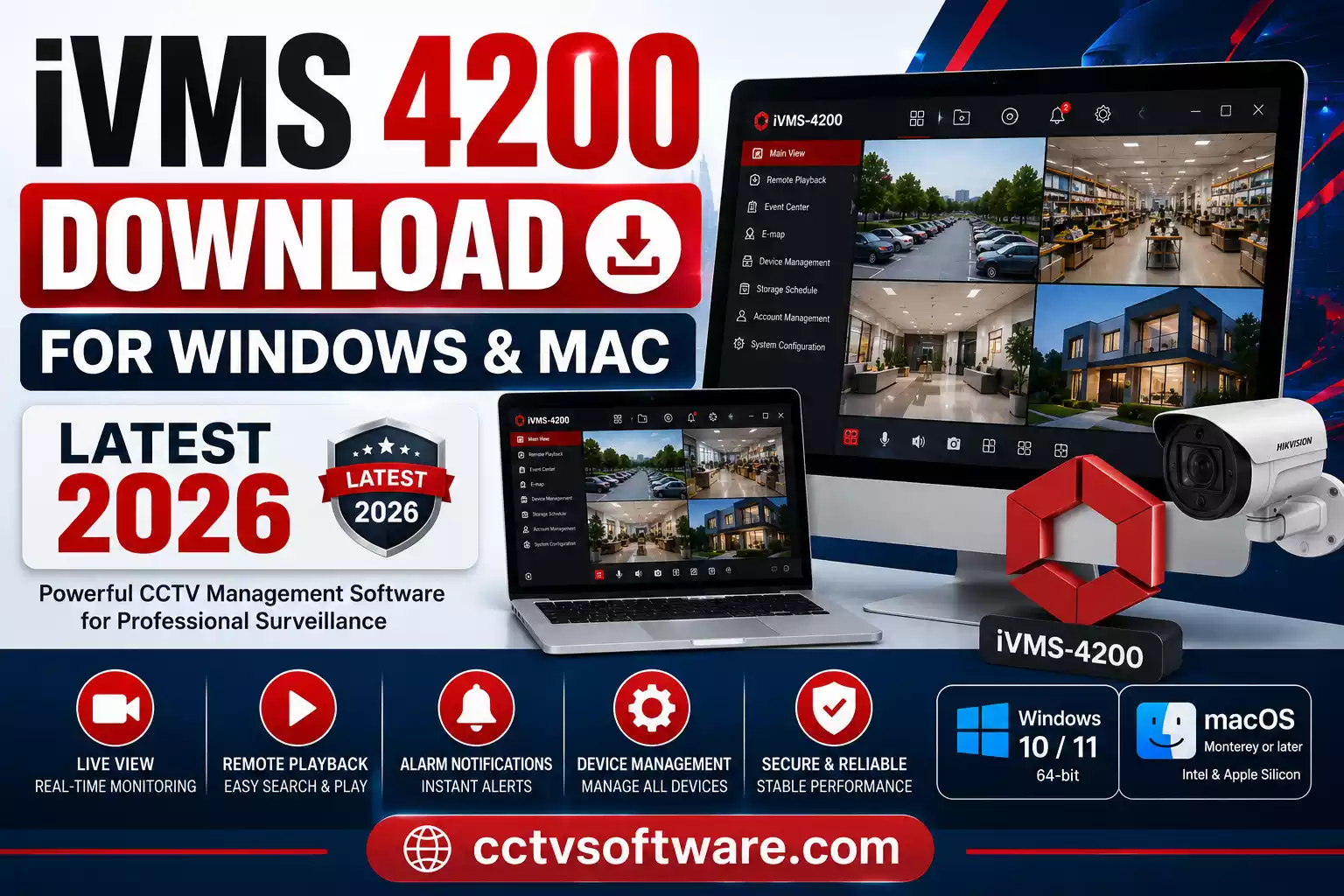
If you need a reliable way to monitor Hikvision cameras from your computer, iVMS 4200 is the official software I recommend. It allows you to view live video, play back recordings, manage multiple devices, and configure advanced surveillance settings from one dashboard. In this guide, I’ll show you exactly how to complete an iVMS 4200 download, install it correctly, add your devices, and solve the most common problems users face.
If you own a Hikvision DVR, NVR, IP camera, video intercom, or access control device, chances are you have searched for iVMS 4200 download at some point.
Over the last decade working with CCTV systems, I have installed Hikvision surveillance products in homes, offices, retail stores, warehouses, schools, and commercial buildings. One thing I consistently recommend is using Hikvision iVMS 4200 instead of relying solely on browser-based monitoring.
The software gives you greater control, better stability, and access to features that are often unavailable through a web browser.
In this guide, I’ll explain everything you need to know about the iVMS 4200 latest version, including installation, setup, troubleshooting, remote viewing, and practical usage tips.
Before setting up your cameras, use our CCTV Storage Calculator to estimate the required hard drive capacity.
Software Information IVMS 4200
| Feature | Details |
|---|---|
| Software Name | iVMS 4200 |
| Developer | Hikvision Digital Technology Co., Ltd |
| Category | CCTV Monitoring & VMS Software |
| Compatible OS | Windows 7, 8, 10, 11, & macOS |
| Supported Devices | DVR, NVR, IP Cameras |
| License | Freeware |
| Language Support | Multi-language |
| Latest Version | Varies by release (Check official Hikvision website) |
| Last Updated | June 2026 |
| Key Features | Live View, Playback, Alerts, Remote Monitoring |
Download Links For IVMS 4200
| Software | Supported OS | Version | Download |
|---|---|---|---|
| iVMS 4200 Latest Download | Windows 10 / 11 | V3.14.1.4 | ⬇ Download |
| iVMS 4200 old Version | Windows 7/8/10/11 | V3.2.0.10 | ⬇ Download |
| iVMS 4200 for Mac | MacOS | V2.0.0.18 | ⬇ Download |
What Is iVMS 4200 and Why Do Most Hikvision Users Need It?
Overview of Hikvision iVMS 4200
iVMS 4200 is the official desktop surveillance management software developed by the company Hikvision.
The software acts as a central management platform for Hikvision security products and allows users to monitor, configure, and manage multiple devices from a single interface.
Instead of logging into each camera or recorder individually, you can manage everything from one dashboard.
Main Purpose of the Software
The primary goal of Hikvision client software is to provide centralized management.
Using iVMS 4200, you can:
- Watch live camera feeds
- Review recorded footage
- Receive event notifications
- Configure devices remotely
- Export recordings
- Manage users
- Control access systems
- Monitor alarms
For larger installations, this saves a significant amount of time.
Supported Devices
The software supports:
DVR Systems
Digital Video Recorders used in analog CCTV installations.
NVR Systems
Network Video Recorders used with IP cameras.
IP Cameras
Standalone Hikvision IP surveillance cameras.
Video Intercom Systems
Monitor and manage door stations and indoor stations.
Access Control Devices
Manage employee access cards, attendance records, and door permissions.
Why Should You Download iVMS 4200 Instead of Using a Browser?
Many users ask me whether they can simply access their recorder through a browser.
Technically, yes.
However, I rarely recommend it.
Browser Limitations
Modern browsers have removed support for many older CCTV plugins.
Common issues include:
- Video playback failures
- Plugin compatibility problems
- Browser security restrictions
- Slow loading performance
- Missing advanced features
Benefits of Dedicated Client Software
When you complete an iVMS 4200 download, you gain access to:
| Feature | Browser | iVMS 4200 |
|---|---|---|
| Live View | Yes | Yes |
| Playback | Limited | Full |
| Event Management | Limited | Yes |
| Device Configuration | Partial | Full |
| Multi-Screen Monitoring | No | Yes |
| Alarm Management | No | Yes |
| Access Control | No | Yes |
Real-Life Use Cases
I recently configured a warehouse surveillance system containing:
- 48 IP cameras
- 2 NVRs
- 1 access control panel
Managing this setup through a browser would have been inefficient.
Using iVMS 4200 allowed me to:
- Monitor all cameras simultaneously
- Search recordings quickly
- Receive alarm notifications
- Manage access permissions
For medium and large deployments, the software is almost essential.
What Are the Features of Hikvision iVMS 4200?
One reason the software remains popular worldwide is its extensive feature set.
Live View Monitoring
Live View is the feature most users interact with daily.
It supports:
- Single-camera viewing
- Multi-camera viewing
- Full-screen mode
- Digital zoom
- Snapshot capture
- Audio monitoring
I often create customized camera groups so users can access important areas instantly.
Playback and Video Search
The playback module is one of the strongest parts of the software.
You can:
- Search by date
- Search by event
- Review recordings from multiple cameras
- Export evidence clips
- Capture snapshots
This becomes invaluable when investigating incidents.
Event Management
The software can display alerts for:
- Motion detection
- Line crossing
- Intrusion detection
- Video loss
- Tampering alarms
Instead of constantly watching monitors, users can focus on specific events.
Device Configuration
One feature I personally use frequently is remote configuration.
Without visiting the recorder physically, I can:
- Change recording schedules
- Configure network settings
- Adjust image parameters
- Update user permissions
- Modify alarm settings
This saves hours of maintenance time.
E-Map Function
For larger sites, E-Map provides visual monitoring.
You can upload floor plans and place camera icons on the map.
When an event occurs, the affected camera location becomes immediately visible.
Access Control Management
Organizations using Hikvision access control systems can:
- Create users
- Assign cards
- Configure permissions
- Generate attendance reports
- Monitor door activity
Alarm Management
Alarm integration helps security teams react quickly.
The system can display:
- Pop-up notifications
- Sound alerts
- Event logs
- Alarm history
Multi-Screen Monitoring
One of my favorite capabilities is multi-monitor support.
Security operators can spread camera groups across several screens, creating a professional monitoring environment.
Looking for Dahua software instead? See our Smart PSS Download guide.
How to Download iVMS 4200 for PC?
This is the section most users are searching for.
System Requirements
Before starting the iVMS 4200 download, ensure your computer meets the requirements.
| Component | Minimum | Recommended |
|---|---|---|
| OS | Windows 10 | Windows 11 |
| Processor | Intel Core i3 | Intel Core i5/i7 |
| RAM | 4 GB | 8 GB+ |
| Storage | 10 GB | SSD |
| Graphics | Integrated | Dedicated GPU |
Official iVMS 4200 Download Link
I always recommend downloading the software directly from Hikvision’s official download center:
https://www.hikvision.com/en/support/download/software
Downloading from unofficial websites increases the risk of:
- Outdated versions
- Modified installers
- Malware infections
- Missing components
How to Download iVMS 4200 for PC
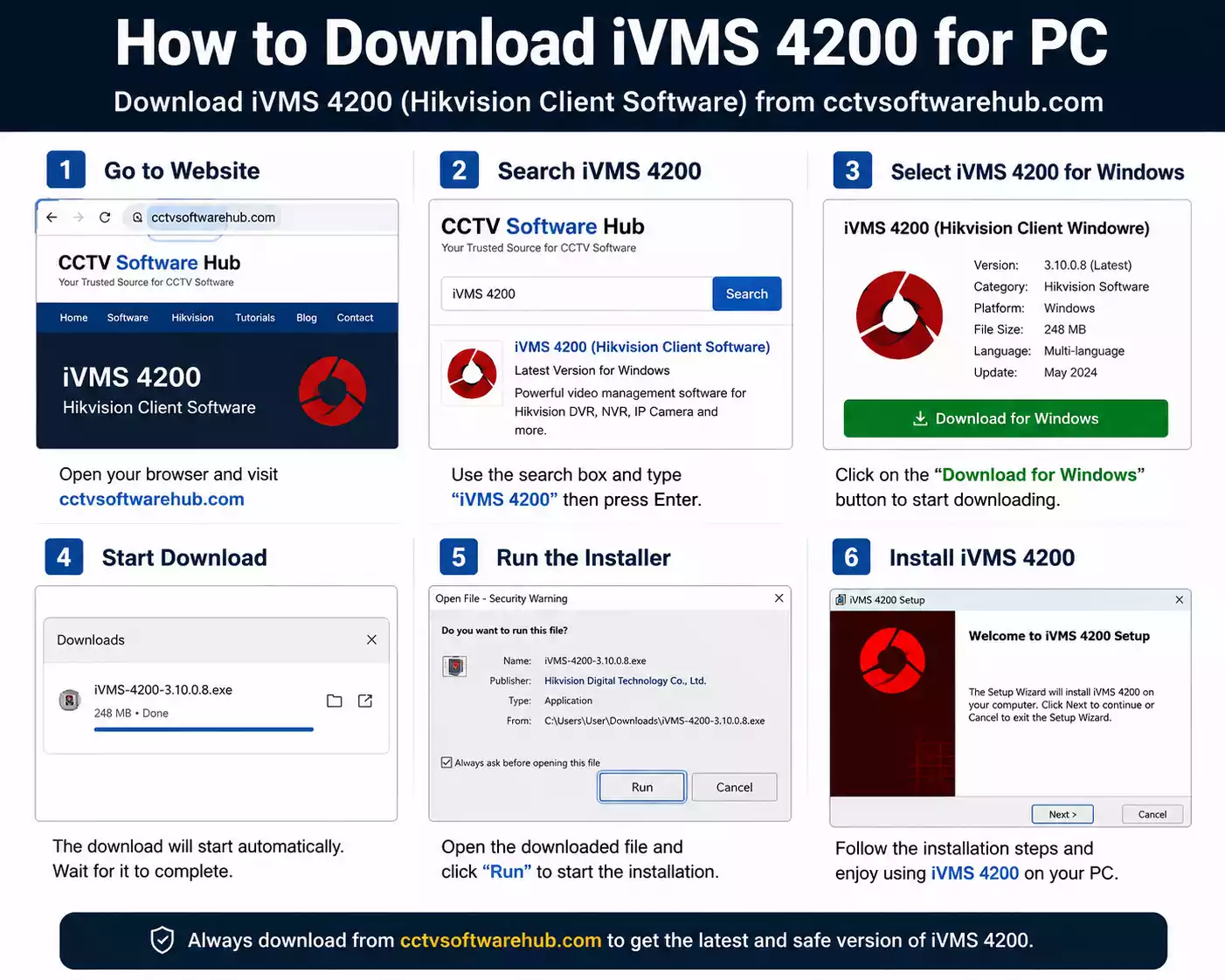
Follow these steps:
Step 1
Visit the official Hikvision software download page.
Step 2
Search for:
iVMS 4200 latest version
Step 3
Select the Windows package.
Step 4
Download the installer file.
Step 5
Wait for the download to complete.
Step 6
Run the installer as Administrator.
Which Version Should You Choose?
Depending on your needs:
| Version | Best For |
|---|---|
| Standard iVMS 4200 | Most users |
| iVMS 4200 AC | Access Control |
| iVMS 4200 VS | Video Surveillance |
| iVMS 4200 Lite | Smaller installations |
In most situations, I recommend the standard release because it includes the widest feature set.
How Can You Download an iVMS 4200 Old Version?
Many users search for iVMS 4200 old version download because they are using older Hikvision DVRs, NVRs, or camera systems that may not work properly with the latest release.
In my experience, upgrading to the newest version is usually the best option because it includes security patches, bug fixes, and performance improvements. However, there are situations where installing an older version makes sense.
Why Do Users Download Older Versions of iVMS 4200?
The most common reasons include:
- Compatibility with older Hikvision devices
- Legacy Windows systems
- Familiar user interface
- Existing surveillance deployments
- Third-party integrations requiring specific versions
For example, I have seen older DVR installations that worked perfectly with an earlier iVMS 4200 release but experienced connection issues after upgrading.
Is It Safe to Use an Old Version of iVMS 4200?
Yes, but only if you download it from a trusted source.
Older software versions may not include the latest security updates, so I recommend using them only when necessary.
Before installing an old version:
- Verify device compatibility
- Check Windows compatibility
- Scan downloaded files with antivirus software
- Back up your current configuration
How to Download an Older iVMS 4200 Version
Follow these steps:
- Visit the Hikvision software download center.
- Search for iVMS 4200.
- Open the software download page.
- Look for previous releases or archived versions.
- Download the version that matches your device requirements.
- Install the software and test device connectivity.
Which iVMS 4200 Version Should You Choose?
| Scenario | Recommended Version |
|---|---|
| Latest security features | Latest Version |
| Older DVR or NVR | Compatible Older Version |
| Windows 11 | Latest Version |
| Windows 10 | Latest or Stable Older Version |
| Legacy surveillance systems | Previous Stable Release |
My Recommendation
Unless you have a compatibility issue, I recommend using the iVMS 4200 latest version. Newer releases generally offer better performance, improved stability, and stronger security.
If you decide to install an older version, make sure it is compatible with your Hikvision devices and operating system before proceeding.
How Do You Install iVMS 4200 on Windows?
After completing the iVMS 4200 download, the next step is installing the software correctly. Most installation issues happen because users rush through the setup process or skip important permissions.
I have installed Hikvision iVMS 4200 on hundreds of systems over the years, and the process is usually straightforward when done correctly.
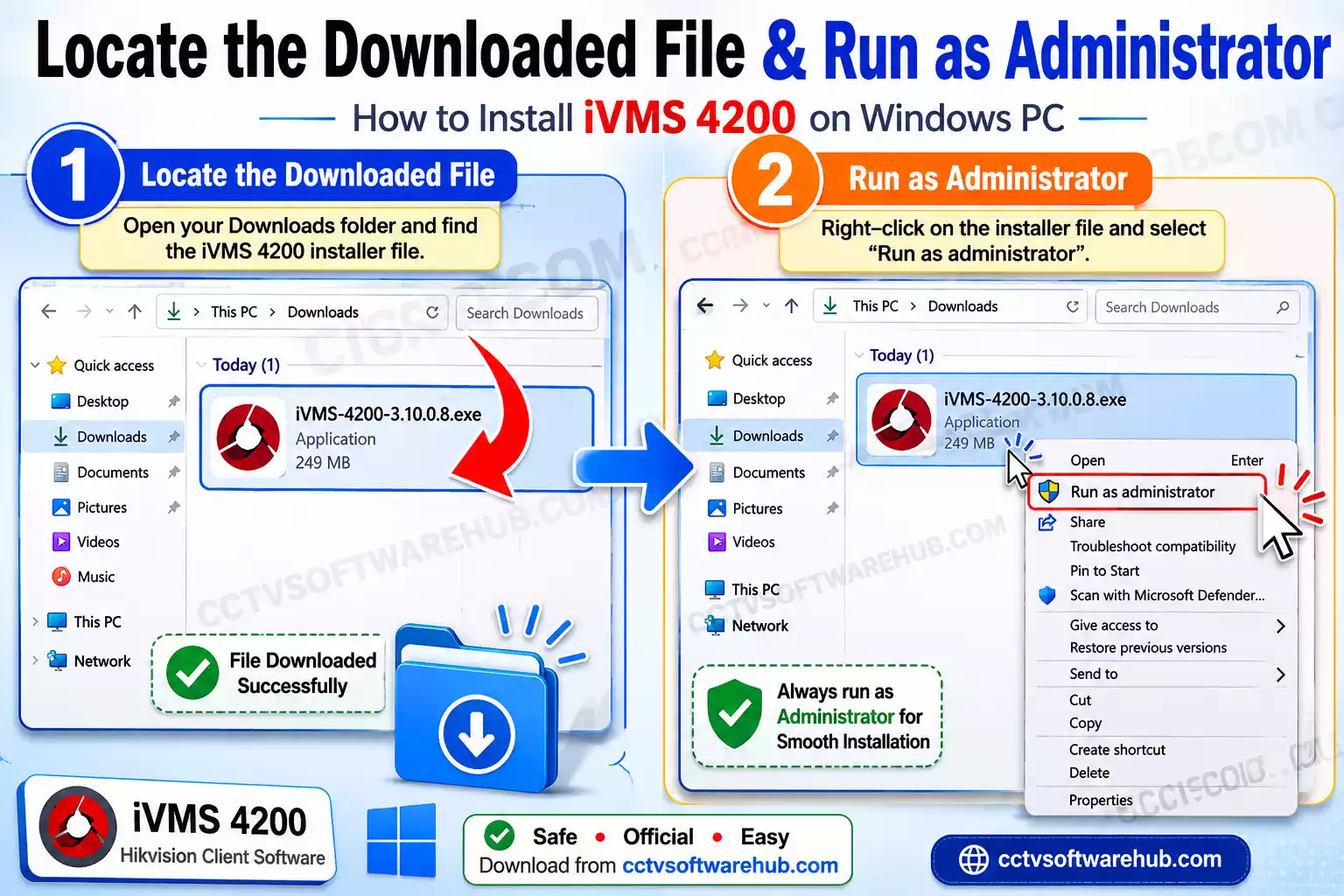
Step 1: Locate the Downloaded File
Navigate to your Downloads folder and locate the installer package you downloaded from Hikvision.
The file typically appears as:
iVMS-4200(vX.X.X.X).exeStep 2: Run as Administrator
Right-click the installer and select:
Run as Administrator
This helps avoid permission-related installation errors.
Step 3: Accept the License Agreement
Read the software agreement and click:
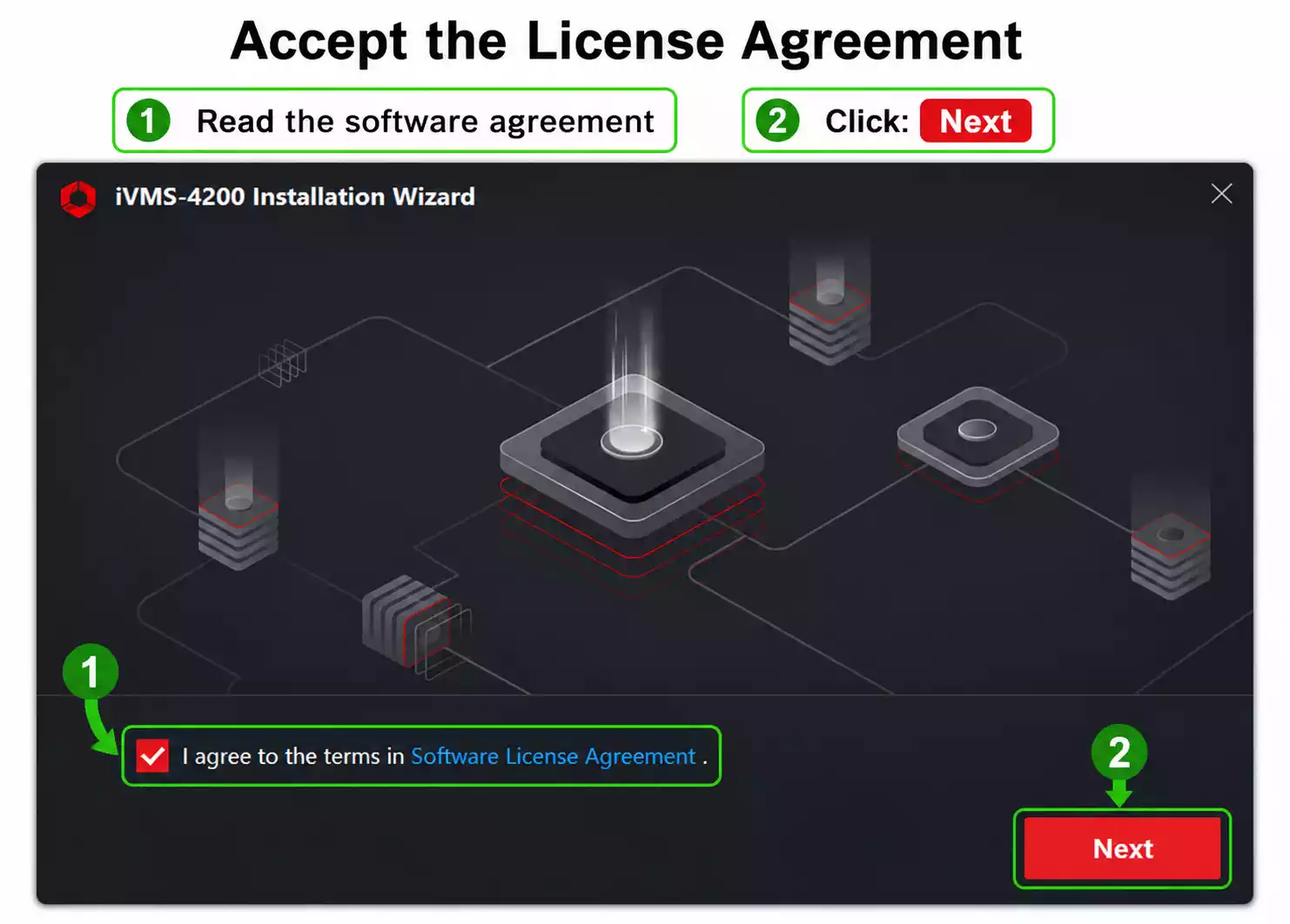
I Agree
Then proceed to the next screen.
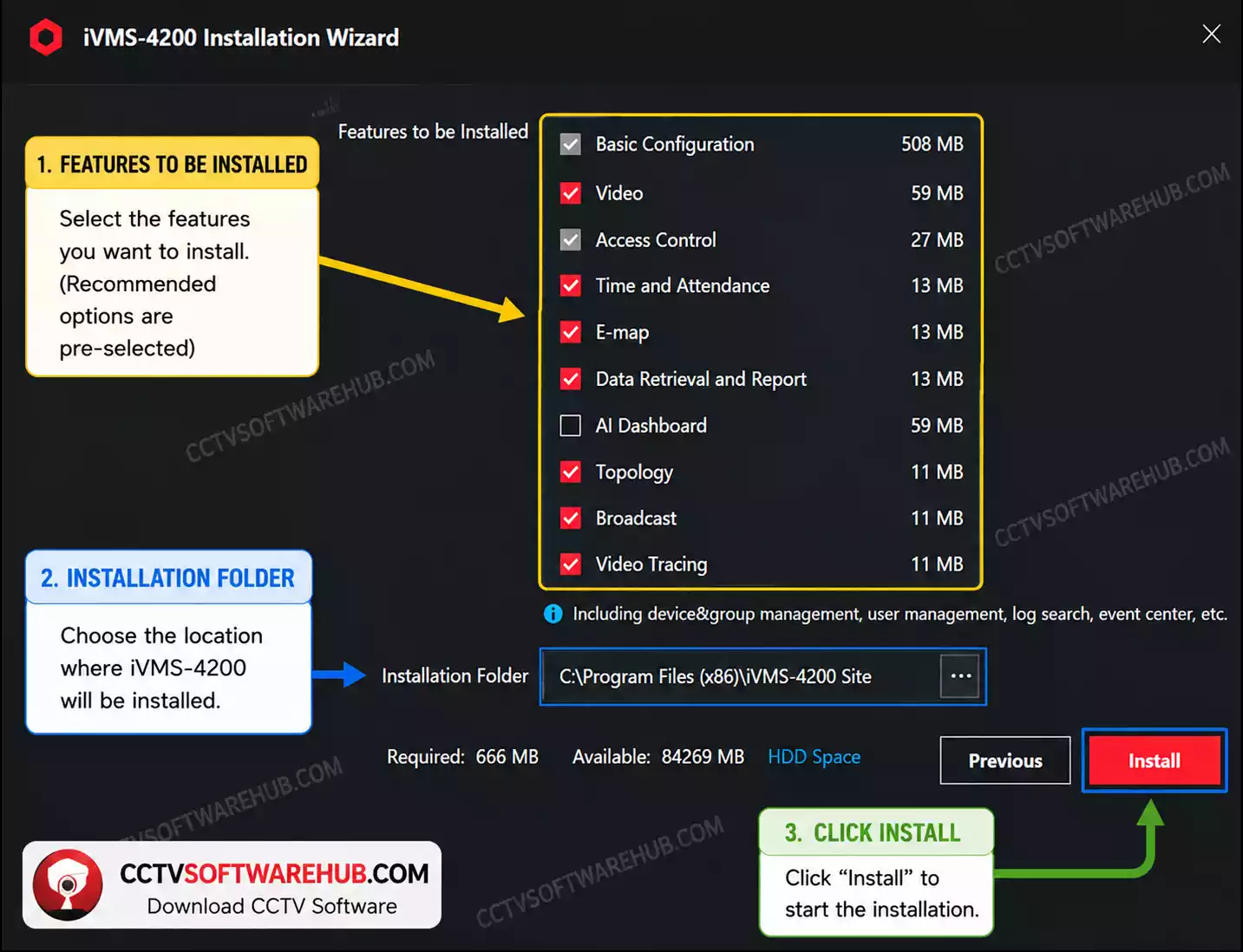
Step 4: Choose Installation Location
Most users should leave the default installation path unchanged.
Example:
C:\Program Files (x86)\iVMS-4200Step 5: Install Required Components
During installation, the setup wizard may install:
- Video decoding components
- Runtime libraries
- Device communication services
Allow these components to install completely.
Step 6: Complete Installation
Click:
Install
Wait for the setup process to finish.
Step 7: Launch the Software
After installation:
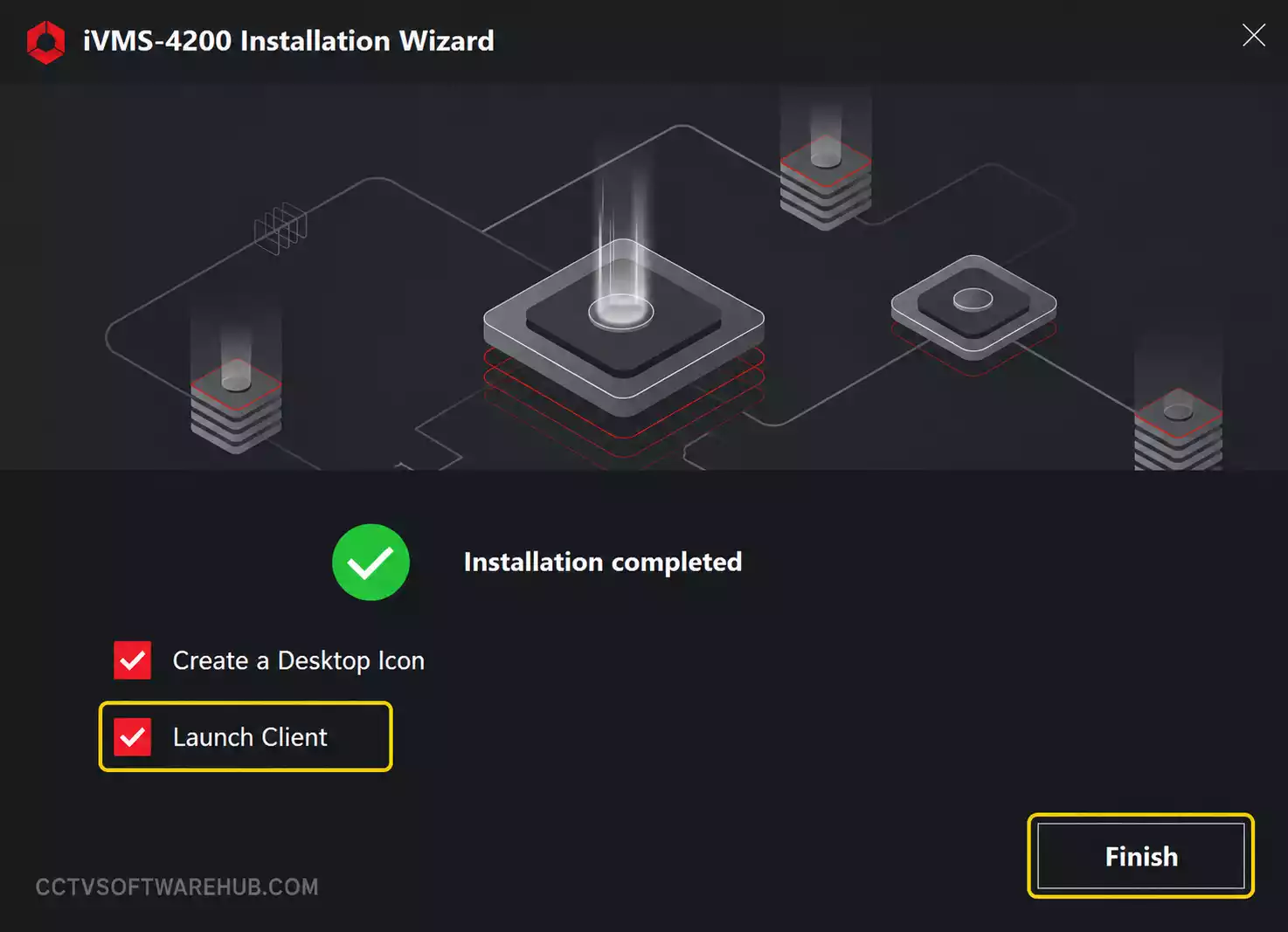
- Open iVMS 4200
- Create an administrator password
- Configure basic settings
The software is now ready to use.
If you want another desktop client, try KVMS Pro Download for remote monitoring.
First-Time Login Setup
The first time you launch the software, you’ll be asked to:
| Setting | Purpose |
|---|---|
| Admin Password | Protects software access |
| Security Questions | Password recovery |
| Storage Location | Saves exported files |
| Language | User interface language |
I always recommend creating a strong password because this software often manages critical surveillance systems.
Common Installation Errors and Fixes
Error: Installation Failed
Possible causes:
- Antivirus interference
- Lack of permissions
- Corrupted installer
Solution:
- Run installer as Administrator
- Temporarily disable antivirus
- Re-download the package
Error: Runtime Components Missing
Solution:
- Install Microsoft Visual C++ Redistributables
- Restart the PC
- Run installation again
Error: Software Crashes After Launch
Solution:
- Update Windows
- Install latest graphics drivers
- Reinstall iVMS 4200
How Can You Download iVMS 4200 for Mac?
Many users assume Hikvision only supports Windows.
Fortunately, iVMS 4200 Mac download packages are available for macOS users.
Supported macOS Versions
The software generally supports:
- macOS Monterey
- macOS Ventura
- macOS Sonoma
- Newer Apple Silicon devices (depending on release)
Before downloading, always verify compatibility on Hikvision’s official website.
Mac Installation Process
Step 1
Download the Mac version from Hikvision.
Step 2
Open the downloaded DMG file.
Step 3
Drag iVMS 4200 into Applications.
Step 4
Launch the software.
Step 5
Grant requested permissions.
These permissions typically include:
- Network access
- Storage access
- Notification permissions
Common Mac Issues
Application Cannot Be Opened
macOS may block applications downloaded from the internet.
Fix:
Go to:
System Settings → Privacy & Security
Click:
Open Anyway
Device Connection Problems
Ensure:
- Firewall rules allow communication
- Devices are on reachable networks
- Ports are not blocked
What Are the Minimum and Recommended System Requirements?
Choosing the right hardware significantly affects software performance.
Minimum Requirements
| Component | Requirement |
|---|---|
| CPU | Intel Core i3 |
| RAM | 4 GB |
| Storage | 10 GB Free |
| OS | Windows 10 |
| Network | Broadband |
Recommended Requirements
| Component | Recommended |
|---|---|
| CPU | Intel Core i5/i7 |
| RAM | 8–16 GB |
| Storage | SSD |
| GPU | Dedicated Graphics |
| OS | Windows 11 |
My Real-World Recommendation
If you’re monitoring:
- 4 cameras → 4GB RAM is enough
- 16 cameras → 8GB RAM minimum
- 32+ cameras → 16GB RAM recommended
For professional surveillance operators, I strongly recommend SSD storage because playback and recording exports become much faster.
How Do You Add DVRs, NVRs, and Cameras to iVMS 4200?
After installation, the next task is connecting your surveillance devices.
This is where many first-time users get confused.
Watch: How to Add Hikvision DVR, NVR, and IP Cameras to iVMS 4200
Before adding your camera to iVMS-4200, make sure the device is activated and has the correct IP address. If you haven’t done that yet, follow my SADP Tool Download guide first.
Method 1: Add Device Using IP Address
This is the method I use most frequently.
Step 1
Open:
Control Panel → Device Management
Step 2
Click:
Add
Step 3
Choose:
IP/Domain
Step 4
Enter:
- Device IP Address
- Username
- Password
- Port Number
Step 5
Click:
Add
The device should appear online.
Method 2: Add Device Through Hik-Connect
This is the easiest option for remote systems.
Step 1
Log into your Hik-Connect account.
Step 2
Open Device Management.
Step 3
Select:
Hik-Connect Device
Step 4
Import devices automatically.
This eliminates the need to remember IP addresses.
Method 3: Add Through Domain Name
Some businesses use DDNS services.
In that case:
- Enter domain name
- Username
- Password
- Port
The process is similar to IP-based registration.
Device Management Best Practices
I always recommend:
- Naming cameras properly
- Creating camera groups
- Updating device passwords
- Keeping firmware current
Example:
Instead of:
Camera1
Camera2
Camera3
Use:
Front Gate
Reception
Parking Area
Warehouse
This makes incident investigations much easier.
How Do You Configure Live View Monitoring?
Once devices are added, you can begin monitoring.
Opening Live View
Go to:
Main View → Live View
You’ll see all connected devices.
Viewing Cameras
Simply:
- Double-click a camera
- Drag cameras onto the viewing grid
Layout Options
Available layouts include:
- 1 Camera
- 4 Cameras
- 9 Cameras
- 16 Cameras
- 32 Cameras
- 64 Cameras
Useful Live View Features
Digital Zoom
Inspect details without physically zooming the camera.
Snapshot Capture
Save image evidence instantly.
Audio Monitoring
Listen to supported camera microphones.
Full-Screen Mode
Ideal for security control rooms.
How Can You Playback Recorded Footage?
Playback is one of the most commonly used features.
Opening Playback
Navigate to:
Remote Playback
Select Camera
Choose:
- One camera
- Multiple cameras
Select Date and Time
Pick the desired time period.
Search Recording
Click:
Search
Available recordings appear on the timeline.
Playback Controls
You can:
- Pause
- Rewind
- Fast Forward
- Frame-by-Frame Review
Exporting Video Evidence
After finding the required footage:
- Mark Start Time
- Mark End Time
- Click Export
- Save Video File
This feature is particularly useful for:
- Theft investigations
- Accident reviews
- Employee disputes
- Security incidents
How Do You View Cameras Remotely Using iVMS 4200?
Remote viewing is one of the biggest reasons users install Hikvision client software.
Option 1: Hik-Connect
This is my preferred method.
Benefits include:
- Simple setup
- No port forwarding
- Faster deployment
- Better security
Option 2: Public IP Access
This method requires:
- Static IP
- Port forwarding
- Router configuration
I only recommend this for advanced users.
Option 3: DDNS Configuration
Useful when your ISP changes IP addresses frequently.
The software can connect using:
- Domain name
- Dynamic DNS services
Remote Viewing Tips
For stable remote access:
- Use strong internet connections
- Update firmware regularly
- Enable secure passwords
- Avoid public Wi-Fi whenever possible
What Are the Most Common iVMS 4200 Problems and Their Solutions?
Even though iVMS 4200 is one of the most stable CCTV management platforms available, users occasionally run into issues. Most of the support requests I receive involve connectivity problems, playback failures, or offline devices.
The good news is that most problems can be resolved within a few minutes.
Why Is My Device Showing Offline in iVMS 4200?
This is the most common complaint I hear.
Possible Causes
- Incorrect IP address
- Wrong password
- Network interruption
- Device reboot
- Port mismatch
- Firewall restrictions
How I Usually Fix It
- Ping the device IP address.
- Verify the username and password.
- Check the device status on the recorder.
- Restart the recorder and router.
- Re-add the device if necessary.
In many cases, a password change on the recorder is the reason the device suddenly appears offline.
Why Can’t I See Live Video?
If the device appears online but no video is displayed, the issue is often related to video decoding.
Solutions
- Update graphics drivers.
- Switch stream type from Main Stream to Sub Stream.
- Reduce camera resolution.
- Enable hardware decoding.
- Update to the latest software version.
Why Is Playback Not Working?
Common causes include:
- No recordings available
- Incorrect date selection
- Hard drive issues
- Recording schedule disabled
I always recommend checking the recorder first to verify that recordings actually exist before troubleshooting the software.
Why Is iVMS 4200 Running Slowly?
Performance problems usually occur when users try to monitor too many high-resolution cameras on low-end computers.
Performance Optimization Tips
- Upgrade RAM.
- Use SSD storage.
- Reduce simultaneous camera views.
- Enable hardware acceleration.
- Close unnecessary applications.
Why Am I Getting Login Errors?
Login issues often happen after:
- Password changes
- Firmware updates
- Device resets
The easiest solution is to remove the device and add it again using updated credentials.
If live view feels slow or buffers frequently, check your network load using my camera bandwidth calculator before changing software settings.
What Is the Difference Between iVMS 4200 and iVMS 4200 Lite?
Many visitors ask whether they should install the standard version or the Lite version.
The answer depends on their requirements.
Quick Comparison Table
| Feature | iVMS 4200 Standard | iVMS 4200 Lite |
|---|---|---|
| Live View | Yes | Yes |
| Playback | Yes | Yes |
| Device Management | Advanced | Basic |
| Access Control | Yes | No |
| Video Intercom | Yes | No |
| Alarm Management | Yes | Limited |
| E-Map | Yes | No |
| Resource Usage | Higher | Lower |
| Suitable for Large Projects | Yes | No |
When Should You Use iVMS 4200 Lite?
I recommend Lite when:
- You manage fewer than 16 cameras.
- You only need live viewing.
- Your PC has limited resources.
- You want a simpler interface.
When Should You Use Standard iVMS 4200?
I recommend the full version when:
- You manage multiple sites.
- You use access control.
- You need advanced playback.
- You require event management.
- You operate commercial surveillance systems.
For most professional installations, the standard version is the better choice.
Is iVMS 4200 Safe to Download and Install?
Yes, iVMS 4200 is safe to install when downloaded from Hikvision’s official website.
Why I Consider It Safe
The software is:
- Developed by Hikvision.
- Digitally signed.
- Widely used worldwide.
- Regularly updated.
- Supported by enterprise security deployments.
Safety Tips Before Installation
Always:
- Download from official sources.
- Avoid modified installers.
- Keep Windows updated.
- Use antivirus protection.
- Install software updates regularly.
I never recommend downloading CCTV software from random file-sharing websites because many contain outdated or modified packages.
What Is My Verdict on Hikvision iVMS 4200?
After working with surveillance systems for more than 10 years, I have tested almost every major CCTV management platform.
Evaluation Criteria
I judged iVMS 4200 based on:
- Ease of installation
- Device compatibility
- Stability
- Feature set
- Performance
- Remote viewing capabilities
- User experience
Pros
✔ Official Hikvision software
✔ Supports DVRs, NVRs, and IP cameras
✔ Reliable remote viewing
✔ Excellent playback tools
✔ Multi-monitor support
✔ Access control integration
✔ Free to use
✔ Frequent updates
Cons
✘ Interface feels dated compared to newer software
✘ Can consume significant resources with large camera counts
✘ Beginners may find advanced settings confusing
✘ Some features require learning time
My Rating
| Category | Rating |
|---|---|
| Installation | 4.8/5 |
| Features | 4.9/5 |
| Stability | 4.7/5 |
| Performance | 4.6/5 |
| Ease of Use | 4.4/5 |
| Overall Rating | 4.8/5 |
Final Opinion
If you own Hikvision cameras, DVRs, or NVRs, I consider Hikvision iVMS 4200 one of the best free surveillance management solutions available.
For small home installations and large commercial deployments alike, it delivers excellent functionality without additional licensing costs.
Frequently Asked Questions
Is iVMS 4200 free to download?
Yes, iVMS 4200 is completely free to download and use.
Hikvision provides the software without charging any licensing fees. In my experience, this is one of the biggest advantages of the platform because users can manage cameras, DVRs, and NVRs without paying for additional monitoring software.
Can I use iVMS 4200 on Windows 11?
Yes, iVMS 4200 works on Windows 11.
I have personally installed the software on multiple Windows 11 systems. For best results, download the latest release because newer versions are optimized for modern Windows environments.
Is iVMS 4200 available for Mac?
Yes, Hikvision provides a macOS version of iVMS 4200.
Mac users can download the software from Hikvision’s official download center. Before installation, I recommend checking the supported macOS versions to ensure compatibility.
Yes, Hikvision provides a macOS version of iVMS 4200.
Mac users can download the software from Hikvision’s official download center. Before installation, I recommend checking the supported macOS versions to ensure compatibility.
How many cameras can iVMS 4200 manage?
iVMS 4200 can manage a large number of cameras depending on your hardware and software version.
In real-world deployments, I have seen installations with dozens and even hundreds of cameras. The practical limit usually depends more on computer performance than the software itself.
What is the difference between iVMS 4200 and iVMS 4200 Lite?
The standard version includes advanced management features, while Lite focuses on basic surveillance tasks.
If you only need live viewing and playback for a small number of cameras, Lite may be enough. For business environments, I recommend the full version.
Why is my device showing offline in iVMS 4200?
An offline status usually indicates a network or authentication issue.
The first thing I check is whether the device IP address is reachable. After that, I verify the username, password, and communication port. In many cases, simply re-adding the device resolves the problem.
Can I view cameras remotely using iVMS 4200?
Yes, remote viewing is fully supported.
The easiest method is through Hik-Connect integration. I generally recommend this approach because it avoids complex router configuration and provides a more user-friendly experience.
How do I update iVMS 4200 to the latest version?
Download the newest installer from Hikvision and install it over the existing version.
Before updating, I always back up important settings. Most updates preserve device configurations, but creating a backup is still a good practice.
Is iVMS 4200 safe to install on my PC?
Yes, it is safe when downloaded from Hikvision’s official website.
I have used the software for years across multiple surveillance projects. The key is avoiding unofficial download portals that may host modified files.
Where can I download the latest iVMS 4200 version?
The latest version should always be downloaded from Hikvision’s official download center.
Using the official source ensures that you receive the newest release, security updates, and authentic installation files.
Conclusion
iVMS 4200 download remains one of the most searched terms among Hikvision users because the software is still the central hub for managing cameras, DVRs, NVRs, access control devices, and video intercom systems.
From my experience, the software offers an excellent balance between functionality, reliability, and cost. Whether you are managing a small home surveillance setup or a large commercial security deployment, Hikvision iVMS 4200 provides the tools needed for live monitoring, playback, remote access, device management, and event handling.
If you’re installing it for the first time, download the iVMS 4200 latest version, follow the setup steps carefully, organize your devices properly, and keep both the software and firmware updated. Doing so will help you get the best performance and the most secure surveillance experience possible.
Need software for your CP Plus CCTV system? Check out our CP Plus KVMS Pro Download guide, where you’ll find the latest version, detailed installation steps, system requirements, and everything you need to get KVMS Pro up and running on your Windows computer.