
Introduction
If you use CCTV cameras to protect your home, office, shop, or warehouse, having access to your surveillance system from a larger screen can make monitoring much easier. While the DMSS mobile app is designed for smartphones and tablets, many users prefer running DMSS for PC to enjoy better visibility, improved control, and easier camera management.
In this guide, you’ll learn everything you need to know about downloading, installing, and setting up the DMSS app for PC. We’ll cover installation methods, system requirements, key features, setup instructions, and practical tips to help you get the most out of your surveillance system.
Whether you’re searching for a DMSS for PC free download, looking to run DMSS on BlueStacks, or simply want a better way to monitor your cameras, this guide will walk you through every step.
To estimate recording space before installing your software, try our CCTV Storage Calculator.
| Feature | Information |
|---|---|
| Software Name | DMSS |
| Developer | Dahua Technology |
| Category | CCTV Mobile App |
| Platform | Android, iOS |
| Supported OS | Windows 10/11 (via Emulator), Android, iOS |
| Supported Devices | DVR, NVR, IP Cameras |
| License | Free |
| Language Support | Multi-language |
| Latest Version | v3.3.4 (Latest) |
| Last Updated | Regularly Verified |
| Key Features | Live View, Playback, Alerts, Remote Monitoring |
| Software | Operating System | Version | Download |
|---|---|---|---|
| DMSS For PC | Windows 10 / 11 (Android Emulator) | Latest version | ⬇ Download |
| DMSS APK download for Andriod TV | Andriod APK | Latest version | ⬇ Download |
| Smart PSS For PC | Windows 11 / 10 | V1.006.00 | ⬇ Download |
💡 Recommendation: If you want to run Dahua CCTV software directly on Windows without using an Android emulator, I recommend SmartPSS Lite for Windows. It provides a more convenient desktop experience for live viewing, playback, and managing Dahua DVRs, NVRs, and IP cameras.
What Is DMSS for PC?
DMSS stands for Dahua Mobile Surveillance System. It is a video surveillance application developed by Dahua Technology that allows users to remotely access CCTV cameras, DVRs, NVRs, video intercom systems, and other security devices from anywhere with an internet connection.
Although DMSS was originally created for Android and iOS devices, many users now run the application on Windows computers using Android emulators such as BlueStacks and LDPlayer. This setup is commonly known as DMSS for PC.
Think of DMSS as a remote control center for your security system. Instead of checking cameras on a small phone screen, you can view footage on a large monitor, making it easier to identify details, manage multiple cameras, and review recordings.
The app supports real-time video monitoring, recorded video playback, device management, alarm notifications, and remote configuration. Users can connect to Dahua DVRs, NVRs, IP cameras, and other compatible devices using QR code scanning or manual device information.
Many users who previously relied on gdmss plus have now transitioned to DMSS because it offers a more modern interface, improved performance, and additional features. Dahua gradually replaced gDMSS Plus with DMSS, making it the preferred mobile surveillance platform.
By running the app through an Android emulator, Windows users can enjoy the same functionality available on mobile devices while benefiting from the convenience of a desktop environment.
Key Features of DMSS for PC
One of the reasons DMSS has become popular among CCTV users is its combination of powerful monitoring tools and a user-friendly interface. Let’s explore the most important features.
Live Video Monitoring
DMSS allows you to watch camera feeds in real time from any connected device. Whether you’re monitoring a storefront, office, warehouse, or home, live streaming provides immediate visibility.
The live view feature delivers near real-time footage, helping you respond quickly to events and security incidents.
Remote Camera Access
One of the biggest advantages of DMSS is remote accessibility. As long as your surveillance device is connected to the internet, you can access cameras from virtually anywhere.
This is particularly useful when traveling, managing multiple properties, or checking business operations outside working hours.
Video Playback
DMSS includes a built-in playback feature that lets you review previously recorded footage.
Instead of searching through recordings directly on a DVR or NVR, you can easily browse video files by date, time, and camera channel.
This feature helps when investigating incidents, verifying events, or gathering evidence.
Motion Detection Alerts
DMSS can send instant notifications whenever motion is detected.
Imagine having a digital security guard that never sleeps. The app immediately alerts you whenever unusual activity occurs, allowing you to review footage and take action if necessary.
Device Management
Managing multiple surveillance devices becomes much easier through DMSS.
Users can add, remove, rename, and organize cameras, DVRs, and NVRs from a single dashboard. This centralized management system reduces complexity and improves efficiency.
Multi-Camera Viewing
DMSS supports multiple camera layouts, allowing users to view several channels simultaneously.
Instead of switching between individual cameras, you can monitor all important areas on a single screen.
For businesses with multiple cameras, this feature dramatically improves situational awareness.
Dahua users also download Smart PSS Download.
Benefits of Using DMSS on a PC
While DMSS works well on mobile devices, using it on a computer offers several practical advantages.
The first benefit is screen size. Watching surveillance footage on a 24-inch or 27-inch monitor is far easier than viewing it on a smartphone. Small details become more visible, making monitoring more effective.
Another advantage is improved multitasking. Many users keep DMSS open on one monitor while working on other tasks. This setup allows continuous surveillance without interrupting daily activities.
PC hardware also provides better processing power. Large screens, faster processors, and increased memory help improve the overall monitoring experience, especially when viewing multiple camera streams.
Keyboard and mouse controls make navigation faster and more precise. Tasks such as searching playback footage, managing devices, and adjusting settings become easier compared to touchscreen controls.
For businesses, DMSS on a computer can function as a mini monitoring station. Employees can keep an eye on entrances, inventory rooms, parking lots, or production areas throughout the day.
Another major benefit is centralized monitoring. Users who manage several locations can switch between devices and sites quickly without constantly handling a mobile device.
Running DMSS on BlueStacks or LDPlayer also allows users to enjoy a familiar desktop environment while maintaining access to all mobile app features.
In short, using DMSS for PC combines the flexibility of mobile surveillance with the comfort and productivity advantages of a Windows computer.
System Requirements for DMSS for PC
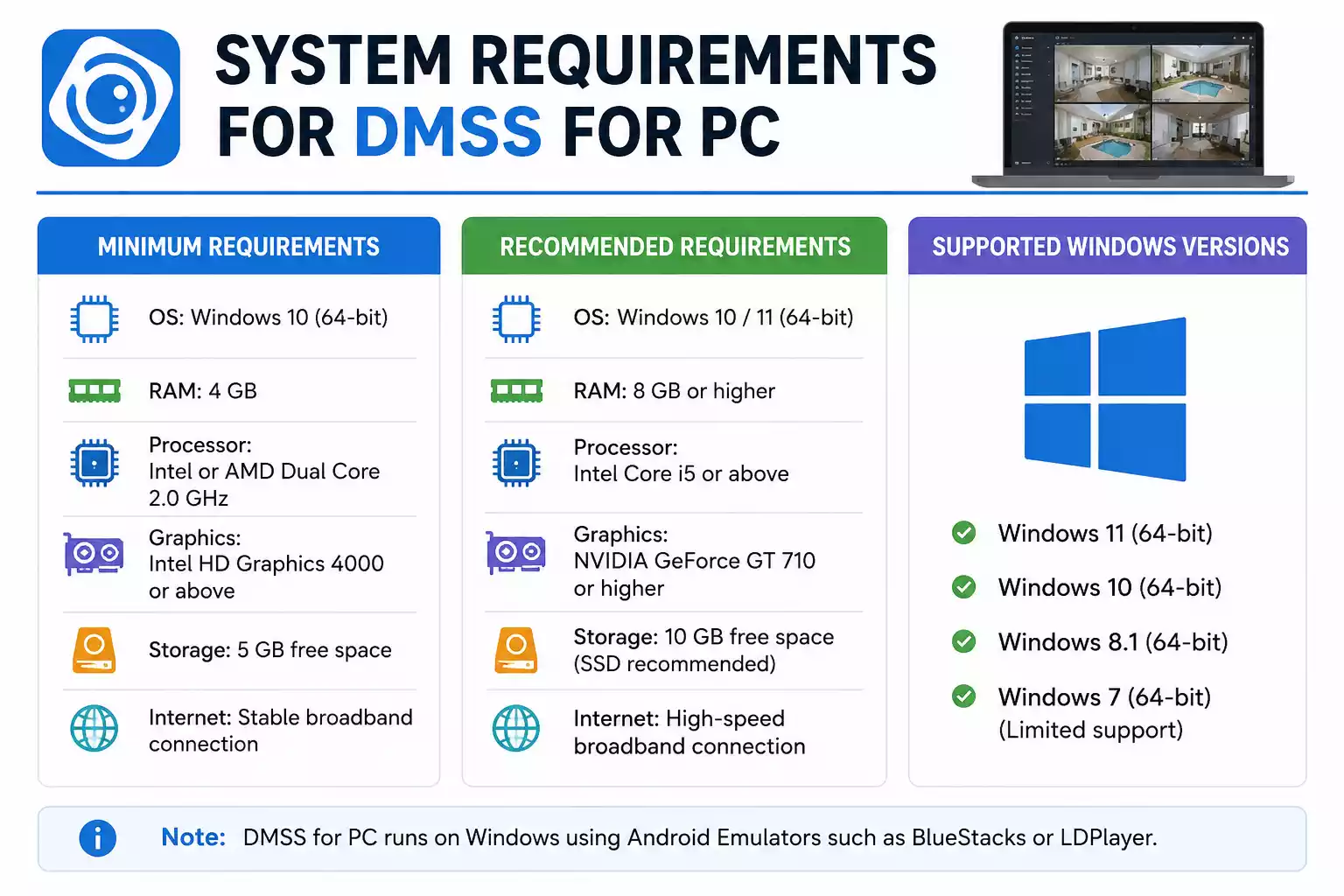
Before installing DMSS on a Windows computer, it’s important to verify that your system can run both the Android emulator and the application smoothly.
Minimum Requirements
For basic usage, your computer should meet the following specifications:
- Windows 10 or Windows 11
- Intel or AMD processor
- Dual-core CPU
- 4 GB RAM
- 5 GB free storage space
- Stable internet connection
- Administrator privileges
These specifications are generally sufficient for monitoring a few cameras and basic playback tasks.
Recommended Requirements
For better performance, especially when viewing multiple cameras simultaneously, consider the following:
- Windows 11 or latest Windows 10 version
- Intel Core i5 or AMD Ryzen 5 processor
- 8 GB RAM or higher
- SSD storage
- Dedicated graphics card (optional)
- Broadband internet connection
- Hardware virtualization enabled
A stronger system helps reduce lag, improve video quality, and support more camera streams.
Supported Windows Versions
Most Android emulators currently support:
- Windows 11
- Windows 10 (64-bit)
- Windows 8.1 (limited support depending on emulator)
- Windows 7 (legacy support in some emulator versions)
For the best experience, Windows 10 and Windows 11 are strongly recommended.
How to Download DMSS for PC
Many users search online for a DMSS for PC free download, expecting a direct Windows installer. However, DMSS is primarily an Android application. To run it on Windows, you’ll need an Android emulator.
Follow these steps carefully.
Step 1: Download the Android Emulator
An Android emulator creates a virtual Android environment on your computer.
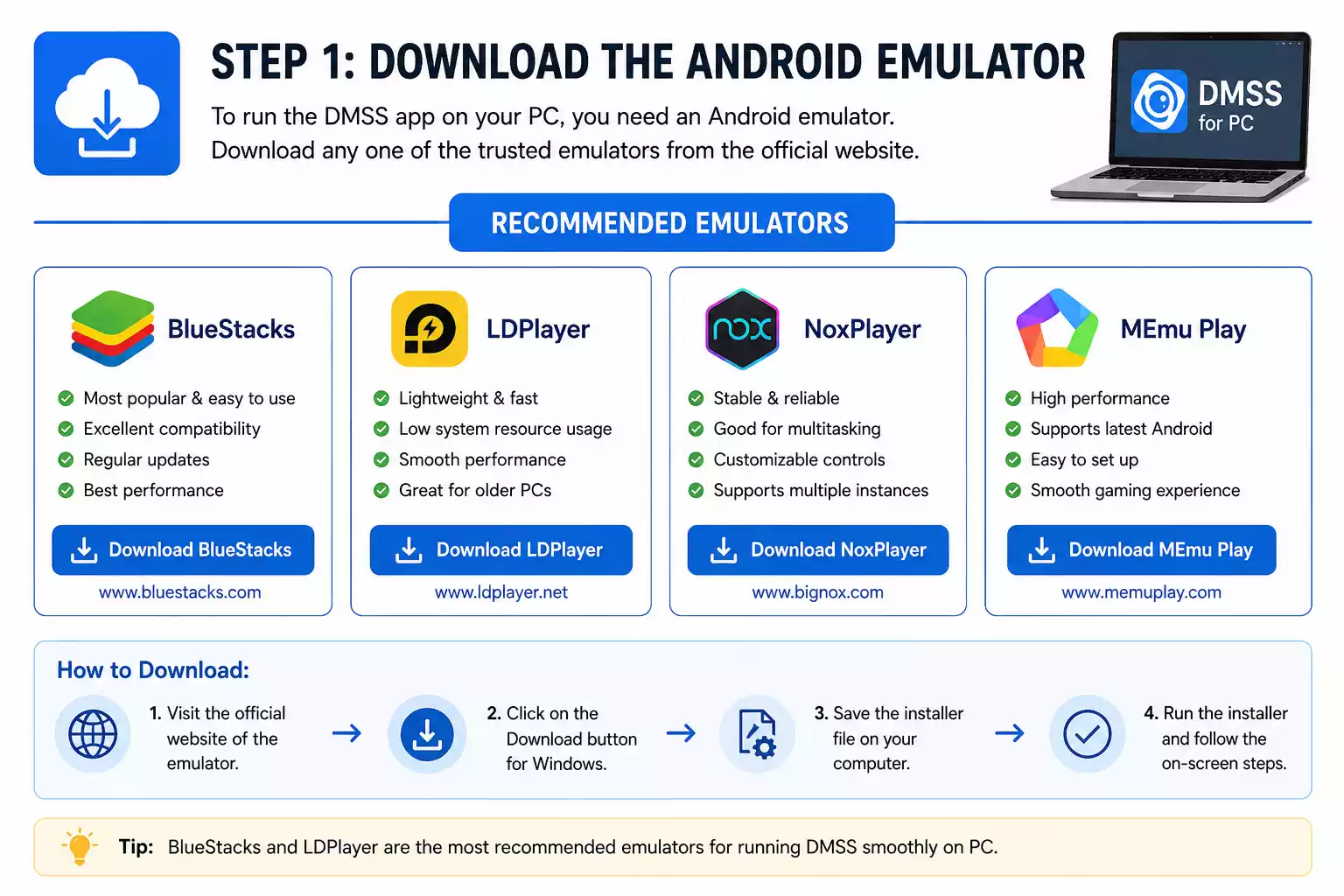
Popular options include:
- BlueStacks
- LDPlayer
- NoxPlayer
- MEmu Play
BlueStacks and LDPlayer are the most commonly recommended choices for DMSS because of their stability and performance.
Visit the official emulator website and download the latest version.
Step 2: Install the Emulator
After downloading the installation file:
- Open the installer.
- Accept the license agreement.
- Choose an installation location.
- Complete the setup process.
- Restart the computer if prompted.
The emulator may take a few minutes to configure itself during the first launch.
Step 3: Download DMSS from Google Play Store
Launch the emulator and sign in using a Google account.
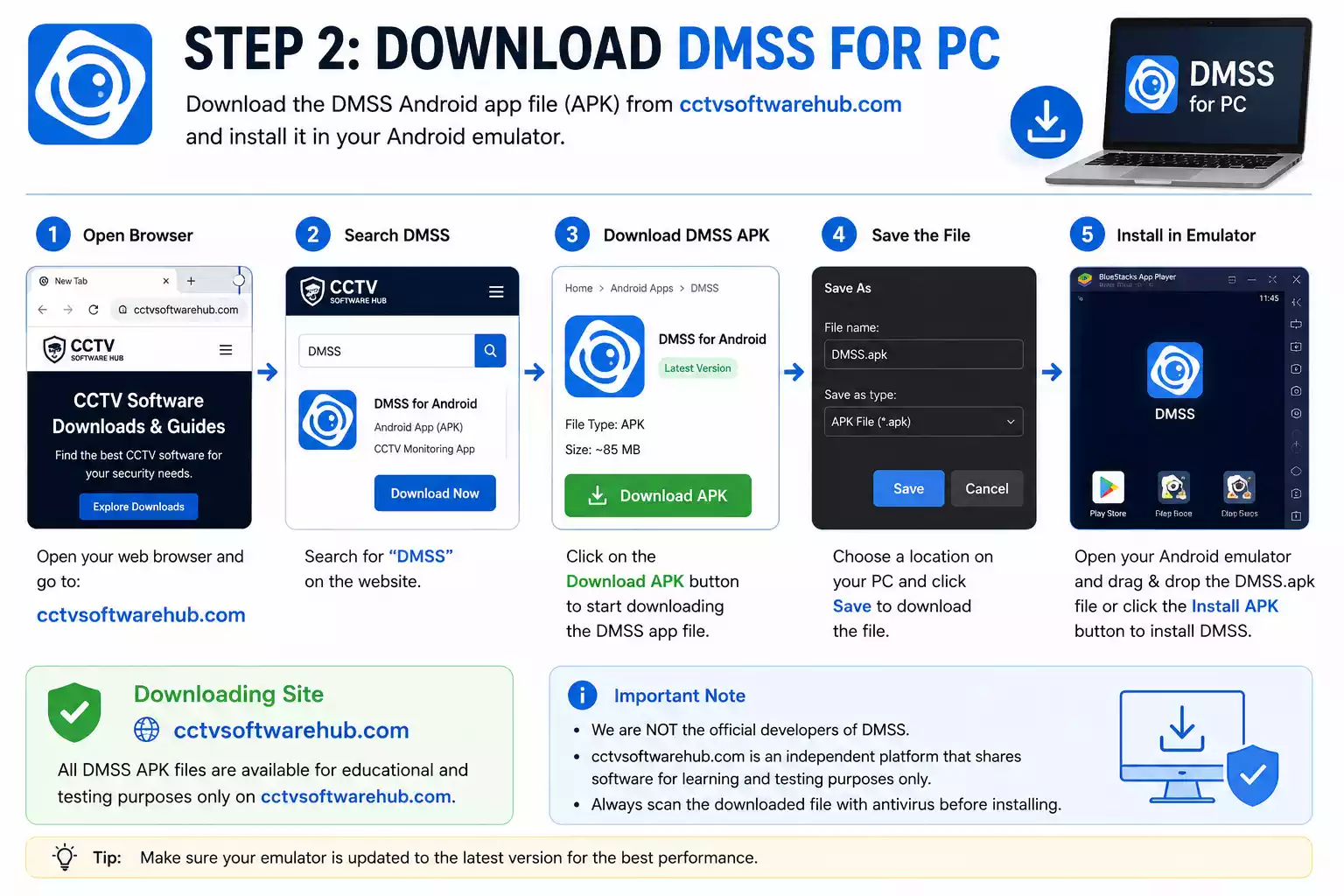
Once signed in:
- Open Google Play Store.
- Search for “DMSS.”
- Locate the official Dahua DMSS application.
- Click Install.
The app will automatically download and install within the emulator.
Some users also search for dmss for pc download packages online. Downloading from the Play Store is generally safer because it ensures you receive the latest official version.
Step 4: Complete the Installation
After installation finishes:
- Open the emulator home screen.
- Click the DMSS icon.
- Allow required permissions.
- Complete the initial setup.
At this stage, DMSS is ready for device configuration.
Hikvision systems work best with iVMS 4200 Download.
What About DMSS Download for Android TV?
Some users look for dmss download for android tv to monitor cameras on a larger screen.
Since Android TV uses the Android operating system, DMSS can often be installed using the Google Play Store if available on the device. Alternatively, users may sideload the APK file if their Android TV supports third-party application installation.
This option can be useful for dedicated monitoring displays in offices, shops, and security rooms.
How to Install DMSS on Windows 10 and 11
Installing DMSS on Windows is straightforward when using a trusted Android emulator.
Install BlueStacks or LDPlayer
Begin by downloading either BlueStacks or LDPlayer from the official website.
BlueStacks is known for excellent compatibility and ease of use, while LDPlayer often consumes fewer system resources.
After installation, launch the emulator and allow it to complete its initial setup.
Sign In to Google Account
To access Google Play Store, you’ll need a Google account.
Enter your credentials and complete any required verification steps.
This process works exactly like setting up a new Android phone.
Search for DMSS
Once Play Store opens:
- Click the search bar.
- Type “DMSS.”
- Press Enter.
- Select the official Dahua application.
Double-check the publisher information to avoid installing unofficial apps.
Install and Launch the App
Click the Install button and wait for the download process to finish.
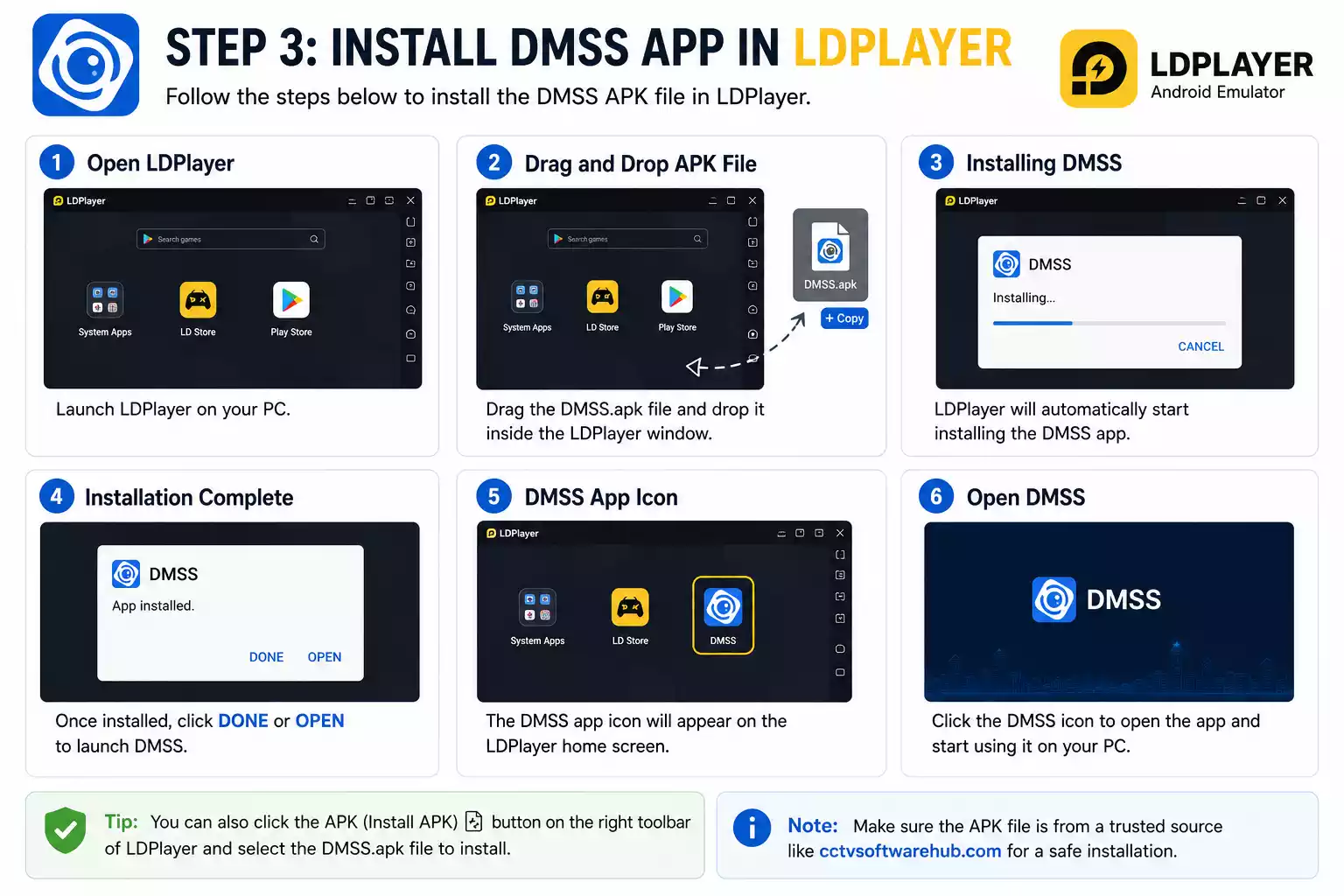
Depending on internet speed, installation usually takes only a few minutes.
After installation:
- Return to the emulator home screen.
- Open DMSS.
- Accept permissions.
- Complete initial configuration.
Verify Successful Installation
A successful installation should allow you to:
- Open DMSS without errors.
- Access the main dashboard.
- Sign in or create an account.
- Add surveillance devices.
- View live video feeds.
If the application launches correctly, your DMSS app for PC installation is complete.
How to Set Up DMSS for CCTV Monitoring
After installation, the next step is connecting your surveillance devices.
Proper setup ensures reliable monitoring, playback access, and notification delivery.
Create or Sign In to a DMSS Account
When opening DMSS for the first time, you’ll be asked to create an account or log in.
Creating an account allows cloud synchronization, device management, and remote access features.
Choose a strong password and enable account security options whenever available.
Add DVR, NVR, or IP Camera
Once logged in:
- Navigate to Device Management.
- Click Add Device.
- Choose the appropriate device type.
- Select the connection method.
DMSS supports DVRs, NVRs, IP cameras, video intercom systems, and other compatible Dahua devices.
If your DVR or NVR isn’t detected automatically, using Dahua Config Tool can help locate devices on your local network before adding them to DMSS.
Scan QR Code or Enter Device Details
Most Dahua devices include a QR code.
The easiest method is:
- Click Scan QR Code.
- Allow camera permissions.
- Scan the device label.
- Verify device information.
If scanning isn’t possible, manually enter:
- Serial number
- Device IP address
- Username
- Password
- Port information
Carefully verify all entries before proceeding.
Configure Device Settings
After adding the device, review important settings:
- Device name
- Recording preferences
- Notification options
- Video quality settings
- User permissions
- Alarm configurations
Proper configuration helps optimize performance and usability.
Test Live View Access
Finally, test your connection.
Open the Live View section and select a camera.
You should see real-time video footage within a few seconds.
Check multiple channels, test playback functionality, and verify notification delivery.
If everything works correctly, your CCTV system is successfully connected and ready for daily monitoring through DMSS on your Windows computer.
How to View Live CCTV Footage in DMSS
One of the most commonly used features in DMSS for PC is live video monitoring. After connecting your DVR, NVR, or IP cameras, you can watch real-time footage directly from your computer.
Think of the Live View section as your digital security control room. It gives you an instant window into everything happening across your surveillance system.
Access the Live View Section
To start viewing cameras:
- Open the DMSS application.
- Log in to your account if required.
- Select Live View from the main dashboard.
- Wait for the device list to load.
You should see all connected cameras and recording devices.
If no cameras appear, verify that your device is online and properly added to your account.
Select Cameras
Choose the camera you want to view.
You can:
- View a single camera.
- Open multiple cameras simultaneously.
- Switch between camera channels.
- Access cameras from different locations.
For example, a single dashboard can display cameras from a home, office, warehouse, and retail store at the same time.
Switch Between Viewing Layouts
DMSS provides several screen layouts.
Common options include:
- 1-camera view
- 4-camera grid
- 9-camera grid
- 16-camera grid
The best layout depends on the number of cameras you manage.
A single-camera layout provides maximum detail, while multi-camera layouts offer broader coverage.
Use Full-Screen Mode
For better visibility:
- Double-click a camera feed.
- Select Full Screen Mode.
- Press Esc to exit.
Full-screen monitoring is especially useful when reviewing entrances, parking areas, loading zones, or other critical locations.
The larger display available through DMSS for PC makes identifying people, vehicles, and activities significantly easier than on a smartphone.
How to Playback Recorded Videos in DMSS
Live monitoring is useful for watching current activity, but recorded footage is often where the real value lies.
Playback allows you to review past events, investigate incidents, and save important video clips.
Open Playback Mode
To access recordings:
- Launch DMSS.
- Select the connected device.
- Open the Playback section.
- Choose the desired camera channel.
DMSS will connect to the recorder and display available recordings.
Select Date and Time
Most surveillance systems store footage by date and time.
To locate a specific event:
- Choose a calendar date.
- Select a time range.
- Apply filters if available.
For example, if an incident occurred around 9:30 PM, simply navigate to that time period and begin playback.
Search Recorded Footage
DMSS includes several search tools.
You can search recordings by:
- Date
- Time
- Camera channel
- Event type
- Motion detection events
This helps reduce the time spent manually scanning hours of footage.
Instead of watching an entire day of recordings, you can jump directly to relevant events.
Download Important Clips
When you find footage worth saving:
- Select the start point.
- Select the end point.
- Click Download.
- Choose a save location.
Downloaded clips can be used for:
- Incident investigations
- Insurance claims
- Employee reviews
- Evidence preservation
- Security reports
Regularly backing up important recordings ensures critical footage remains available even if storage devices fail later.
How to Add Multiple Cameras and Devices
Many surveillance systems contain more than one camera or location. Fortunately, DMSS makes managing multiple devices simple.
Add Additional Devices
To add more devices:
- Open Device Management.
- Click Add Device.
- Scan the QR code or enter device information.
- Save the configuration.
Repeat this process for each DVR, NVR, or IP camera.
There is no need to create separate accounts for every location.
Organize Cameras into Groups
As the number of cameras grows, organization becomes increasingly important.
DMSS allows users to create camera groups such as:
- Home Cameras
- Office Cameras
- Warehouse Cameras
- Store Cameras
- Parking Area Cameras
Grouping cameras makes navigation faster and reduces confusion.
Manage Multiple Locations
One of the biggest advantages of the DMSS app for PC is centralized monitoring.
For example, a business owner might manage:
- Main office
- Retail outlet
- Storage facility
- Secondary branch
All locations can be viewed from a single dashboard.
Instead of logging into separate systems, everything remains accessible through one interface.
This feature makes DMSS an excellent solution for multi-site surveillance management.
If you’re setting up a new Dahua IP camera or NVR, you may also need the Dahua Config Tool to discover devices on your local network and configure their IP addresses before adding them to DMSS. Check out our Dahua Config Tool Download guide for the latest version and complete installation instructions.
DMSS for PC Settings and Customization
DMSS includes several settings that allow users to personalize their surveillance experience.
Taking a few minutes to configure these options can significantly improve performance and usability.
Notification Settings
Notifications help you stay informed about important events.
Common notification options include:
- Motion detection alerts
- Device offline alerts
- Security alarms
- Video loss notifications
- Storage warnings
Configure notifications carefully to avoid excessive alerts while still receiving important security updates.
Video Quality Settings
Video quality affects both image clarity and bandwidth usage.
DMSS typically allows users to choose between:
- Fluent stream
- Standard stream
- High-definition stream
Higher quality provides clearer images but requires more internet bandwidth.
If you experience lag, lowering the video quality can often improve performance.
Storage and Recording Options
Depending on the device configuration, DMSS may provide access to:
- Recording schedules
- Storage management
- Snapshot settings
- Download locations
Review storage settings regularly to ensure recordings are being saved properly.
User Account Management
DMSS supports multiple user roles and permissions.
Administrative users can:
- Add devices
- Change settings
- Manage accounts
- Configure security options
Limited-access users can be restricted to viewing specific cameras.
This feature is particularly useful when multiple people need access to the surveillance system.
Common DMSS Problems and Fixes
Even reliable software occasionally encounters issues. Fortunately, most DMSS problems can be resolved quickly.
DMSS Not Installing
Possible Causes
- Outdated emulator
- Insufficient storage space
- Unsupported Windows version
- Corrupted installation files
Solutions
- Update BlueStacks or LDPlayer.
- Free additional disk space.
- Restart the computer.
- Reinstall the emulator.
- Download DMSS again from Google Play Store.
Avoid downloading modified APK files from unknown websites.
Device Offline Error
The “Device Offline” message is one of the most common complaints among users.
Possible Causes
- Internet connection failure
- Router issues
- Incorrect device settings
- Power interruption
- P2P service disabled
Solutions
- Verify internet connectivity.
- Restart the router.
- Restart the DVR or NVR.
- Confirm device credentials.
- Ensure P2P status shows Online.
Most offline issues are resolved by restoring network connectivity.
Live View Not Loading
Possible Causes
- Slow internet speed
- Network congestion
- Device offline
- Stream configuration issues
Solutions
- Reduce video quality settings.
- Restart the application.
- Verify device status.
- Update DMSS.
- Test using another network.
A stable internet connection is essential for smooth live monitoring.
Playback Not Working
Possible Causes
- No recordings available
- Incorrect date selection
- Hard drive issues
- Recording schedule disabled
Solutions
- Check recording settings.
- Verify storage device health.
- Select the correct date and time.
- Confirm recording schedules are active.
Sometimes recordings exist but are stored on a different channel than expected.
Login Issues
Possible Causes
- Incorrect credentials
- Forgotten password
- Account synchronization problems
Solutions
- Reset the password.
- Verify email address.
- Check internet connectivity.
- Update the application.
Always use a recovery email address to simplify account recovery.
Slow Performance
Possible Causes
- Low system resources
- Too many cameras open
- Outdated emulator
- Background applications consuming memory
Solutions
- Close unnecessary programs.
- Increase emulator memory allocation.
- Upgrade system RAM.
- Switch to SSD storage.
- Update graphics drivers.
For systems running many cameras simultaneously, hardware upgrades often provide the biggest improvement.
If DMSS keeps buffering during live view, try my security camera bandwidth calculator to estimate the bandwidth required by your cameras.
DMSS vs SmartPSS: Which Is Better?
A common question among Dahua users is whether they should use DMSS or SmartPSS.
The answer depends on how the surveillance system will be used.
Feature Comparison
DMSS
Features include:
- Mobile-first design
- Remote monitoring
- Push notifications
- Cloud account integration
- Easy device management
- Quick setup
SmartPSS
Features include:
- Native Windows software
- Advanced management tools
- Recording management
- Video wall support
- User management
- Enterprise monitoring features
SmartPSS generally offers more professional monitoring capabilities.
Ease of Use
DMSS focuses on simplicity.
The interface is clean and beginner-friendly. Most users can complete setup within minutes.
SmartPSS provides more features but requires a longer learning curve.
For users wanting quick access to cameras, DMSS is often easier.
If you are looking for the older Dahua mobile software on a computer, see my complete guide to iDMSS for PC and learn how the legacy app can be used on Windows.
Best Use Cases
Choose DMSS If:
- You prefer a simple interface.
- You need remote monitoring.
- You want mobile and desktop access.
- You monitor a small or medium-sized system.
Choose SmartPSS If:
- You manage many cameras.
- You need advanced control.
- You operate a monitoring center.
- You require enterprise-level management.
Final Recommendation
For most users searching for DMSS for PC free download, DMSS provides the easiest and most convenient experience.
However, larger installations often benefit from SmartPSS due to its advanced surveillance management capabilities.
The good news is that many users successfully use both applications together depending on their needs.
DMSS Security and Privacy Features
Security software should protect not only your property but also your data.
DMSS includes several features designed to improve account security and privacy.
Account Protection
DMSS supports:
- Password authentication
- Account verification
- Password recovery options
- Login protection mechanisms
Strong passwords remain the first line of defense against unauthorized access.
Device Encryption
Modern Dahua devices support encrypted communication between:
- Cameras
- DVRs
- NVRs
- Mobile devices
- DMSS accounts
Encryption helps prevent unauthorized interception of surveillance data.
Secure Remote Access
DMSS allows secure remote monitoring through internet-connected devices.
By using official software, updated firmware, and strong credentials, users can significantly reduce security risks while maintaining convenient access to their surveillance systems.
Best Tips for Using DMSS Efficiently
A few simple habits can improve reliability and overall performance.
Keep Software Updated
Updates often include:
- Security improvements
- Bug fixes
- Performance enhancements
- New features
Regular updates help maintain system stability.
Use Strong Passwords
Avoid common passwords such as:
- 123456
- admin
- password
Use a combination of:
- Uppercase letters
- Lowercase letters
- Numbers
- Special characters
Enable Notifications
Motion alerts and device status notifications can help identify issues quickly.
Properly configured notifications ensure important events are never missed.
Regularly Check Device Status
At least once a week:
- Verify cameras are online.
- Check storage health.
- Test playback.
- Review network connectivity.
Preventive maintenance helps avoid larger problems later.
Alternatives to DMSS for PC
Although DMSS is a strong surveillance solution, several alternatives are also worth considering.
SmartPSS
SmartPSS is Dahua’s dedicated Windows surveillance platform.
Advantages include:
- Native Windows support
- Advanced monitoring tools
- Better multi-camera management
- Enterprise features
It is often the preferred choice for large installations.
iVMS-4200
Developed by Hikvision, iVMS-4200 offers:
- Live monitoring
- Playback management
- Device configuration
- Event management
It works best with Hikvision devices.
If you’re using Hikvision cameras instead of Dahua devices, iVMS-4200 is an excellent alternative that offers live viewing, video playback, remote device management, and event monitoring on Windows. You can read our complete iVMS-4200 Download and Installation Guide to learn how to set it up on your PC.
EZVIZ Studio
EZVIZ Studio provides:
- Remote viewing
- Video playback
- Cloud integration
- User-friendly design
It is ideal for EZVIZ camera owners.
Guarding Vision
Guarding Vision is another Hikvision-based monitoring platform that supports:
- Multi-device management
- Remote surveillance
- Event notifications
- Centralized monitoring
For users with non-Dahua systems, these alternatives may provide better compatibility.
Conclusion
Running DMSS for PC is one of the easiest ways to monitor CCTV cameras from a larger screen without investing in expensive surveillance hardware. By using an Android emulator such as BlueStacks or LDPlayer, you can access the full functionality of the DMSS mobile app directly on a Windows computer.
Throughout this guide, we’ve covered everything from downloading and installing the software to setting up devices, viewing live footage, reviewing recordings, troubleshooting common issues, and comparing DMSS with SmartPSS.
For most users, DMSS offers an excellent balance between simplicity and functionality. Its support for remote monitoring, instant notifications, playback access, and multi-camera viewing makes it a practical choice for everyday surveillance management.
If you’re looking for a reliable DMSS app for PC, the safest approach is to install the official application through a trusted Android emulator. Whether you’re managing a single home camera or multiple surveillance locations, DMSS provides the tools needed to stay connected to your security system anytime and anywhere.
Looking for CP Plus software? Read our gCMOB for PC guide.
If you also use CP Plus security devices, our CP Plus KVMS Pro Download guide will help you download, install, and set up the software for centralized monitoring and device management.
Frequently Asked Questions
Can I use DMSS on a Windows PC?
Yes. Although DMSS was originally designed for Android and iOS devices, it can be used on Windows computers through Android emulators such as BlueStacks and LDPlayer.
The emulator creates a virtual Android environment that allows the app to run just like it would on a smartphone or tablet. This is currently the most popular method for running DMSS for PC.
Many users prefer this setup because it allows them to monitor cameras on a larger screen while keeping access to all mobile app features.
Is DMSS for PC free to use?
Yes. The DMSS application itself is free to download and use.
You can install the app from the Google Play Store inside an Android emulator without paying any subscription fee.
However, some surveillance features may depend on the hardware being used, cloud services, or specific Dahua device capabilities.
For most users, the standard version provides all the essential monitoring and playback functions needed for daily surveillance management.
Do I need an emulator to run DMSS on a computer?
In most cases, yes.
Since DMSS is an Android application, Windows computers require an Android emulator to run it.
Popular emulators include:
BlueStacks
LDPlayer
MEmu Play
NoxPlayer
The most commonly recommended setup is DMSS on BlueStacks because of its stability and compatibility with security applications.
If you prefer a native Windows surveillance application, you may also consider SmartPSS as an alternative.
Which emulator works best for DMSS?
Both BlueStacks and LDPlayer work very well with DMSS.
BlueStacks Advantages
Excellent compatibility
Regular updates
Easy installation
Strong performance
LDPlayer Advantages
Lower resource usage
Faster startup times
Good stability
Suitable for older PCs
For modern computers, BlueStacks is often the preferred choice. For lower-spec systems, LDPlayer can sometimes provide smoother performance.
How do I add a DVR or NVR to DMSS?
Adding a DVR or NVR is simple.
Follow these steps:
Open DMSS.
Navigate to Device Management.
Select Add Device.
Scan the QR code on the recorder.
Enter the device username and password.
Save the configuration.
If QR scanning is unavailable, you can manually enter:
Serial number
IP address
Port number
Login credentials
Once connected, the device should appear in your device list.
Can I view multiple cameras at the same time?
Yes.
DMSS supports multi-camera viewing layouts that allow several camera feeds to appear simultaneously.
Depending on your screen size and device capabilities, you can choose layouts such as:
1 screen
4 screens
9 screens
16 screens
This feature is especially useful when monitoring entrances, parking lots, offices, warehouses, and other large areas.
Using DMSS for PC makes multi-camera
Why is my device showing offline in DMSS?
The Device Offline error usually indicates a communication problem between DMSS and your surveillance hardware.
Common causes include:
Internet connection failure
Router problems
Incorrect device settings
Power interruptions
Disabled P2P services
To fix the issue:
Check internet connectivity.
Restart the router.
Reboot the DVR or NVR.
Verify account credentials.
Confirm P2P status is online.
Most offline issues can be resolved through basic network troubleshooting.
How do I playback recorded CCTV footage in DMSS?
To view recorded footage:
Open DMSS.
Select the device.
Enter Playback mode.
Choose a camera channel.
Select a date and time.
Search available recordings.
DMSS will display recorded footage stored on the DVR, NVR, or camera storage device.
You can also download important clips for future reference or evidence purposes.
Playback functionality is one of the most valuable features of the DMSS app for PC because it allows quick investigation of past events.
Is DMSS safe for remote surveillance monitoring?
Yes.
DMSS is developed by Dahua Technology and includes several security features designed to protect user accounts and surveillance data.
Security measures include:
Password authentication
Secure device communication
Account verification
Encrypted connections
Controlled user permissions
For maximum protection:
Use strong passwords.
Update software regularly.
Enable security features.
Keep device firmware updated.
Following these practices significantly improves account and device security.
What is the difference between DMSS and SmartPSS?
DMSS and SmartPSS serve similar purposes but target different types of users.
DMSS
Mobile-first platform
Easier setup
Remote monitoring
User-friendly interface
Ideal for homes and small businesses
SmartPSS
Native Windows software
Advanced monitoring tools
Better suited for large installations
Professional management features
Supports complex surveillance environments
If you want quick and simple remote monitoring, DMSS is usually the better choice.
If you need advanced surveillance management and control over large systems, SmartPSS may be the more powerful solution.
Many users successfully use both platforms together depending on their surveillance requirements.