
Introduction
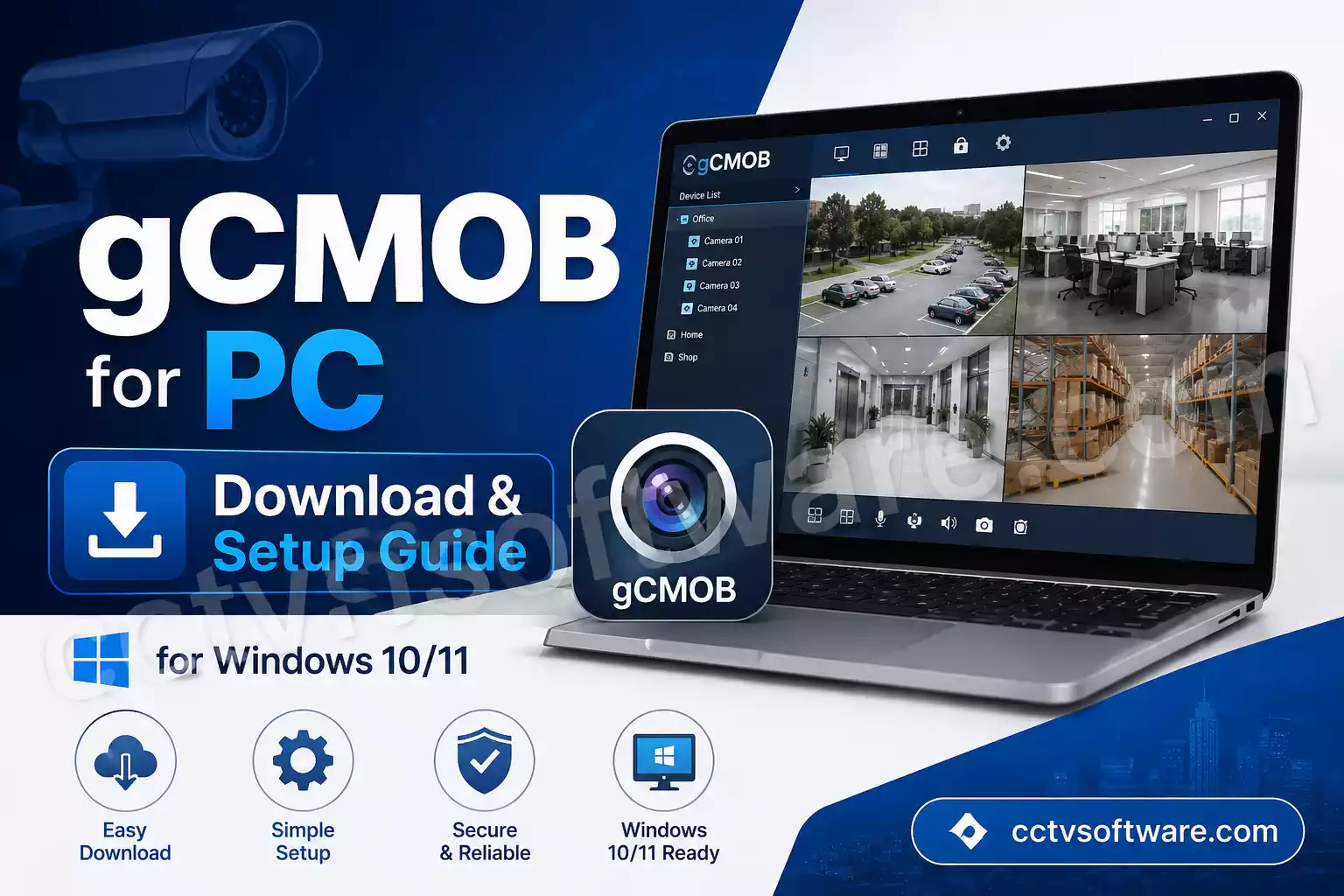
If you want to monitor your CCTV cameras on a larger screen, GCMOB for PC can be a practical solution. While the GCMOB application was originally developed for Android devices, many users prefer running it on a Windows computer for a better viewing experience.
A PC monitor provides more screen space, making it easier to watch multiple camera feeds simultaneously, review recordings, and manage surveillance devices. Whether you’re monitoring a home, office, retail store, warehouse, or other property, using GCMOB on a computer can improve convenience and visibility.
In this complete guide, you’ll learn everything about GCMOB download for PC, installation methods, system requirements, camera setup, troubleshooting tips, and best practices for getting the most out of this CCTV monitoring software.
Before installing your CCTV software, estimate storage requirements using our CCTV Storage Calculator.
Software Information
| Feature | Information |
|---|---|
| Software Name | gCMOB |
| Developer | CP Plus (Aditya Infotech Ltd) |
| Category | CCTV Mobile App |
| Platform | Android, iOS |
| Supported OS | Windows 10/11 (via Emulator), Android, iOS |
| Supported Devices | DVR, NVR, IP Cameras |
| License | Free |
| Language Support | Multi-language |
| Latest Version | v3.3.4 (Latest) |
| Last Updated | Regularly Verified |
| Key Features | Live View, Playback, Alerts, Remote Monitoring |
gCMOB Download Links
| Software | Platform | Action |
|---|---|---|
| gCMOB for PC | Windows 10 / 11 (Android Emulator) | ⬇ Download gCMOB for PC |
| gCMOB APK download for Smart TV | APK File | ⬇ Download gCMOB APK |
| KVMS Pro Lite for PC | Windows 10 / 11 | ⬇ KVMS Pro Lite-Latest |
Note: Download gCMOB from the official website to get the latest verified version. If you need a dedicated CCTV monitoring solution for Windows, I recommend KVMS Pro for PC for a more convenient desktop monitoring experience.
What Is gCMOB for PC?
GCMOB is a mobile surveillance application designed to connect with compatible DVRs, NVRs, IP cameras, and video surveillance systems. It allows users to remotely access live video streams, recorded footage, and camera management features from a single interface.
Although there is no widely available native Windows version of GCMOB, users can install the app on a computer through an Android emulator. An emulator creates a virtual Android environment on a Windows PC, allowing Android applications to run as if they were installed on a smartphone or tablet.
Think of an Android emulator as a bridge between mobile software and desktop hardware. It allows the GCMOB app for PC to function almost exactly the same way as it does on a mobile device while taking advantage of a larger display and more powerful computer resources.
The application supports various surveillance functions, including:
- Real-time live camera viewing
- Playback of recorded video footage
- PTZ camera controls
- Device management
- Motion detection notifications
- Multi-camera monitoring
Many users choose GCMOB for Windows because it offers flexibility and convenience. Instead of constantly checking cameras on a small phone screen, they can monitor their surveillance system from a desktop workstation, laptop, or dedicated security monitoring setup.
For CCTV installers and system administrators, GCMOB also serves as a useful diagnostic tool during installation and maintenance. It provides a quick way to verify camera connectivity, stream quality, and device settings without requiring physical access to each camera location.
If you prefer monitoring cameras on a television, you can also install gCMOB APK for Smart TV on compatible Android TV devices.
Key Features of gCMOB for PC
One reason GCMOB remains popular among surveillance users is its wide range of monitoring and management features. These tools help simplify daily security operations while providing convenient access to video footage and device controls.
Live Camera Monitoring
The most commonly used feature is GCMOB live view on PC. Users can access real-time video streams from connected cameras and monitor activity as it happens.
A larger computer screen significantly improves visibility. Instead of switching between camera feeds on a phone, multiple streams can be displayed simultaneously. This makes it easier to identify movement, track events, and maintain awareness across different areas.
For locations with multiple cameras, live monitoring becomes far more practical on a desktop setup.
Key Benefits
- Real-time monitoring
- Multiple camera viewing
- Better image visibility
- Easier event tracking
- Improved situational awareness
Remote Playback
Live monitoring is useful, but reviewing past events is equally important. GCMOB includes remote playback functionality that allows users to access recorded footage directly from their DVR, NVR, or storage device.
If an incident occurs, recordings can be searched by date and time. Users can quickly locate specific events without manually browsing through hours of video footage.
Playback controls typically include:
- Pause
- Fast forward
- Rewind
- Timeline navigation
- Date selection
This feature can significantly reduce investigation time when reviewing security footage.
PTZ Camera Control
Many surveillance systems include Pan-Tilt-Zoom (PTZ) cameras. These cameras can move in different directions and zoom in on specific areas.
GCMOB provides built-in PTZ controls that allow users to remotely operate supported cameras.
With PTZ functionality, users can:
- Rotate the camera horizontally
- Tilt vertically
- Zoom in on details
- Return to preset positions
- Monitor large areas efficiently
It’s similar to having a remote-controlled security guard that can focus on different areas whenever needed.
Motion Detection Alerts
Motion detection alerts help users stay informed even when they are not actively monitoring camera feeds.
When motion is detected within designated zones, the system can generate notifications. These alerts allow users to respond quickly to potential security events.
Common uses include:
- Monitoring entrances
- Detecting after-hours movement
- Tracking deliveries
- Identifying unusual activity
- Improving response times
Properly configured motion alerts can significantly enhance the effectiveness of a surveillance system.
Multi-Device Management
Modern surveillance systems often include multiple DVRs, NVRs, and cameras across different locations.
GCMOB simplifies management by allowing users to access multiple devices from a single interface.
Instead of logging into separate systems, administrators can organize and monitor devices from one dashboard.
This feature is especially useful for:
- Multi-location businesses
- Large properties
- Security service providers
- CCTV installers
- Facility managers
Centralized management reduces complexity and improves operational efficiency.
For Dahua systems, consider using DMSS for PC for remote monitoring.
Benefits of Using gCMOB on a PC
While GCMOB works well on mobile devices, running it on a computer offers several important advantages.
The most obvious benefit is screen size. Monitoring four, eight, or sixteen camera feeds on a smartphone can be challenging. A desktop monitor provides a much clearer overview of all connected cameras.
Another advantage is improved control. Using a mouse and keyboard often feels faster and more precise than touchscreen navigation. Tasks such as camera selection, playback review, and PTZ control become easier to perform.
Performance can also improve. Modern computers generally have more processing power and memory than mobile devices. This can result in smoother video playback and better handling of multiple camera streams.
For professional monitoring environments, a PC setup creates a more organized workspace. Security personnel can dedicate one or more screens to surveillance while continuing other tasks on separate monitors.
Using GCMOB for PC may also reduce battery concerns. Unlike smartphones, desktop systems can remain powered continuously without affecting mobile device battery life.
Finally, troubleshooting and configuration are often easier on a larger screen. Device settings, network information, and camera configurations are generally more accessible when displayed on a desktop interface.
For these reasons, many users prefer GCMOB on Windows when managing larger or more complex surveillance systems.
gCMOB for PC System Requirements
Before proceeding with the GCMOB download for PC, it’s important to ensure that your computer can run both the Android emulator and the application smoothly.
Although GCMOB itself is lightweight, the emulator requires additional system resources. Running multiple HD camera streams can also increase CPU, RAM, and network usage.
Minimum Requirements
If you only plan to monitor a few cameras occasionally, the following specifications are usually sufficient:
| Component | Minimum Requirement |
|---|---|
| Operating System | Windows 10/11 |
| Processor | Intel Dual-Core or AMD Equivalent |
| RAM | 4GB |
| Storage | 5GB Free Space |
| Graphics | Integrated Graphics |
| Internet | Stable Broadband Connection |
| Emulator | BlueStacks, LDPlayer, or NoxPlayer |
With minimum specifications, GCMOB can handle basic live viewing and playback functions. However, performance may decrease when viewing multiple HD cameras simultaneously.
Recommended Requirements
For smoother operation and professional monitoring, consider the following:
| Component | Recommended Specification |
|---|---|
| Operating System | Windows 11 64-bit |
| Processor | Intel Core i5/i7 or AMD Ryzen 5/7 |
| RAM | 8GB–16GB |
| Storage | SSD with 10GB+ Free Space |
| Graphics | Dedicated GPU (Optional) |
| Internet | High-Speed Broadband |
| Emulator | Latest Version of BlueStacks or LDPlayer |
These specifications help improve:
- Multi-camera viewing
- HD video playback
- PTZ responsiveness
- Emulator stability
- Overall system performance
Think of your PC as the control room for your surveillance system. The better equipped the control room is, the smoother the monitoring experience becomes.
gCMOB Download for PC
One of the most common questions users ask is how to download GCMOB for Windows.
Since GCMOB was developed primarily for Android devices, the application is usually installed on a PC using an Android emulator.
The process is straightforward when using trusted download sources and following proper installation procedures.
Latest Version Information
Using the latest version of GCMOB provides several benefits:
- Improved security
- Bug fixes
- Better compatibility
- Enhanced performance
- New feature support
Older versions may contain issues that affect connectivity, playback, or notification functionality.
Before installing the application, always verify that you’re downloading the most recent stable release available.
Download Sources
When searching for the GCMOB app for PC, use trusted sources only.
Recommended options include:
Option 1: Google Play Store (via Emulator)
This is generally the safest method.
After installing an Android emulator:
- Open Google Play Store
- Sign in with a Google account
- Search for GCMOB
- Install the application
Option 2: Official Manufacturer Resources
Some surveillance hardware manufacturers provide direct download links for supported applications.
Always verify that the source is legitimate before downloading.
Option 3: Reputable APK Platforms
If Play Store access is unavailable, reputable APK repositories may provide installation files.
However, additional caution should be exercised when downloading APK files from third-party websites.
Download Safety Tips
Downloading security software from unknown sources can create unnecessary risks.
Before installing GCMOB, follow these best practices:
Verify the Source
Only download files from trusted websites.
Avoid suspicious download pages filled with excessive advertisements, redirects, or pop-ups.
Scan Downloaded Files
Always perform an antivirus scan before opening any downloaded APK or installation package.
This simple step can prevent malware infections.
Check User Reviews
If downloading from a third-party platform, review ratings and user feedback.
A large number of complaints may indicate a problem with the file.
Avoid Modified Versions
Some websites offer “modded” or “premium unlocked” versions of applications.
These versions often contain:
- Malware
- Spyware
- Backdoors
- Data collection tools
Stick with official releases whenever possible.
Keep Windows Updated
A fully updated operating system improves compatibility and reduces security vulnerabilities.
Use a Reliable Emulator
Trusted Android emulators receive regular updates and security patches.
Popular options include:
BlueStacks
Pros:
- Stable performance
- Easy setup
- Excellent compatibility
Best For:
- Beginners
- General users
- Home monitoring
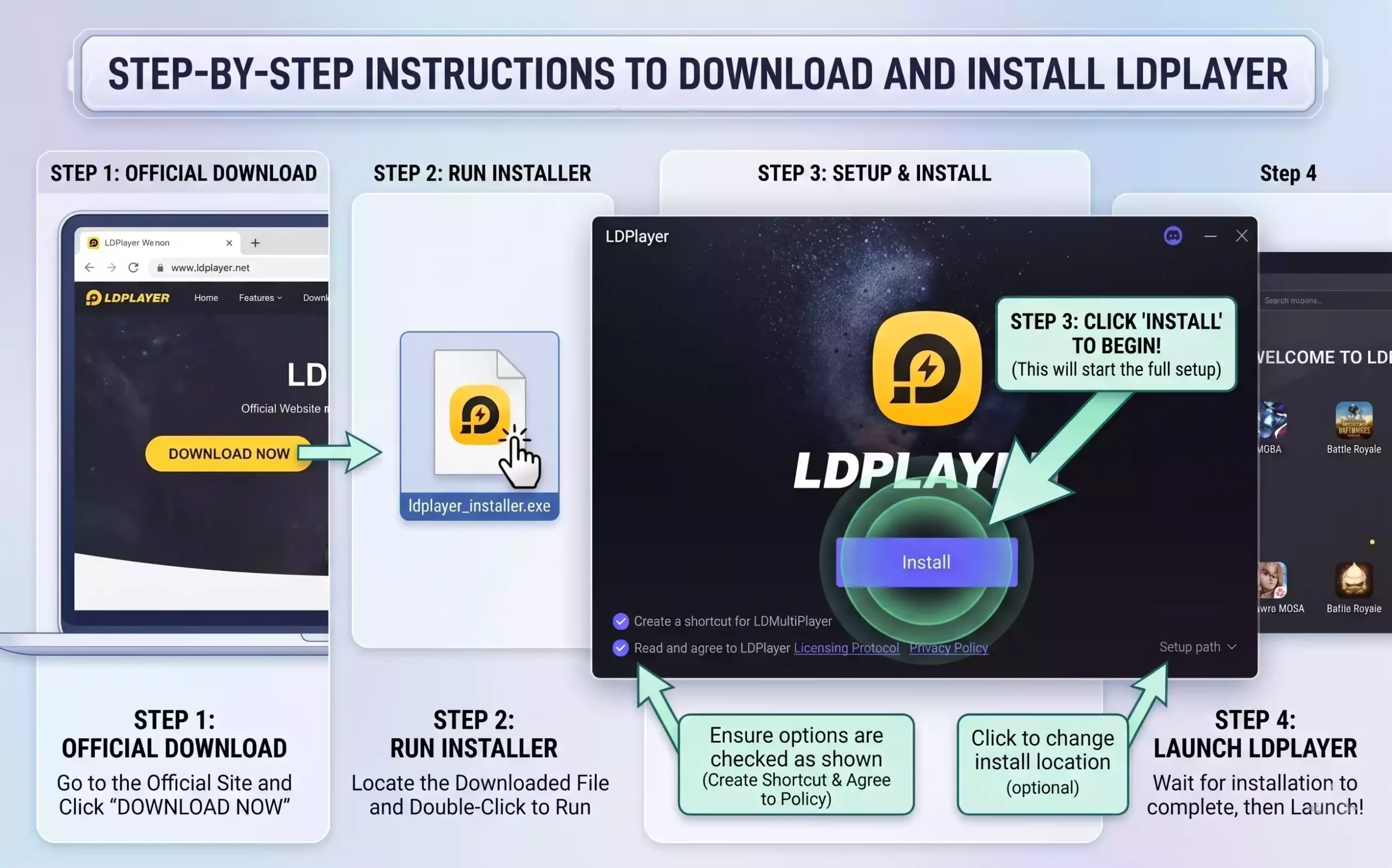
LDPlayer
Pros:
- Lightweight
- Fast performance
- Lower resource usage
Best For:
- Older PCs
- Mid-range systems
NoxPlayer
Pros:
- Customizable settings
- Flexible controls
Best For:
- Advanced users
gCMOB APK Download for Smart TV
In addition to Windows PCs, some users also look for a gCMOB APK download for Smart TV to monitor CCTV cameras on a larger screen. If your television runs Android TV or Google TV, you may be able to install the gCMOB APK and access live camera feeds directly from your TV.
Download Information
| Software | Platform | Download Type |
|---|---|---|
| gCMOB APK | Android TV / Smart TV | gcmob apk download for smart tv |
Note: gCMOB is designed primarily for Android mobile devices. While it can work on some Android TV and Smart TV devices, certain features may not display or function exactly as they do on smartphones or PCs. For advanced monitoring, multi-camera viewing, and easier controls, using gCMOB for PC is generally recommended.
How to Install GCMOB on Windows PC
Now that the download process is complete, it’s time to install the software.
The entire setup typically takes less than 15 minutes.
Step 1: Download an Android Emulator
Since GCMOB is primarily an Android application, you’ll need an emulator to run it on Windows.
Popular options include:
- BlueStacks
- LDPlayer
- NoxPlayer
For most users, BlueStacks is the easiest choice because of its straightforward interface and excellent compatibility.
Visit the emulator’s official website and download the latest version.
Avoid downloading emulator installers from unofficial websites.
Step 2: Install the Emulator
After downloading:
- Open the installer.
- Click Install.
- Accept required permissions.
- Wait for installation to finish.
- Restart the computer if prompted.
The installation process usually takes several minutes depending on hardware specifications.
Once complete, launch the emulator.
The first startup may take longer because Android components need to initialize.
Step 3: Sign In to Google Play Store
Most emulators require Google account access.
To continue:
- Open Play Store.
- Enter Google credentials.
- Complete the sign-in process.
- Wait for synchronization.
This step allows you to download Android applications directly from Google Play.
Step 4: Download gCMOB App
After Play Store access is available:
- Search for “GCMOB”.
- Locate the official application.
- Click Install.
- Wait for download completion.
The installation process is automatic.
Once finished, an application icon will appear on the emulator home screen.
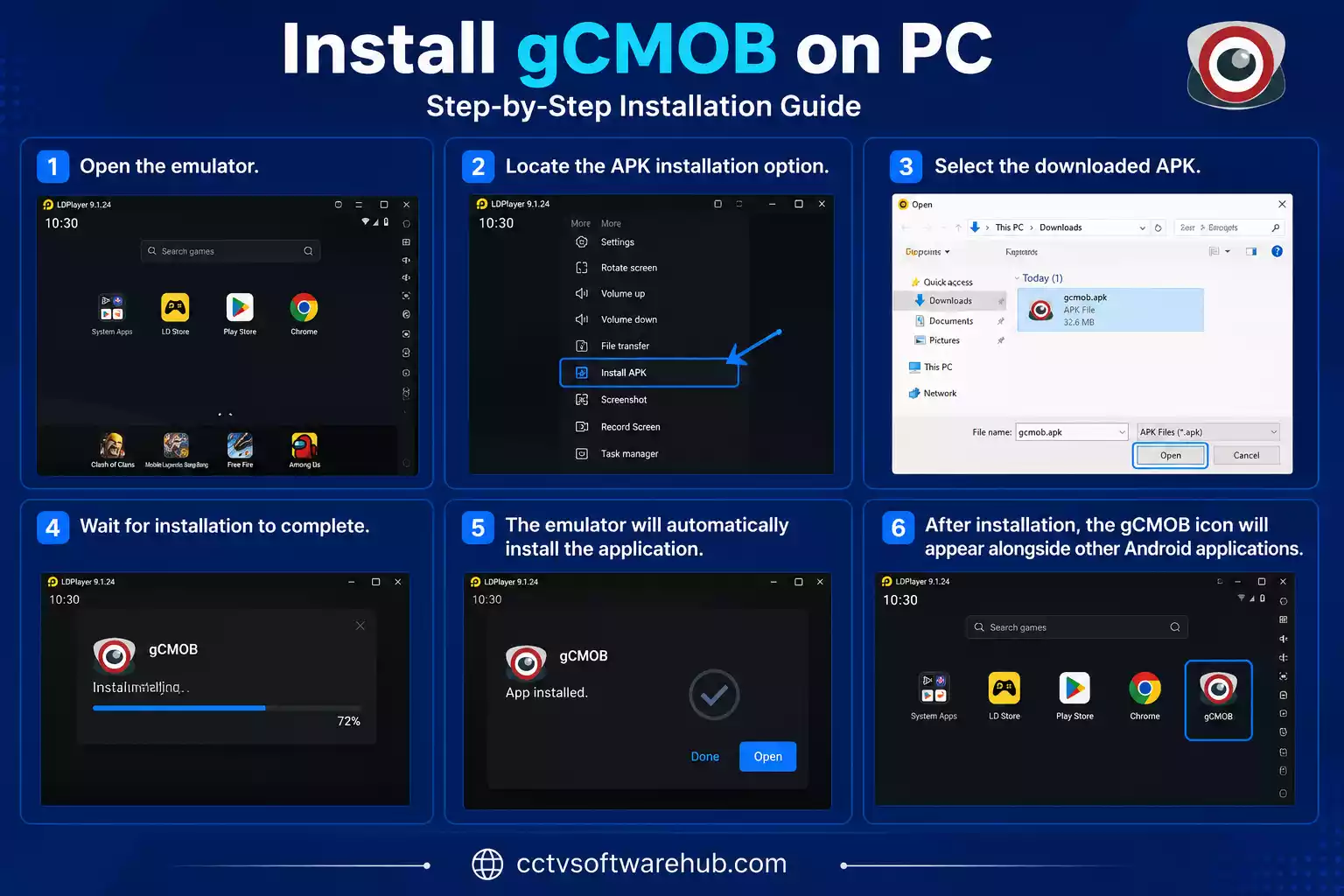
Step 5: Install gCMOB on PC
If you’re using an APK file:
- Open the emulator.
- Locate the APK installation option.
- Select the downloaded APK.
- Wait for installation to complete.
The emulator will automatically install the application.
After installation, the GCMOB icon will appear alongside other Android applications.
Step 6: Launch and Set Up gCMOB
Open the application for the first time.
You may be asked to allow permissions such as:
- Storage access
- Camera access
- Network access
- Notifications
Grant required permissions for proper functionality.
Afterward, the main dashboard will appear.
At this stage, no cameras will be visible because devices have not yet been added.
The next section of this guide explains how to connect DVRs, NVRs, and IP cameras to gCMOB for PC.
Hikvision users can install iVMS 4200 Download for device management.
How to Configure Cameras in gCMOB for PC
After successfully installing the application, the next step is connecting your surveillance devices. Proper configuration ensures stable live viewing, smooth playback, and reliable alert notifications.
Whether you’re using a DVR, NVR, or standalone IP camera, the setup process is relatively straightforward when the correct device information is available.
Before beginning, make sure you have:
- Device serial number
- IP address (if applicable)
- Username and password
- Network connection
- QR code (if supported)
Let’s go through each setup method step by step.
Add a DVR or NVR
Most users connect GCMOB to a DVR or NVR because these devices manage multiple cameras from a single system.
To add a DVR or NVR:
Step 1: Open Device Manager
Launch GCMOB and navigate to the device management section.
Depending on the version, this may be labeled:
- Device Manager
- Device List
- Add Device
- Device Configuration
Step 2: Select Add Device
Click the Add Device button.
You will typically see multiple connection methods.
Choose:
- Serial Number
- IP/Domain
- QR Code
Step 3: Enter Device Information
Fill in the required fields:
| Field | Description |
|---|---|
| Device Name | Custom name |
| Serial Number | Device ID |
| Username | DVR/NVR Login |
| Password | Device Password |
Double-check credentials before saving.
Incorrect login information is one of the most common causes of connection failures.
Step 4: Save Settings
Click Save.
The application will attempt to connect to the device.
If successful, all associated cameras should appear within the device list.
Pro Tip
Use descriptive names such as:
- Main Office DVR
- Warehouse NVR
- Front Gate Recorder
- Store Security System
Clear naming makes future management much easier.
Add IP Cameras
If you’re using standalone IP cameras without a DVR or NVR, they can usually be added directly.
Step 1: Choose Add Camera
Open Device Management and select Add Camera.
Step 2: Enter Network Information
You may need:
- IP Address
- Port Number
- Username
- Password
Example:
| Setting | Example |
|---|---|
| IP Address | 192.168.1.100 |
| Port | 37777 |
| Username | admin |
| Password | ******** |
Your actual settings will depend on the camera manufacturer.
Step 3: Verify Network Access
Ensure:
- Camera is powered on
- Camera is connected to the network
- PC has internet access
- Router settings allow communication
Step 4: Save and Connect
After entering details, save the configuration.
If everything is correct, live video should appear within seconds.
Common IP Camera Setup Mistakes
Avoid these frequent issues:
- Wrong IP address
- Incorrect password
- Disabled network access
- Port mismatch
- Outdated firmware
Most connection failures are caused by one of these problems.
Scan QR Code for Device Setup
QR code setup is often the fastest and easiest configuration method.
Many modern DVRs, NVRs, and cameras include QR codes specifically for remote access.
Think of the QR code as a shortcut that automatically imports device information.
Step 1: Locate the QR Code
The QR code may be found:
- On the DVR sticker
- Inside device settings
- On product packaging
- In the user manual
Step 2: Open Scan Function
Within GCMOB:
- Select Add Device
- Choose Scan QR Code
- Allow camera permissions if requested
Step 3: Scan the Code
Position the QR code within the scanning window.
The application should automatically detect the device.
Step 4: Enter Credentials
Most systems still require:
- Username
- Password
Enter the information and save.
Benefits of QR Setup
- Faster installation
- Fewer manual errors
- Simplified configuration
- Beginner-friendly process
For most users, QR code setup is the preferred installation method.
Test Camera Connection
Once devices are added, always test the connection before considering the setup complete.
This simple step can prevent future monitoring issues.
Verify Live View
Open the live monitoring section.
Confirm:
- Video loads correctly
- Stream quality is acceptable
- No connection errors appear
Verify Playback
Access recorded footage and test:
- Timeline navigation
- Fast forward
- Rewind
- Date selection
Playback should function smoothly.
Verify Motion Alerts
Trigger a motion event manually.
For example:
- Walk in front of the camera
- Open a monitored door
- Create movement in the detection zone
Confirm that alerts are received.
Verify PTZ Controls
For PTZ cameras:
- Pan left/right
- Tilt up/down
- Zoom in/out
All commands should respond correctly.
Check Multiple Cameras
If managing multiple cameras:
- Open all feeds
- Verify simultaneous streaming
- Confirm stable performance
Testing ensures your surveillance system is ready when needed.
Before adding a new Dahua device to gCMOB, you may need to discover it on your network using the Dahua Config Tool. Our Dahua Config Tool Download guide explains how to download, install, and configure the software step by step.
How to Use gCMOB on PC
After installation and configuration, the next step is learning how to use the software effectively.
GCMOB provides several powerful surveillance features that help users monitor and manage security systems from a single interface.
Let’s explore the most important functions.
View Live Camera Feeds
The live monitoring screen is where most users spend their time.
This section displays real-time video from connected cameras.
Accessing Live View
To start monitoring:
- Open gCMOB.
- Select Live View.
- Choose a device.
- Select cameras to display.
Video should begin streaming immediately.
Choose Layout Options
Most versions support multiple viewing layouts such as:
- 1 camera
- 4 cameras
- 8 cameras
- 9 cameras
- 16 cameras
Larger layouts are useful for monitoring multiple areas simultaneously.
Adjust Video Quality
If bandwidth is limited, switching to a lower stream quality can improve performance.
Common options include:
- Main Stream
- Sub Stream
- HD Mode
- Standard Mode
Best Practice
Use a dedicated monitor whenever possible.
A larger screen improves visibility and makes suspicious activity easier to identify.
Play Back Recorded Footage
Recorded footage is often just as important as live monitoring.
Playback allows users to review past events quickly.
Access Playback Mode
Navigate to:
Playback → Select Device → Choose Camera
Search by Date and Time
Choose:
- Year
- Month
- Day
- Time Range
This narrows the search and reduces review time.
Playback Controls
Most versions include:
- Pause
- Play
- Fast Forward
- Rewind
- Timeline Scrubbing
Investigating Events
When reviewing incidents:
- Note timestamps
- Check multiple camera angles
- Export clips if supported
This process makes security investigations far more efficient.
Control PTZ Cameras
PTZ cameras provide greater flexibility than fixed cameras.
Using GCMOB, you can remotely control camera movement from your PC.
Basic PTZ Functions
Available controls typically include:
- Pan
- Tilt
- Zoom
These functions help focus on specific areas.
Preset Positions
Many PTZ cameras support saved positions.
Examples:
- Front Entrance
- Parking Area
- Loading Dock
- Reception Area
One click instantly moves the camera to a predefined view.
Patrol Functions
Some cameras can automatically rotate between preset locations.
This improves coverage without manual operation.
Practical Example
Imagine monitoring a large warehouse.
Instead of installing multiple fixed cameras, a PTZ camera can rotate and zoom to inspect different areas as needed.
This improves monitoring efficiency while reducing equipment costs.
Manage Multiple Cameras
One of the biggest advantages of using gCMOB for PC is the ability to manage multiple cameras from a single dashboard.
While a mobile phone can display several camera feeds, a larger PC screen makes monitoring much more efficient. This is especially useful when managing surveillance systems with numerous cameras installed across different locations.
Organize Cameras by Location
To simplify monitoring, create groups based on location or purpose.
Examples include:
- Front Entrance
- Reception Area
- Parking Lot
- Warehouse
- Cash Counter
- Backyard
Grouping cameras logically helps users quickly access the feeds they need.
Switch Between Devices Easily
If multiple DVRs or NVRs are connected, gCMOB allows users to switch between systems without repeatedly entering login credentials.
This feature is particularly useful for:
- Multi-branch businesses
- Large residential properties
- Security monitoring centers
- CCTV service providers
Use Multi-Screen Layouts
Depending on the version and emulator, users may be able to display:
- 4-camera view
- 8-camera view
- 9-camera view
- 16-camera view
This creates a centralized monitoring station capable of covering large areas.
Monitor Camera Health
Regularly check:
- Camera status
- Signal quality
- Recording status
- Network connectivity
Identifying issues early helps prevent security gaps.
Receive Security Alerts
Security alerts allow users to stay informed even when they are not actively watching camera feeds.
Think of alerts as a digital security guard that immediately notifies you when something important happens.
Enable Motion Detection Alerts
Most compatible surveillance systems support motion-triggered notifications.
To activate alerts:
- Open device settings.
- Locate motion detection settings.
- Enable notifications.
- Define detection areas.
- Save changes.
Configure Detection Zones
Instead of monitoring the entire image, focus on critical areas such as:
- Doorways
- Gates
- Driveways
- Cash Registers
- Storage Rooms
This reduces false alarms.
Adjust Sensitivity
Sensitivity settings determine how easily motion triggers an alert.
If sensitivity is too high:
- Pets may trigger alerts.
- Tree branches may cause notifications.
- Shadows may create false alarms.
If sensitivity is too low:
- Important events may be missed.
Finding the right balance improves system reliability.
Types of Alerts
Depending on the surveillance system, alerts may include:
- Motion Detection
- Human Detection
- Intrusion Alerts
- Video Loss Alerts
- Device Offline Notifications
Why Alerts Matter
Immediate notifications can help users:
- Respond faster
- Investigate suspicious activity
- Reduce losses
- Improve security awareness
When configured correctly, alerts transform GCMOB from a passive monitoring tool into an active security solution.
gCMOB for PC vs Mobile App
Many users wonder whether they should use GCMOB on a PC or simply rely on the mobile app.
The answer depends on how the surveillance system is being used.
Both options have advantages and limitations.
Screen Size and Monitoring Experience
The most noticeable difference is screen size.
A smartphone offers convenience, but viewing multiple cameras on a small display can become difficult.
A PC provides:
- Larger viewing area
- Better image visibility
- Easier identification of details
- More comfortable long-term monitoring
For continuous surveillance, desktop monitoring usually provides a better experience.
Winner: PC
Performance and Stability
Modern computers generally have more processing power than mobile devices.
This helps when:
- Viewing multiple HD streams
- Managing several devices
- Reviewing recordings
- Running surveillance continuously
A PC can often handle these tasks more efficiently.
However, performance also depends on:
- Hardware specifications
- Internet connection
- Emulator quality
Winner: PC
Features and Controls
The core features remain similar across both platforms.
Users can typically access:
- Live View
- Playback
- Device Management
- Motion Alerts
- PTZ Controls
However, a mouse and keyboard often provide more precise control than a touchscreen.
Tasks like searching recordings and controlling PTZ cameras are generally easier on a computer.
Winner: PC
When to Use Each Option
The ideal solution is often using both.
Use GCMOB for PC When:
- Monitoring multiple cameras
- Reviewing footage
- Managing devices
- Operating a security station
Use Mobile App When:
- Traveling
- Checking alerts
- Quick monitoring
- Remote access on the go
Together, both platforms provide a complete surveillance solution.
Common gCMOB Problems and Fixes
Even properly configured surveillance systems occasionally experience technical issues.
Fortunately, most GCMOB problems can be resolved quickly with basic troubleshooting.
Let’s look at the most common issues and their solutions.
GCMOB Not Installing on PC
Installation failures are among the most common complaints.
Possible Causes
- Outdated emulator
- Insufficient RAM
- Corrupted APK
- Limited storage space
- Unsupported Windows version
Solutions
- Update the emulator.
- Verify system requirements.
- Download the latest GCMOB version.
- Free up storage space.
- Restart the computer.
If the issue persists, reinstall the emulator completely.
Camera Connection Failed
A connection error prevents live video from loading.
Common Causes
- Wrong username
- Incorrect password
- Device offline
- Internet issues
- Router configuration problems
Solutions
Check:
- Device status
- Login credentials
- Internet connection
- Router settings
- Cloud service status
Many connection issues are caused by incorrect login details.
Always verify credentials first.
Live View Not Loading
Sometimes cameras connect successfully, but live video does not appear.
Possible Causes
- Slow internet connection
- High-resolution stream
- Device overload
- Temporary network interruption
Solutions
Try the following:
- Switch to sub-stream mode.
- Restart GCMOB.
- Reboot DVR or NVR.
- Verify internet speed.
- Update device firmware.
Reducing stream quality often solves live-view loading problems.
Playback Not Working
Playback issues can prevent access to recorded footage.
Common Causes
- No recordings available
- Incorrect time settings
- Corrupted recordings
- Storage failure
Solutions
Verify:
- Recording schedules
- Hard drive health
- Time synchronization
- Camera recording status
If recordings are missing, inspect DVR or NVR recording settings.
Emulator Performance Issues
Because gCMOB relies on an Android emulator, performance problems occasionally occur.
Common Symptoms
- Lagging video
- Freezing
- Slow navigation
- High CPU usage
Solutions
Allocate More RAM
Most emulators allow manual RAM allocation.
Increasing memory can significantly improve performance.
Enable Virtualization
Virtualization technology improves emulator efficiency.
Enable it through BIOS settings if supported.
Close Background Applications
Running multiple programs simultaneously can reduce available system resources.
Close unnecessary applications before monitoring.
Update Graphics Drivers
Outdated graphics drivers may cause video rendering issues.
Install the latest driver updates from your hardware manufacturer.
Use SSD Storage
Solid-state drives provide faster performance than traditional hard drives.
This can improve emulator responsiveness and loading times.
Performance Optimization Tips
To achieve the best gCMOB live view on PC experience:
- Use wired internet whenever possible.
- Keep software updated.
- Reboot devices regularly.
- Monitor storage usage.
- Use recommended hardware.
- Update firmware periodically.
- Limit unnecessary background processes.
These simple practices help maintain long-term system stability and performance.
Who Should Use gCMOB for PC?
GCMOB for PC is suitable for anyone who needs a larger and more convenient platform for CCTV monitoring. While the mobile application is useful for quick access, a computer-based setup offers better visibility, easier management, and improved multitasking.
Homeowners
Homeowners can use GCMOB to monitor:
- Front doors
- Driveways
- Garages
- Backyards
- Indoor security cameras
A larger screen makes it easier to identify visitors, deliveries, and unusual activity.
Small Business Owners
Business owners often manage multiple cameras across different areas.
Examples include:
- Retail stores
- Restaurants
- Offices
- Warehouses
- Workshops
Using GCMOB on a PC allows continuous monitoring without constantly checking a smartphone.
Security Personnel
Security operators benefit from:
- Multi-camera viewing
- PTZ controls
- Faster playback review
- Better situational awareness
A desktop monitoring station creates a more professional surveillance environment.
CCTV Installers
Installers frequently use GCMOB during:
- Device testing
- System configuration
- Troubleshooting
- Customer demonstrations
The software helps verify camera connectivity and recording functionality before handing over a project.
Multi-Location Managers
Organizations with multiple locations can manage several DVRs and NVRs from a single interface, reducing operational complexity and improving oversight.
Pros and Cons of GCMOB for PC
Like any CCTV monitoring software, GCMOB has strengths and limitations.
Understanding both helps determine whether it is the right solution for your surveillance needs.
Advantages
Large-Screen Monitoring
The biggest advantage is the ability to monitor multiple cameras simultaneously on a larger display.
Easier Camera Management
Managing devices, reviewing recordings, and navigating settings becomes more convenient with a keyboard and mouse.
Remote Playback Access
Users can quickly review recorded footage from connected devices without physically accessing the DVR or NVR.
PTZ Camera Support
Supported PTZ cameras can be controlled remotely for enhanced surveillance coverage.
Multi-Device Support
Several DVRs, NVRs, and cameras can be managed from one dashboard.
Cost-Effective Solution
Since GCMOB is typically free to use, users can build an effective monitoring setup without additional software costs.
Limitations
No Dedicated Windows Version
Most users need an Android emulator to run GCMOB on Windows.
Emulator Dependency
Performance depends heavily on the emulator and computer hardware.
Resource Consumption
Running multiple HD streams can increase CPU and RAM usage.
Compatibility Differences
Some features may vary depending on:
- Camera model
- DVR manufacturer
- Firmware version
- Emulator settings
Internet Dependence
Remote viewing requires a stable internet connection for optimal performance.
Conclusion
gCMOB for PC provides a practical and flexible way to monitor surveillance systems from a Windows computer. By using an Android emulator, users can access live video feeds, review recordings, control PTZ cameras, receive motion alerts, and manage multiple devices from a single interface.
The larger screen significantly improves the monitoring experience, especially when viewing several cameras simultaneously. Whether you’re securing a home, office, warehouse, retail store, or commercial property, GCMOB offers convenient remote access to your surveillance equipment.
By following the installation, configuration, and troubleshooting steps outlined in this guide, you can build a reliable CCTV monitoring setup that delivers better visibility, easier management, and greater peace of mind.
If you’re looking for a simple way to access your security cameras from a desktop environment, GCMOB for Windows remains one of the most practical solutions available.
Related CCTV Software Guide
If you are looking for another way to manage your CCTV system from a computer, you can also check my [KVMS Pro Download] guide. It covers the Windows installation process, device setup, live viewing, playback, and other useful features for CCTV monitoring..
[Smart PSS Download] — Find out how to use gCMOB on a Windows PC and access your compatible CCTV cameras from your computer.
Frequently Asked Questions
Can I use GCMOB on a Windows 10 PC?
Yes. GCMOB can be used on Windows 10 through an Android emulator such as BlueStacks, LDPlayer, or NoxPlayer. The emulator creates a virtual Android environment that allows the application to run on a desktop computer.
How do I download GCMOB for Windows 11?
Install a compatible Android emulator, open the Google Play Store inside the emulator, search for GCMOB, and install the application. Alternatively, you can install a trusted APK file through the emulator.
Is GCMOB available as an official PC software?
In many cases, GCMOB is primarily designed for Android devices. Most users run the application on Windows using Android emulation software rather than a dedicated desktop version.
Which Android emulator is best for running GCMOB on PC?
BlueStacks is generally recommended for beginners because of its stability and ease of use. LDPlayer is often preferred for lower-resource systems, while NoxPlayer offers additional customization options.
Can I watch CCTV cameras live on GCMOB for PC?
Yes. Live camera monitoring is one of the primary features of GCMOB. Users can access real-time video feeds from compatible DVRs, NVRs, and IP cameras directly from their computer.
How do I add a DVR or NVR in GCMOB?
Open Device Management, select Add Device, and enter the device information such as serial number, username, and password. If supported, you can also use QR code scanning for faster setup.
Why is GCMOB not connecting to my camera?
Common causes include:
Incorrect login credentials
Internet connection problems
Device offline status
Firewall restrictions
Incorrect network settings
Verify all device information and network configurations before troubleshooting further.
Is GCMOB free to use on a PC?
Yes. The application itself is generally free to install and use. However, associated surveillance hardware and cloud services may involve additional costs depending on the manufacturer.
Can I play back recorded CCTV footage in GCMOB?
Yes. GCMOB includes playback functionality that allows users to search and review recorded video footage by date and time.
Is GCMOB safe to download and install?
Yes, provided it is downloaded from trusted sources such as the Google Play Store, official manufacturer websites, or reputable software repositories. Avoid modified APK files and unknown download websites.