
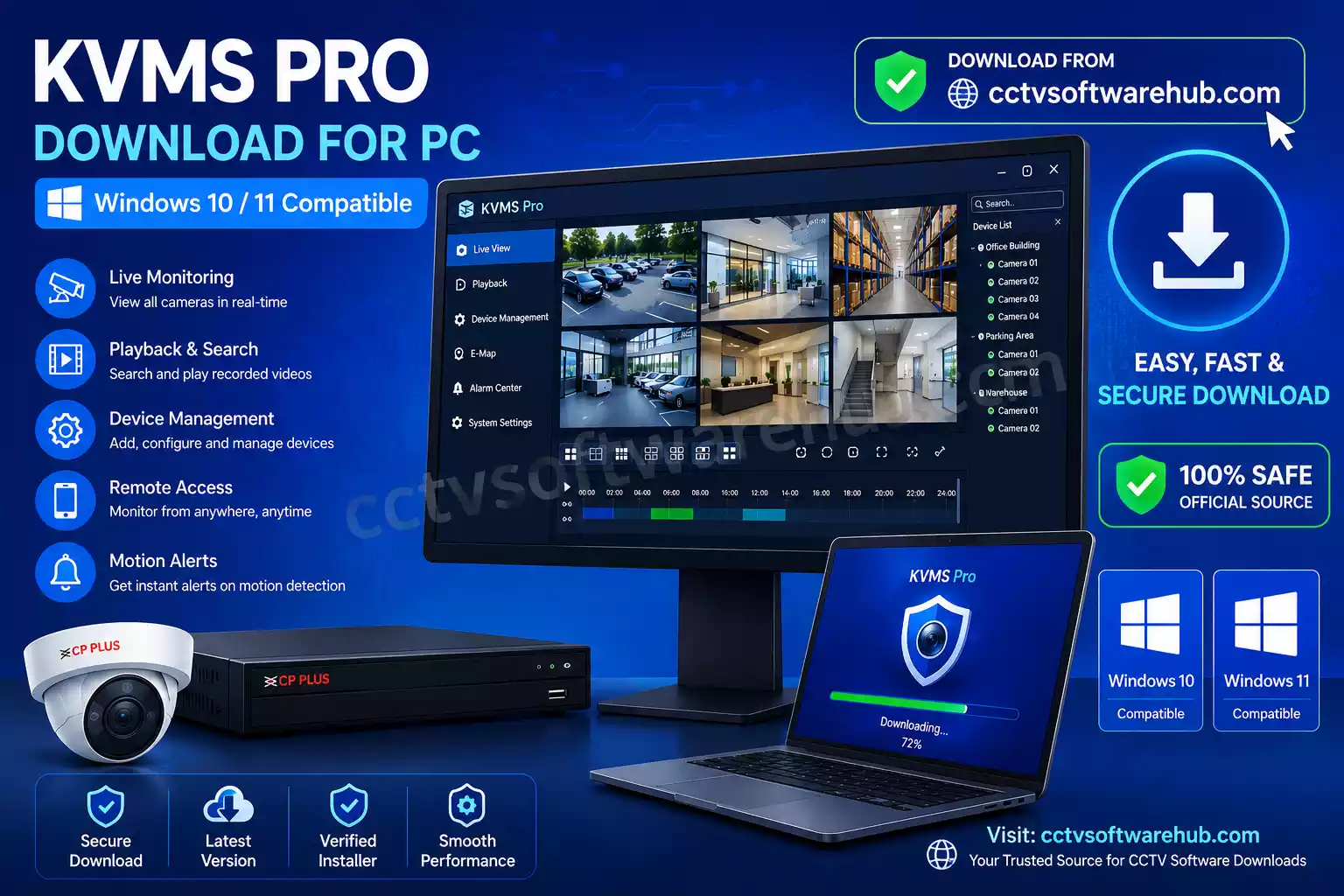
If you’re looking for the latest KVMS Pro Download, you’ve landed on the right page. I have personally installed and tested KVMS Pro on multiple Windows PCs while configuring CP Plus DVRs and NVRs. In this guide, I’ll show you where to download the latest version safely, how to install it correctly, how to add your CCTV devices, and how to fix the most common issues users face.
Managing multiple CCTV cameras from a computer is much easier than using a small DVR interface. That’s why CP Plus developed KVMS Pro, a desktop Video Management Software (VMS) that lets you monitor live cameras, playback recordings, manage multiple devices, and control your surveillance system from one place.
During my own installations, I’ve found that most users struggle not because the software is difficult, but because they download outdated installers or miss important setup steps. In this guide, I’ll help you install KVMS Pro correctly, connect your DVR or NVR, and start remote viewing without the common errors.
Make sure your surveillance system has enough recording space by using our CCTV Storage Calculator.
Why Trust This Guide
I’ve worked with CCTV systems, DVRs, NVRs, and networking for over 10 years. I wrote this guide based on my hands-on experience installing KVMS Pro on Windows PCs and troubleshooting common setup issues for home and business surveillance systems.
How Can You Download KVMS Pro for Windows?
Looking for the latest KVMS Pro software? Use the download links below to get started.
| Feature | Information |
|---|---|
| Software Name | KVMS Pro |
| Developer | CP Plus International |
| Category | CCTV Monitoring Software |
| Compatible OS | Windows 7, 8, 10, 11, & macOS |
| Supported Devices | DVR, NVR, IP Cameras |
| License | Free |
| Language Support | Multi-language |
| Latest Version | Latest Available Version |
| Last Updated | June 2026 |
| Key Features | Live View, Playback, Alerts, Remote Monitoring |
| Software | Platform | Action |
|---|---|---|
| KVMS Pro Download | Windows 10 / 11 | ⬇ Download KVMS Pro |
| KVMS Pro Lite | Windows 10 / 11 | ⬇ KVMS Pro Lite Download |
| KVMS Pro Lite -STQC | Windows 10 / 11 | ⬇ KVMS Pro Lite-Latest |
| KVMS Pro For Mac | Windows 10 / 11 | ⬇ Kvms Pro For MacOS |
Note : For maximum security and reliability, we strongly recommend downloading KVMS Pro and KVMS Pro Lite from the official CP Plus website whenever possible. Official sources provide the latest software versions, security updates, bug fixes, and verified installation files.
Before installing any downloaded software, verify the file source and scan it with a reputable antivirus program to ensure a safe installation experience.
What Is KVMS Pro?
KVMS Pro is a professional Video Management Software (VMS) developed for CP Plus security systems. It enables you to monitor live CCTV cameras, manage DVRs and NVRs, play back recorded footage, configure recording schedules, and receive event notifications directly on your Windows computer.
Although it is primarily designed for CP Plus devices, many ONVIF-compatible cameras and recorders can also be added, depending on firmware compatibility.
Unlike the mobile app, KVMS Pro provides a larger interface with advanced management tools, making it a preferred choice for offices, shops, schools, warehouses, and users who monitor multiple locations.
What Features Does KVMS Pro Offer?
KVMS Pro includes several features that make CCTV management simple and efficient.
Live Camera Monitoring
Live monitoring is one of the most important functions of KVMS Pro. Users can view real-time video streams from connected cameras through a centralized dashboard.
The software supports multiple camera views simultaneously, making it easy to monitor several locations at once.
Video Playback
KVMS Pro allows users to access recorded footage quickly. Videos can be searched by date, time, and event type.
This feature helps when reviewing incidents, investigating suspicious activities, or finding specific recordings.
Remote Device Management
The software enables remote access to surveillance devices. Users can manage camera settings, configure devices, and monitor system status without being physically present.
This saves time and reduces maintenance efforts.
Motion Detection Alerts
Motion detection notifications help users respond quickly to security events. When motion is detected, the software can generate alerts and direct users to the relevant camera feed.
This feature reduces the need to constantly watch live video.
Multi-Device Support
KVMS Pro supports various surveillance devices, including DVRs, NVRs, and IP cameras.
Its compatibility allows users to manage multiple devices from a single platform instead of switching between different software programs.
Hikvision users may prefer iVMS 4200 Download for enterprise-level management.
Benefits of Using KVMS Pro
KVMS Pro offers several practical benefits for surveillance management.
First, it centralizes all security operations in one location. Instead of opening multiple applications, users can monitor everything from one interface.
Second, it improves efficiency. Features such as live viewing, playback, and device management reduce the time required to manage surveillance systems.
Third, remote access provides flexibility. Users can monitor cameras from different locations without needing direct access to the recorder.
Another major benefit is improved incident investigation. Playback tools make it easier to find and review recordings when needed.
The software also supports scalable surveillance systems. Whether managing a few cameras or dozens of devices, KVMS Pro can accommodate growing security requirements.
Overall, KVMS Pro acts like a digital command center that helps keep surveillance systems organized and accessible.
What Are the System Requirements for KVMS Pro?
Before starting a KVMS Pro download, make sure your computer meets the necessary requirements.
Windows Requirements
For Windows systems, it is recommended to use:
- Windows 10 or Windows 11
- Intel Core i3 processor or higher
- Minimum 4GB RAM
- 8GB RAM recommended
- At least 2GB free storage space
- Stable internet connection
Mac Requirements
For Mac systems:
- Recent macOS version
- Intel or Apple Silicon processor
- Minimum 4GB RAM
- Sufficient free storage
- Reliable internet connection
Network Requirements
Network performance directly affects surveillance quality.
For best results:
- Use broadband internet
- Ensure DVR or NVR is connected properly
- Maintain stable LAN connectivity
- Configure router settings correctly
- Use sufficient upload bandwidth for remote viewing
KVMS Pro Download for PC
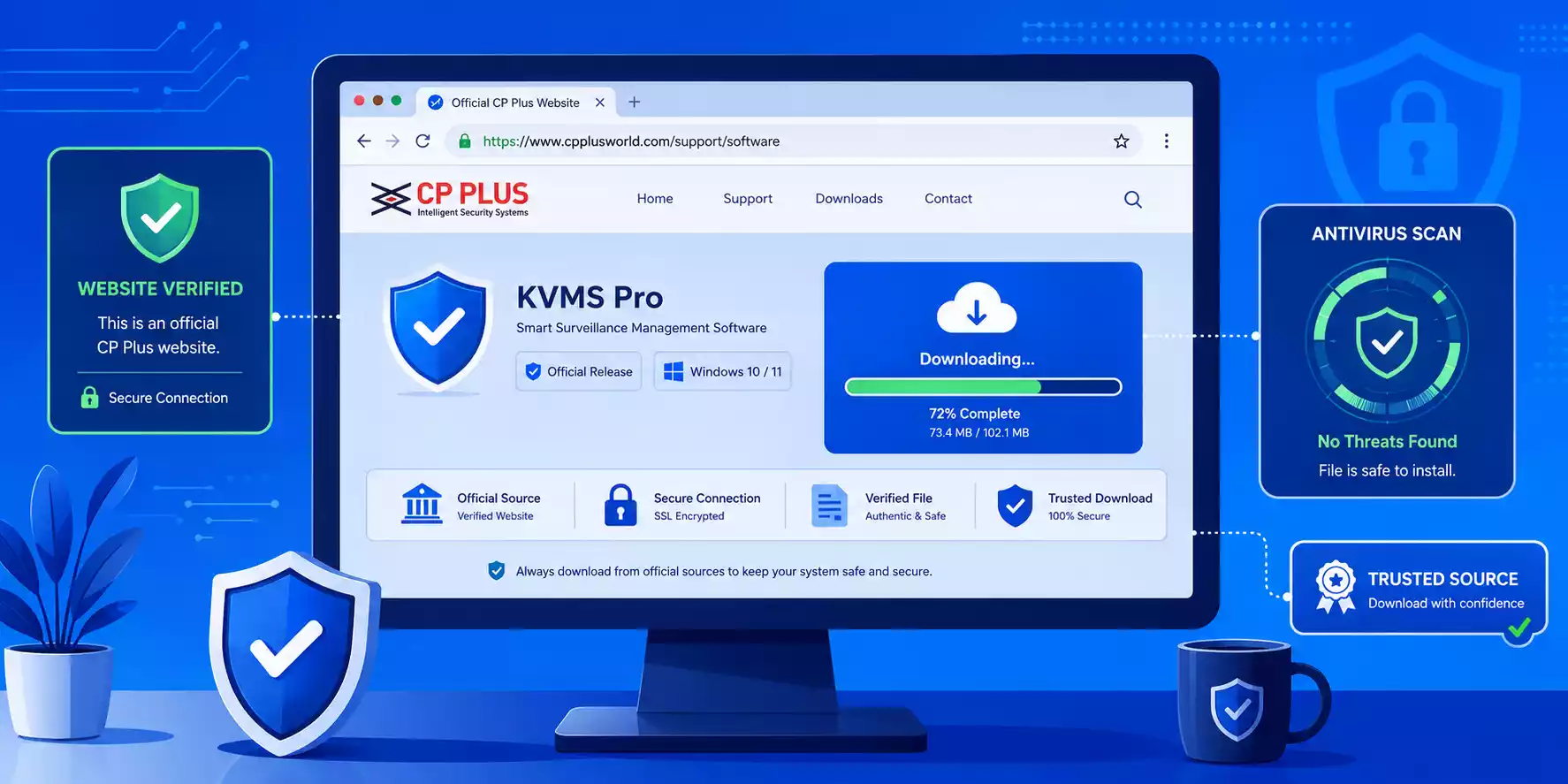
Downloading the software correctly is important for system security and performance.
Download for Windows
To perform a KVMS Pro download for Windows:
- Visit the official CP Plus software download portal.
- Locate the latest version of KVMS Pro.
- Select the Windows version.
- Download the installation package.
- Save the file in an easily accessible folder.
Always download from official sources to avoid modified or unsafe installation files.
Download for Mac
Mac users should:
- Visit the official software support page.
- Choose the macOS-compatible version.
- Download the installer package.
- Save the file to the Downloads folder.
Verify that the software version supports your macOS release before installation.
Verify the Installation File
Before running the installer:
- Confirm the file name matches the official release.
- Check the file size.
- Scan the installer with antivirus software.
- Ensure the download completed successfully.
A quick verification step can prevent installation issues and improve system security.
Official Download Links
For safe installation, always use the official sources:
- CP Plus Official Website
- CP Plus Support & Downloads Section
- Official KVMS Pro Software Repository
Avoid downloading KVMS Pro Lite software download packages from unknown websites, third-party forums, or file-sharing platforms, as these may contain outdated or modified files.
How Do You Install KVMS Pro on Windows 11 and Windows 10?
Once the download is complete, installation usually takes only a few minutes.
Download the Setup File
Begin by downloading the latest installer from the official source.
Save the setup file to a location where it can be easily found, such as the Desktop or Downloads folder.
If you downloaded a compressed ZIP file, extract it before continuing.
Run the Installer
Locate the setup file and double-click it.
Windows may display a security prompt asking whether you want to allow the application to make changes to your device.
Click “Yes” to proceed.
The installation wizard will then launch automatically.
Complete the Installation
Follow the on-screen instructions carefully.
Typically, the process includes:
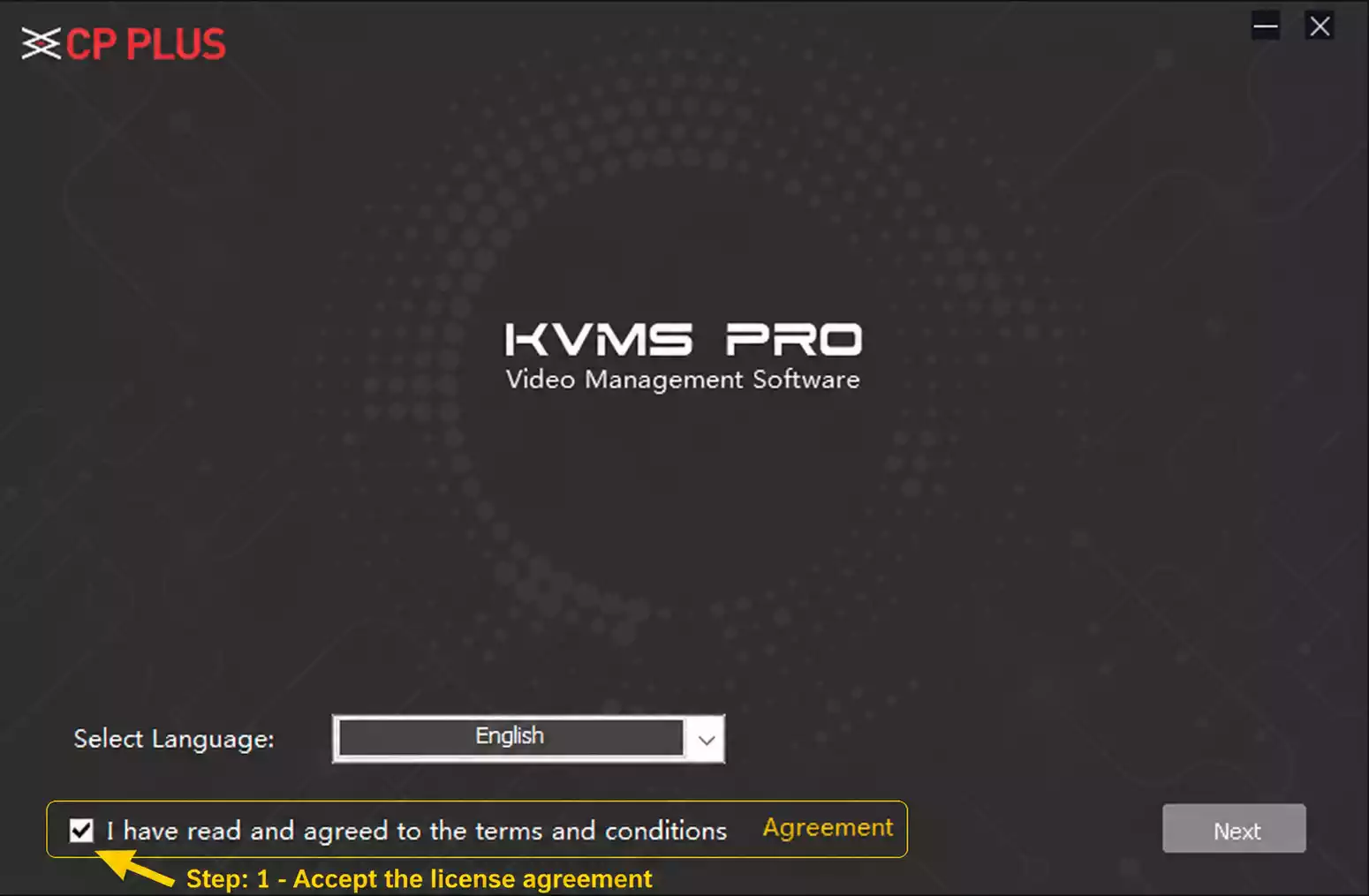
- Accepting the license agreement
- Choosing an installation directory
- Selecting optional components
- Confirming installation settings
Click the Install button and wait for the process to finish.
Depending on your computer’s performance, installation may take several minutes.
Avoid closing the installer during this stage.
Launch the Software
After installation completes:
- Click Finish.
- Open KVMS Pro from the desktop shortcut.
- Allow any necessary firewall permissions.
- Log in using default credentials if required.
- Create a new administrator password.
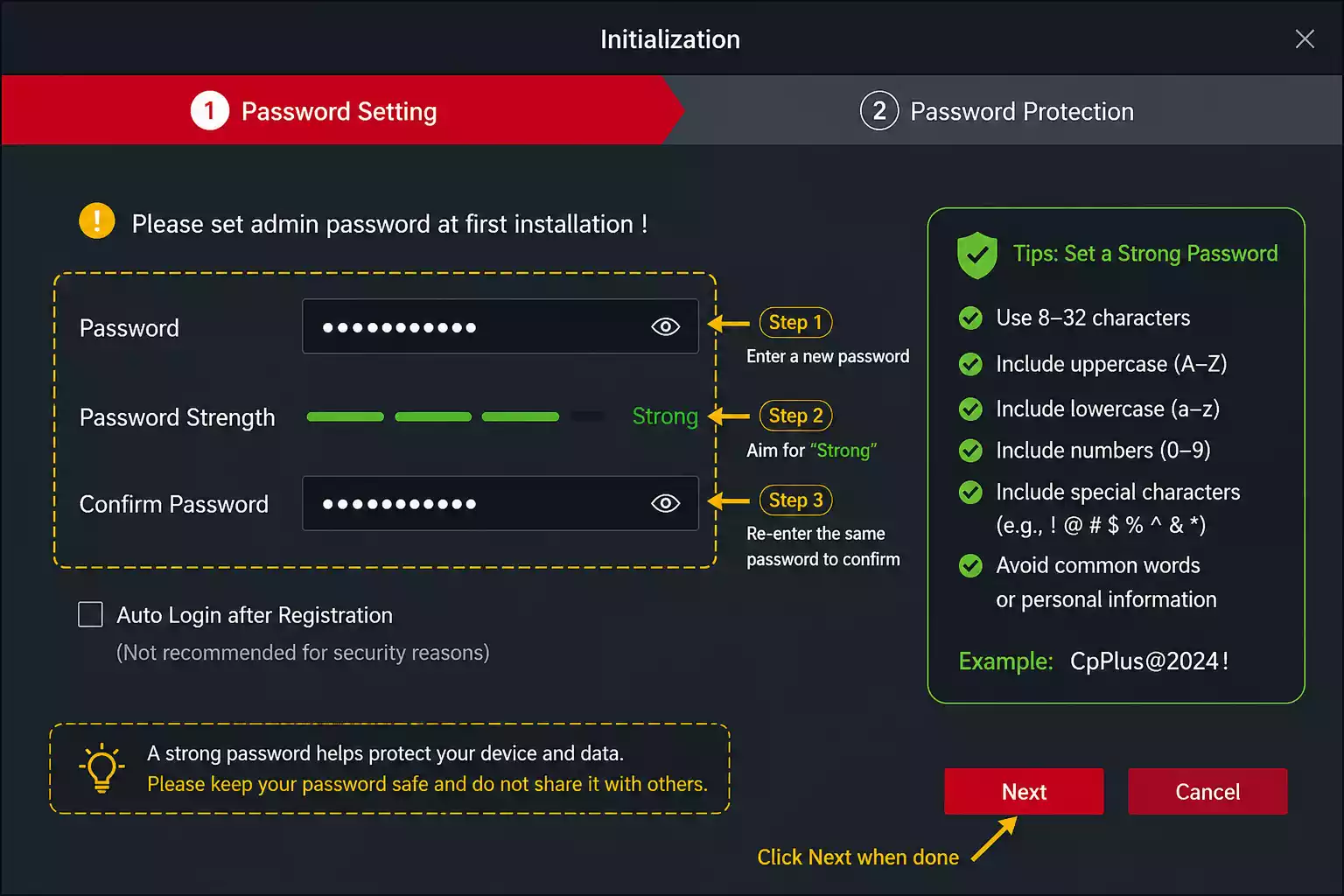
6. Set Security Questions.
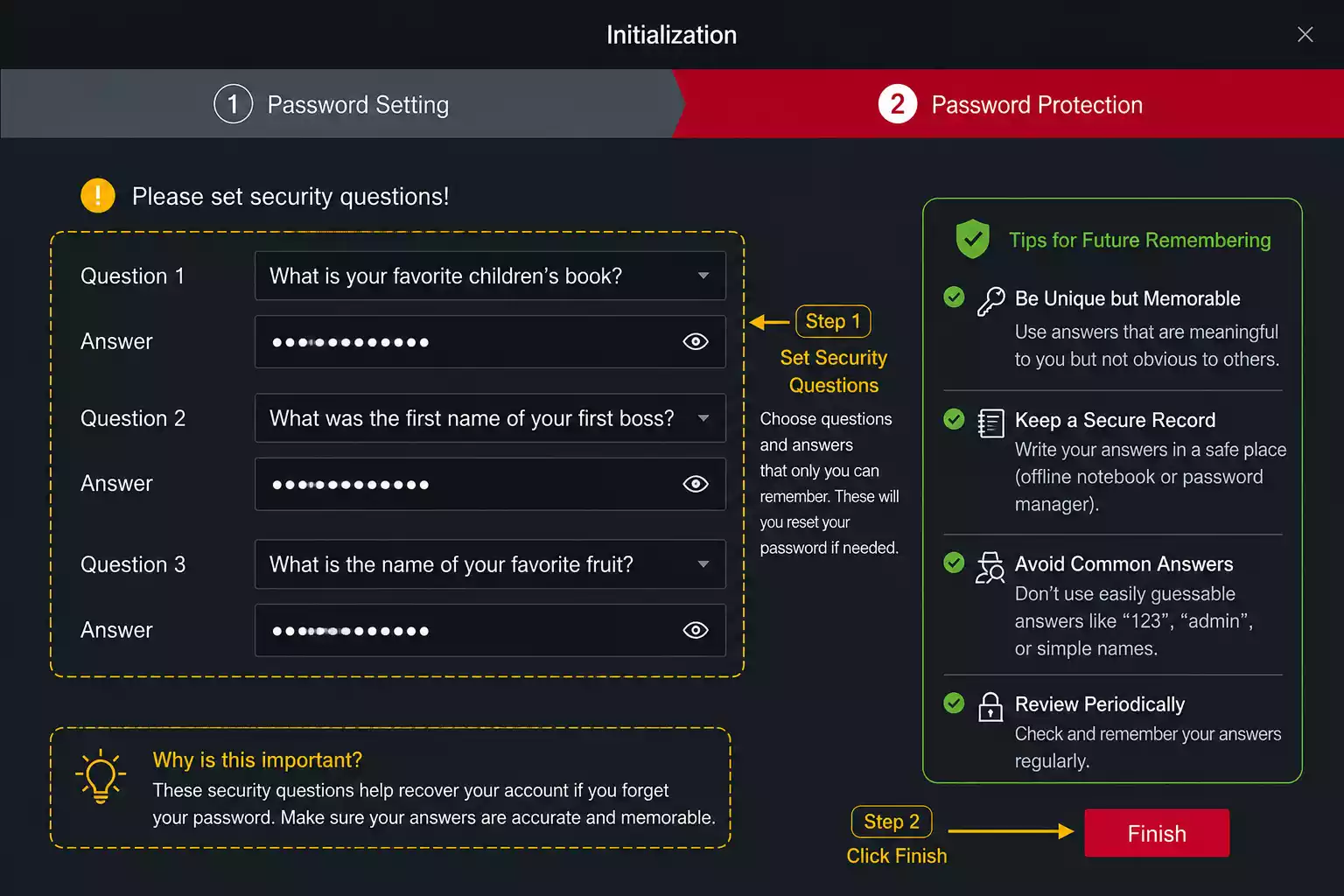
Once launched, the main dashboard will appear.
At this point, the software is installed successfully and ready for device configuration.
In the next section, you will learn how to add DVRs, NVRs, and CCTV cameras to KVMS Pro, configure network settings, and begin live monitoring.
If you’re using Dahua devices, check out Smart PSS Download for Windows.
How Do You Add DVR, NVR, and IP Cameras in KVMS Pro?
After installing the software, the next step is connecting your surveillance devices. KVMS Pro supports DVRs, NVRs, and IP cameras, allowing centralized management from a single dashboard.
Think of this process as adding contacts to your phone. Once the devices are saved, accessing them becomes quick and effortless.
Add Devices Automatically
Automatic device discovery is the fastest setup method.
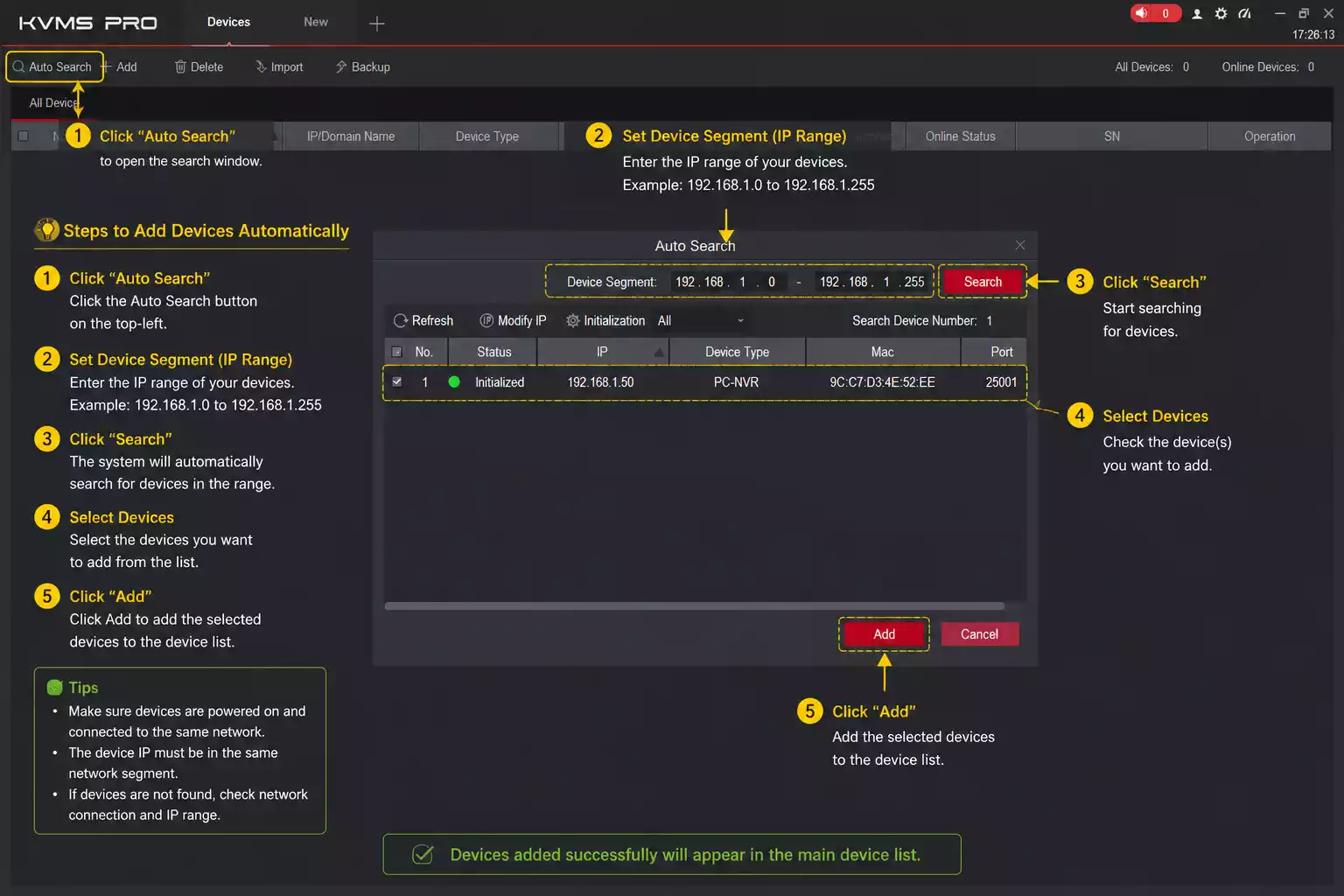
To add devices automatically:
- Open KVMS Pro.
- Navigate to Device Management.
- Click Search Device or Auto Discover.
- Wait for the software to scan the local network.
- Select the devices you want to add.
- Enter the required login credentials.
- Click Add.
This method works best when the computer and surveillance devices are connected to the same network.
Add Devices Manually
If automatic detection fails, manual configuration provides complete control.
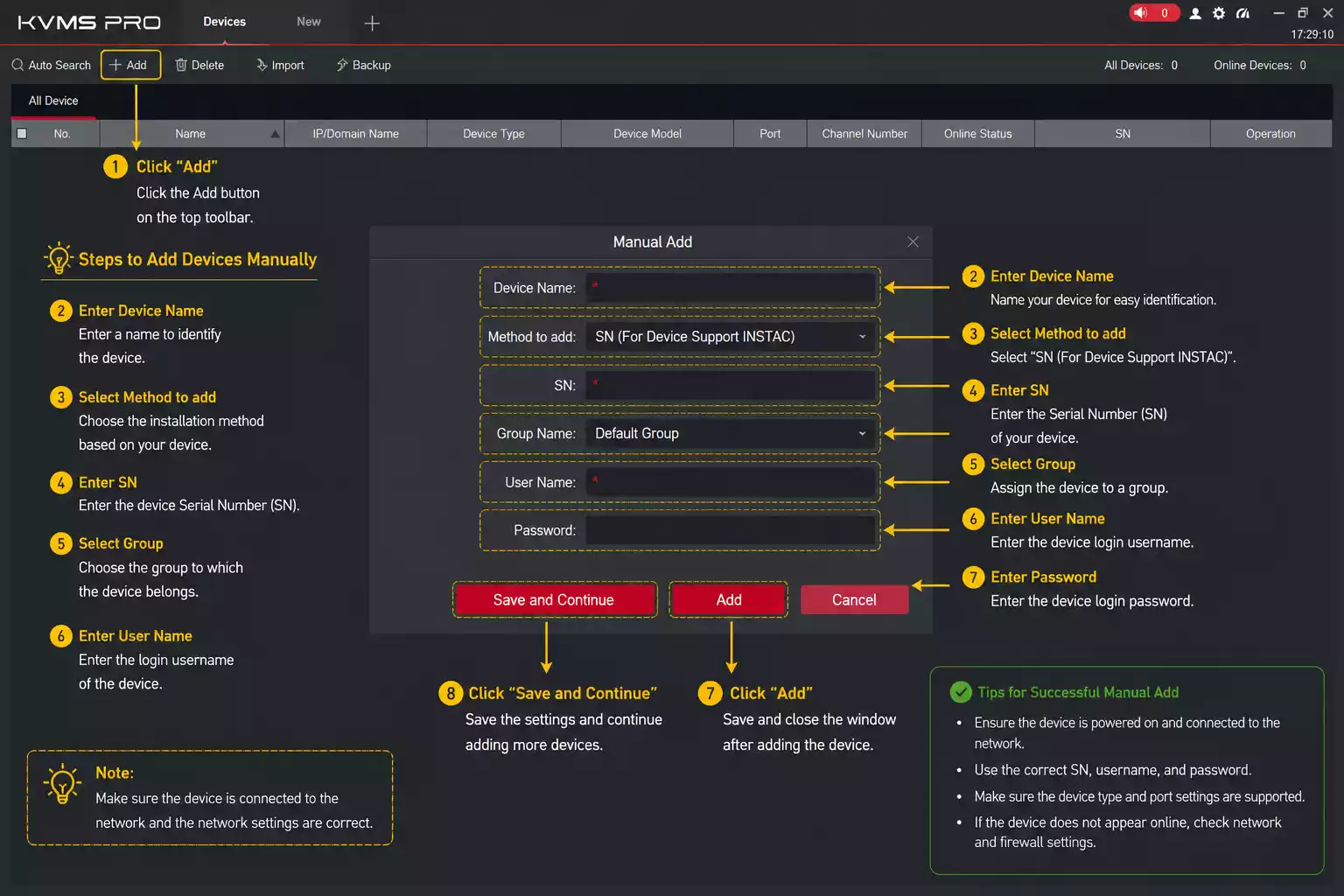
Steps:
- Open Device Management.
- Select Add Device.
- Enter the device name.
- Input the IP address.
- Enter the device port number.
- Add the username and password.
- Save the settings.
Manual setup is often preferred for larger surveillance systems because it allows precise device configuration.
Configure Network Settings
Proper network configuration ensures stable communication between KVMS Pro and surveillance devices.
Check the following:
- Device IP address
- Gateway address
- Subnet mask
- DNS settings
- Port forwarding configuration (for remote access)
A simple mistake in network settings can prevent cameras from appearing in the software.
Save and Test the Connection
After adding devices:
- Save the configuration.
- Refresh the device list.
- Open the preview window.
- Verify camera feeds appear correctly.
- Check online status indicators.
If all cameras display properly, the connection is successful and the system is ready for monitoring.
How Do You Use Live View in KVMS Pro?
Live viewing is one of the most frequently used features of KVMS Pro. It provides real-time visibility across connected cameras and surveillance devices.
Open the Live View Dashboard
Launch KVMS Pro and log in.
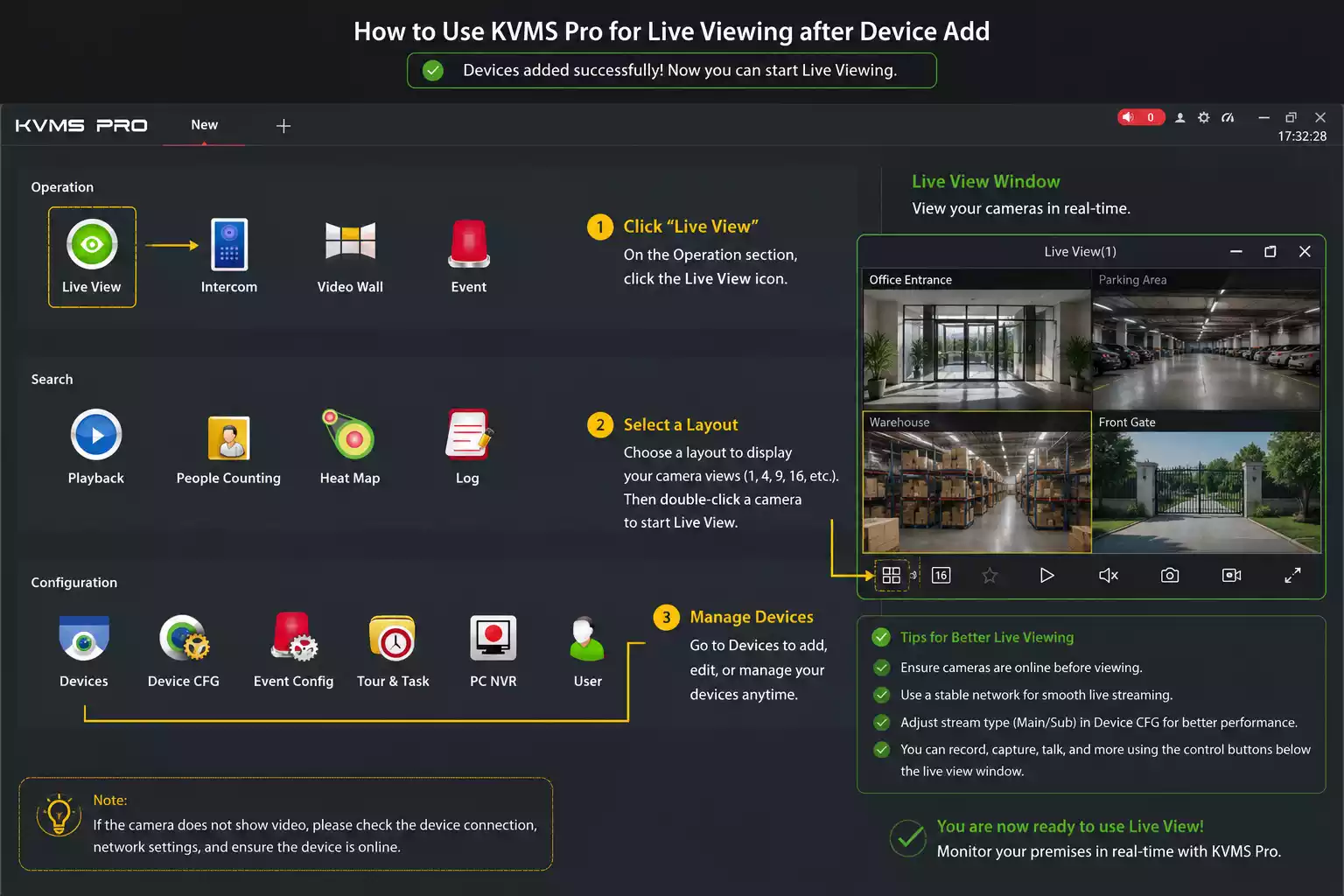
From the main interface:
- Select Live View.
- Expand the device tree.
- Locate your connected cameras.
The live monitoring dashboard will open and display available channels.
Select Cameras
Choose one or multiple cameras for monitoring.
You can:
- Double-click a camera name.
- Drag cameras into viewing windows.
- Open multiple channels simultaneously.
This flexibility makes it easy to focus on specific areas while maintaining visibility across the entire property.
Customize Screen Layouts
KVMS Pro offers different viewing layouts.
Common options include:
- 1-screen view
- 4-screen view
- 8-screen view
- 16-screen view
- Multi-monitor support
Users can arrange cameras based on priority and monitoring requirements.
For example, entry points can occupy larger windows while low-risk areas remain in smaller panels.
A customized layout improves efficiency and helps operators identify important events quickly.
How to Playback Recorded Footage in KVMS Pro?
Recorded footage is often the most valuable part of a surveillance system. KVMS Pro provides powerful playback tools for reviewing past events.
Search by Date and Time
Finding recordings is simple.
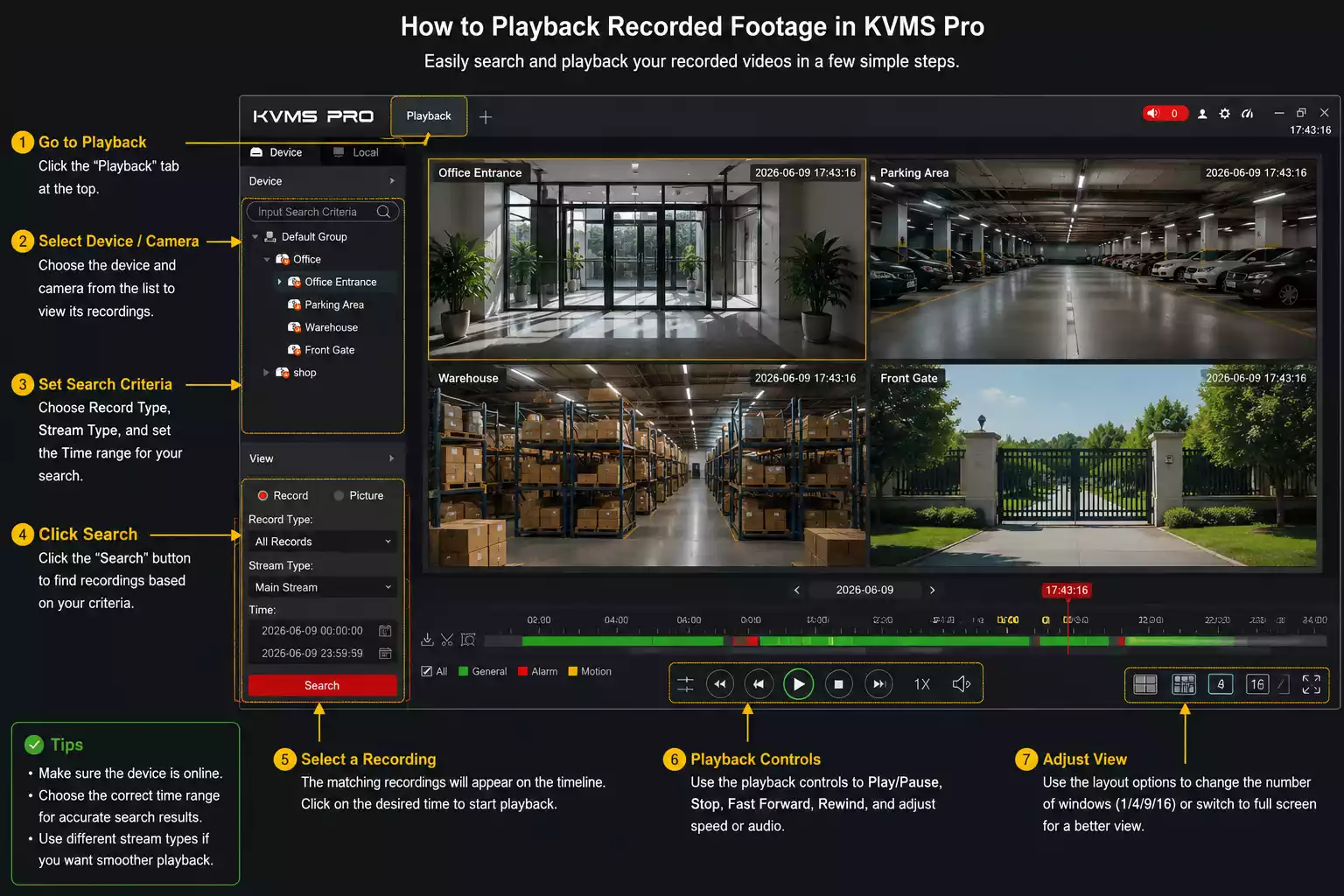
To search footage:
- Open the Playback section.
- Select the desired device.
- Choose a camera channel.
- Select the date.
- Enter the required time range.
- Start the search.
The software displays all available recordings matching your criteria.
Play Recorded Videos
After locating footage:
- Click the recording.
- Press Play.
- Use playback controls.
Available controls include:
- Pause
- Fast forward
- Slow motion
- Frame-by-frame review
- Timeline navigation
These features help users analyze incidents accurately.
Export Video Clips
Important recordings should be saved for future reference.
To export video clips:
- Select the desired recording segment.
- Define start and end times.
- Click Export.
- Choose a destination folder.
- Save the file.
Exported footage can be shared with investigators, insurance providers, or law enforcement when necessary.
How Do You Download Video from KVMS Pro?
This is one of the most common questions I receive.
Steps
- Open Playback.
- Search for the recording.
- Play the desired footage.
- Click Download or Backup.
- Select:
- Start Time
- End Time
- Choose the destination folder.
- Click Export.
The exported video can then be shared with law enforcement, insurance companies, or used as evidence.
Supported Export Formats
Depending on your DVR model:
- MP4
- AVI
- DAV
- Native Backup Format
If the exported video doesn’t play in your media player, try using the official player provided by CP Plus.
What Is KVMS Pro Lite?
Many users search for KVMS Pro Lite Download, but they aren’t sure how it differs from the standard version.
KVMS Pro Lite is a simplified edition designed for users with fewer cameras and basic monitoring needs.
If you only need to monitor a small home or office setup, Lite may be sufficient.
For larger installations or advanced features, the full version is the better choice.
KVMS Pro vs KVMS Pro Lite
| Feature | KVMS Pro | KVMS Pro Lite |
|---|---|---|
| Live View | ✅ | ✅ |
| Playback | ✅ | ✅ |
| PTZ Control | ✅ | Limited |
| Device Management | Advanced | Basic |
| User Management | Advanced | Basic |
| Alarm Management | Yes | Limited |
| Multi-Site Monitoring | Yes | Limited |
| Enterprise Features | Yes | No |
Should You Download KVMS Pro Lite?
I generally recommend KVMS Pro Lite only if:
- You have fewer than 8 cameras.
- You don’t need advanced management tools.
- You only monitor one location.
- Your PC has lower hardware specifications.
For businesses, warehouses, apartments, schools, or installations with multiple DVRs, the full version of KVMS Pro is the better long-term choice.
Best Practices After Installation
After successfully installing KVMS Pro, I recommend these simple steps to improve performance and security:
- Change the default DVR password immediately.
- Keep your DVR firmware updated.
- Use a strong administrator password for KVMS Pro.
- Enable automatic time synchronization.
- Organize cameras into groups for easier management.
- Back up important recordings regularly.
- Avoid using public Wi-Fi when accessing cameras remotely.
- Enable HTTPS or encrypted communication if your DVR supports it.
Following these practices can help prevent unauthorized access and reduce common connectivity issues.
KVMS Pro Mobile App Overview
Modern surveillance requires flexibility. The KVMS Pro mobile application extends monitoring capabilities beyond the desktop.
Supported Mobile Platforms
The mobile app is available for:
- Android smartphones
- Android tablets
- iPhone
- iPad
This allows convenient monitoring while traveling or away from the primary workstation.
Main Features
The mobile version offers many desktop functions.
Key features include:
- Live camera viewing
- Video playback
- Push notifications
- Motion alerts
- Device management
- Snapshot capture
- PTZ camera controls
The app effectively places a surveillance control room inside your pocket.
Syncing with PC Software
Synchronization is straightforward.
Users can:
- Add the same DVR or NVR credentials.
- Scan device QR codes.
- Log in through cloud services.
- Import saved device configurations.
Once connected, the mobile app and desktop software work together seamlessly.
This creates a unified monitoring experience across devices.
What Are the Most Common KVMS Pro Problems and How Can You Fix Them?
Even though KVMS Pro is generally stable, I frequently see users encounter the same issues during installation or daily use. In most cases, these problems can be resolved within a few minutes without reinstalling the software.
Below are the issues I come across most often and the solutions I personally recommend.
Why Is My Camera Showing Offline in KVMS Pro?
If your camera or DVR shows Offline, it usually means the software cannot communicate with the recorder.
Possible Causes
- Incorrect IP address
- Wrong username or password
- DVR is powered off
- Network cable disconnected
- Internet connection unavailable
- P2P service disabled
- Firewall blocking the software
How to Fix It
- Verify that the DVR is powered on.
- Check that the Ethernet cable is securely connected.
- Confirm the IP address or serial number is correct.
- Test the DVR by logging in through a web browser.
- Restart both the DVR and your router.
- Ensure P2P status shows Online in the DVR settings.
- Allow KVMS Pro through Windows Firewall.
My Tip: Around 80% of offline issues I’ve solved were caused by an incorrect IP address or a forgotten password after a router replacement.
Why Is Live View Showing a Black Screen?
Sometimes the device appears online, but no video is displayed.
Possible Reasons
- Unsupported graphics driver
- Camera stream not enabled
- Decoder issue
- Firewall restriction
- Old software version
- Damaged camera stream
Solutions
- Update your graphics driver.
- Switch between the Main Stream and Sub Stream.
- Restart KVMS Pro.
- Update your DVR firmware.
- Update KVMS Pro to the latest version.
- Lower the video resolution if your PC struggles with decoding.
If you’re monitoring many high-resolution cameras, enabling the Sub Stream often provides a much smoother experience.
Why Can’t I Log In to KVMS Pro?
Login failures are another common issue.
Check These First
- Username
- Password
- Uppercase and lowercase letters
- Keyboard language
- Caps Lock
If you’ve forgotten the administrator password created during installation, you may need to reset the software configuration or reinstall KVMS Pro.
For DVR login failures, verify the recorder credentials rather than the software password.
Why Is Playback Not Working?
Playback problems are usually related to recording settings rather than the software itself.
Check the Following
✔ Is recording enabled?
✔ Is the HDD initialized?
✔ Is the correct date selected?
✔ Is the correct camera selected?
✔ Is the DVR storage full?
I also recommend checking the DVR directly. If playback doesn’t work there either, the issue is likely with the recorder rather than KVMS Pro.
Why Is Remote Viewing Not Working?
Remote viewing depends on internet connectivity.
Verify These Settings
- Internet connection is active.
- P2P status is Online.
- Router is functioning correctly.
- Serial number entered correctly.
- Device password is correct.
If using port forwarding, also verify:
- Public IP
- Port configuration
- Firewall rules
- DDNS settings
Why Is Video Playback Lagging?
Playback lag doesn’t always indicate a software problem.
It may occur because of:
- Slow hard drive
- Weak processor
- Insufficient RAM
- High-resolution cameras
- Network congestion
How I Improve Playback Performance
- Install KVMS Pro on an SSD.
- Increase RAM to at least 8 GB.
- Use the Sub Stream for live monitoring.
- Close unnecessary background applications.
- Update graphics drivers.
Why Can’t KVMS Pro Detect My DVR?
If automatic device search doesn’t find your recorder:
Check
- Computer and DVR are on the same network.
- Firewall isn’t blocking discovery.
- DHCP is enabled.
- IP address conflicts don’t exist.
You can also manually enter the DVR’s IP address if automatic detection fails.
Does KVMS Pro Work on Windows 11?
Yes.
I’ve tested KVMS Pro on Windows 11, and it works without major issues.
However, if you’re upgrading from Windows 10, I recommend:
- Installing the latest software version.
- Running the installer as Administrator.
- Updating Microsoft Visual C++ Runtime if prompted.
- Keeping Windows fully updated.
Windows Compatibility
| Operating System | Supported |
|---|---|
| Windows 11 | ✅ Yes |
| Windows 10 | ✅ Yes |
| Windows 8.1 | ✅ Yes |
| Windows 8 | ✅ Yes |
| Windows 7 | ✅ Yes (Older versions may be required) |
Can You Install KVMS Pro on macOS?
This is one of the most searched questions.
The answer depends on the version available from CP Plus.
Some releases are Windows-only, while certain versions include macOS support.
Before downloading, always check the official CP Plus download page for the latest supported operating systems.
If a Mac version isn’t available, you can consider:
- Virtual Machine
- Windows Boot Camp (Intel Macs)
- Alternative compatible VMS software
Does KVMS Pro Support Third-Party Cameras?
Yes—but with limitations.
Although KVMS Pro is designed for CP Plus products, many ONVIF-compatible cameras can also be added.
Compatibility depends on:
- Camera firmware
- ONVIF version
- Authentication method
- Codec support
I always recommend using CP Plus devices for the most reliable experience.
How Can You Improve KVMS Pro Performance?
After configuring many surveillance systems, I’ve found these tweaks make a noticeable difference.
Enable Sub Stream
Sub Stream reduces bandwidth usage while keeping live monitoring smooth.
Use an SSD
Installing both Windows and KVMS Pro on an SSD significantly improves startup and playback speed.
Upgrade RAM
For:
- 16 Cameras → 8 GB RAM minimum
- 32 Cameras → 16 GB recommended
- 64 Cameras → 32 GB preferred
Keep Drivers Updated
Update:
- Graphics Driver
- Network Driver
- Windows Updates
These updates often resolve decoding and connection issues.
Organize Cameras into Groups
Instead of displaying every camera on one screen, create groups such as:
- Office
- Warehouse
- Parking
- Reception
- Factory
This makes navigation much easier.
My Honest Experience After Using KVMS Pro
I’ve used KVMS Pro across several CCTV installations, including homes, retail shops, offices, and warehouses. Overall, it has proven to be a dependable desktop client for managing CP Plus surveillance systems.
What I Like Most
- Free to download and use
- Easy device management
- Stable live view
- Smooth playback
- Supports multiple DVRs and NVRs
- Simple interface suitable for beginners
- Reliable remote viewing with P2P
- Good PTZ support
Areas That Could Be Improved
- User interface feels slightly outdated compared to newer VMS software.
- Initial setup may confuse first-time users.
- Playback search could be faster for very large recording databases.
- Some advanced features depend on the DVR firmware rather than the software itself.
Pros and Cons of KVMS Pro Software
| Pros | Cons |
|---|---|
| Free software | Older interface |
| Supports multiple devices | Some features require compatible firmware |
| Remote viewing | Learning curve for beginners |
| Easy playback | Windows-focused experience |
| PTZ support | Limited advanced analytics |
| Stable performance | Enterprise features are basic |
My Rating
| Category | Rating |
|---|---|
| Installation | ⭐⭐⭐⭐⭐ |
| Ease of Setup | ⭐⭐⭐⭐☆ |
| Interface | ⭐⭐⭐⭐☆ |
| Live View Performance | ⭐⭐⭐⭐⭐ |
| Playback | ⭐⭐⭐⭐⭐ |
| Remote Viewing | ⭐⭐⭐⭐⭐ |
| Stability | ⭐⭐⭐⭐⭐ |
| Overall Value | ⭐⭐⭐⭐⭐ |
Overall Score: 4.8/5
If you’re using CP Plus CCTV equipment, I believe KVMS Pro remains one of the best free desktop clients available. It provides all the essential features needed for everyday surveillance without requiring a paid subscription.
KVMS Pro Security and Privacy Tips
A surveillance system is only as secure as the practices used to manage it. Following a few simple precautions can significantly improve protection against unauthorized access.
Use Strong Passwords
Weak passwords are one of the biggest security risks.
Create passwords that:
- Contain uppercase and lowercase letters
- Include numbers and symbols
- Avoid common words and personal information
- Are unique for each device
Changing default credentials immediately after installation is highly recommended.
Enable Software Updates
Software updates often contain:
- Security patches
- Performance improvements
- Bug fixes
- New features
Regular updates help protect your surveillance system from newly discovered vulnerabilities.
Restrict User Access
Not every user needs full administrative control.
Use role-based permissions to:
- Limit configuration access
- Restrict playback rights
- Control device management privileges
- Prevent accidental changes
This approach improves accountability and overall system security.
Secure Remote Connections
Remote viewing is convenient, but it must be protected properly.
Best practices include:
- Using secure passwords
- Enabling encrypted connections
- Limiting public network exposure
- Using VPN access where possible
A secure remote connection acts like a guarded entrance rather than an open door to your surveillance network.
KVMS Pro vs Other CCTV Monitoring Software
Many surveillance platforms are available today, but KVMS Pro remains a popular choice due to its balance of functionality and ease of use.
Ease of Use
KVMS Pro offers a user-friendly interface that simplifies common surveillance tasks.
Compared to some enterprise-level video management systems, the software requires less training and setup time.
Most functions are accessible through clearly organized menus, making navigation straightforward.
Features Comparison
| Feature | KVMS Pro | Basic CCTV Software | Enterprise VMS |
|---|---|---|---|
| Live View | Yes | Yes | Yes |
| Playback | Yes | Limited | Yes |
| Remote Access | Yes | Sometimes | Yes |
| Motion Alerts | Yes | Basic | Advanced |
| Device Management | Yes | Limited | Advanced |
| Multi-Screen Layouts | Yes | Basic | Extensive |
| Mobile Integration | Yes | Limited | Yes |
KVMS Pro sits comfortably between basic software and expensive enterprise solutions.
It provides many advanced functions without excessive complexity.
Best Use Cases
KVMS Pro works particularly well for:
- Residential surveillance systems
- Retail stores
- Offices
- Warehouses
- Educational facilities
- Multi-site monitoring environments
Its flexibility makes it suitable for both small and expanding surveillance installations.
Best Practices for Using KVMS Pro
Following a few maintenance habits helps maximize system performance and reliability.
Regular Software Updates
Keep KVMS Pro updated to ensure access to:
- New features
- Improved stability
- Enhanced security
Ignoring updates can eventually lead to compatibility and security issues.
Backup Important Recordings
Critical footage should always have a backup.
Consider:
- External hard drives
- Network-attached storage (NAS)
- Cloud backup solutions
Multiple copies reduce the risk of losing valuable evidence.
Monitor Storage Usage
Recording storage fills up faster than many users expect.
Regularly check:
- Remaining disk space
- Recording retention settings
- Archive schedules
Proper storage management prevents unexpected recording interruptions.
Test Camera Connections Regularly
Routine testing helps identify issues before they become serious.
Verify:
- Camera connectivity
- Recording status
- Motion detection alerts
- Remote viewing functionality
A few minutes of preventive maintenance can save hours of troubleshooting later.
Conclusion
If you’re looking for reliable desktop software to manage your CP Plus surveillance system, KVMS Pro is one of the best free options available. It offers live monitoring, playback, remote viewing, PTZ control, and multi-device management without requiring a paid license.
After using it across different CCTV installations, I find it well-suited for homes, offices, retail stores, schools, and small to medium-sized businesses. While the interface could be more modern, its stability and feature set make it a dependable choice.
If you’re using compatible CP Plus hardware, I recommend downloading the latest version, following the installation steps in this guide, and enabling P2P for the easiest remote viewing experience.
Need another remote monitoring solution? See our DMSS for PC guide.
Frequently Asked Questions
Is KVMS Pro free to download?
Yes, KVMS Pro is completely free to download and use.
I have installed KVMS Pro on several Windows PCs without paying any license fee. CP Plus provides it as free desktop software for managing compatible DVRs, NVRs, and IP cameras. Just make sure you download it from an official or trusted source to avoid outdated or modified installers.
Can I use KVMS Pro on Windows 11?
Yes, KVMS Pro works on Windows 11.
I have personally tested it on Windows 11, and it runs smoothly for live view, playback, and remote monitoring. If you encounter installation issues, run the installer as Administrator and ensure Windows is fully updated.
Does KVMS Pro support remote viewing?
Yes, KVMS Pro supports remote viewing through P2P or IP/DDNS.
I usually recommend the P2P method because it’s much easier to configure than port forwarding. Once your DVR is connected to the internet and P2P is enabled, you can access your cameras from almost anywhere.
How many cameras can I add to KVMS Pro?
KVMS Pro supports multiple cameras, but the exact number depends on your hardware and DVR capabilities.
For a small home setup with 4–8 cameras, almost any modern PC will work well. If you’re monitoring 32 or more cameras, I recommend using a faster processor, additional RAM, and an SSD for smoother performance.
Can I use KVMS Pro on a Mac?
Yes, but only if a macOS version is available from CP Plus.
Some releases are Windows-only, so always check the official download page for the latest supported operating systems. If a Mac version isn’t available, you can use a virtual machine or Boot Camp on Intel-based Macs.
Why is my camera not showing in KVMS Pro?
This usually happens because of incorrect network settings or login details.
The first things I check are:
IP address
Username and password
Network cable
P2P status
Firewall settings
In my experience, incorrect IP addresses and changed DVR passwords are the two most common causes.
How do I update KVMS Pro to the latest version?
Download the latest installer and install it over the existing version.
I recommend backing up your device configuration before updating. Most updates retain your settings, but having a backup is always a good practice.
How to download KVMS Pro Lite?
Download KVMS Pro Lite from the official CP Plus website or through my step-by-step guide on CCTV Software Hub.
My guide includes the latest download link, installation instructions, and troubleshooting tips to help you get started quickly.
How to download video from KVMS Pro?
Open the Playback section, select the recording, and use the Export or Backup option.
Choose the start and end time, select a destination folder, and export the footage. Depending on your recorder model, the file may be saved in MP4, AVI, DAV, or another supported format.
Can I use KVMS Pro without the internet?
Yes. If your PC and DVR are connected to the same local network (LAN), you can monitor cameras without an internet connection.
Does KVMS Pro support PTZ cameras?
Yes. You can control compatible PTZ cameras directly from the Live View screen.
Why is KVMS Pro running slowly?
This is often caused by limited system resources, outdated graphics drivers, or trying to display too many high-resolution cameras simultaneously. Switching to the Sub Stream and upgrading to an SSD can improve performance significantly.